
Themes
The theme of your website defines its overall look and feel, making it a key factor in creating the first impression for your visitors.
Themes in Bagisto include options like slider sections, product sections, category sections, footer links, service content, static content blocks, sidebars, logo resizer, button settings, blog settings, site preloader, related product options, icon customization, full-width templates, color options, widgets, sidebar layouts, and headers.
The theme_customizations table supports customizations for multiple themes and channels, allowing you to define unique settings for each theme-channel combination. You can also filter attributes for more control over theme customization.
In this Bagisto setup, the available shop theme is Default. While creating a theme customization, the available customization types are:
- Product Carousel
- Category Carousel
- Static Content
- Image Carousel
- Footer Links
- Services Content
Create Themes
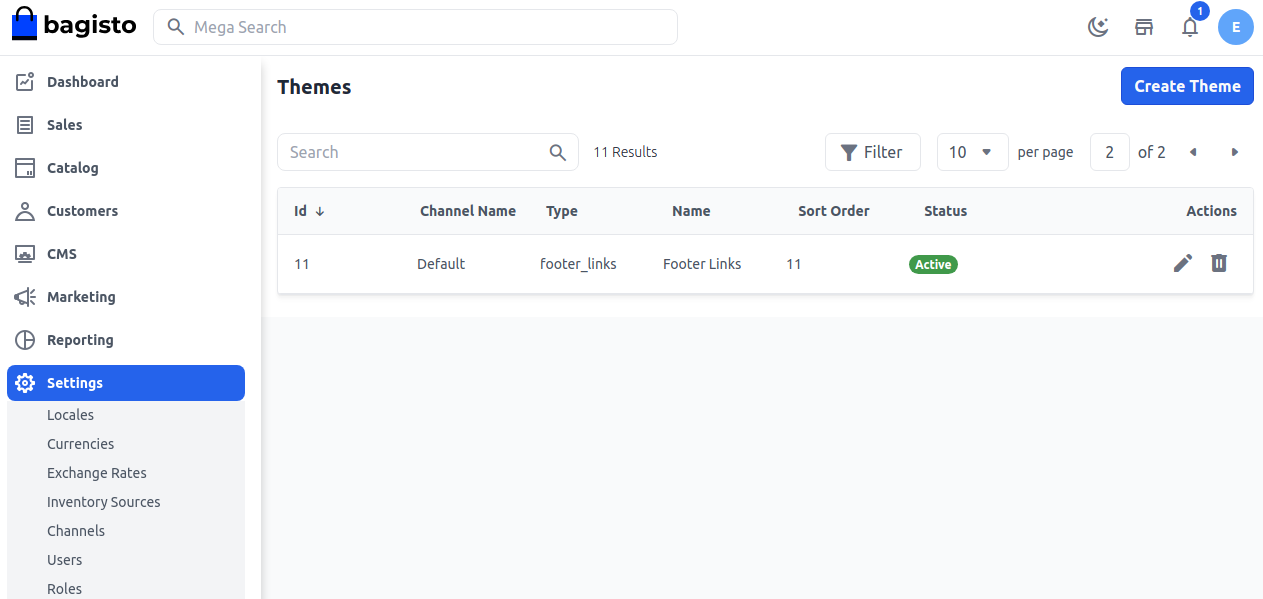
Step 1: In the admin panel, go to Settings >> Themes. Click on Create Theme.
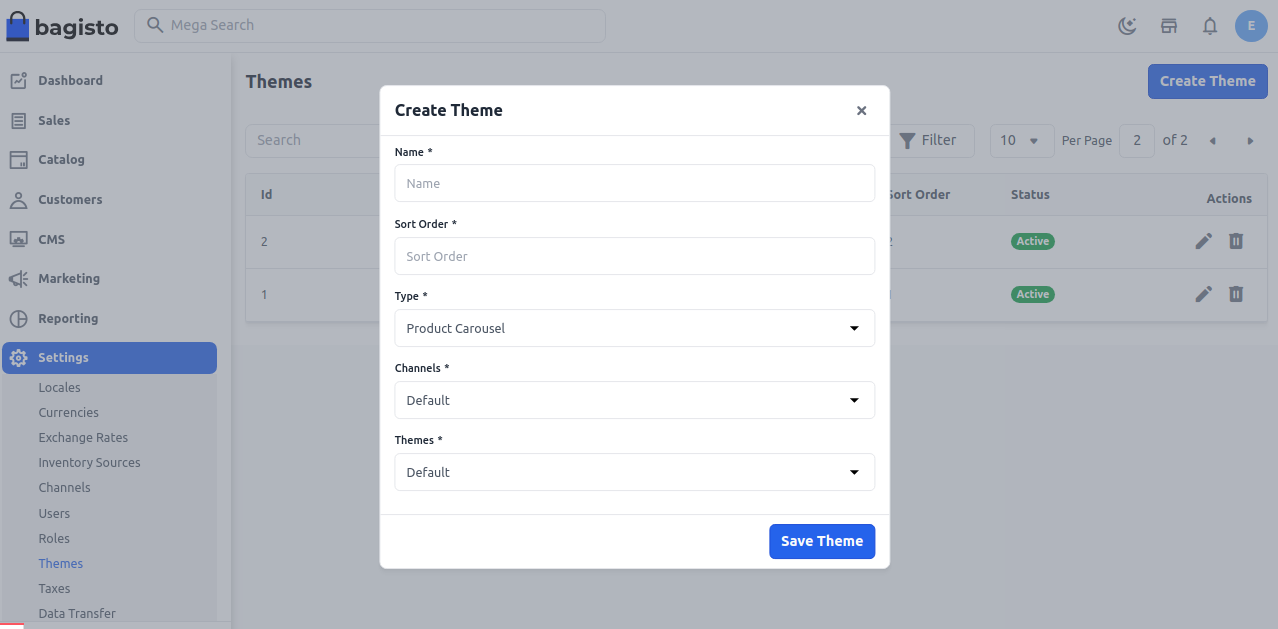
Step 2: Fill in the required details:
1. Name: Enter the theme customization name.
2. Sort Order: Define the sort order.
3. Type: Select the customization type from the dropdown.
4. Channels: Select the channel.
5. Themes: Select the theme, such as Default.
Click Save Theme to proceed.
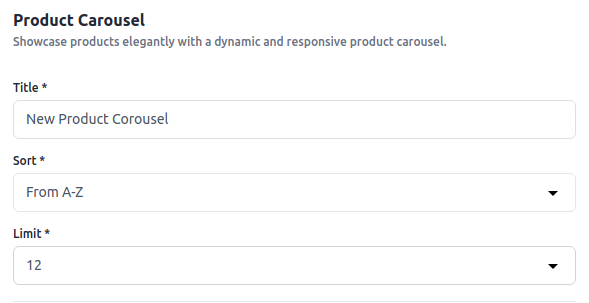
Product Carousel
Use Product Carousel to showcase products in a responsive carousel.
Configure the following options:
1. Title: Enter the carousel title.
2. Sort: Select the product sorting order.
3. Limit: Set the number of products to display.
4. Filters: Add filters such as New, Featured, or Category ID to control which products appear.
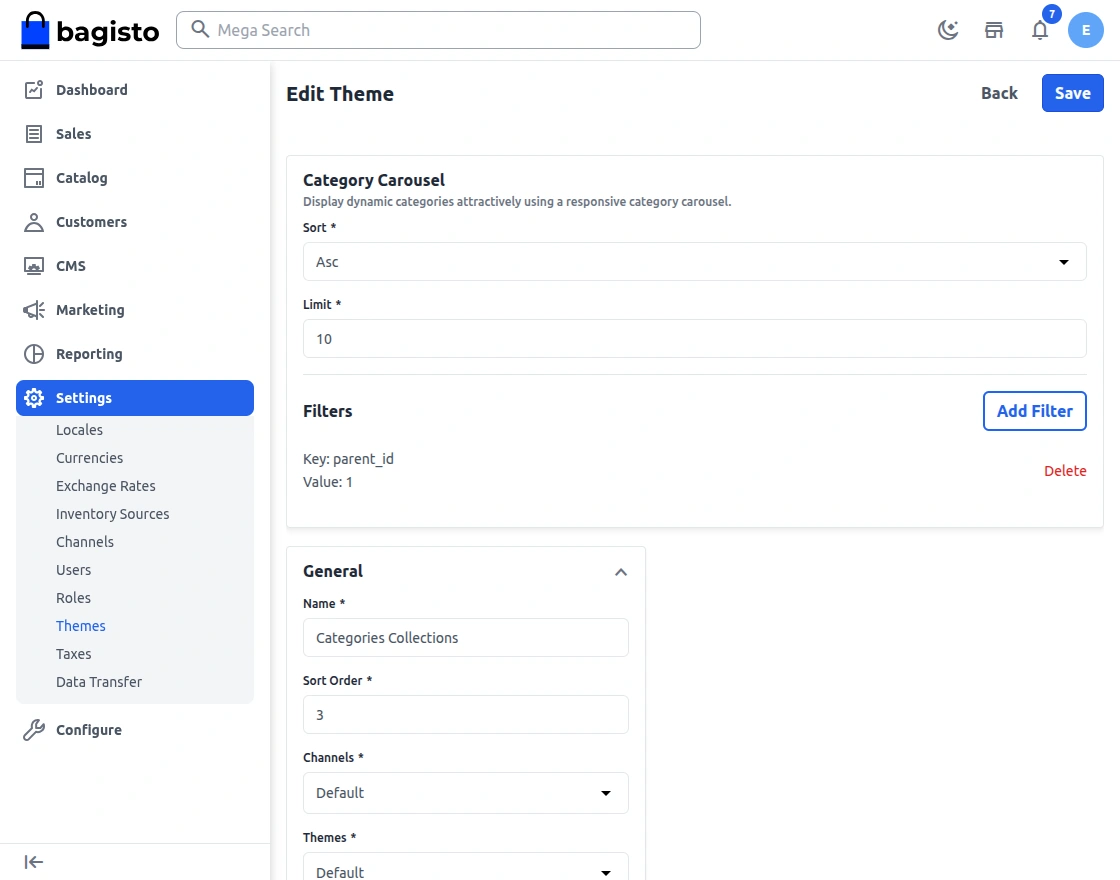
Category Carousel
Use Category Carousel to display categories in a responsive carousel.
Configure the following options:
1. Sort: Select Asc or Desc sorting.
2. Limit: Set the number of categories to display.
3. Filters: Add filters such as Parent ID, Name, or Status to control which categories appear.
Static Content
Use Static Content to add custom HTML and CSS blocks to the storefront.
Configure the following options:
1. Image: Upload an image if the content block requires one.
2. HTML: Add the static HTML content.
3. CSS: Add custom CSS for the content block.
4. Preview: Preview the static content before saving.
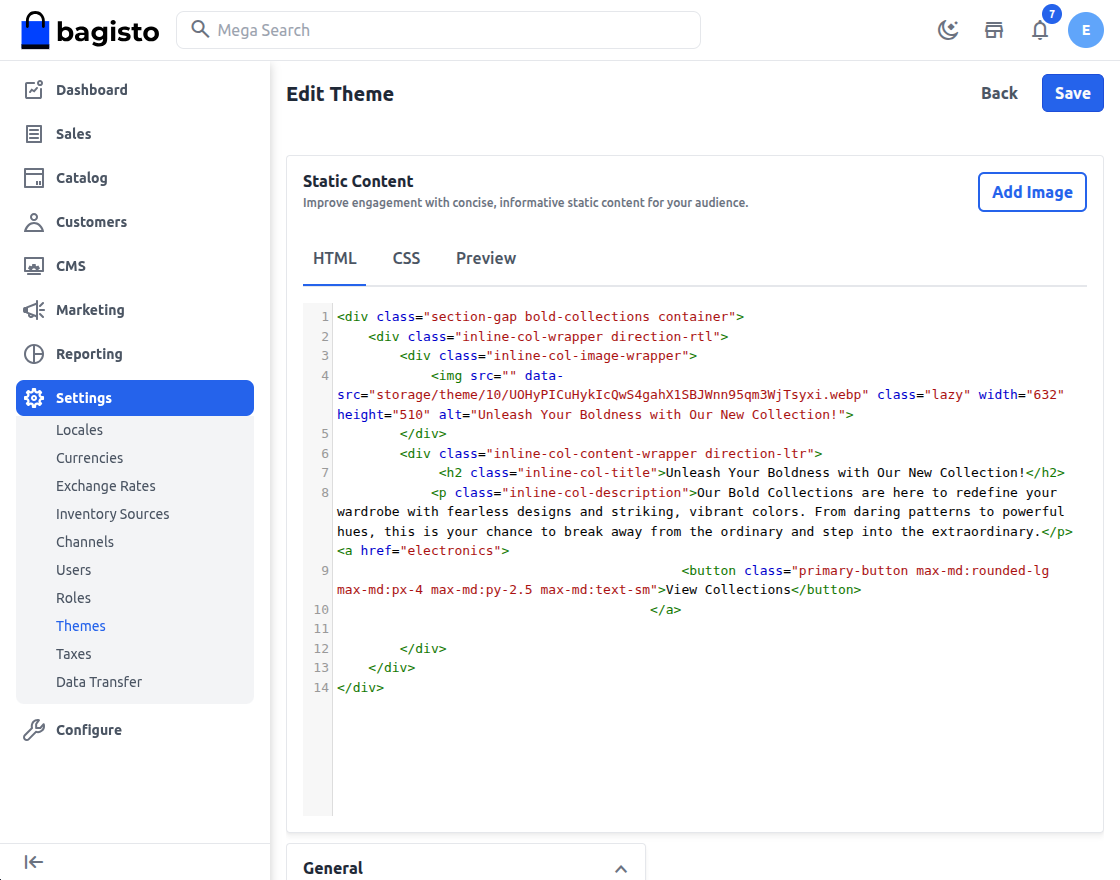
Image Carousel
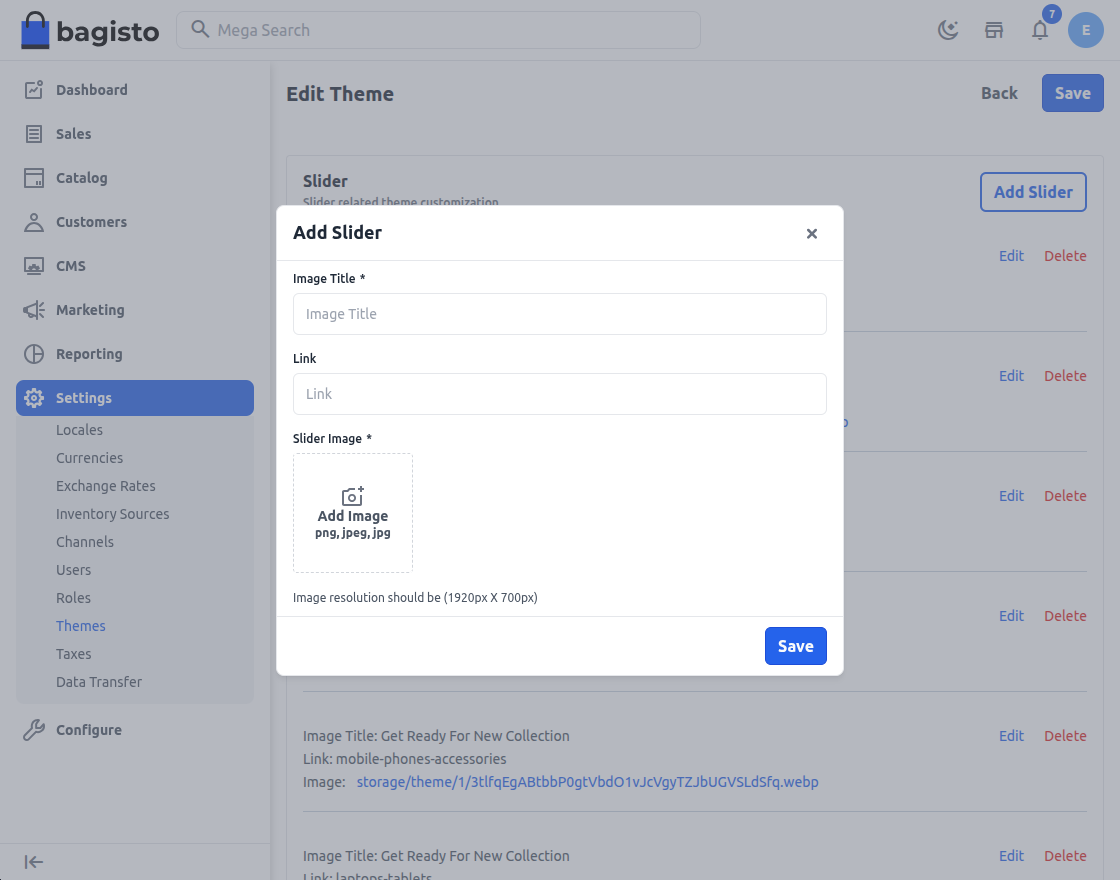
Use Image Carousel to create slider/banner sections.
Configure each slider with the following options:
1. Image Title: Enter the slider title.
2. Link: Add the target URL for the slider.
3. Slider Image: Upload the slider image. The recommended resolution is 1920px X 700px.
Footer Links
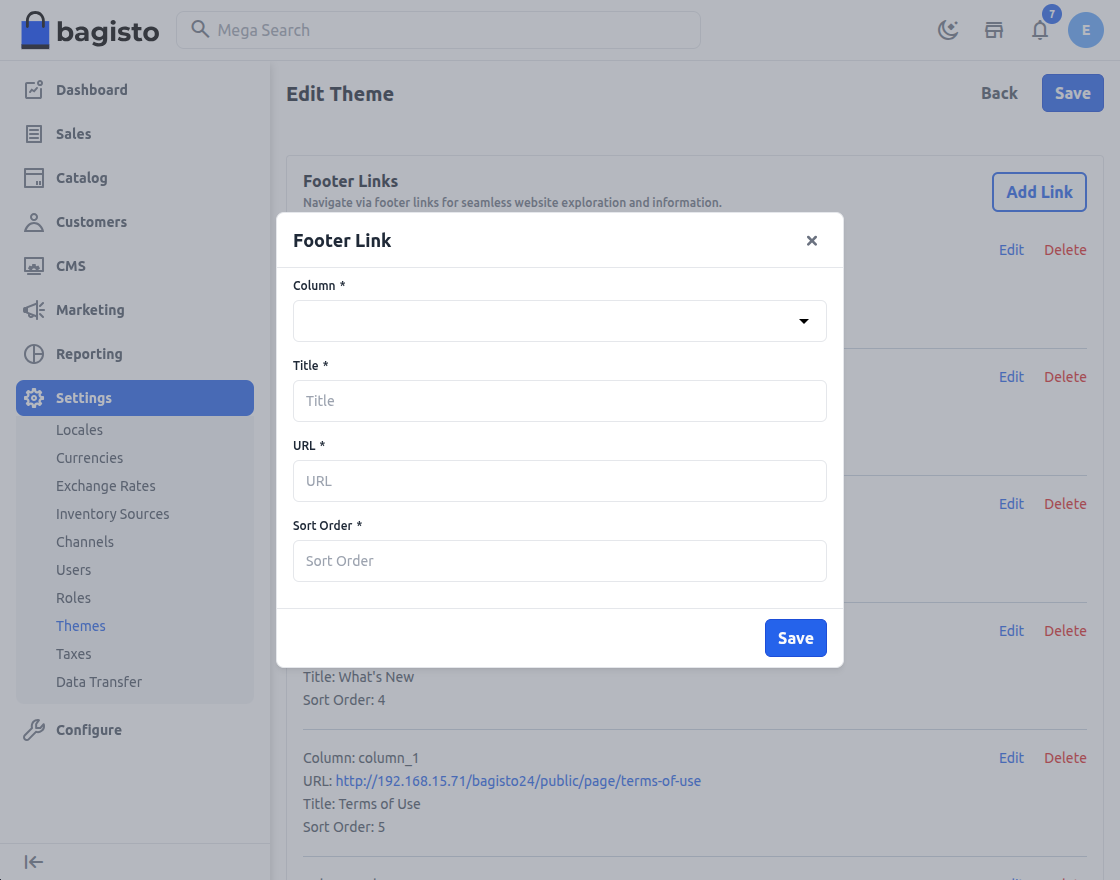
Use Footer Links to manage storefront footer navigation links.
Configure each link with the following options:
1. Column: Select the footer column where the link should appear.
2. Title: Enter the footer link title.
3. URL: Enter the link URL.
4. Sort Order: Define the display order.
Services Content
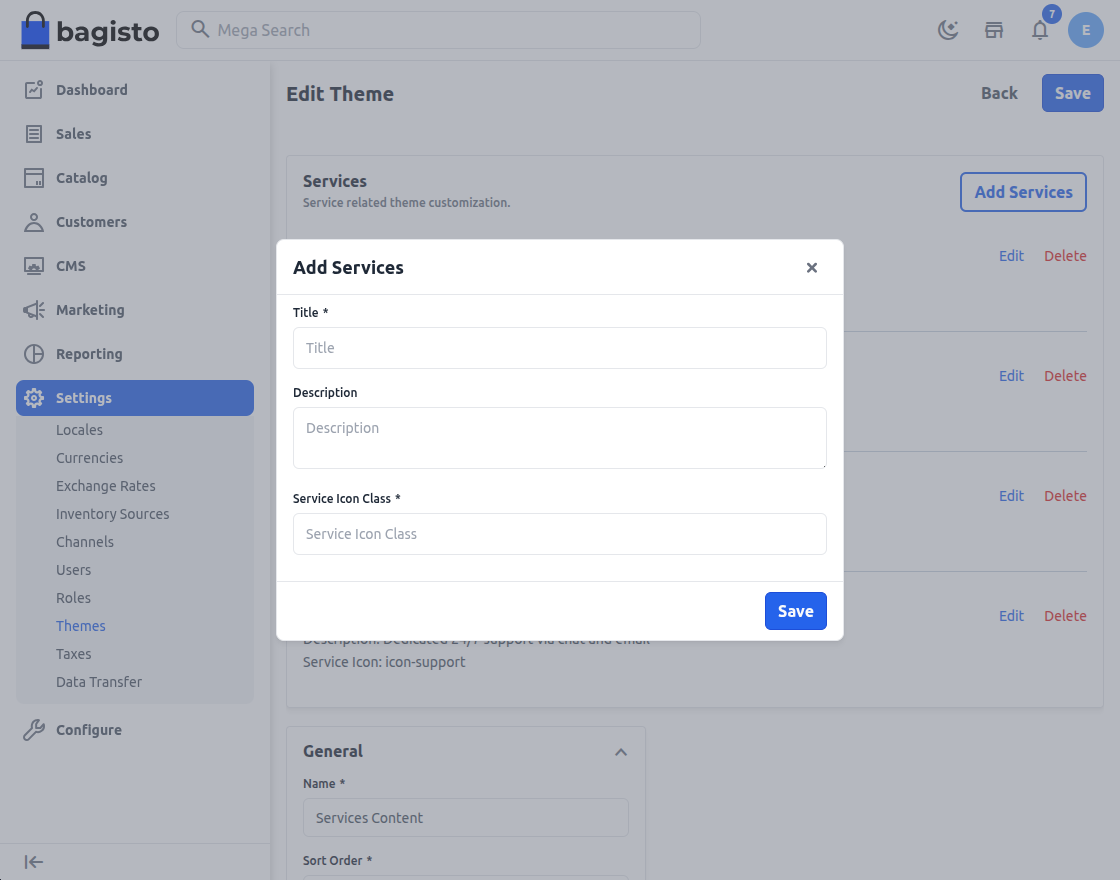
Use Services Content to display service or feature highlights on the storefront.
Configure each service with the following options:
1. Title: Enter the service title.
2. Description: Enter the service description.
3. Service Icon Class: Enter the icon class used for the service icon.
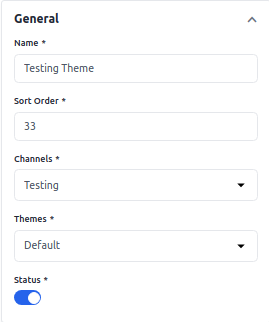
General
All theme customization types include the General section.
1. Name: Enter the name.
2. Sort Order: Define the sort order.
3. Channels: Select the channel.
4. Themes: Select the theme.
5. Status: Enable or disable the status.
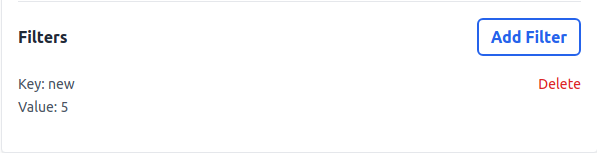
Filters
Some theme customization types support filters.
1. Key: Enter the filter key.
2. Value: Enter the filter value.
Click Save to finalize.
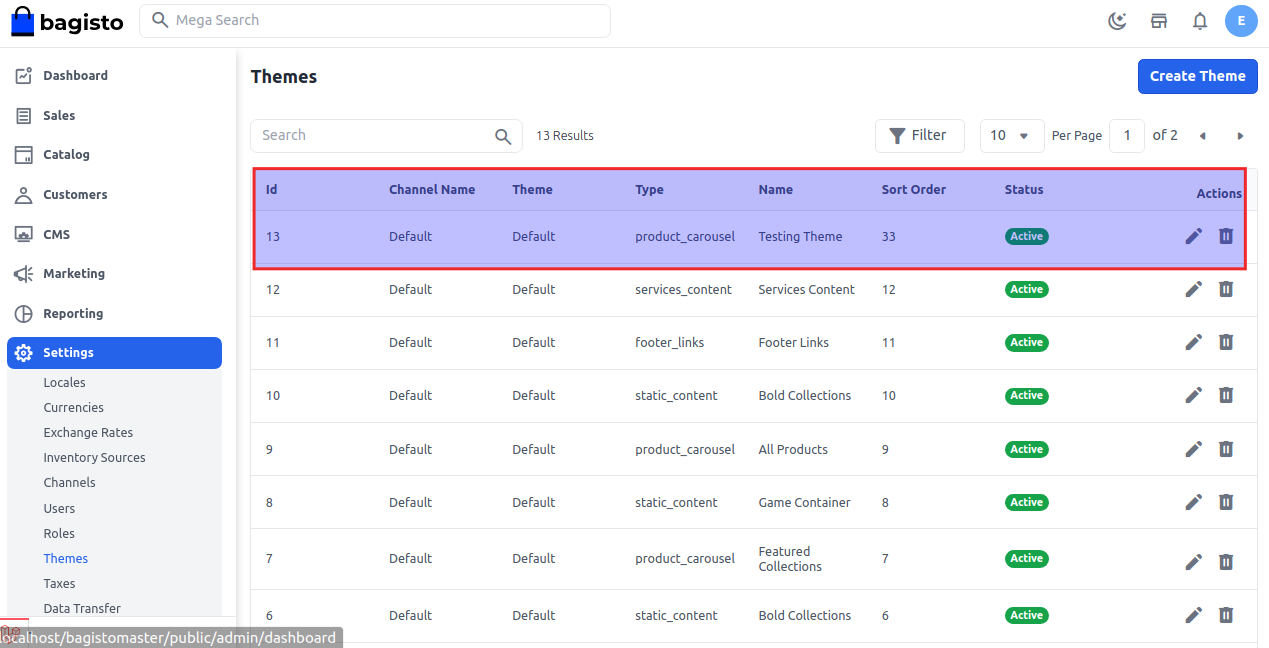
Step 3: The new Theme entry will now appear in the themes list.
You have now successfully created and customized a Theme in Bagisto.