
CMS Pages
CMS pages are the content pages of your storefront, such as About Us, your shipping and return policies, and your terms of use. A new store comes with ten pages, ready for you to edit. Each page has its own address, its own content in each language, and its own details for search engines.
The pages list
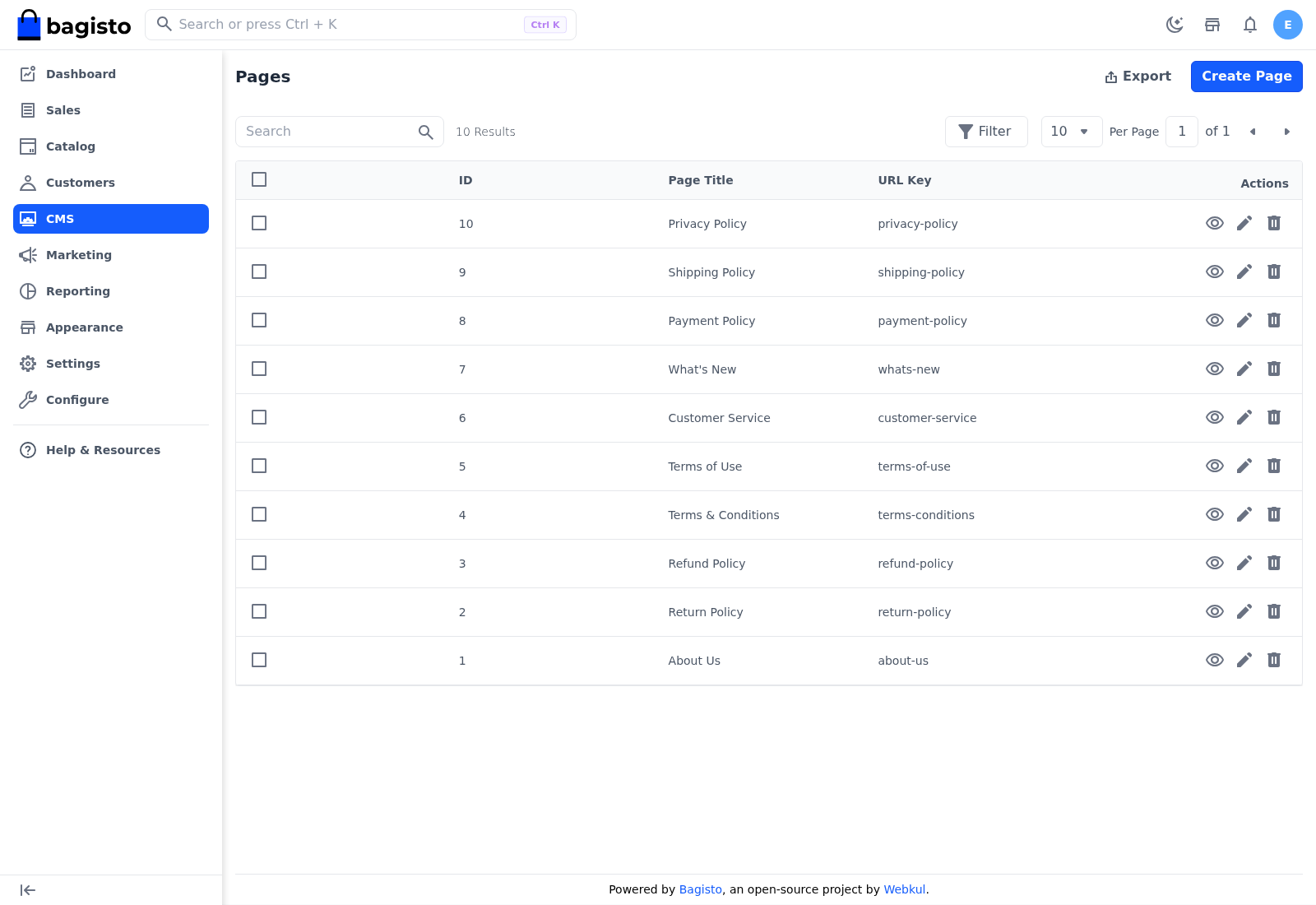
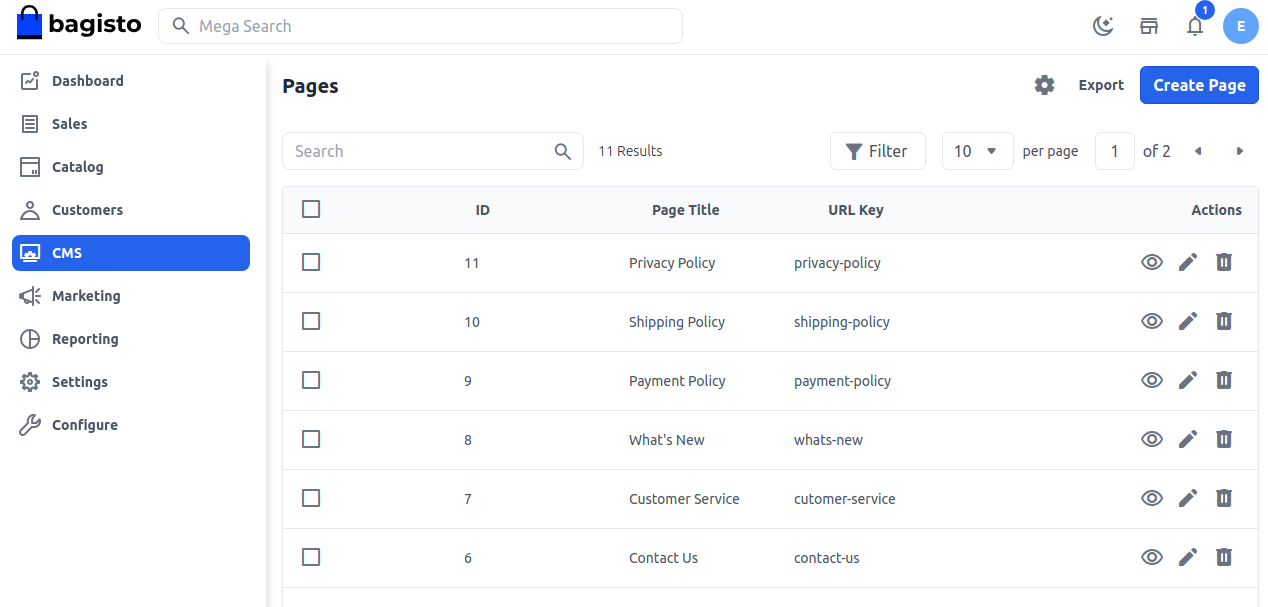
Go to CMS to see your pages. The Pages list shows each page's ID, Page Title and URL Key, with icons to view the page on the storefront, edit it and delete it. Click Export to download the list as CSV, XLS or XLSX.
Create a page
Go to CMS.
Click Create Page.
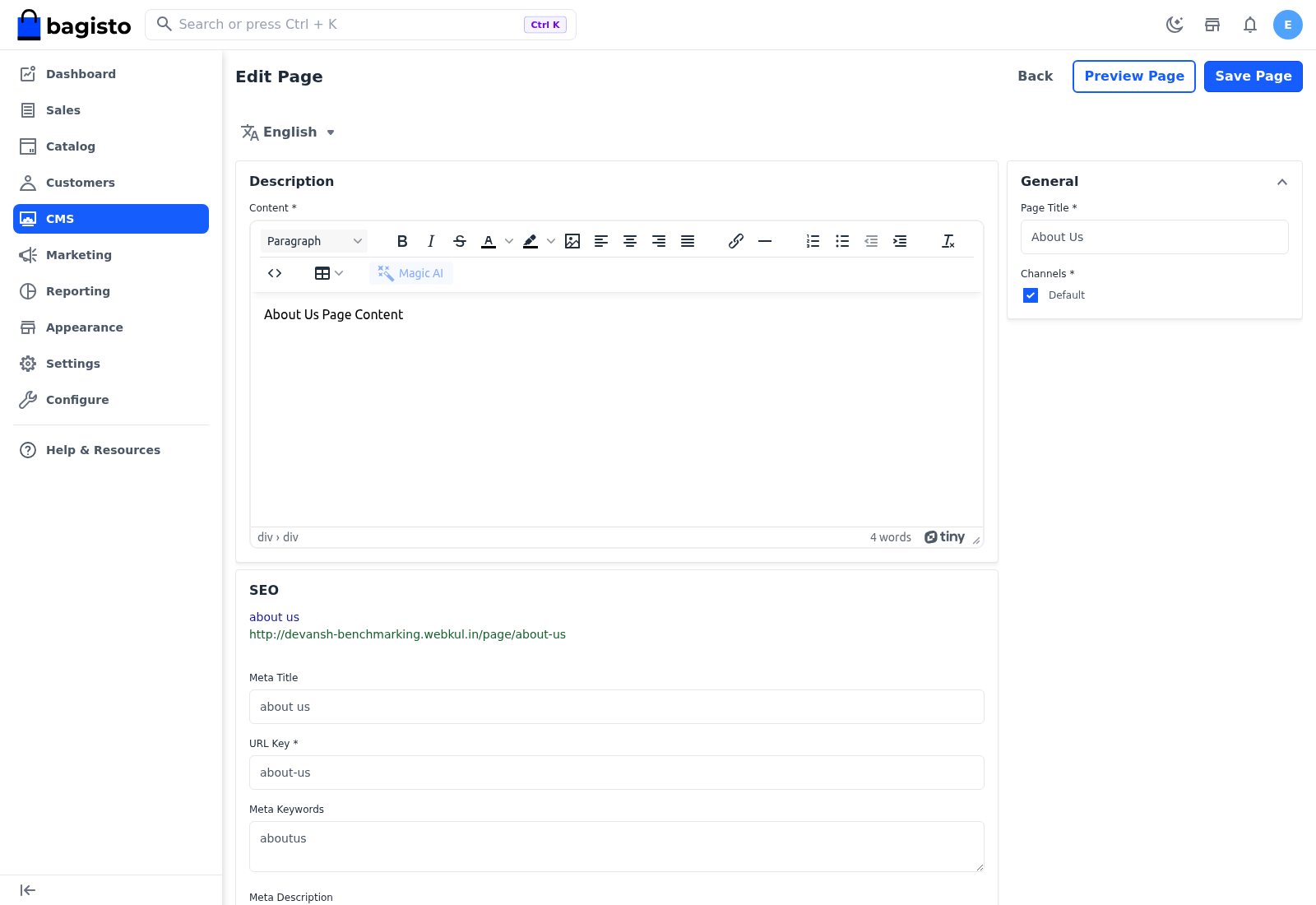
In Description, write the page Content in the editor.
Under SEO, enter the Meta Title, if you like.
Enter the URL Key.
Enter the Meta Keywords and Meta Description, if you like.
Under General, enter the Title.
Under Channels, tick the channels that show the page.
Click Save Page.
You see "CMS created successfully." Content, URL Key, Title and at least one channel are required.
Page fields
| Setting | What it does |
|---|---|
| Content | The body of the page. Only basic formatting is kept: headings, text styles, links, lists, images and tables. Scripts, embedded videos, frames, forms and most inline styles are removed when you save. Once Magic AI and text generation are switched on, the editor's Magic AI button can draft the content for you. |
| Meta Title | The page title search engines show |
| URL Key | The last part of the page's address, after /page/. For example, size-guide opens at /page/size-guide. Use letters and numbers separated by single hyphens, with no spaces. Each URL key must be unique. |
| Meta Keywords | Keywords for search engines |
| Meta Description | The short description search engines show under the title |
| Title | The page's title. It's labelled Page Title when you edit the page. |
| Channels | The channels that show the page |
The SEO section previews how the page may look in search results, with the Meta Title, the page address and the Meta Description.
Edit a page in each language
A new page is saved with the same content in every language. Switching the language on the edit page reloads it, so save your changes before you switch. To translate a page:
Go to CMS.
Click the edit icon of the page.
At the top of the page, choose the language.
Change the Content, the SEO fields and the Page Title for that language.
Click Save Page.
The language selector appears when your store has more than one language. Channels are shared by every language, and the URL key can differ between languages.
Preview Page opens the page on the storefront in a new tab, in the storefront's current language. It appears once the language you're editing has content.
Check the redirect after changing a URL key
When you change a page's URL key, Bagisto adds a URL rewrite from the old key, for the language you edited. Under Marketing >> Search & SEO >> URL Rewrites, open that rewrite and check that its Target Path starts with page/.
Link to a page
A page opens at your store's address followed by /page/ and its URL key, for example /page/about-us. To add it to the storefront footer, add a link with a URL such as page/about-us to the Footer Links section. See Footer Links.
Delete pages
- To delete one page, click its delete icon and confirm.
- To delete several pages, select them in the list, open Select Action and choose Delete.
Deleted pages can't be restored.