
Invoice Settings
These settings decide how invoice numbers are built, when invoices are due, what the invoice PDF shows, and how reminders are sent for overdue invoices. How invoices are created is described in Create Invoice, and payments for pending invoices are recorded in Transactions.
Invoice numbers
- Go to Configure >> Sales >> Invoice Settings.
- If your store has more than one channel or language, choose them at the top of the screen.
- In Invoice Number Settings, fill in the settings described below.
- Click Save Configuration.
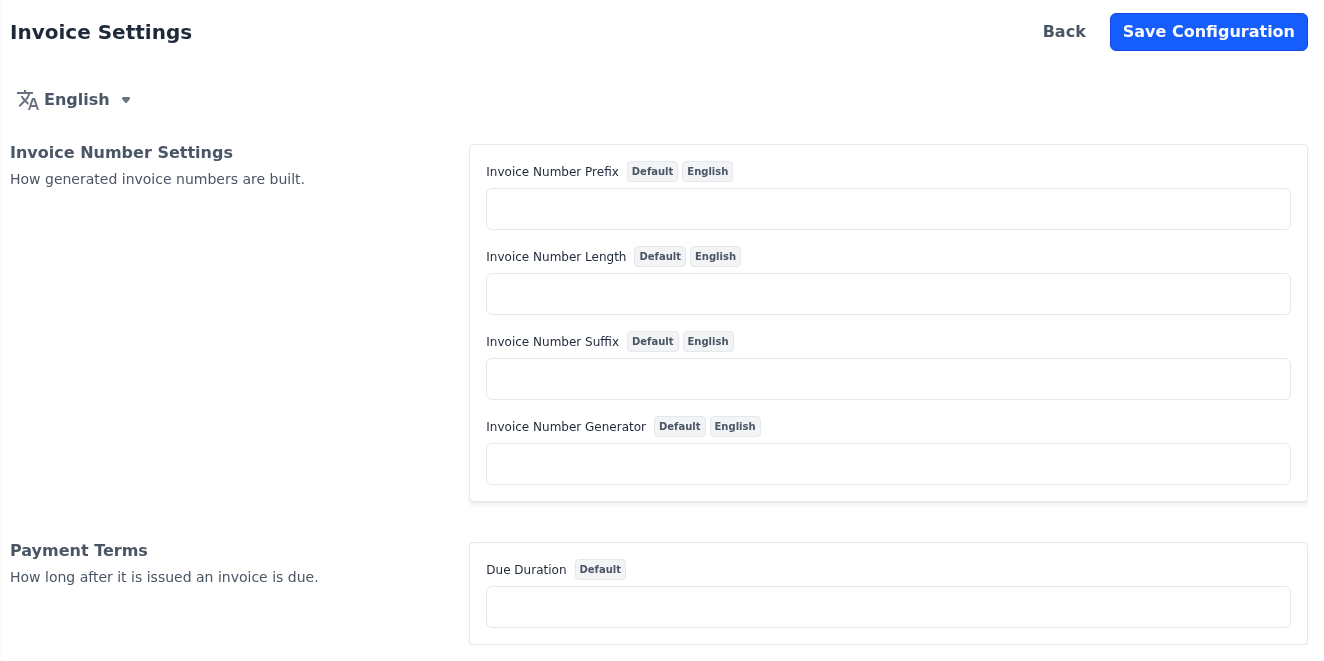
| Setting | What it does |
|---|---|
| Invoice Number Prefix | Text at the start of every invoice number, such as INV-. |
| Invoice Number Length | How many digits the running number is padded to with zeros, from 0 to 10. |
| Invoice Number Suffix | Text at the end of every invoice number. |
| Invoice Number Generator | Leave it empty unless a developer has built a custom number generator for your store. |
With a prefix of INV- and a length of 6, invoices are numbered like INV-000042. The running number continues from the last invoice in the store, so a change here affects new invoices only. These settings are per channel and per language.
Payment terms
- Go to Configure >> Sales >> Invoice Settings.
- If your store has more than one channel, choose the channel at the top of the screen.
- In Payment Terms, enter the Due Duration, the number of days customers have to pay an invoice.
- Click Save Configuration.
The due date of an invoice is its invoice date plus the due duration. The invoice list under Sales >> Invoices shows how many days are left until the due date, or how long an invoice is overdue; see Invoice status. When the due duration is more than 0, the invoice PDF also shows the payment terms in days. The due duration is per channel.
PDF print outs
- Go to Configure >> Sales >> Invoice Settings.
- If your store has more than one channel or language, choose them at the top of the screen.
- In PDF Print Outs, switch Display Invoice ID in Header on or off.
- Switch Display Order ID in Header on or off.
- Under Logo, click Add Image.
- Choose the logo to print on the invoice.
- Click Save Configuration.
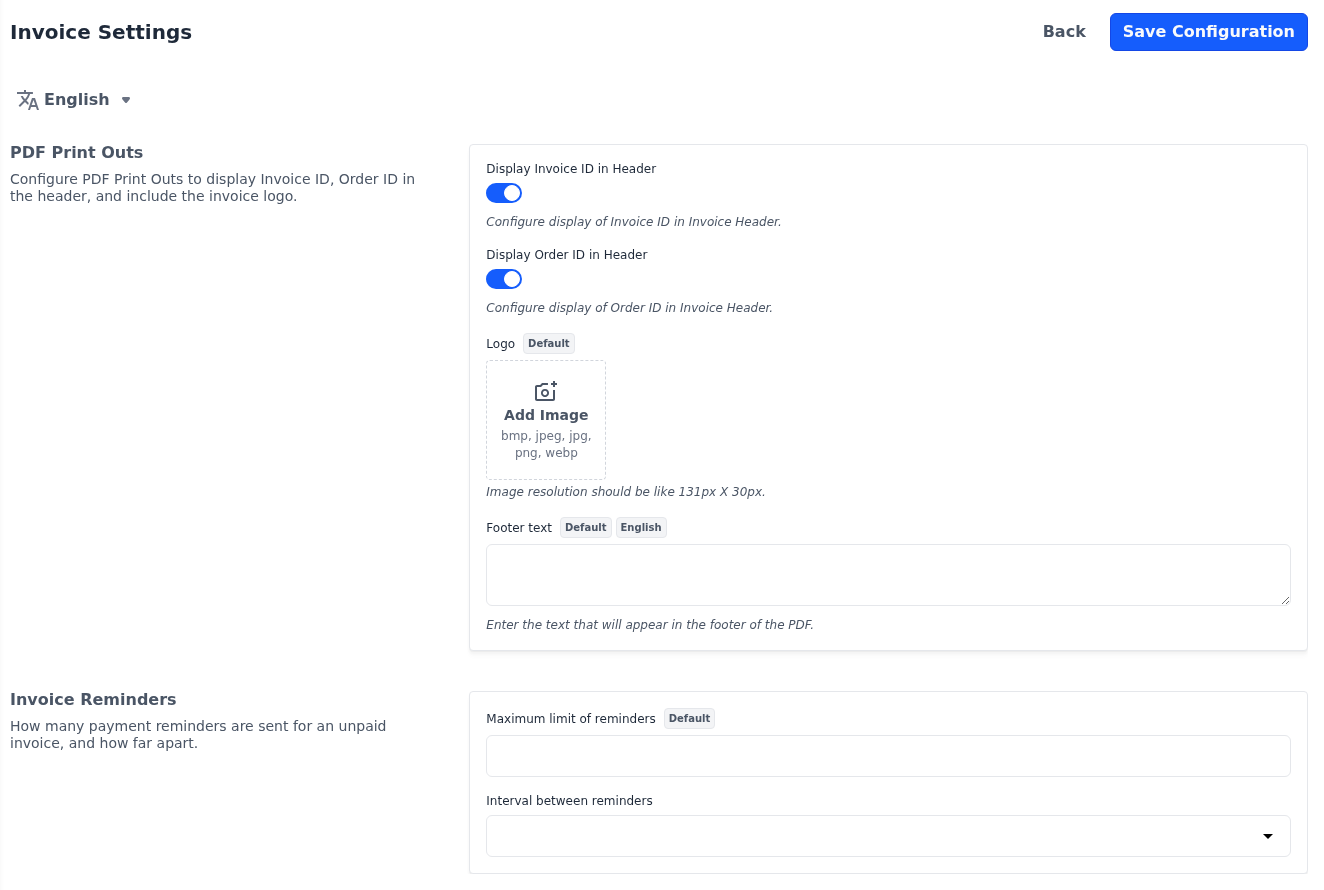
| Setting | What it does |
|---|---|
| Display Invoice ID in Header | Prints the invoice ID at the top of the PDF. It's on in a new store. |
| Display Order ID in Header | Prints the order ID at the top of the PDF. It's on in a new store. |
| Logo | The logo printed on the PDF. A size of 131 × 30 pixels is recommended. |
| Footer text | Saved with these settings, but not printed on the invoice PDF. |
The same PDF is used when you print an invoice in the admin panel, when customers download it from their account, and when it's attached to the invoice email. The two switches apply to the whole store. The logo is per channel, and the footer text is per channel and per language.
Invoice reminders
Once a day, the store sends a reminder email for each invoice that is marked Overdue. The reminders go to the Sender Email Address set in Email Settings, not to the customer.
- Go to Configure >> Sales >> Invoice Settings.
- If your store has more than one channel, choose the default channel at the top of the screen.
- In Invoice Reminders, enter the Maximum limit of reminders sent for one invoice.
- Choose the Interval between reminders.
- Click Save Configuration.
Maximum limit of reminders: How many reminders are sent for one invoice. Leave it empty, or enter 0, for no limit. The maximum set for the default channel applies to invoices from every channel.
Interval between reminders: How long the store waits after one reminder before it sends the next. Choose from 1 day to 4 days, or 2 weeks to 4 weeks: 5 days, 6 days and 7 days are currently saved as 4 days. The interval applies to the whole store.
To mark invoices as overdue:
- Go to Sales >> Invoices.
- Select the invoices.
- Click Select Action >> Update Status >> Overdue.
See Change the status of invoices.
Reminders need the server's scheduler
Reminders are sent by the server's task scheduler and email queue. If they aren't sent, ask whoever manages your server to check that both are running. See Scheduled Tasks.