
Search Terms
Search terms show what shoppers search for on your storefront, how often, and how many products each search finds. You can also send a search straight to a page, for example send "returns" to your return policy page.
How search terms are recorded
Storefront searches add their term to the list, or update it:
- Uses counts how many times the term was searched.
- Results holds the number of products the latest search found.
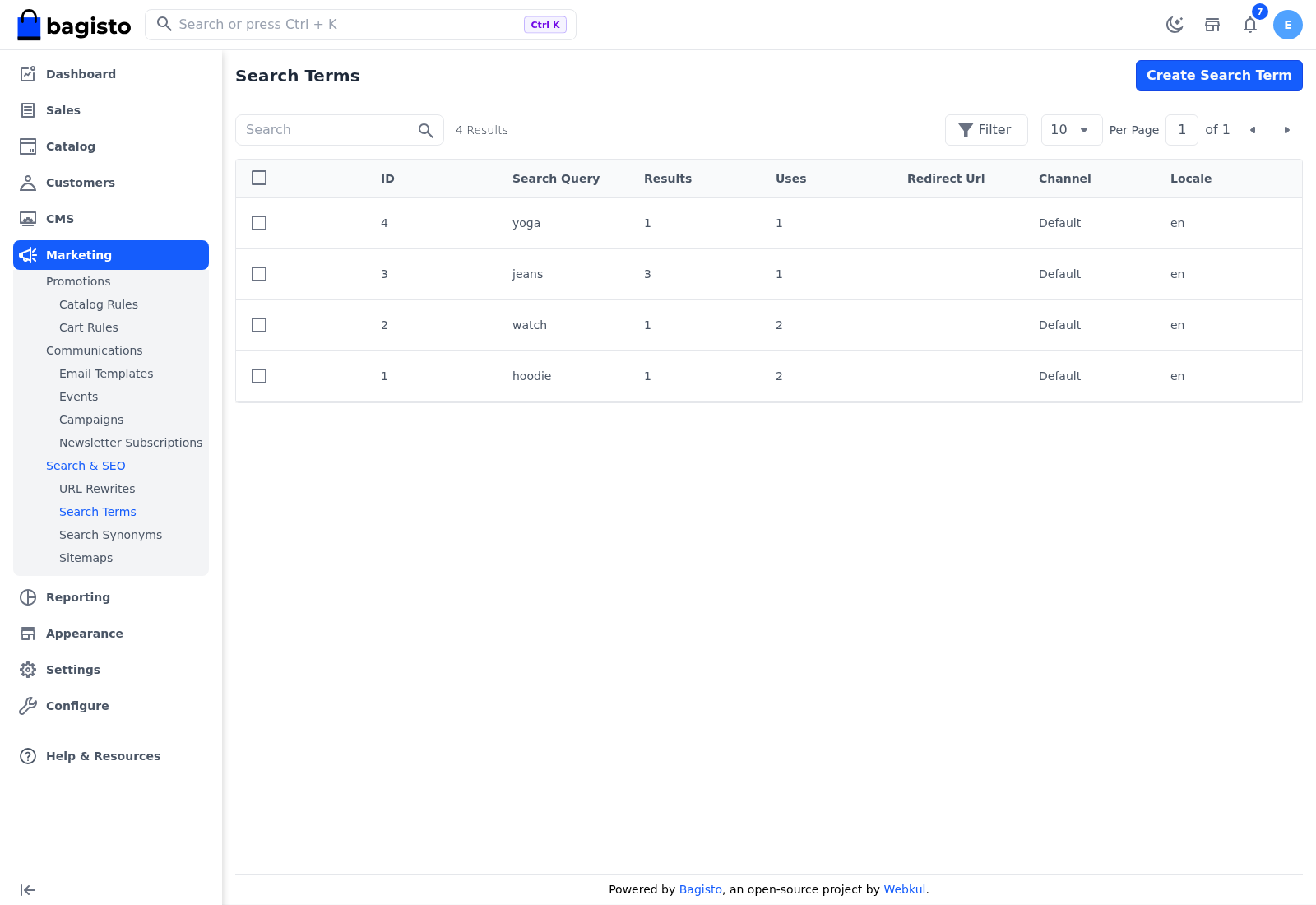
Terms are recorded separately for each channel and language. Only the first page of a plain search is recorded, so a search combined with filters, such as a price range, isn't counted. When your store uses Elasticsearch, the recorded term can be the corrected spelling of what the shopper typed. Terms with many Uses and few Results show what shoppers want but can't find.
Send a search to a page
Go to Marketing >> Search & SEO >> Search Terms.
Click Create Search Term. To use a term that's already in the list, click its edit icon instead.
Enter the Search Query, exactly as shoppers type it.
Enter the Redirect Url, the full address of the page to open, starting with
https://orhttp://.Choose the Channel.
Choose the Locale.
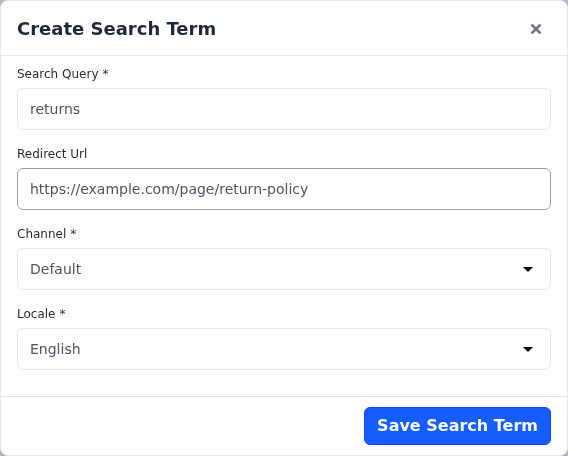
Click Save Search Term.
When a shopper on that channel and in that language searches for exactly that query, the storefront opens the Redirect Url instead of the search results. Redirect Url is optional, so a term without one keeps showing the search results. When you edit a term, the dialog also shows its Results and Uses, which you can change.
Manage search terms
The Search Terms list shows each term's ID, Search Query, Results, Uses, Redirect Url, Channel and Locale, with icons to edit and delete it. Select several terms to delete them together.