
Products Reporting
Reporting >> Products shows how your products perform: how many units sell, which products earn the most, what customers add to their wishlists and review, and what they search for.
Choose the channel and dates
- Go to Reporting >> Products.
- If your store has more than one channel, choose a channel, or leave All Channels.
- Click the date range at the top right.
- Choose a preset, or pick a start and an end date on the calendar.
Every card reloads for the channel and dates you chose. The report opens on the last 30 days. The presets are listed in Choose the channel and dates, and how figures are compared with the period before in Reading the cards.
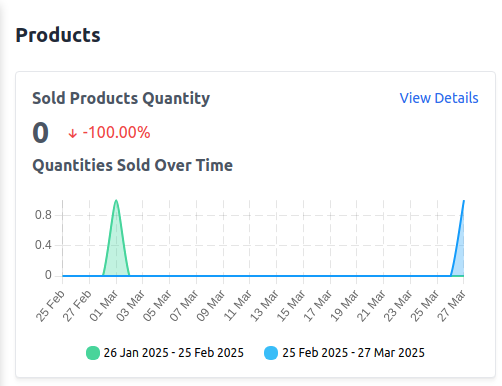
Sold Products Quantity
How many units sold on orders placed in the range, with the percentage change and a Quantities Sold Over Time chart. For units per product, see Top Selling Products By Quantity. The chart and its details table show sales activity over time and may not add up to the card's total.
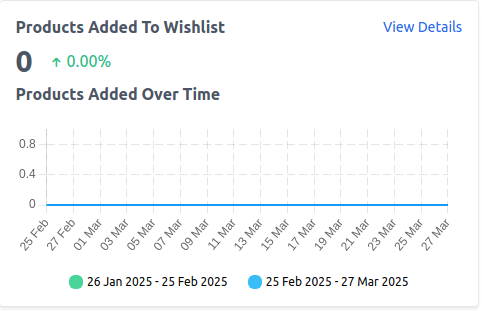
Products Added To Wishlist
How many times products were added to wishlists in the range, with the percentage change and a Products Added Over Time chart. Products later removed from a wishlist, or moved to the cart, no longer count.
Top Selling Products By Revenue
The five products that earned the most on orders placed in the range: the price times the quantity invoiced, minus refunds, without tax and before discounts. A product sold at more than one price is listed once for each price.
Top Selling Products By Quantity
The five products with the most units invoiced, minus refunded units, on orders placed in the range. A product sold at more than one price is listed once for each price.
Products With Most Reviews
The five products with the most approved reviews written in the range, including reviews by guests.
Last Search Terms
The terms shoppers searched for most recently in the range, newest first:
- Search Term: what the shopper typed in the storefront search.
- Results: how many products the last search found.
- Uses: how many times the term has been searched on that channel and in that language.
Top Search Terms
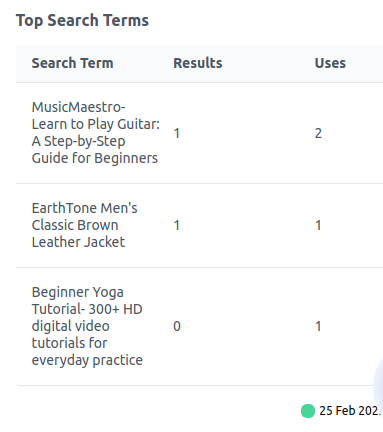
The terms searched for most often, with the same Search Term, Results and Uses columns. This card counts every search ever made, so it doesn't change with the dates, only with the channel, and it has no View Details.
View details and export
Every card except Top Search Terms has View Details, which opens the figures as a table.
- Click View Details on a card.
- If your store has more than one channel, choose the channel.
- For Sold Products Quantity or Products Added To Wishlist, choose Day, Month or Year. For totals that cover every date you chose, use Day.
- Choose the dates.
The details page opens on All Channels and the last 30 days. Click a column heading to sort the table on screen. Back returns to the report.
| Card | Table columns |
|---|---|
| Sold Products Quantity | Interval, Quantities |
| Products Added To Wishlist | Interval, Total |
| Top Selling Products By Revenue | Id, Name, Price, Revenue |
| Top Selling Products By Quantity | Id, Name, Quantities |
| Products With Most Reviews | Id, Name, Reviews |
| Last Search Terms | Id, Search Term, Results, Uses, Channel (the channel's ID), Locale |
Export the table
- Click Export.
- Choose Export CSV or Export XLS.
The file covers the channel, period and dates chosen on the details page. The exported file keeps the original order, not the order you sorted on screen.
Permissions
A role needs Products under Reporting to open this report, its details and its export.