
Create Order
You can place an order for a customer from the admin panel, for example when they order by phone or email. You choose the customer, add products to a cart, pick the addresses, shipping and payment, and place the order. Customers place their own orders at the storefront checkout.
Before you start:
- Your role needs the Create permission under Sales >> Orders.
- The order is for a registered customer. If the customer has no account, you can create one when you start the order.
- An order created in the admin panel can only be paid with Cash On Delivery or Money Transfer. Turn on at least one of them in Payment Methods.
- The order must reach the minimum order amount, if you set one in Order Settings.
Choose the customer
Go to Sales >> Orders.
Click Create Order. The Select Customer panel opens.
In Search by email or name, type at least two letters of the customer's name or email.
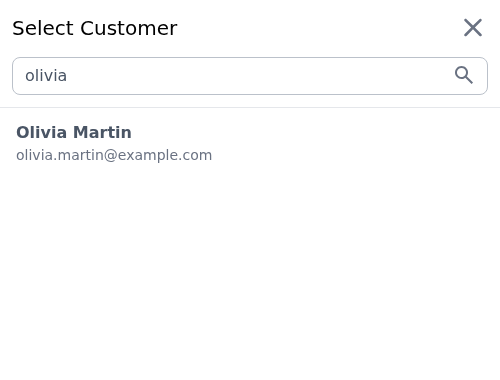
Click the customer. The Create Order for page opens with the customer's name.
Starting an order doesn't change the customer's own cart on the storefront.
Create a customer for the order
If no customer matches, the panel shows No customers found.
- Click Create Customer. The Create New Customer form opens.
- Enter the First Name, Last Name and Email, and any Contact Number or Date of Birth.
- Choose the Gender.
- Choose the Channel, and a Customer Group if needed.
- Click Save customer. The Create Order for page opens for the new customer.
Add products
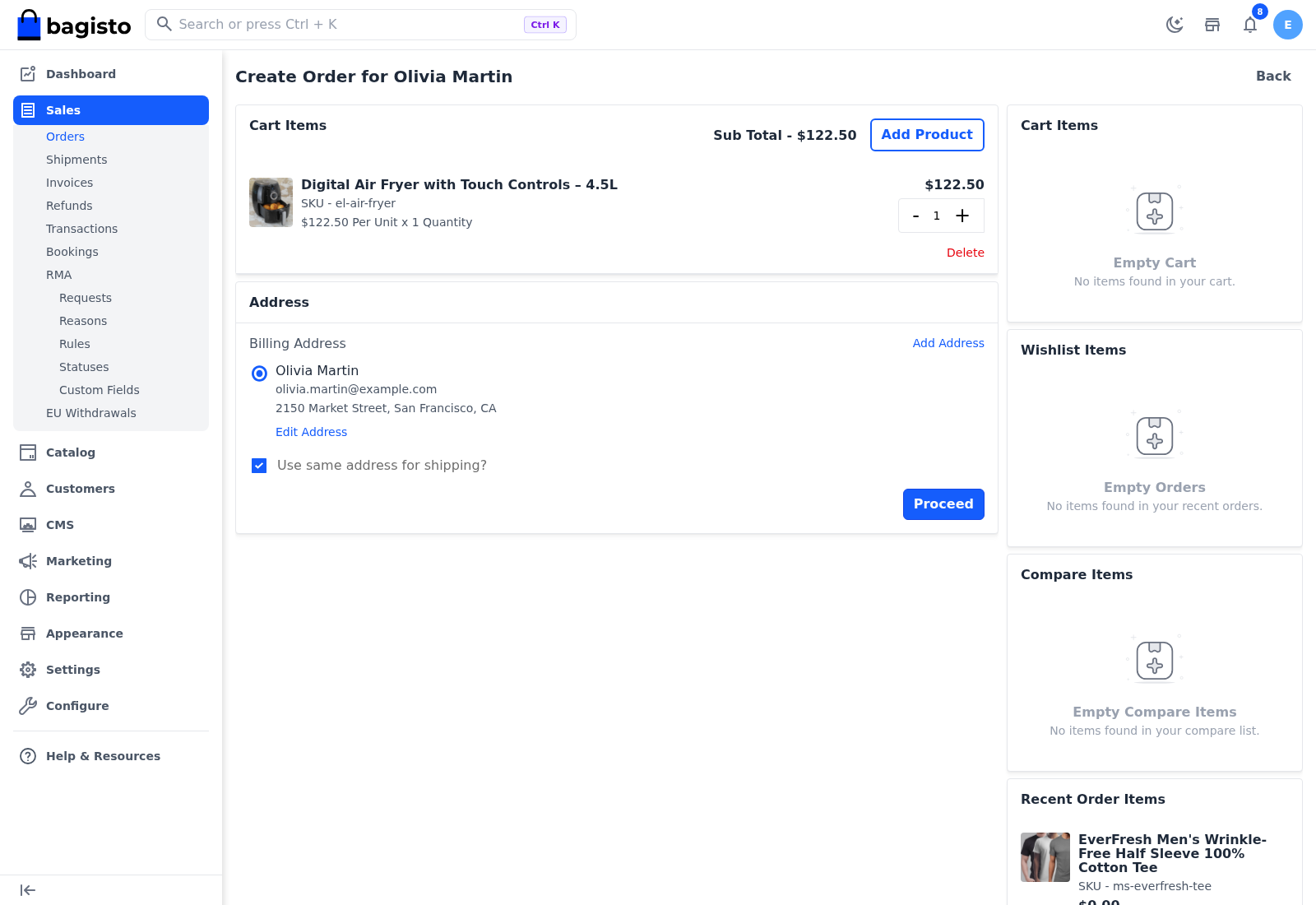
The steps of the order are on the left. On the right, the customer's own Cart Items, Wishlist Items, Compare Items and Recent Order Items are listed, each with Add to Cart, so you can add a product the customer already chose.
In Cart Items on the left, click Add Product. The Search Products panel opens.
Search for the product by name. Each result shows its SKU and, except for booking products, how many are available.
Enter the Qty.
Click Add To Cart.
If the product needs options chosen, such as a configurable, bundle, downloadable or booking product, the Configuration panel opens. Choose the options.
Click Add to Cart.
For a booking product, the Configuration panel asks for the date and slot, or the dates for a rental, and the Quantity.
The product is listed in Cart Items with its SKU, its price per unit and quantity, and See Details for the options you chose. Use the - and + buttons to change the quantity. To take a product out, click Delete.
Choose the addresses
The Address step appears once the cart has a product.
Under Billing Address, select one of the customer's addresses.
If the order has products to ship, choose whether to ship to the same address with Use same address for shipping?. To ship somewhere else, select an address under Shipping Address.
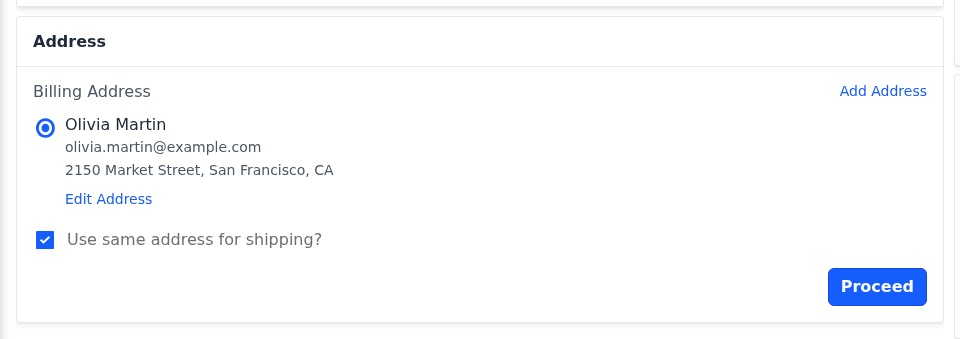
Click Proceed. The shipping methods load. For an order with nothing to ship, the payment methods load instead.
Add a new address
- Under Billing Address or Shipping Address, click Add Address.
- Fill in Company Name, Vat ID, First Name, Last Name, Email, Street Address, Country, State, City, Zip/Postcode and Telephone.
- To keep the address on the customer's account, tick Save this to address book.
- Click Save.
To change an address, click Edit Address. If you change an address after choosing shipping or payment, an Address updated notice asks you to click Proceed again, so the rates and totals are worked out for the new address.
Choose shipping and payment
- In Shipping, choose a shipping method. This step appears only when the order has products to ship.
- In Payment, choose Cash On Delivery or Money Transfer. Other methods are listed too, but an order created in the admin panel can't be placed with them.
Place the order
The Order Summary shows the Subtotal, Shipping Amount and Grand Total, and the Tax and Discount Amount when the order has them.
To use a coupon, click Apply Coupon in the Order Summary.
Enter the code in Enter your code.
Click Apply Coupon. The discount is added to the summary.
Check the totals.
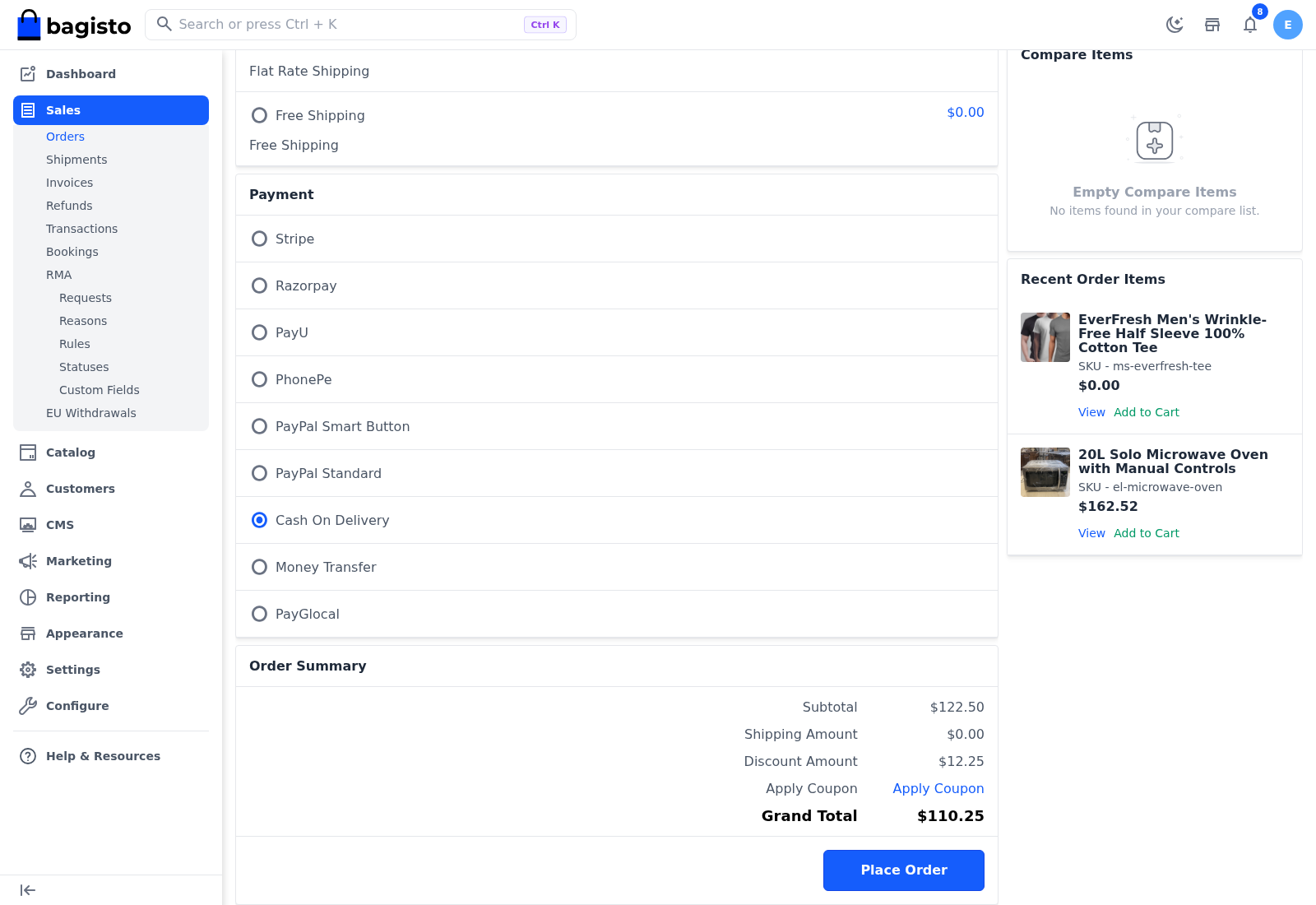
Click Place Order.
The order page opens. The order starts as Pending, the customer receives the order confirmation email if it's on in Notifications, and you carry on from Orders.
If the order isn't placed
| Message | What to do |
|---|---|
| Billing address is missing. | Select or add a billing address. |
| Shipping address is missing. | Select or add a shipping address. |
| Shipping method is missing. | Choose a shipping method. |
| Payment method is missing. | Choose a payment method. |
| This payment method is not supported. | Choose Cash On Delivery or Money Transfer. |
| The minimum order amount is not met. | Add products until the order reaches the minimum amount. |
Reorder
To place an existing order again, open it and click Reorder. The Create Order for page opens with the same products in the cart. See Actions on an order.
Settings that affect admin orders
- Order Settings: Minimum Order Settings, Admin Reorder under Allow Reorder, and Max Retry Attempts under Order Creation, which is how many times Bagisto tries again to save an order when saving fails. It applies to storefront and admin orders.
- Payment Methods: whether Cash On Delivery and Money Transfer are on, and whether they create the invoice automatically when the order is placed.