
Email Templates
An email template holds the content of a marketing email. Campaigns send it to your customers. Your store's order, invoice and account emails don't use these templates.
Create an email template
Go to Marketing >> Communications >> Email Templates.
Click Create Template.
In Content, write the email in the editor. Add headings, images, links and tables from the toolbar.
Under General, enter the Name.
Choose the Status: Active, Inactive or Draft.
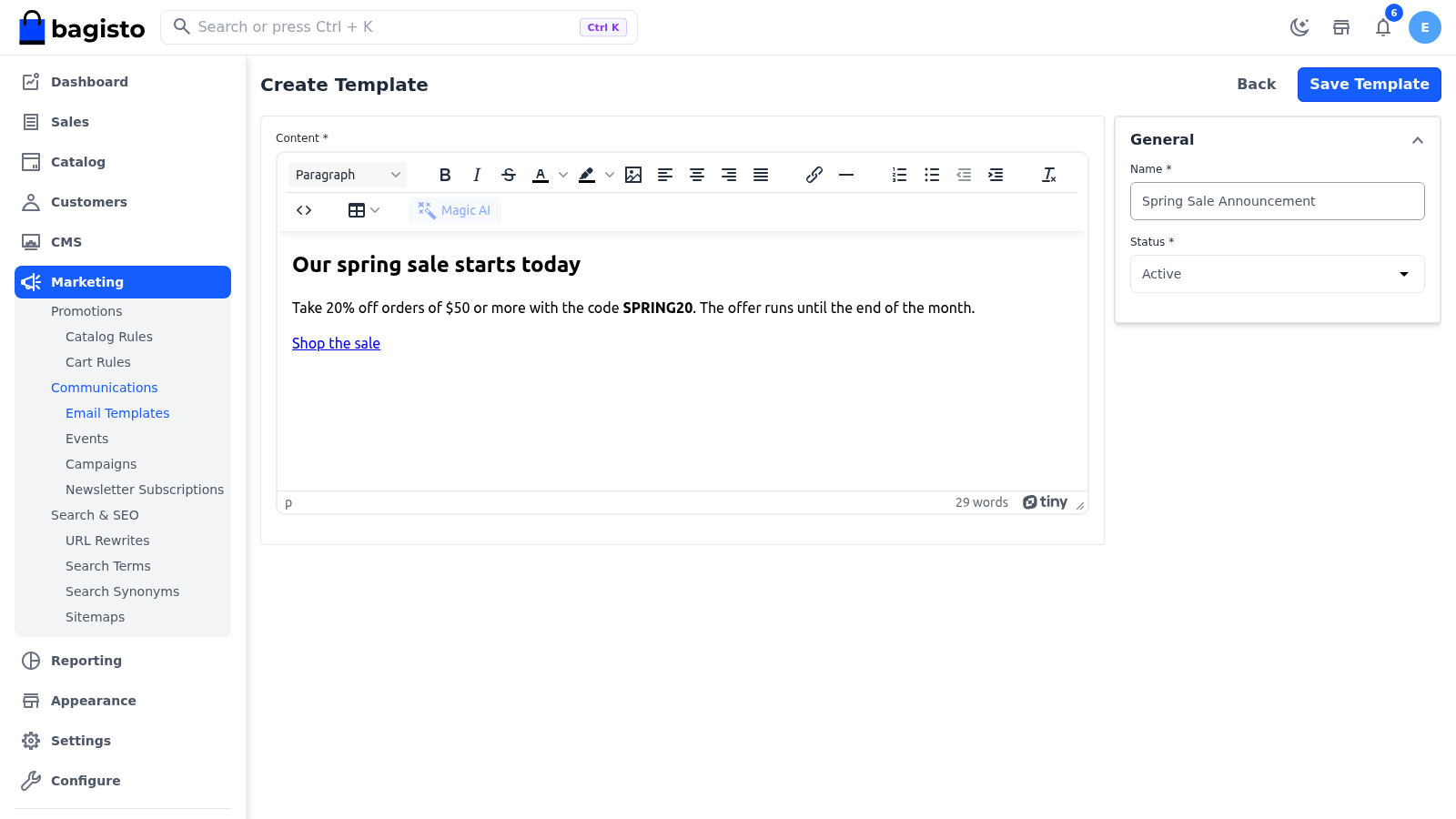
Click Save Template.
You see "Email template created successfully."
To get a first draft of the content, use the Magic AI button in the editor, once Magic AI and text generation are switched on under Configure >> Magic AI. See Generate text content.
Only active templates are sent
A campaign sends its email only while its template's Status is Active. Use Draft while you're still writing, and Inactive to stop a template from being sent without deleting it.
- Setting a template that a campaign uses to Inactive or Draft stops that campaign, without a warning. The campaign's edit form then no longer lists the template, so choose another one before you save the campaign.
- You can't delete a template that a campaign uses. You see "This template is used in one or more campaigns."
Manage email templates
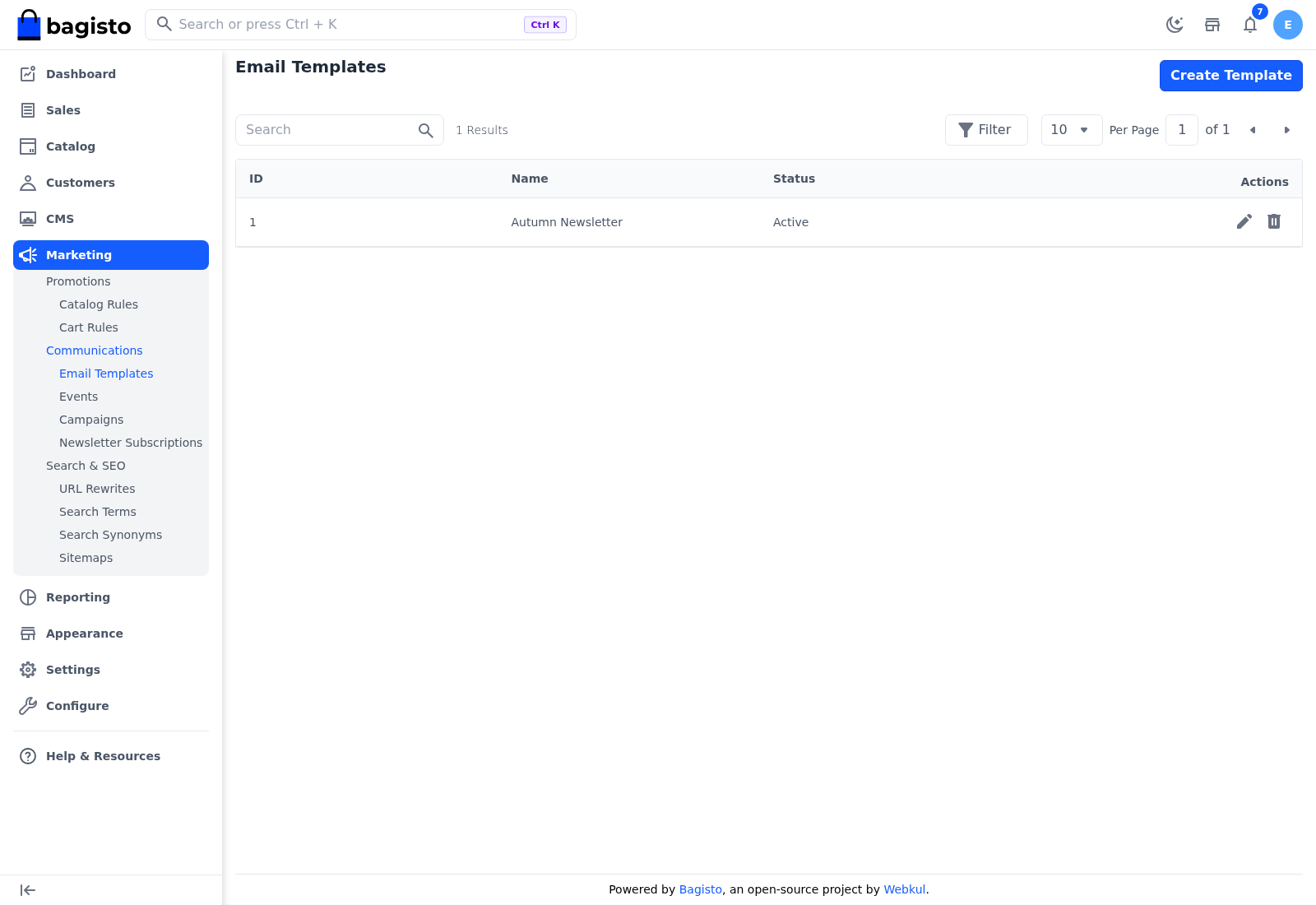
The Email Templates list shows each template's ID, Name and Status, with icons to edit and delete it.
The email's subject line isn't part of the template. You set it on the campaign. The sender name and address come from Email Settings.