
Exchange Rates
Product prices are entered in your store's base currency. An exchange rate converts those prices into another currency, so shoppers who switch currency see correct prices.
For example, if your base currency is the US Dollar and the exchange rate for the Euro is 0.92, a $100.00 product is shown as €92.00. Without an exchange rate, the price isn't converted, so the same product would be shown as €100.00.
Your exchange rates
Go to Settings >> Exchange Rates to see each rate with its ID, Currency Name and Exchange Rate.
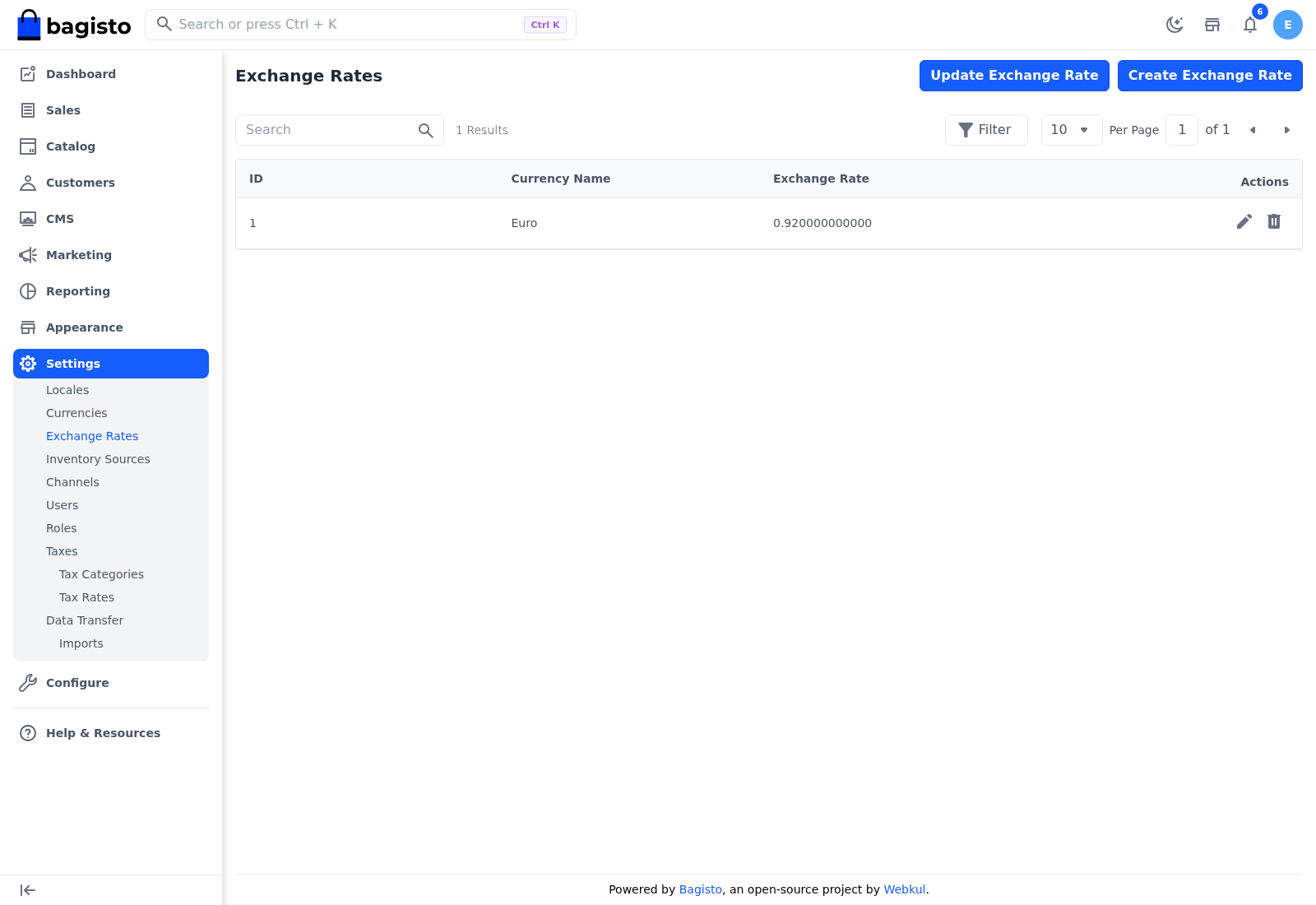
Create an exchange rate
Go to Settings >> Exchange Rates.
Click Create Exchange Rate.
Check the Source Currency. It shows your base currency and can't be changed.
Choose the Target Currency.
Enter the Rate: what one unit of the base currency is worth in the target currency.
Click Save Exchange Rate.
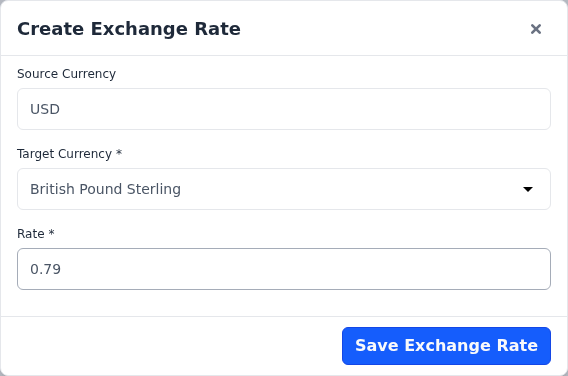
The message Exchange Rate Created Successfully appears and the rate is listed.
- Each currency can have one exchange rate. The Target Currency list also shows currencies that already have one; to change their rate, edit the existing rate instead.
- The base currency doesn't need a rate and isn't in the list.
Edit or delete an exchange rate
To edit a rate:
- Go to Settings >> Exchange Rates.
- Click the edit icon of the rate. The Edit Exchange Rates form opens.
- Change the Rate.
- Click Save Exchange Rate.
The message Exchange Rate Updated Successfully appears.
To remove a rate:
- Go to Settings >> Exchange Rates.
- Click the delete icon of the rate.
- Click Agree to confirm.
Prices in that currency are then shown without conversion.
Update rates automatically
Instead of entering rates by hand, you can fetch the latest rates from an exchange rate service, Exchange Rates API or Fixer API.
- Choose the service and enter its API key under Configure >> General >> Exchange Rates.
- Go to Settings >> Exchange Rates.
- Click Update Exchange Rate.
Bagisto fetches the latest rate for each of your currencies and creates or updates its exchange rate. The message Exchange Rate Updated Successfully appears. A currency the service doesn't return a rate for keeps its current rate. If the service can't be reached or the API key is wrong, the error the service returns is shown.
Updating rates needs the Edit permission for exchange rates in your role.
To update the rates on a schedule instead, see Scheduled import.