
Create Invoice
An invoice bills an order, or part of it. Creating one adds to the order's Total Paid and moves the order to Processing, or to Completed when nothing is left to invoice or ship. You can invoice an order all at once or a part at a time.
Create an invoice
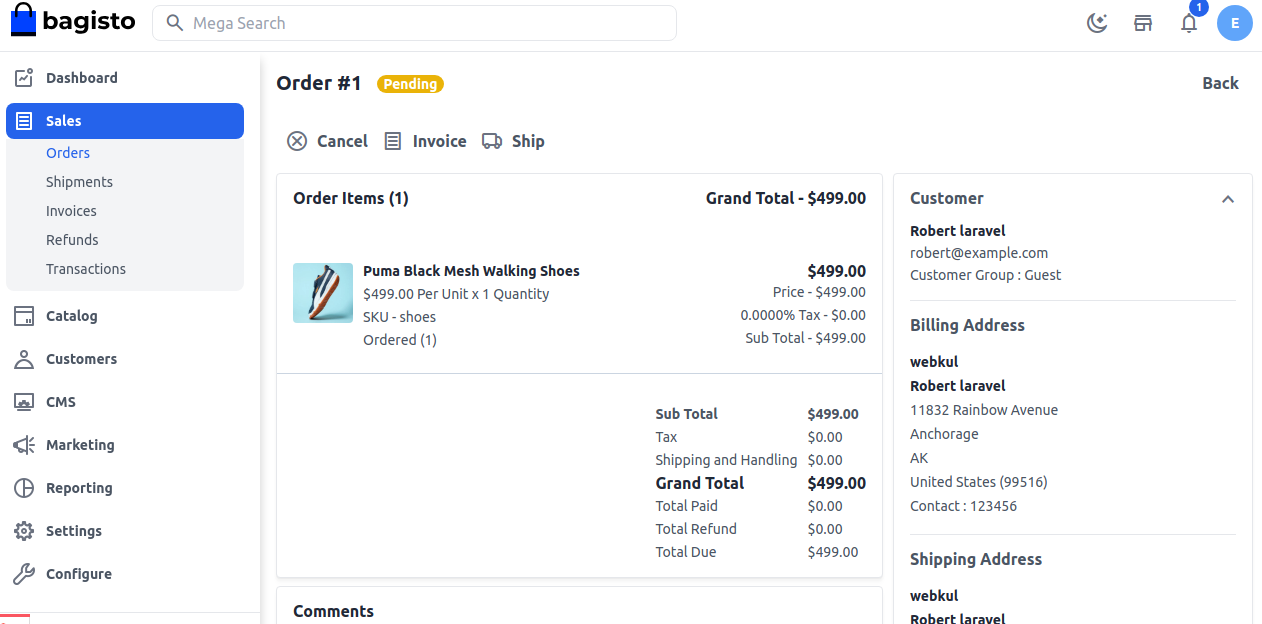
Go to Sales >> Orders.
Open the order.
Click Invoice. The New Invoice panel opens with each product that still has a quantity to invoice.
For each product, check Qty to invoiced. It starts at the quantity that isn't invoiced yet. Enter a smaller number to invoice part of it, or 0 to leave the product out.
To record the payment in Transactions as well, tick Create Transaction.
Click Create Invoice.
You'll see Invoice created successfully, and the invoice is listed in the order's Invoices card.
- At least one quantity must be more than 0, or you'll see Invoice can not be created without products.
- A quantity can't be more than is left to invoice, or you'll see We found an invalid quantity to invoice items.
- The order's whole shipping charge is added to its first invoice. Later invoices for the same order don't include shipping.
- Invoices can't be edited or deleted. You can only change their status.
The Invoice button doesn't appear for orders paid with PayPal Standard, because those orders are invoiced when PayPal confirms the payment.
Invoice status
An invoice you create in the New Invoice panel is saved as Paid.
When Automatically generate the invoice after placing an order is on for Cash On Delivery or Money Transfer, the invoice is created when the order is placed. It gets the status chosen in Set the invoice status after creating the invoice to, and the order gets the status in Set the order status after creating the invoice to. See Payment Methods.
| Status | What it means |
|---|---|
| Pending | Not paid yet. The Invoices screen shows how many days are left, such as 3 day(s) left, or Overdue by 2 day(s) once the due date has passed. The due date is the invoice date plus Due Duration in Invoice Settings. |
| Paid | Paid. |
| Overdue | Marked as overdue, with how many days it's overdue. |
A Pending invoice becomes Paid when the transactions recorded for it add up to its total. Payment reminders are sent only for invoices you set to Overdue, as often as Invoice Reminders allows. A scheduled task sends them; see Scheduled Tasks.
The Invoices screen
Go to Sales >> Invoices to see every invoice with its ID, Order ID, Grand Total, Status and Invoice Date.
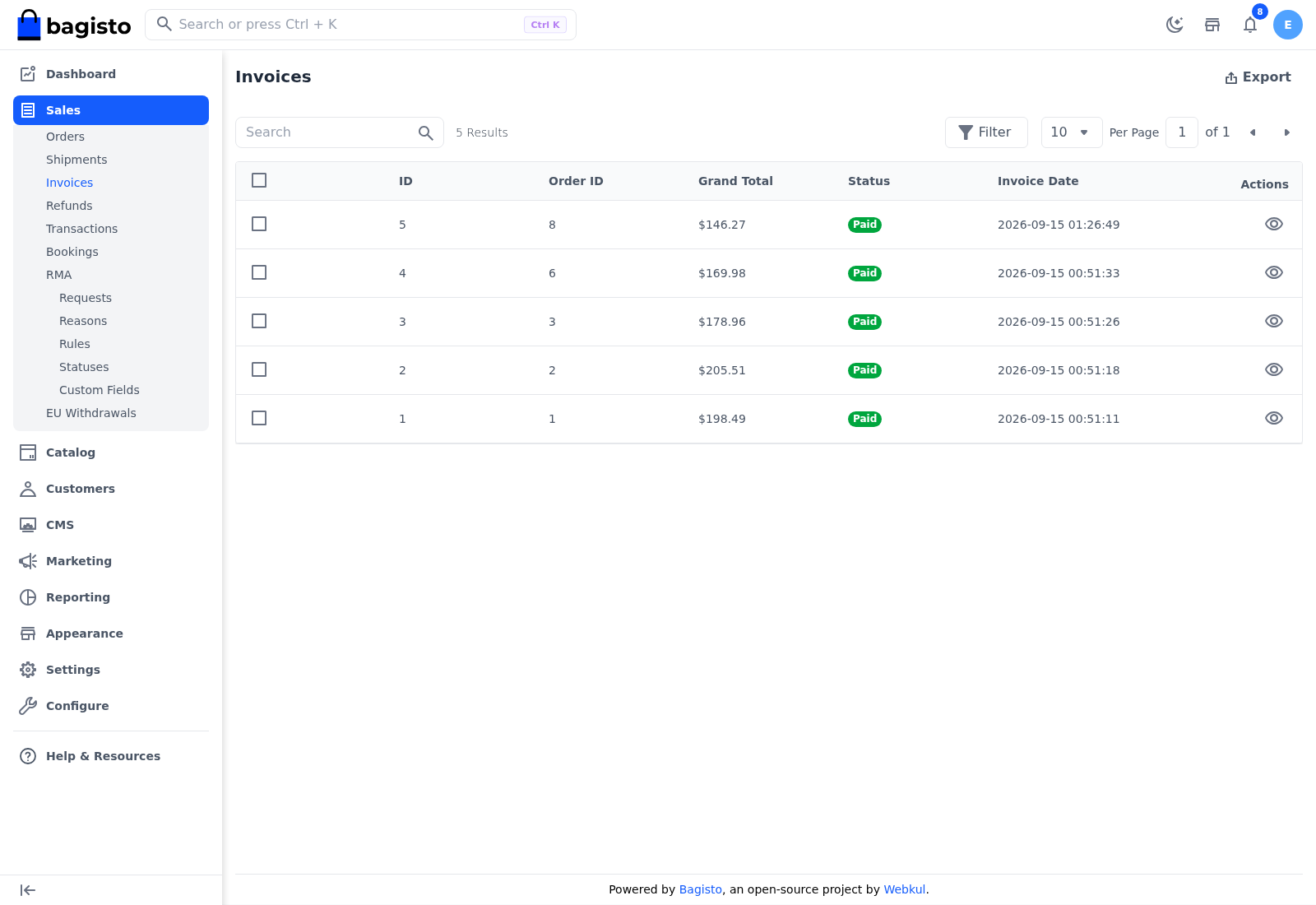
- Search and Filter: find invoices by order ID, grand total, status or invoice date.
- Export: downloads the invoices as a CSV, XLS or XLSX file.
- View: opens the invoice.
Change the status of invoices
Your role needs the Edit permission under Sales >> Invoices.
- Go to Sales >> Invoices.
- Select the invoices.
- Click Select Action.
- Under Update Status, choose Pending, Paid or Overdue.
- Click Agree.
You'll see Selected invoice updated successfully. Changing the status here doesn't change the order's status or add a transaction.
The invoice page
Open an invoice from the Invoices screen, or with View in the order's Invoices card. The title shows the invoice number, such as Invoice #5.
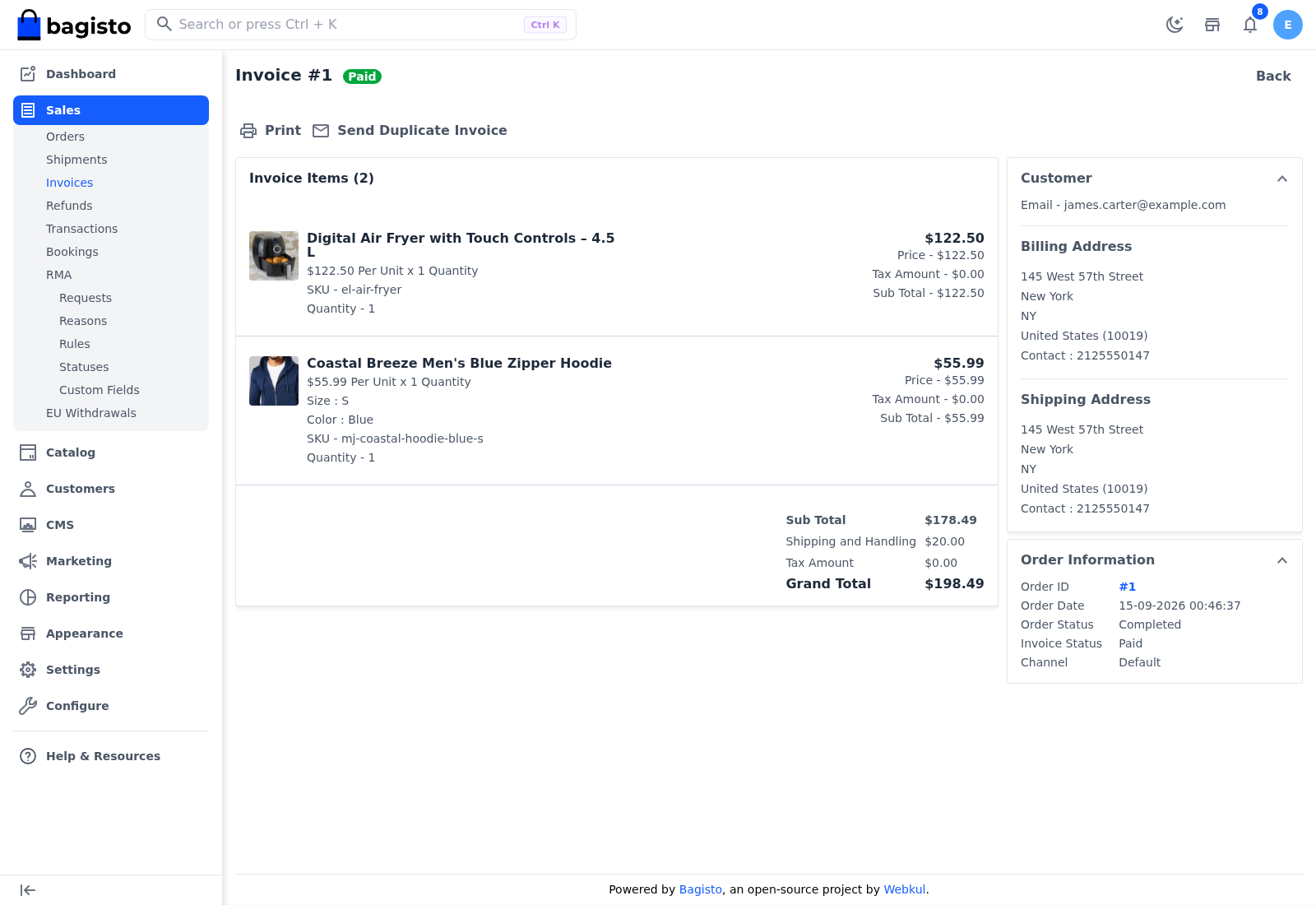
- Invoice Items lists the invoiced products with their price, tax, discount and subtotal, followed by the Sub Total, Shipping and Handling, Tax Amount, Discount Amount (when there's a discount) and Grand Total.
- Customer shows the customer's email, and the billing and shipping addresses.
- Order Information shows the Order ID, which links to the order, and the Order Date, Order Status, Invoice Status and Channel.
Print an invoice
Click Print. The invoice downloads as a PDF. The logo, header and footer of the PDF are set in PDF Print Outs.
Send a copy of an invoice
- Go to Sales >> Invoices.
- Click View on the invoice.
- Click Send Duplicate Invoice.
- Check the Email. It's filled in with the customer's email; enter another address to send the copy there.
- Click Send.
The copy is sent only when Send a notification e-mail to the customer after creating a new invoice is on in Notifications.