
Order Settings
These settings decide how order numbers are built, the smallest order total a customer can check out with, whether an order can be placed again, and how many times the store tries to create an order.
Order numbers
- Go to Configure >> Sales >> Order Settings.
- If your store has more than one channel, choose the channel at the top of the screen.
- In Order Number Settings, fill in the settings described below.
- Click Save Configuration.
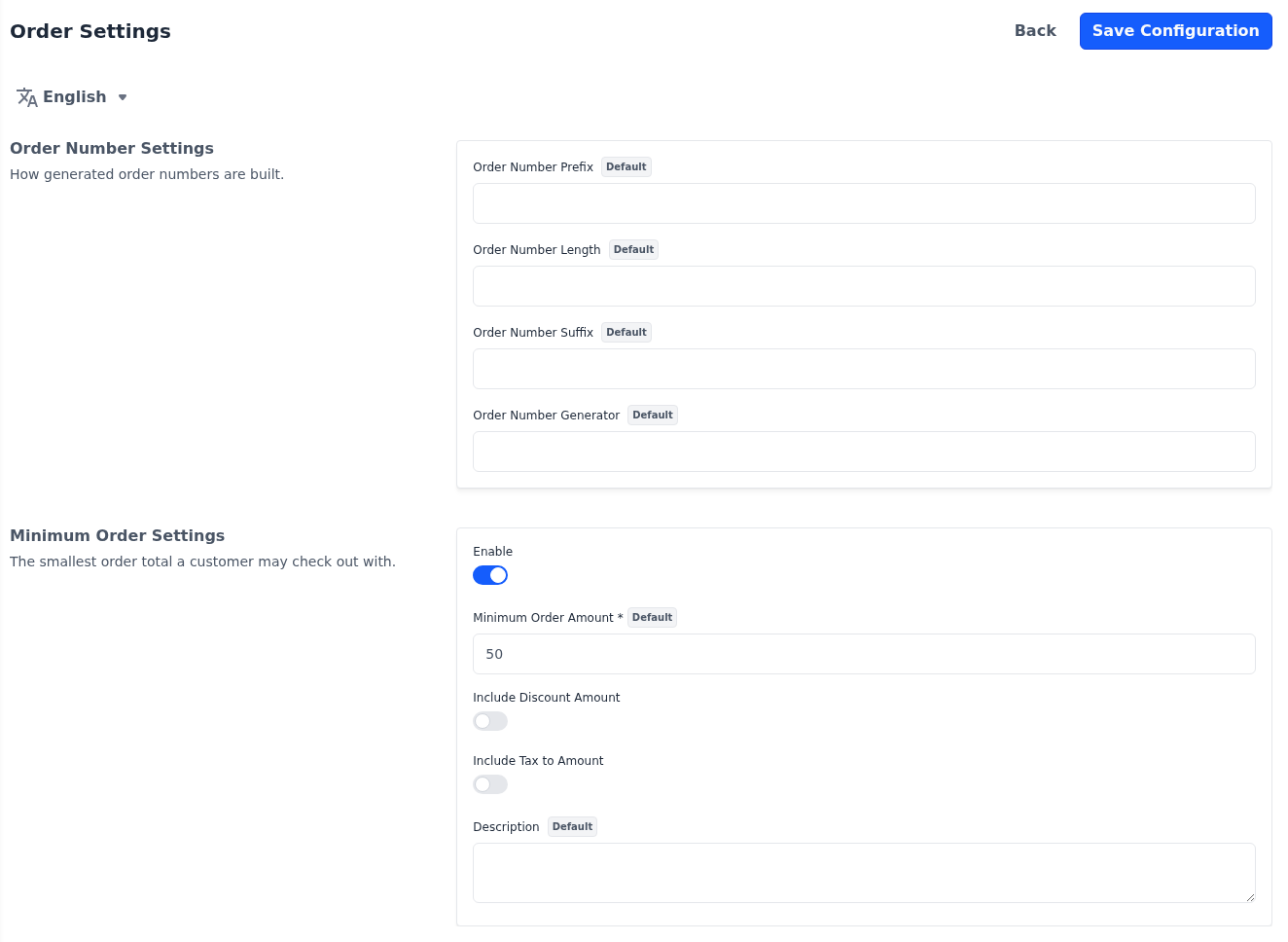
| Setting | What it does |
|---|---|
| Order Number Prefix | Text at the start of every order number, such as ORD-. |
| Order Number Length | How many digits the running number is padded to with zeros, from 1 to 10. |
| Order Number Suffix | Text at the end of every order number. |
| Order Number Generator | Leave it empty unless a developer has built a custom number generator for your store. |
With a prefix of ORD- and a length of 6, orders are numbered like ORD-000042. The running number continues from the last order in the store and is shared by all channels, so a change here affects new orders only. These settings are per channel.
Minimum order amount
A minimum order amount stops shoppers from checking out until their cart reaches that amount.
- Go to Configure >> Sales >> Order Settings.
- If your store has more than one channel, choose the channel at the top of the screen.
- In Minimum Order Settings, switch Enable on. The other settings appear.
- Fill in the settings described below.
- Click Save Configuration.
| Setting | What it does |
|---|---|
| Enable | Turns the minimum order amount on. |
| Minimum Order Amount | The smallest cart total a shopper can check out with. Enter a whole amount, such as 50, because decimal places are ignored. Required while Enable is on. |
| Include Discount Amount | Checks the cart total after discounts. |
| Include Tax to Amount | Adds tax to the cart total before it's checked. |
| Description | The message shown on the cart page while the cart is below the minimum, followed by the amount. If it's empty, shoppers see Minimum order amount is: and the amount. |
Minimum Order Amount and Description are per channel. The three switches apply to the whole store. After you change Include Discount Amount or Include Tax to Amount, check the minimum with a test cart.
While the cart is below the minimum, shoppers can't go to checkout or place the order. The same check applies to orders you create in the admin panel.
Allow reorder
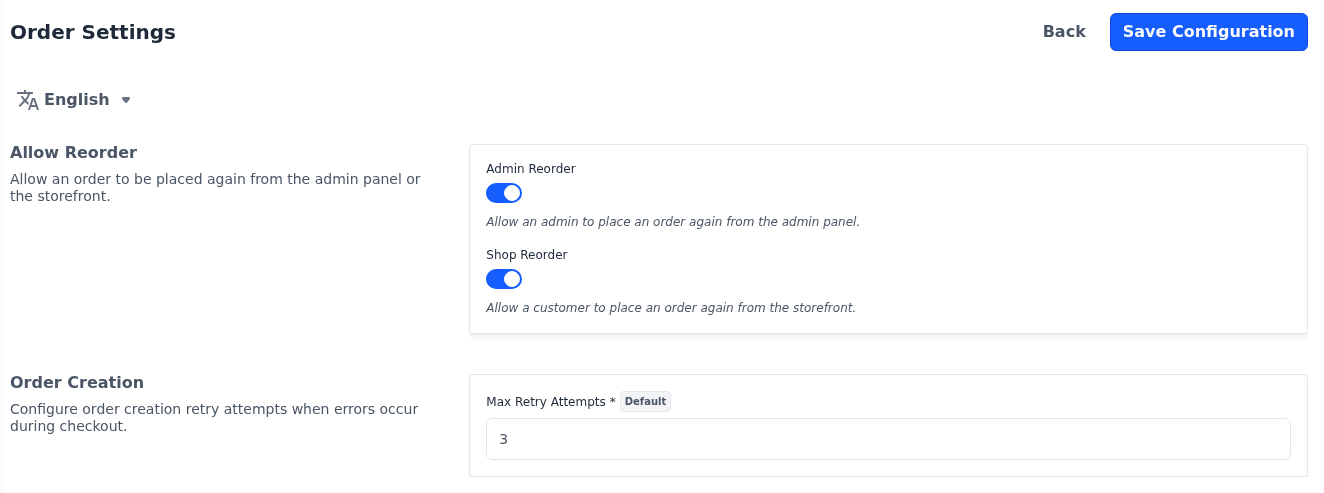
Admin Reorder adds a Reorder button to orders in the admin panel, and Shop Reorder adds one to a customer's orders on the storefront. Both are on in a new store.
- Go to Configure >> Sales >> Order Settings.
- In Allow Reorder, switch Admin Reorder on or off.
- Switch Shop Reorder on or off.
- Click Save Configuration.
- In the admin panel, Reorder opens Create Order for the same customer, with the order's products in the cart. See Actions on an order.
- On the storefront, Reorder adds the order's products to the customer's cart and opens the cart page. See Customer Account.
The button appears only on orders placed by a registered customer, and only while the ordered products can still be bought. Booking products are left out and have to be booked again. In the admin panel, only users allowed to create orders see the button. Both switches apply to the whole store.
Order creation
Max Retry Attempts is how many times, in total, the store tries to create an order before it gives up, for example when two orders placed at the same moment get the same number. It applies at checkout and to orders you create in the admin panel.
- Go to Configure >> Sales >> Order Settings.
- If your store has more than one channel, choose the channel at the top of the screen.
- In Order Creation, enter the Max Retry Attempts.
- Click Save Configuration.
The default is 3, and the setting is per channel.