
Newsletter Subscriptions
Newsletter subscribers are the people who agreed to receive your marketing emails. Campaigns go to people who subscribed to your newsletter, so this list is where your email marketing starts.
How shoppers subscribe
- In the storefront footer, by entering their email and clicking Subscribe. The form is shown while Allow Newsletter Subscription is on. See Newsletter subscription.
- When they create an account, by ticking Subscribe to newsletter. The checkbox is shown while Allow NewsLetter is on. See Create new account options.
- On their account profile, with the Subscribe to newsletter option.
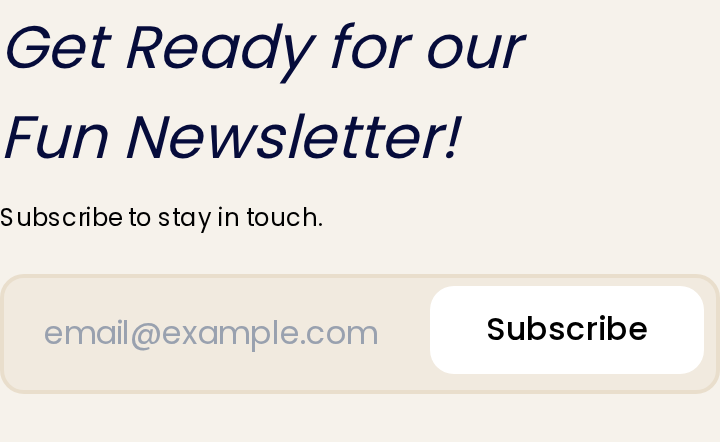
Shoppers who subscribe in the footer get a confirmation email with a link to unsubscribe. Customers can also unsubscribe at any time by clearing Subscribe to newsletter on their profile.
View subscribers
Go to Marketing >> Communications >> Newsletter Subscriptions. The list shows each subscriber's ID, whether they're Subscribed, and their Email.
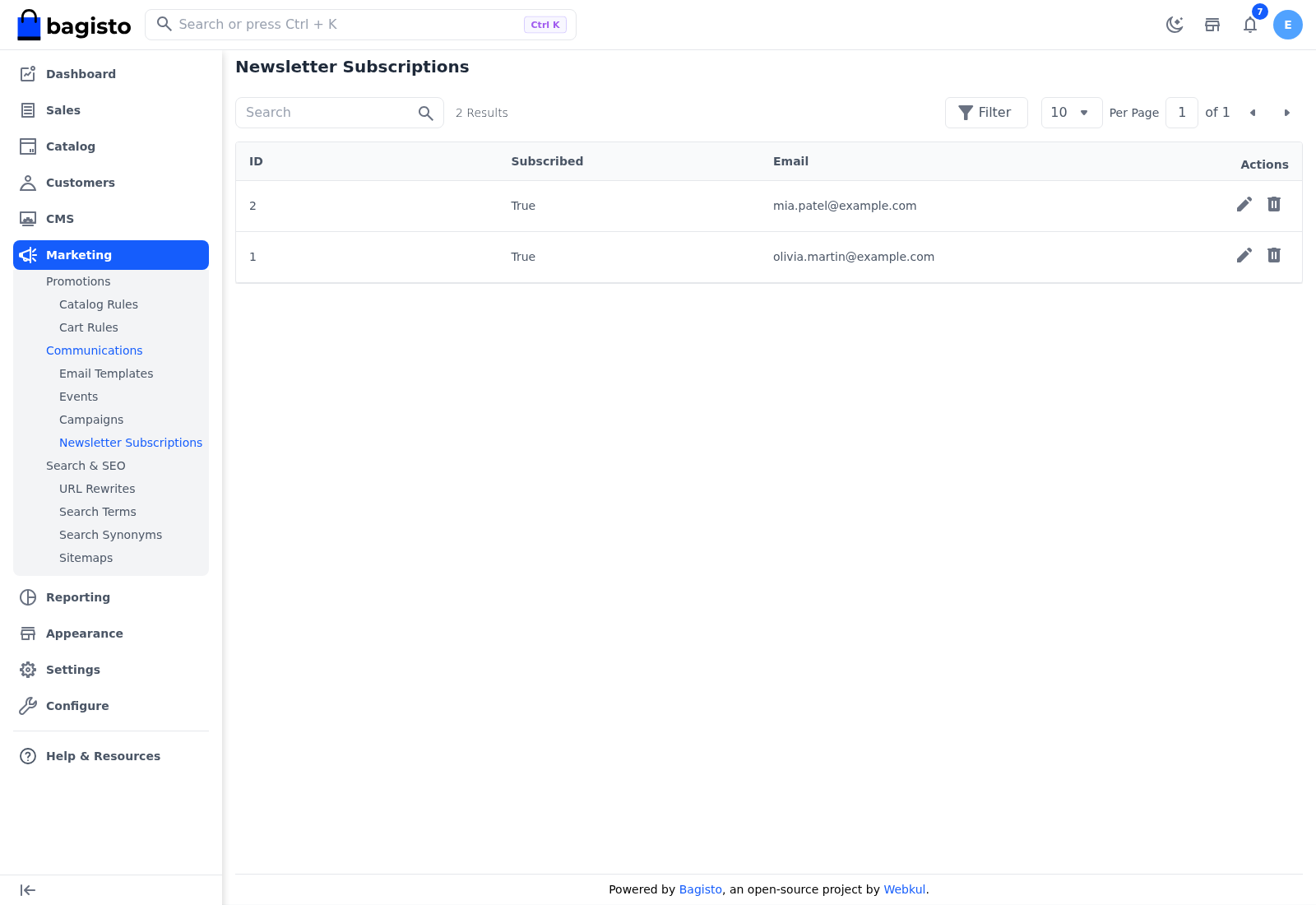
There's no button to add subscribers yourself, because people subscribe from the storefront.
Unsubscribe someone
- Go to Marketing >> Communications >> Newsletter Subscriptions.
- Click the edit icon of the subscriber. The Edit Newsletter Subscriber dialog opens.
- Set Subscribed to False.
- Click Save Subscriber.
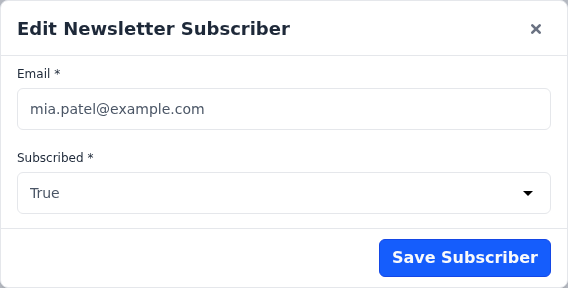
When the subscriber has a customer account, the newsletter option on their account changes too.
To remove someone from the list completely, click the delete icon of the subscriber. Deleting also clears Subscribe to newsletter on their customer account. For someone without a customer account who asked to unsubscribe, delete their entry, so that Guest campaigns can't reach them.