
Email Settings
The Email Settings screen decides how your store sends email, and the names and addresses emails are sent from.
Mail driver
The mail driver applies to the whole store.
- Go to Configure >> Email >> Email Settings.
- In Mail Driver, choose the Driver: SMTP (the default) or Brevo (API). Only the fields of that driver are shown.
- For SMTP, enter the settings described in the table.
- For Brevo (API), enter your Brevo API Key.
- Click Save Configuration.
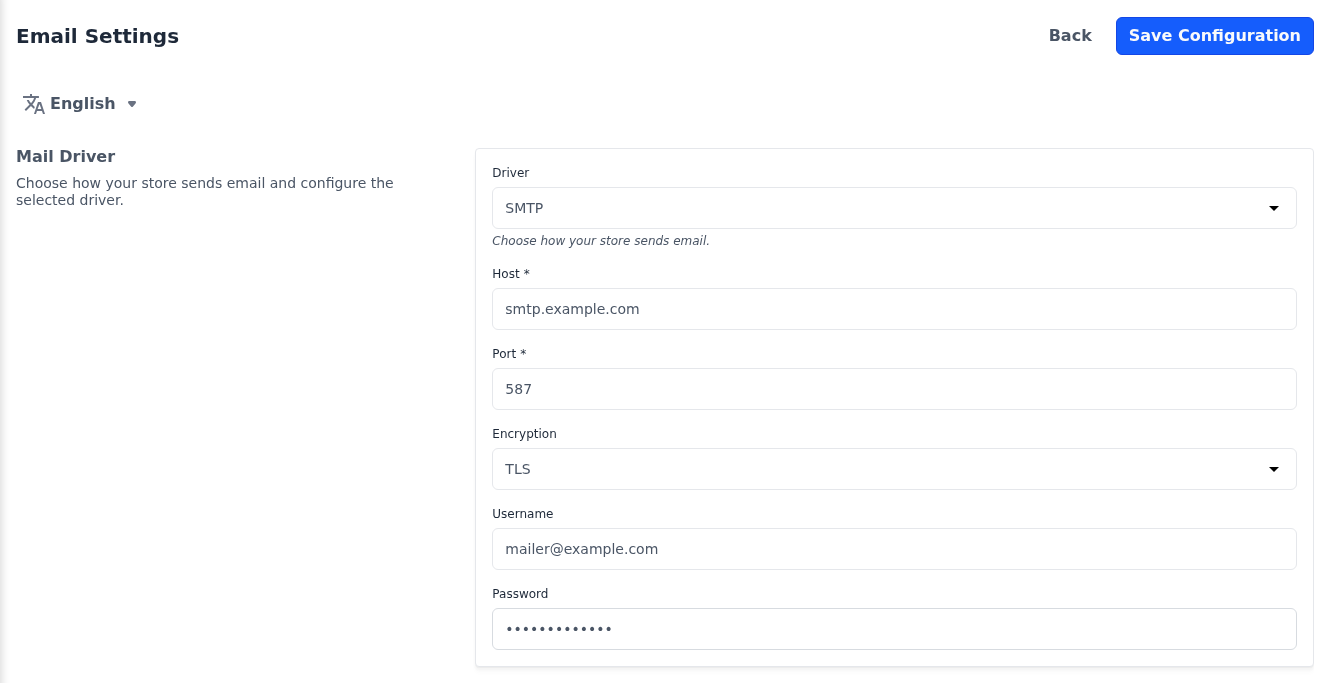
| Setting | What it does |
|---|---|
| Driver | How email is sent: SMTP sends it through a mail server, such as the one your email provider gives you, and Brevo (API) sends it through Brevo's web service. |
| Brevo API Key | Appears for Brevo (API). Create a v3 API key in your Brevo account under SMTP & API. |
| Host | Appears for SMTP, like the settings below it. The address of your mail server. Required. |
| Port | The port of your mail server, such as 587. Required. |
| Encryption | TLS, SSL or None. Use the one your email provider tells you to. |
| Username | The account the store signs in to the mail server with. |
| Password | The password of that account. |
The SMTP settings start with the values from the server's environment file, so they may already be filled in. The Mail card on the About screen shows which driver is in use.
These settings are currently inactive
If the section shows These settings are currently inactive., your server is set to send email another way and changes here have no effect. Ask whoever manages your server to set the store's mailer to bagisto-dynamic-smtp in its environment file.
Email settings
The sender details are saved per channel, so choose the channel at the top of the screen first when your store has more than one.
- Go to Configure >> Email >> Email Settings.
- In Email Settings, enter the six details described in the table.
- Click Save Configuration.
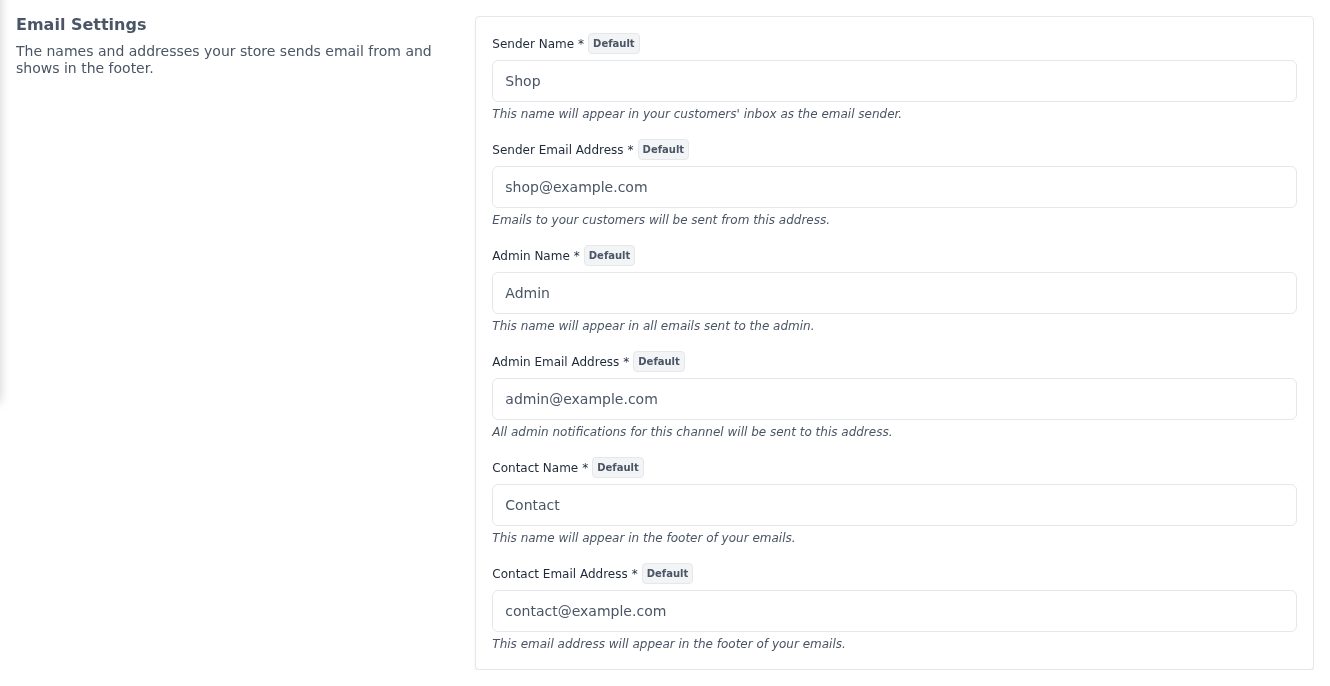
| Setting | What it does |
|---|---|
| Sender Name | The name customers see as the sender of your emails. Up to 50 characters. |
| Sender Email Address | The address emails to customers are sent from. |
| Admin Name | The name used in emails sent to the admin. Up to 50 characters. |
| Admin Email Address | The address admin notifications for the channel are sent to. |
| Contact Name | The name that goes with your contact email address. Up to 50 characters. |
| Contact Email Address | The address shown in the footer of your emails. |
All six are required, and they start with the values from the server's environment file. Which emails are sent is set under Notifications. These details are also used by the emails described in GDPR Data Requests and EU Withdrawal.
Differences in Bagisto 2.4
The Driver and Brevo API Key settings are available from Bagisto 2.4.10. Earlier 2.4 releases send email only through SMTP, with the Host, Port, Encryption, Username and Password settings.