
Address
The Address screen decides which address fields customers must fill in, and how many street address lines the address forms show. Both sections are saved per channel, so choose the channel at the top of the screen first when your store has more than one.
Requirements
- Go to Configure >> Customer >> Address.
- In Requirements, switch Country on to make it required, or off to make it optional.
- Switch State on or off.
- Switch Zip on or off.
- Click Save Configuration.
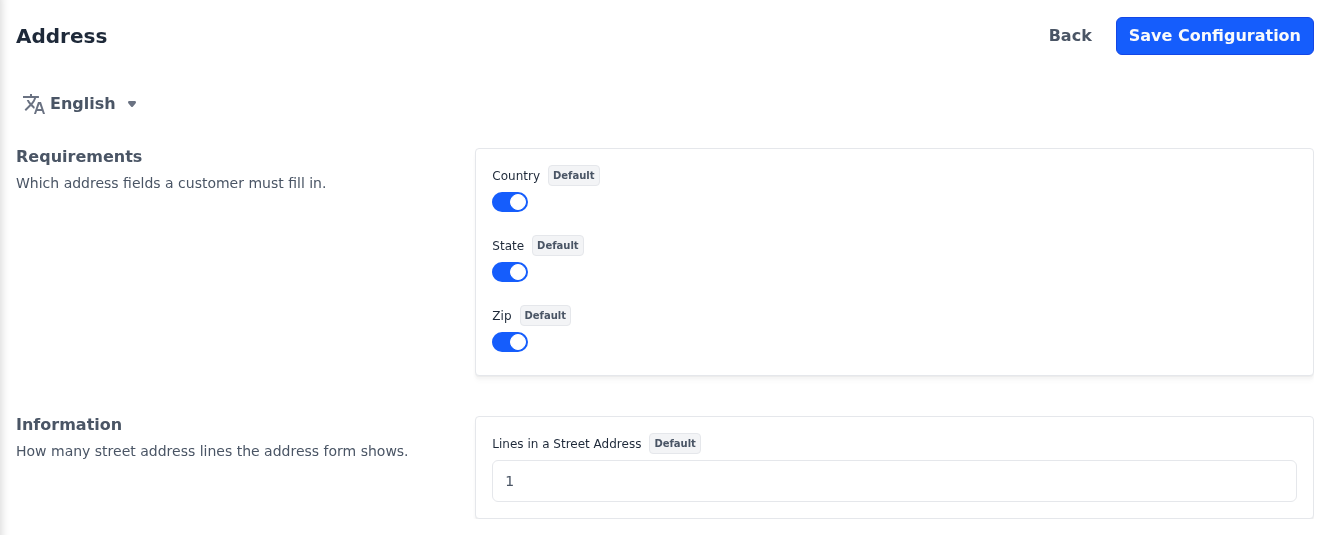
All three are on by default. The requirements apply on the storefront to the address forms in the customer account, the addresses at checkout and the Estimate Shipping and Tax form on the cart page. In the admin panel, they apply to the address form when you create an order.
Information
- Go to Configure >> Customer >> Address.
- In Information, enter the number of Lines in a Street Address, from
1to4. The default is1. - Click Save Configuration.
The address forms show that many street address lines: in the customer account and at checkout on the storefront, and in the admin panel when you add a customer's address or create an order.
The address forms customers fill in are described in Customer Account, and adding an address in the admin panel in Customers.