
Transactions
A transaction records a payment received for an invoice. Use transactions to track payments for invoices that are still Pending, including part payments. When the payments for an invoice add up to its total, the invoice becomes Paid.
Invoices you create with New Invoice are saved as Paid, so they can't take a transaction. Pending invoices come from Automatically generate the invoice after placing an order in Payment Methods.
A transaction is added when:
- an online payment method, such as PayPal, Stripe or Razorpay, confirms a customer's payment;
- you tick Create Transaction while creating an invoice;
- you record a payment with Create Transaction on the Transactions screen.
The Transactions screen
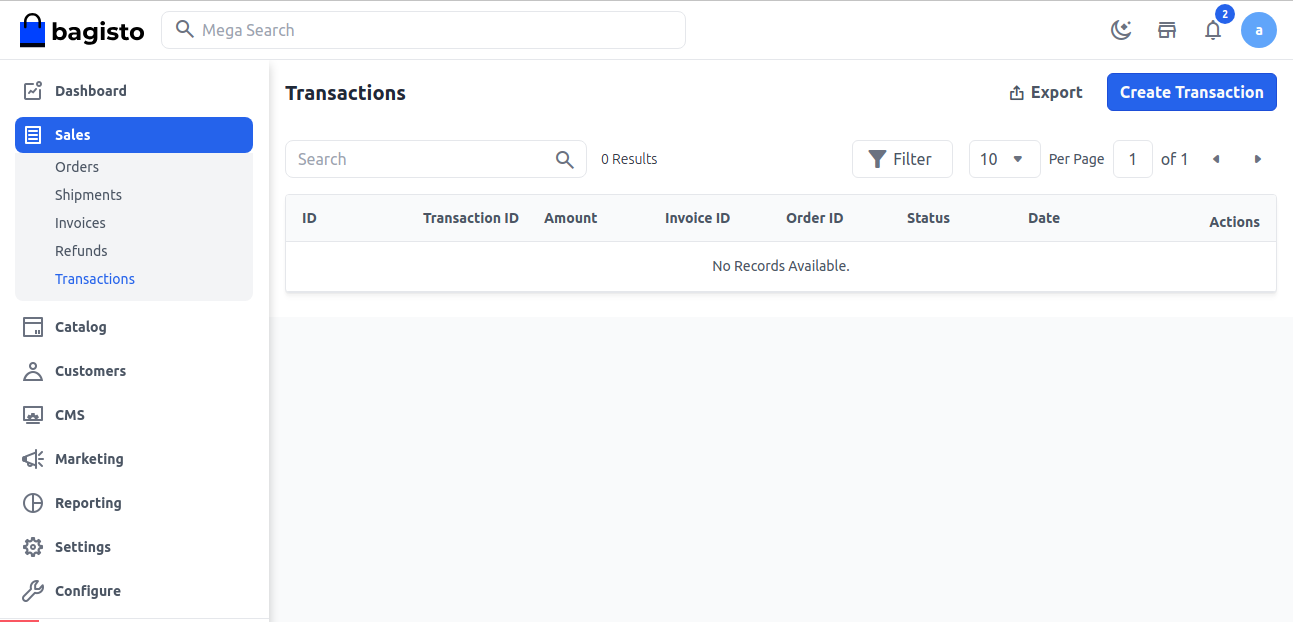
Go to Sales >> Transactions to see every transaction with its ID, Transaction ID, Amount, Invoice ID, Order ID, Status and Date.
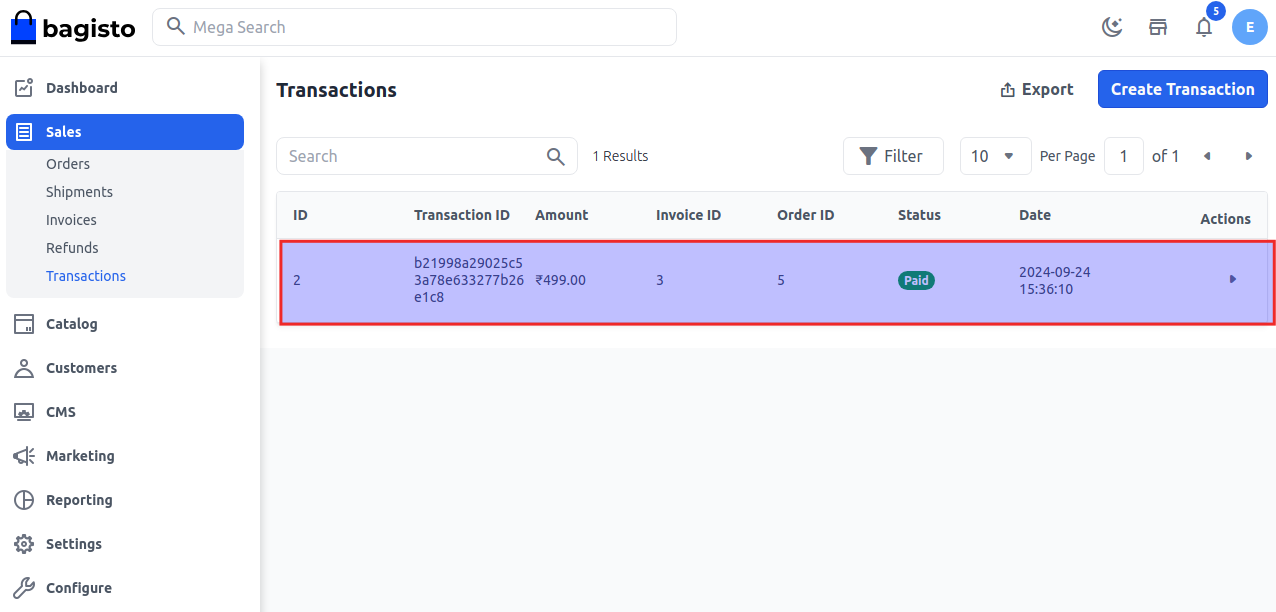
- Click the Invoice ID or Order ID to open the invoice or the order.
- Search and Filter: find transactions by amount, invoice ID, order ID, status or date. You can also filter by transaction ID.
- Export: downloads the transactions as a CSV, XLS or XLSX file.
Click the arrow at the end of a row to open Transaction Details, with the Transaction ID, Order ID, Invoice ID, Payment Method, Status, Created At and Amount.
Record a payment
Go to Sales >> Transactions.
Click Create Transaction. The Create Transaction form opens.
Enter the Invoice ID the payment is for.
Choose the Payment Method the customer paid with. Cash On Delivery isn't in this list.
Enter the Amount received, in the store's base currency.
Click Save Transaction.
You'll see Transaction saved successfully. Instead, you'll see:
- Invoice Missing when no invoice has that ID;
- Already paid when the invoice is already Paid;
- Transaction Amount zero when the amount isn't more than 0;
- Transaction Amount exceeds when the invoice's transactions would add up to more than its total.
When the invoice's transactions add up to its total, the invoice becomes Paid and the order moves to Processing, or Completed if it has a shipment. Check the order's status afterwards. Transactions can't be edited or deleted.
Record a payment while invoicing
- Go to Sales >> Orders.
- Open the order.
- Click Invoice.
- Tick Create Transaction.
- Click Create Invoice.
A transaction for the invoice's total is added with the invoice's status. See Create Invoice.
Permissions
A role needs Transactions under Sales, with View. The arrow that opens Transaction Details also needs View under Shipments.