
Image Size
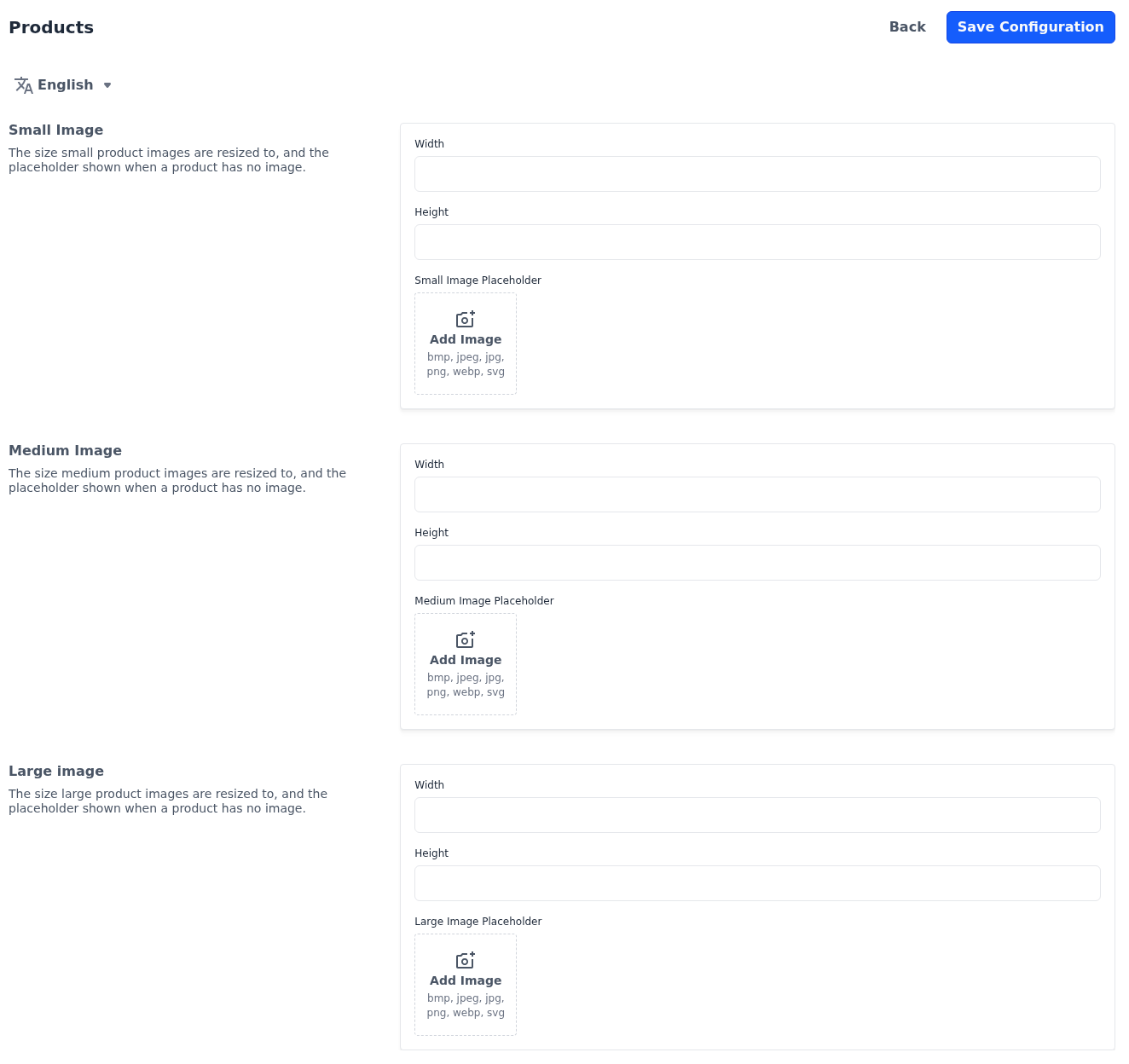
The storefront shows product images in three sizes. The Small Image, Medium Image and Large image sections set the size of each, and the placeholder shown for products that have no image of their own.
- Go to Configure >> Catalog >> Products.
- In Small Image, enter the Width in pixels.
- Enter the Height in pixels.
- Optionally, click Add Image under Small Image Placeholder and choose the image shown when a product has no image.
- Repeat these steps in Medium Image and Large image.
- Click Save Configuration.
| Size | Where it's used | Size when left empty |
|---|---|---|
| Small Image | The thumbnails in the product page gallery, and product cards on small screens | 100 × 100 pixels |
| Medium Image | Product cards in category pages, search results and carousels | 350 × 360 pixels |
| Large image | The main image in the product page gallery | 560 × 610 pixels |
Product images are cropped to fill the size you set. A placeholder can be a BMP, JPEG, JPG, PNG, WEBP or SVG file; without one, Bagisto's own placeholder image is shown. These settings apply to the whole store.