Seller Catalog Bulk Upload
The Seller Catalog Bulk Upload feature allows sellers to upload, update, and delete products in bulk using CSV, XLS, or XLSX files, saving time by managing multiple products at once instead of handling them individually.
How to Import Products in Bulk
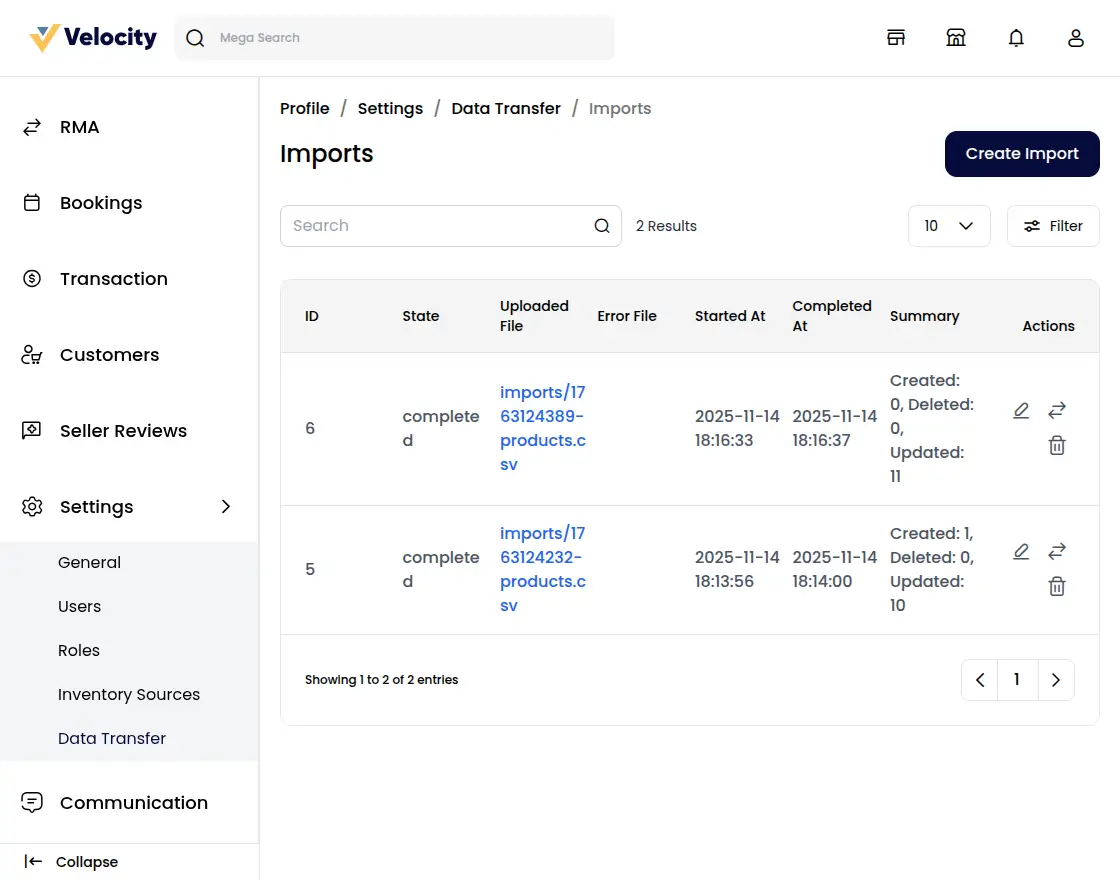
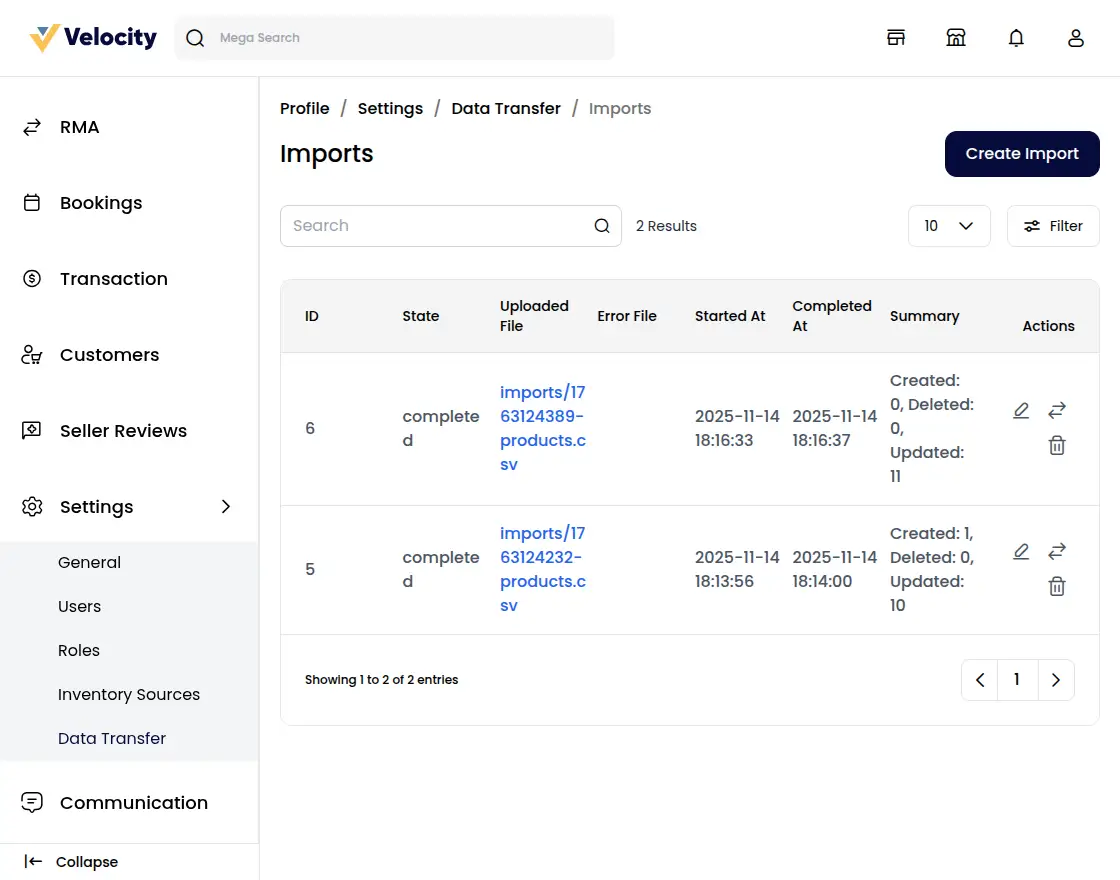
Step 1: Go to the Seller Panel → Product Catalog → Data Transfer, then click on the Create Import button.
Step 2: Configure Import Settings
Under General Configuration, fill in the following details:
1) Type: Sellers can only import products in bulk using this option.
2) File: Upload the product file in CSV, XLS, or XLSX format. Make sure all required fields are filled correctly.
Note: This supports Simple, Configurable, Bundled, and Grouped product types.
3) Download Sample: Download the sample product file and ensure your upload file follows the same format.
Note: All required attributes must be filled for successful product creation.
4) Image Directory Path: Use a relative path under /project-root/storage/import/app to store product images.
5) Upload Images (ZIP): Upload all product images together in a single ZIP file.
6) Action: Select whether you want to create, Update, or delete product records.
7) Validation Strategy: Choose whether to Skip Errors or Stop on Errors during the import process.
8) Allowed Errors: Set the number of errors that can be ignored while importing data.
9) Field Separator: Define the separator used in the import file (such as a comma).
10. Process in Queue: Enable this option to run the import process in the background queue
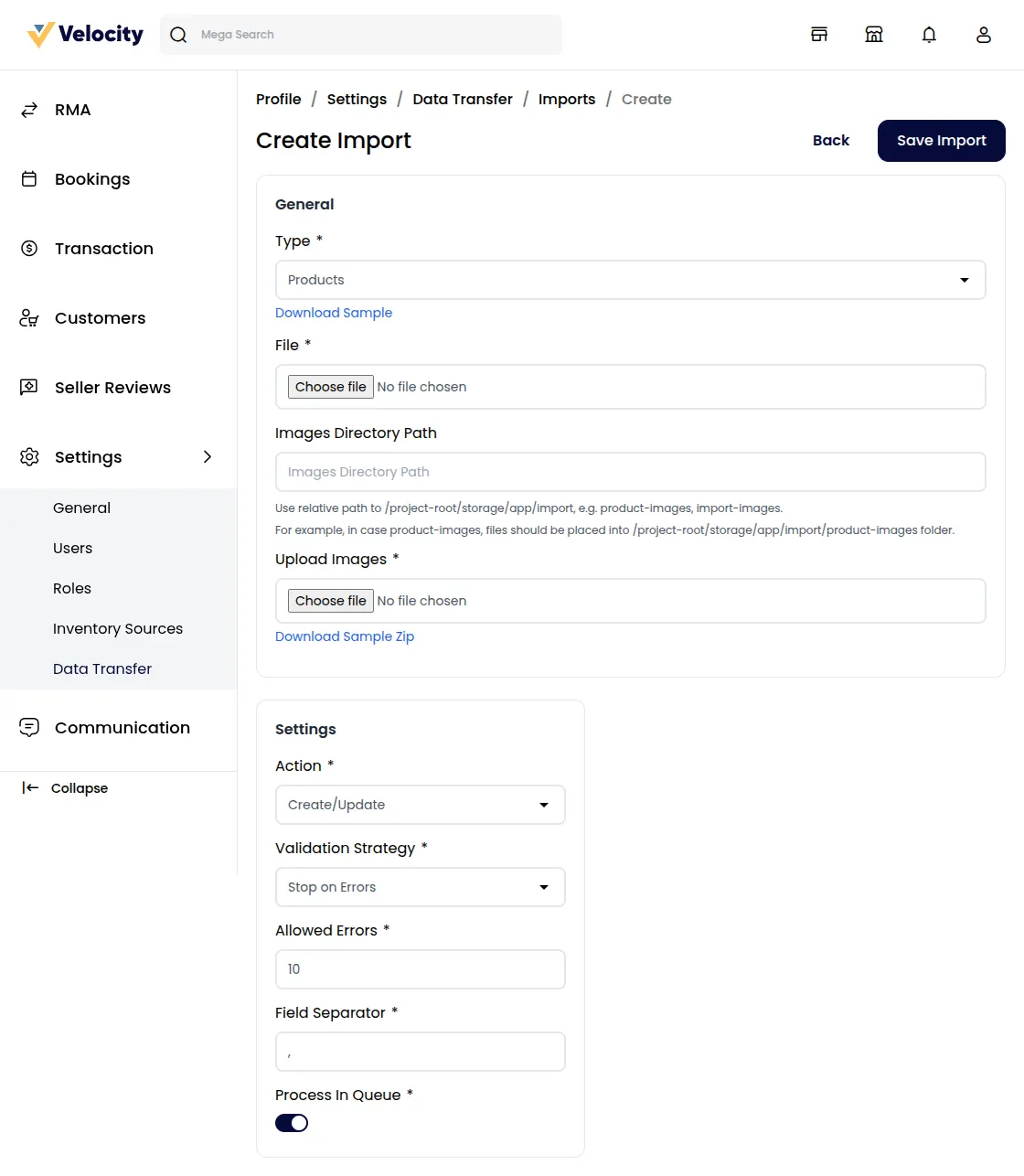
After completing the configuration, click on the Save Import button.
Step 3: Once you click Save Import, the import process will start automatically.
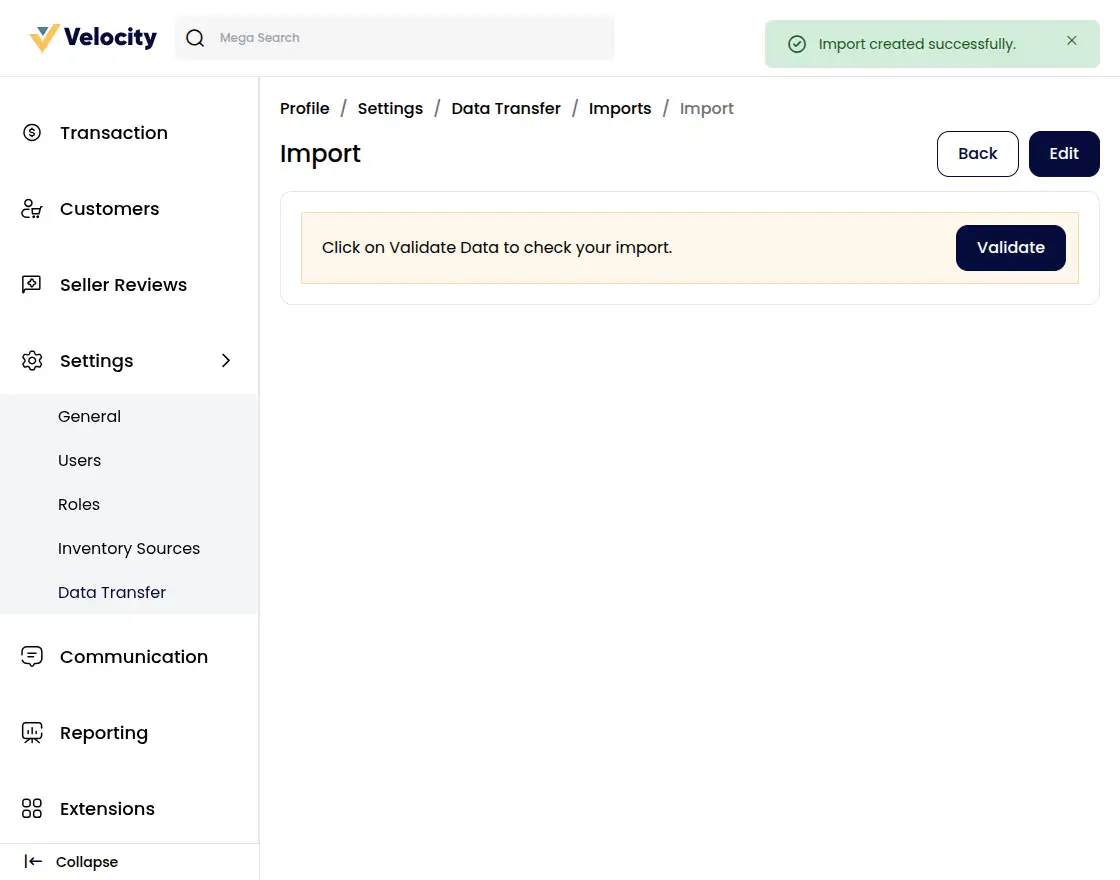
Step 4: Click on the Validate button to verify the imported data.
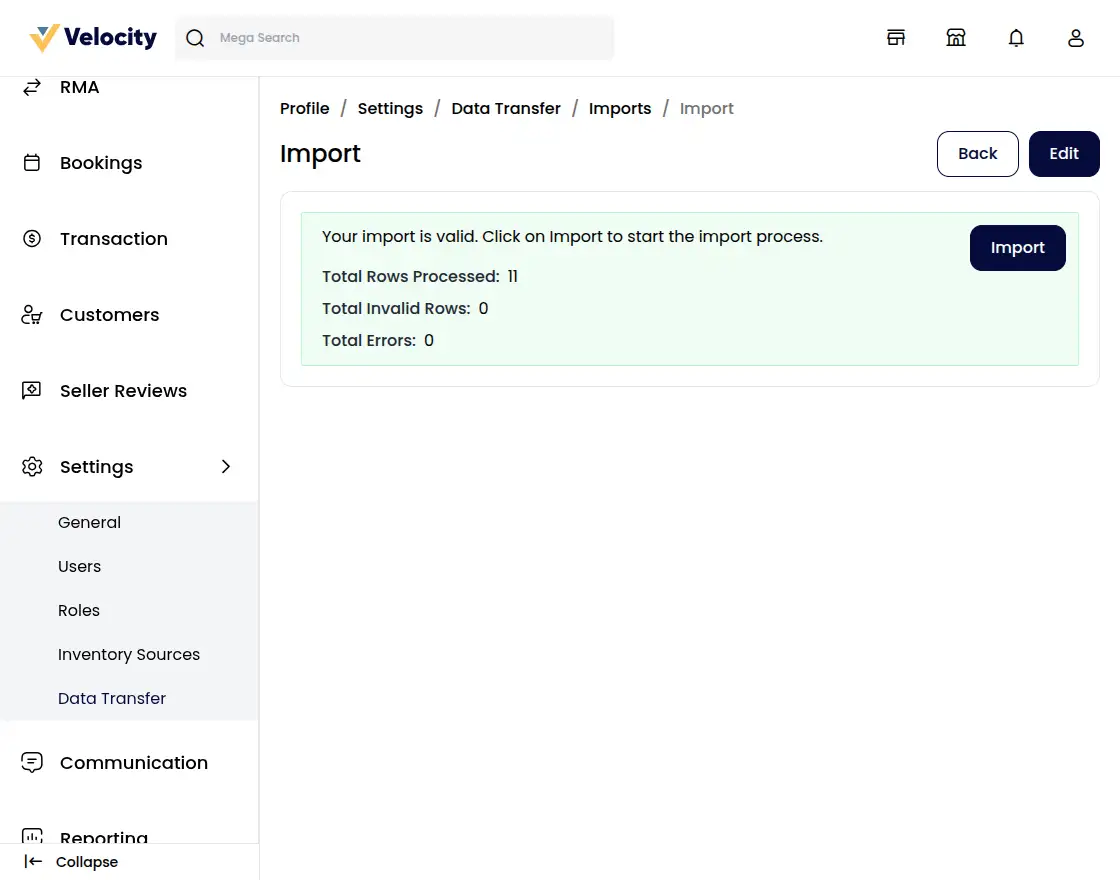
Step 5: After validation, click on the Import button to complete the process.
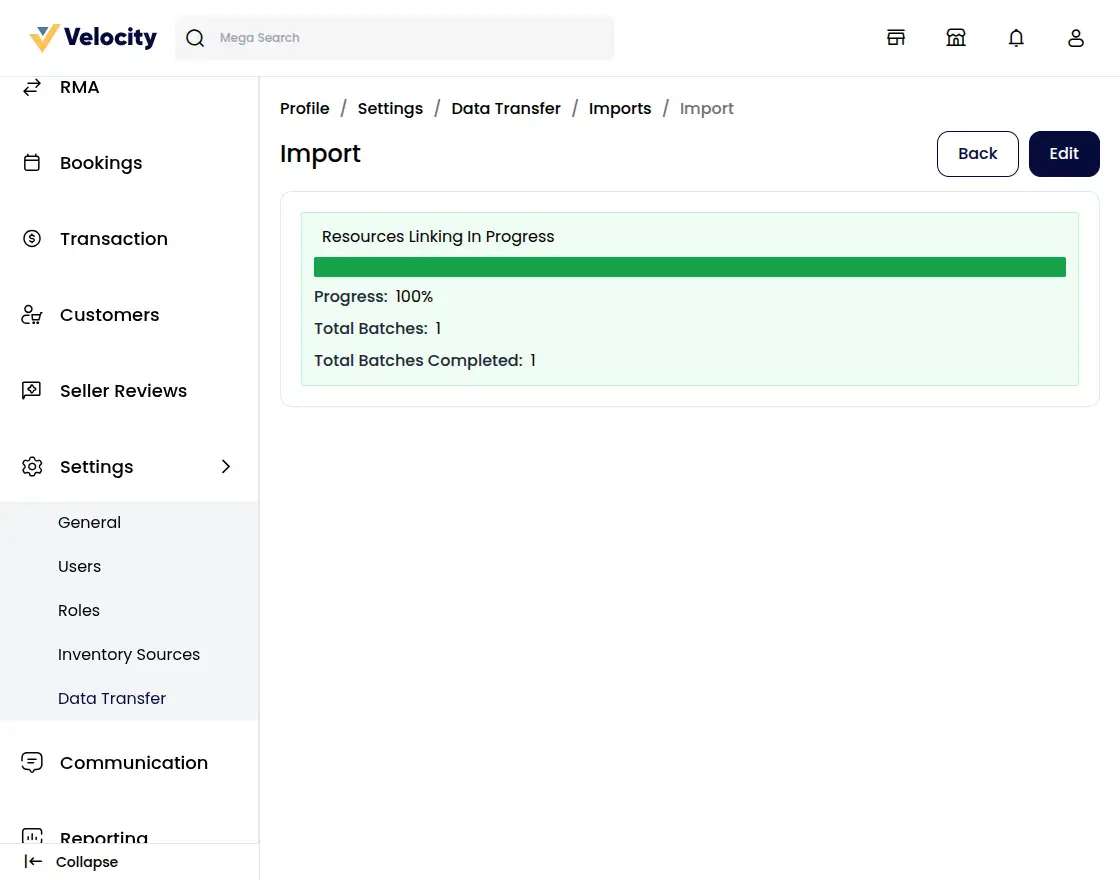
Import Completion
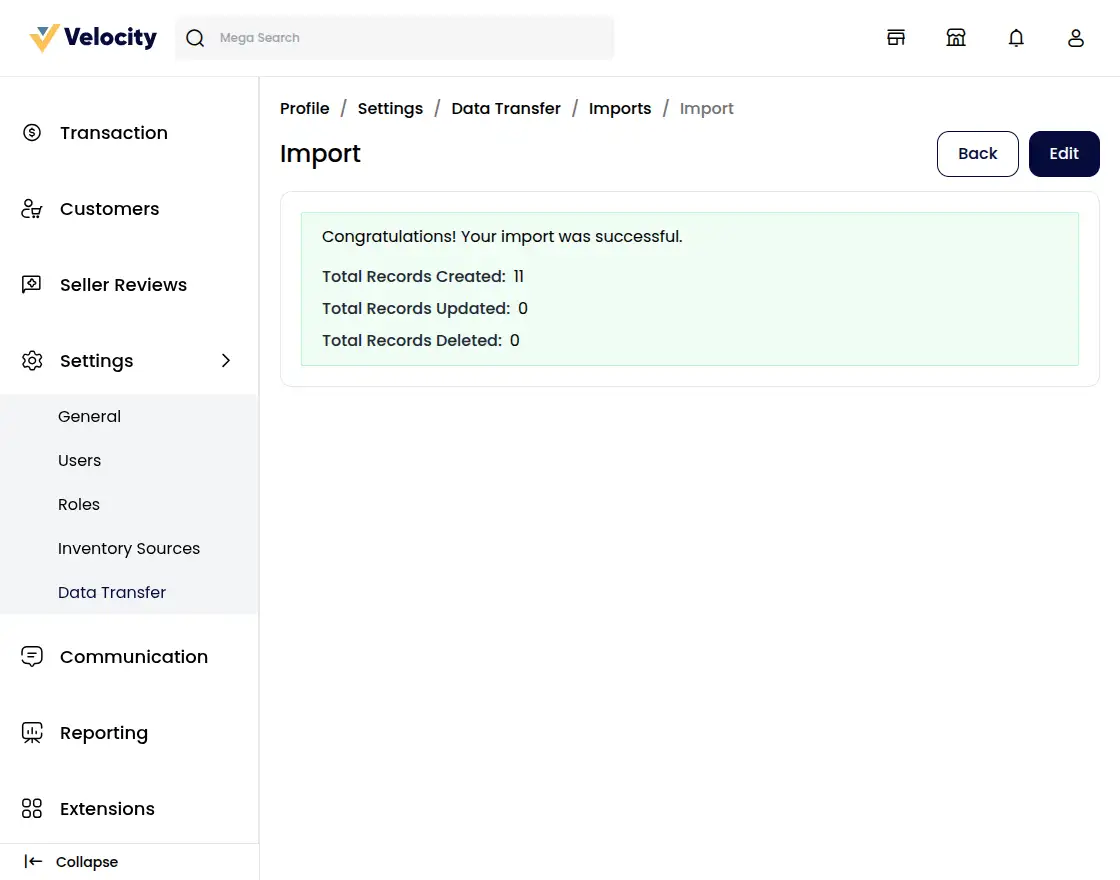
After a successful import, the system will display a summary such as:
1) Total Records Created: Number of newly created products.
2) Total Records Updated: Number of updated products.
3) Total Records Deleted: Number of deleted products.