
Attribute Families
An attribute family is a set of attributes arranged in groups. Every product belongs to one family, chosen when you create the product, and the family decides which sections and fields its edit screen shows. Create a family for each kind of product that needs its own fields, such as Clothing with Color, Size and Material, or Electronics with Brand only.
The families list
Go to Catalog >> Attribute Families. The Families list shows each family's ID, Code and Name.
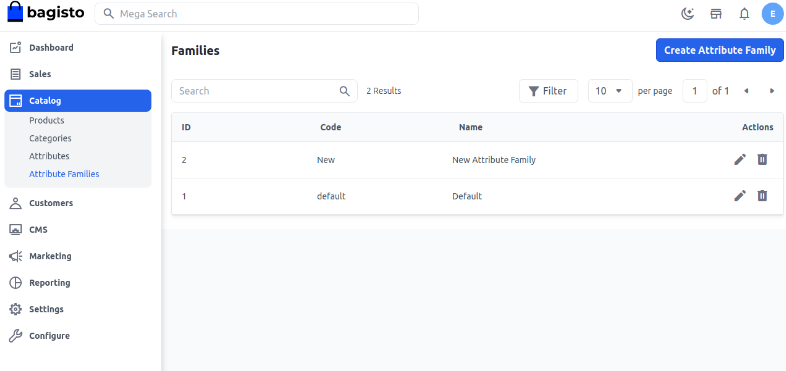
- Search: type in the search box to find families by code or name.
- Filter: click Filter to filter by ID, Code or Name.
- Sort: click ID, Code or Name in the header row.
- Edit (the pencil) opens the family, and Delete (the bin) deletes it. See Delete a family.
Create a family
Go to Catalog >> Attribute Families.
Click Create Attribute Family. The Create Attribute Family page opens with the groups and attributes of the Default family already in place.
In General, enter the Code. Start with a letter and use letters, numbers and underscores, such as
home_decor. The code can't be changed later.Enter the Name.
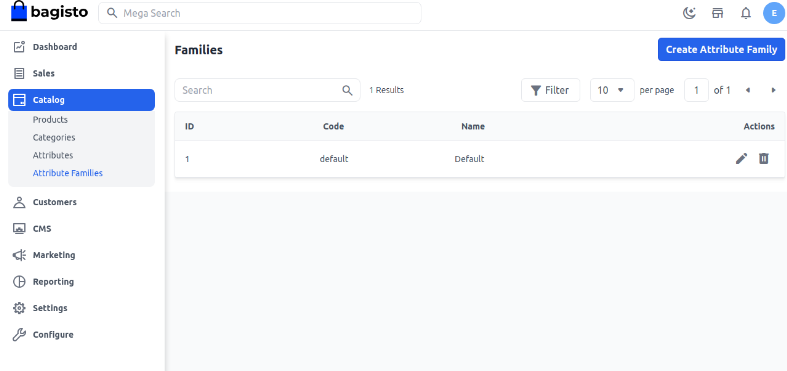
Arrange the groups and attributes. See Groups and columns.
Click Save Attribute Family.
The new family is offered in the Family list when you create a product.
Groups and columns
The Groups panel has three columns:
- Main Column: the groups shown in the wide main column of the product edit screen.
- Right Side Column: the groups shown in the narrow column on the right.
- Unassigned Attributes: the attributes that aren't in this family.
Each group becomes a section of the product edit screen, titled with the group's name, and each attribute in the group becomes a field, in the order shown here. System groups and system attributes come with every store, and their icons carry a small mark.
Arrange groups and attributes
- Reorder a group: drag it by its handle. Drop it in the other column to move it there.
- Move an attribute: drag it by its handle to another place in its group, or into another group.
- Add an attribute: drag it from Unassigned Attributes into a group.
- Collapse a group: click the arrow next to its name.
Your changes are kept only when you click Save Attribute Family.
Add a group
Click Add Group. The Add New Group dialog opens.
Enter the Code. It must be different from the codes of the family's other groups.
Enter the Name, the title of the section on the product edit screen.
Choose the Column: Main Column or Right Side Column.
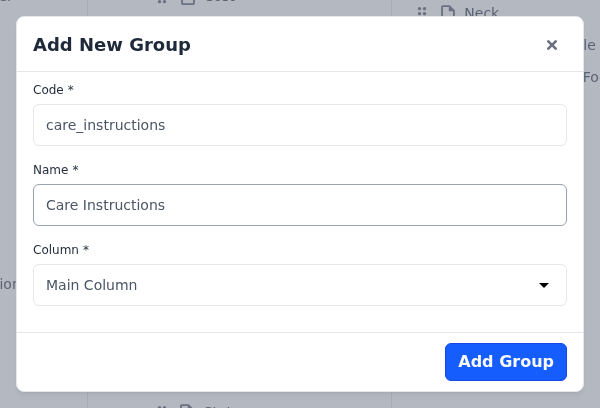
Click Add Group. The group is added at the bottom of the column.
Drag attributes into the group.
Click Save Attribute Family.
Rename a group
- Click the group's name to select it.
- Click the name again. It turns into a text box.
- Type the new name.
- Click Save Attribute Family.
Remove an attribute
- Drag the attribute from its group into Unassigned Attributes.
- Click Save Attribute Family.
System attributes, such as SKU, Name and Price, can't be removed from a family. If you drag one into Unassigned Attributes, it moves back and You can not remove system attributes from attribute family. appears. You can still move them to another group.
Products in the family keep the values they had for a removed attribute, but the field no longer appears on their edit screen or their product page. If you add the attribute back, the field returns with its values.
Delete a group
- Click the group's name to select it.
- Click Delete Group, and confirm if you're asked to.
- Click Save Attribute Family.
A group that holds system attributes can't be deleted, and This group contains system attributes. First move system attributes to another group and try again. appears. Move the system attributes to another group first. The other attributes of a deleted group go back to Unassigned Attributes.
Keep the Price, Inventories and Meta Description groups
On the product edit screen, the Price group of the Default family also holds the customer group prices, Inventories holds the stock quantity of each inventory source, and Meta Description shows the search result preview. A family without these groups doesn't show those blocks.
Edit a family
- Go to Catalog >> Attribute Families.
- Click Edit on the family's row. The Edit Attribute Family page opens.
- Change the Name, the groups or the attributes. The Code can't be changed.
- Click Save Attribute Family.
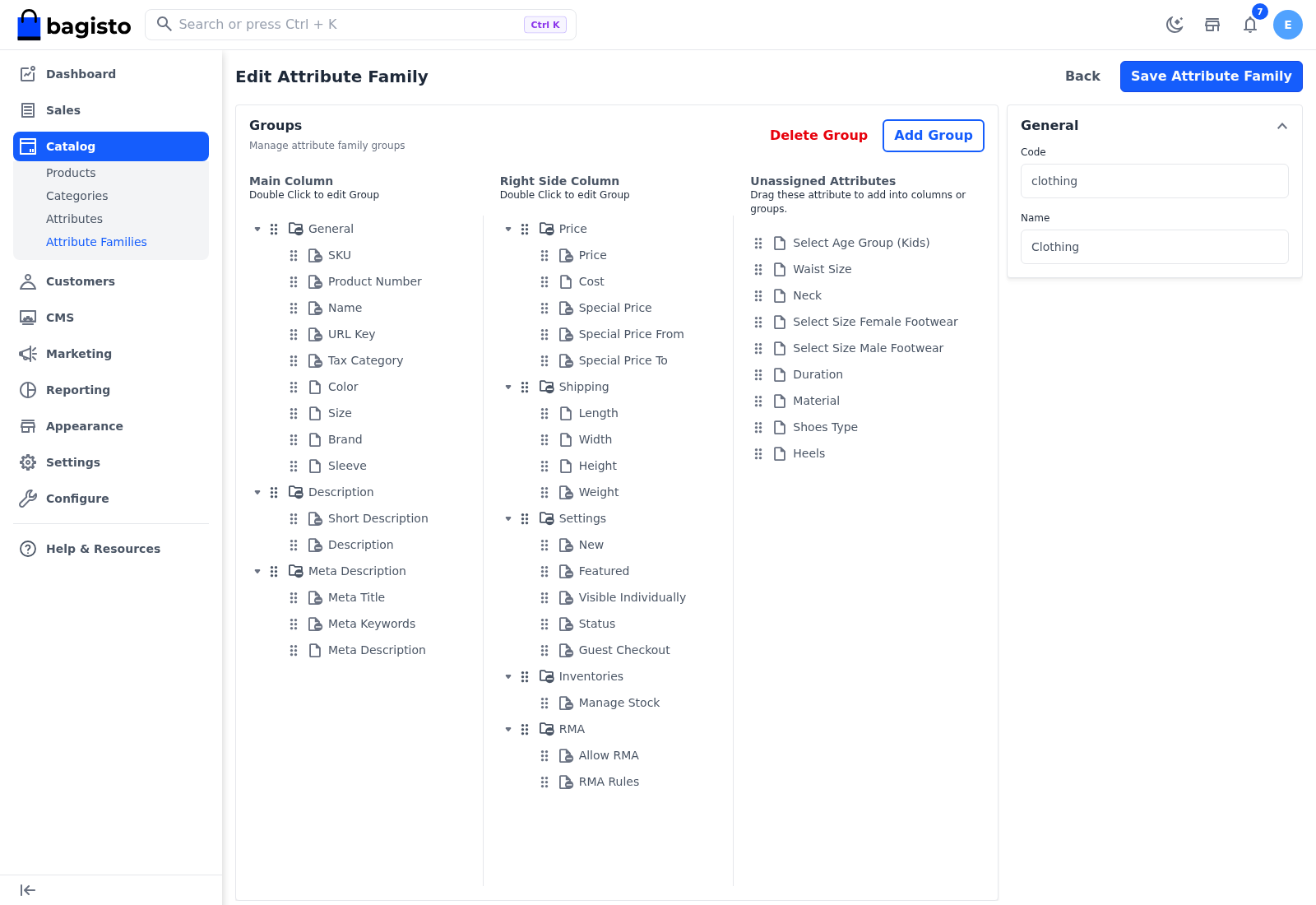
The changes apply to every product in the family.
Delete a family
- Go to Catalog >> Attribute Families.
- Click Delete on the family's row.
- Confirm the deletion.
A family can't be deleted when:
- it's the Default family. The default attribute family can not be deleted. appears.
- products use it. A message says the family is used in products. A product's family can't be changed, so delete those products first or keep the family.
How the family shapes the product edit screen
The family's groups become the sections of the product edit screen, in their column and position:
- The Main Column groups fill the wide column, followed by the images, the videos, the product type's section and the related products.
- The Right Side Column groups fill the narrow column, followed by the channels and the categories.
- A group with no attributes isn't shown.
If all of a family's groups are in one column, the images, videos, product type section, related products, channels and categories move to a narrow column on the right.
The Default family has General, Description and Meta Description in the main column, and Price, Shipping, Settings, Inventories and RMA in the right side column. The product type then hides the sections it doesn't use. See How the family and the type decide the fields.