
Downloadable Product
A downloadable product is a digital file shoppers download after buying it, such as an e-book, a video course, music or software. You add the files as links, each with its own price and download limit, and you can offer free samples so shoppers can try before they buy.
This page covers what's specific to downloadable products. For the sections every product shares, see Products.
Create a downloadable product
Create the product as described in Create a product, choosing Downloadable as the Type.
How it differs from other products
- No Shipping, Inventories or RMA section: there's nothing to ship, count or return.
- No Guest Checkout switch: shoppers must sign in to check out when their cart holds a downloadable product, so their files can be kept in their account.
- Price: shoppers pay the product's Price plus the price of each link they choose.
Add download links
The Downloadable Links section lists the files shoppers can buy.
- In Downloadable Links, click Add Link. The Link panel opens.
- Enter the Title shoppers see.
- Enter the Price added to the product price when a shopper chooses this link. Enter
0for no extra charge. - Enter Download Allowed, the number of times a shopper can download the file for each one they buy.
- Choose the File Type: File to upload the file, or URL to link to a file stored elsewhere.
- Upload the File, or enter the URL.
- To offer a free preview of this link, choose the Sample Type.
- Upload the Sample, or enter its URL.
- Click Save.
- Click Save Product.
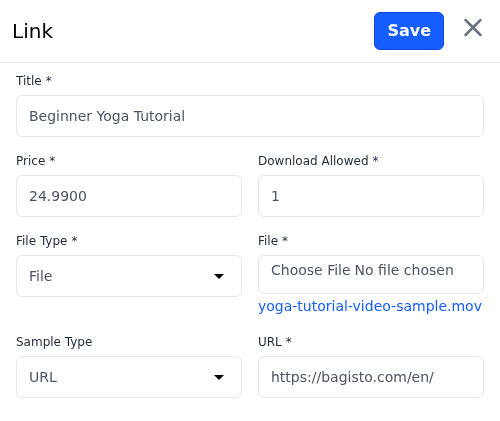
Link titles are saved for the language selected at the top of the edit screen. Drag a link by its handle to reorder it, or use Edit and Delete on its row.
Add samples
Samples in the Downloadable Samples section are free files anyone can download from the product page, such as a first chapter.
- In Downloadable Samples, click Add Sample. A panel titled Link opens.
- Enter the Title.
- Choose the File Type: File or URL.
- Upload the File, or enter the URL.
- Click Save.
- Click Save Product.
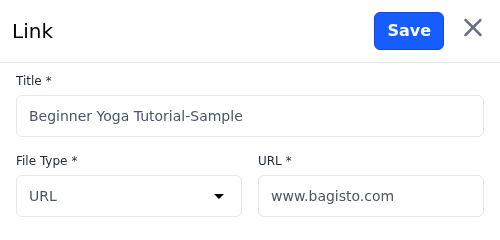
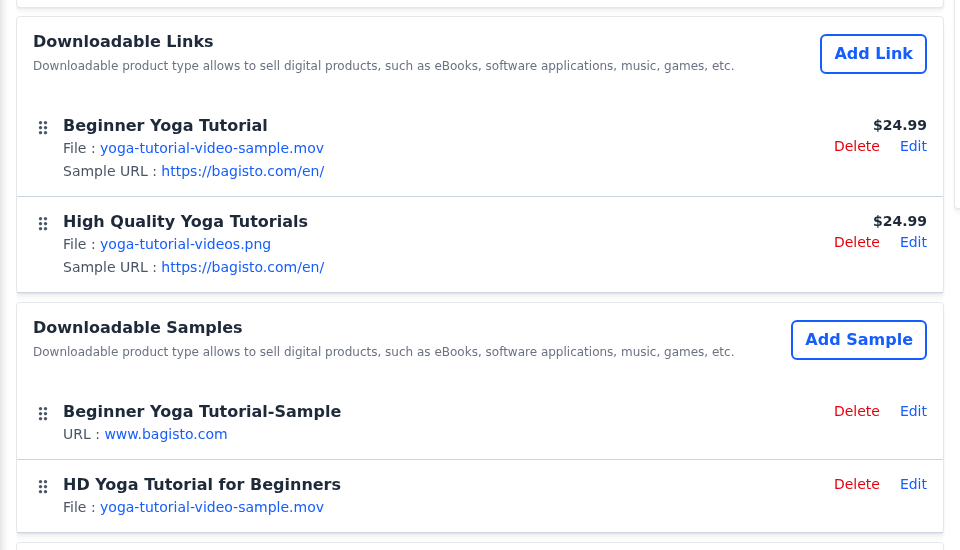
What shoppers see
The product page lists the Samples anyone can download, and the Links to buy, each with its price and, when it has one, a Sample. Shoppers must tick at least one link before they can add the product to the cart.
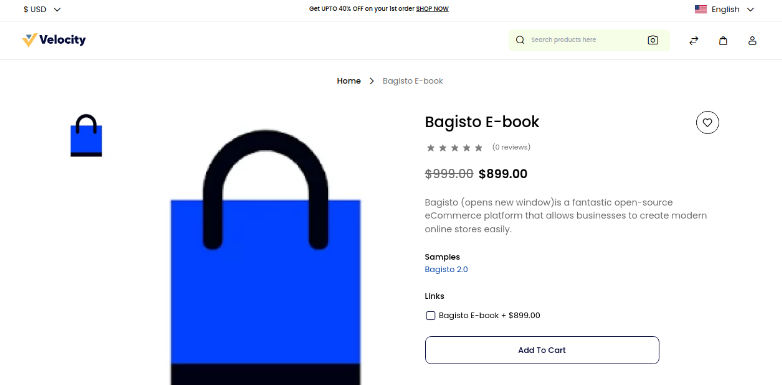
After the order is invoiced, shoppers download their files from Downloadable Products in their account, which also shows how many downloads they have left. See Customer Account.