
Product Barcode
The Product Barcode feature lets admins and sellers generate, view, print, and download scannable barcodes for products. Barcodes make in-store lookup, inventory checks, and order packing faster, and they can optionally be shown to customers on the product page.
Four symbologies are supported:
- Code 128
- EAN-13
- UPC-A
- QR Code (can encode the product SKU, name, and URL for quick scanning)
The feature is fully opt-in — existing products are unaffected until a barcode is generated for them.
Admin Configuration
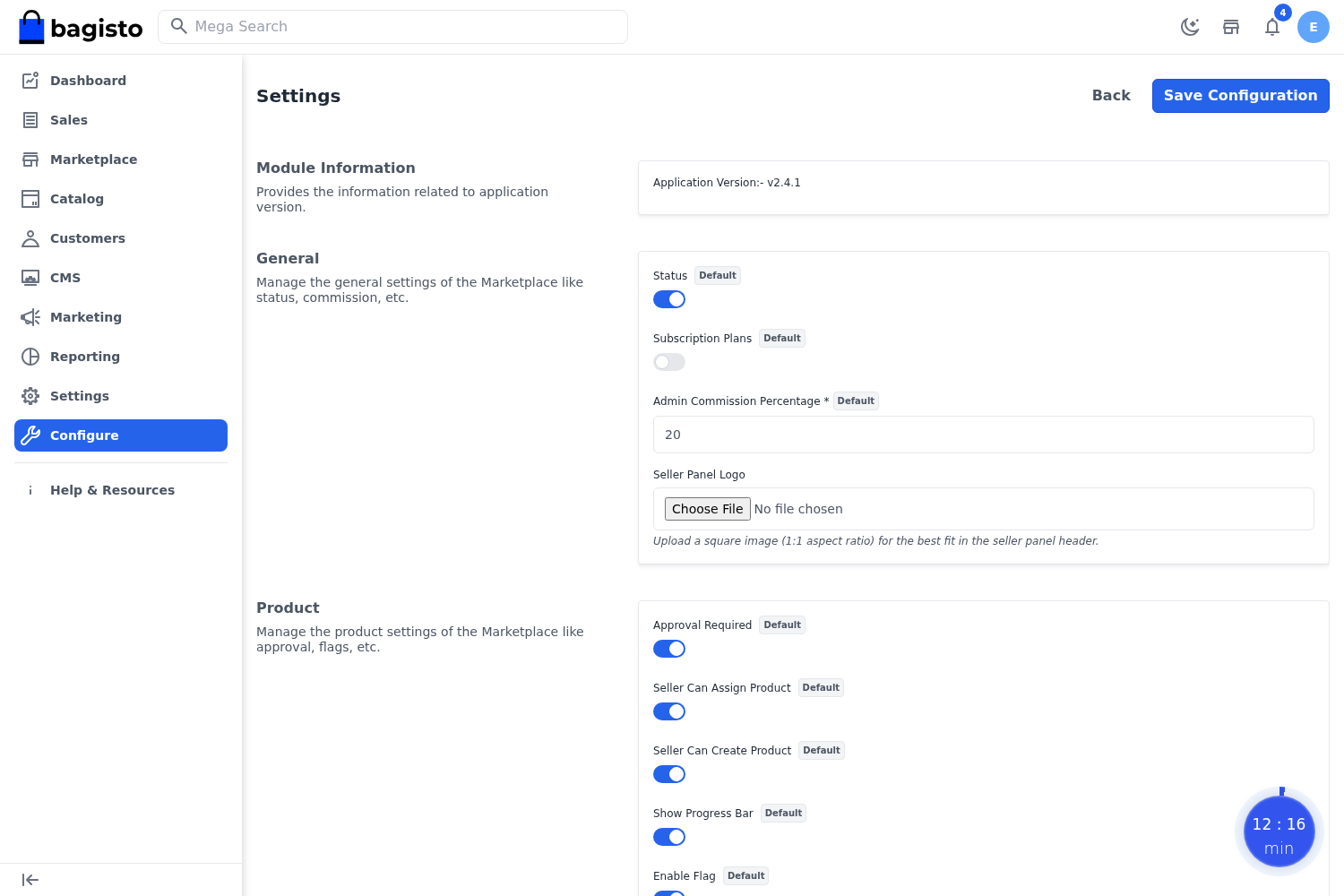
The admin sets the global barcode behaviour from Settings → Configuration → Marketplace → Settings → Barcode.
Default Type: The symbology used when barcodes are auto-generated (Code 128, EAN-13, UPC-A, or QR Code).
Show on Shop: When enabled, the barcode image is rendered on the storefront product page (after the short description).
Barcode Product Attributes
Three product attributes power the feature and are grouped under a Barcode group in every attribute family:
| Attribute | Type | Description |
|---|---|---|
barcode_type | Select | Symbology: Code 128, EAN-13, UPC-A, or QR Code |
barcode_value | Text | The scannable value (e.g. product code, or URL for QR) |
barcode_image | Image | The generated barcode image (created automatically) |
A product receives a barcode image once its barcode_type and barcode_value are set, or automatically when the auto-generation runs on product save.
Auto-Generation
Barcodes are generated automatically:
- When a product is created.
- When a product is updated (the image refreshes).
- Generated files are cleaned up when the product is deleted.
Auto-generation respects the admin's Default Type. To skip a product, leave barcode_type and barcode_value empty — no image is produced.
Admin — Product Barcode
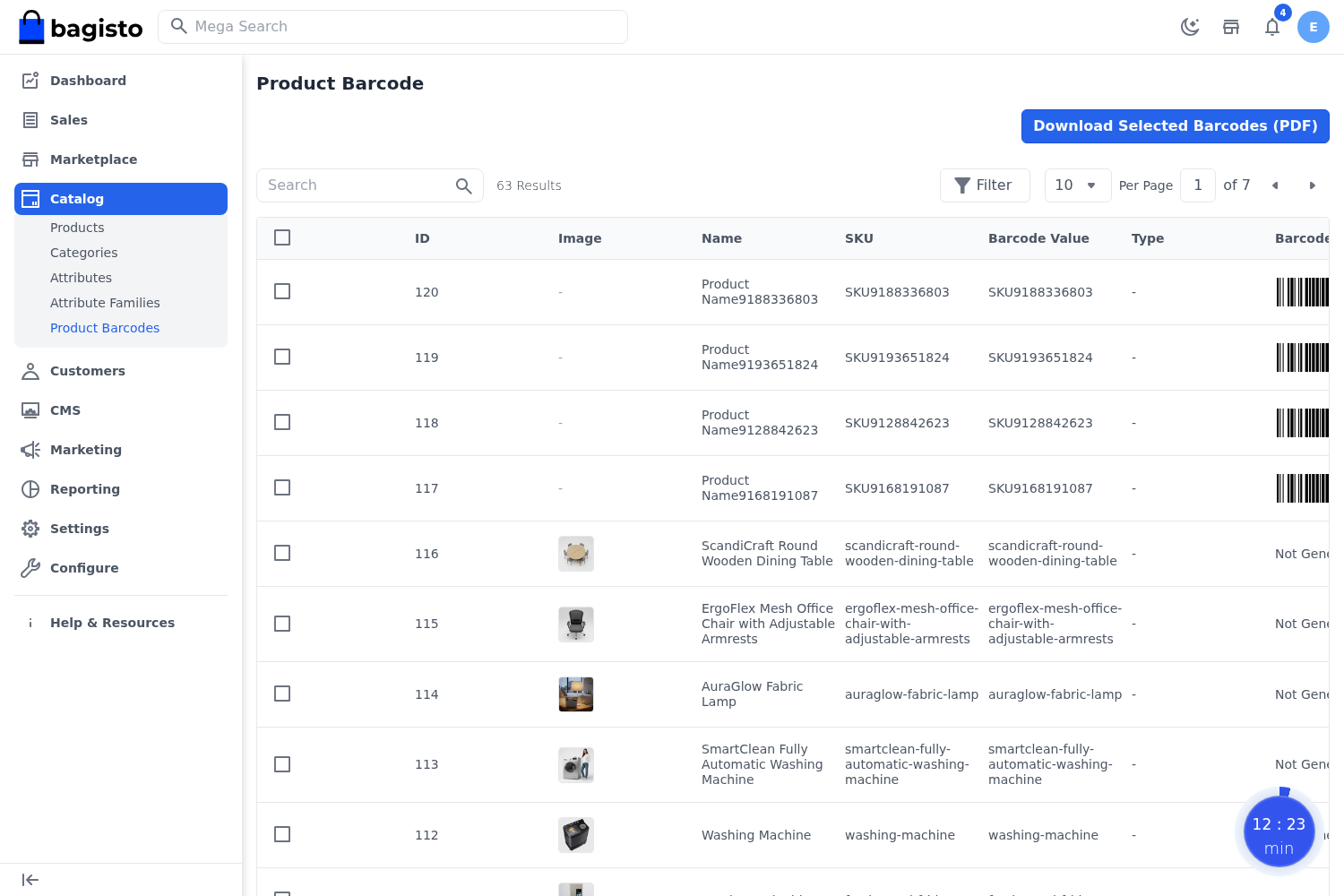
A Product Barcode entry is available under the admin Catalog menu. From this DataGrid the admin can:
- Browse all products and their barcodes.
- Mass-generate barcodes for selected products.
- Print barcodes.
- Download barcodes as a PDF.
Access is controlled by three admin permissions: Product Barcode (view), Generate, and Download.
Seller — Product Barcode
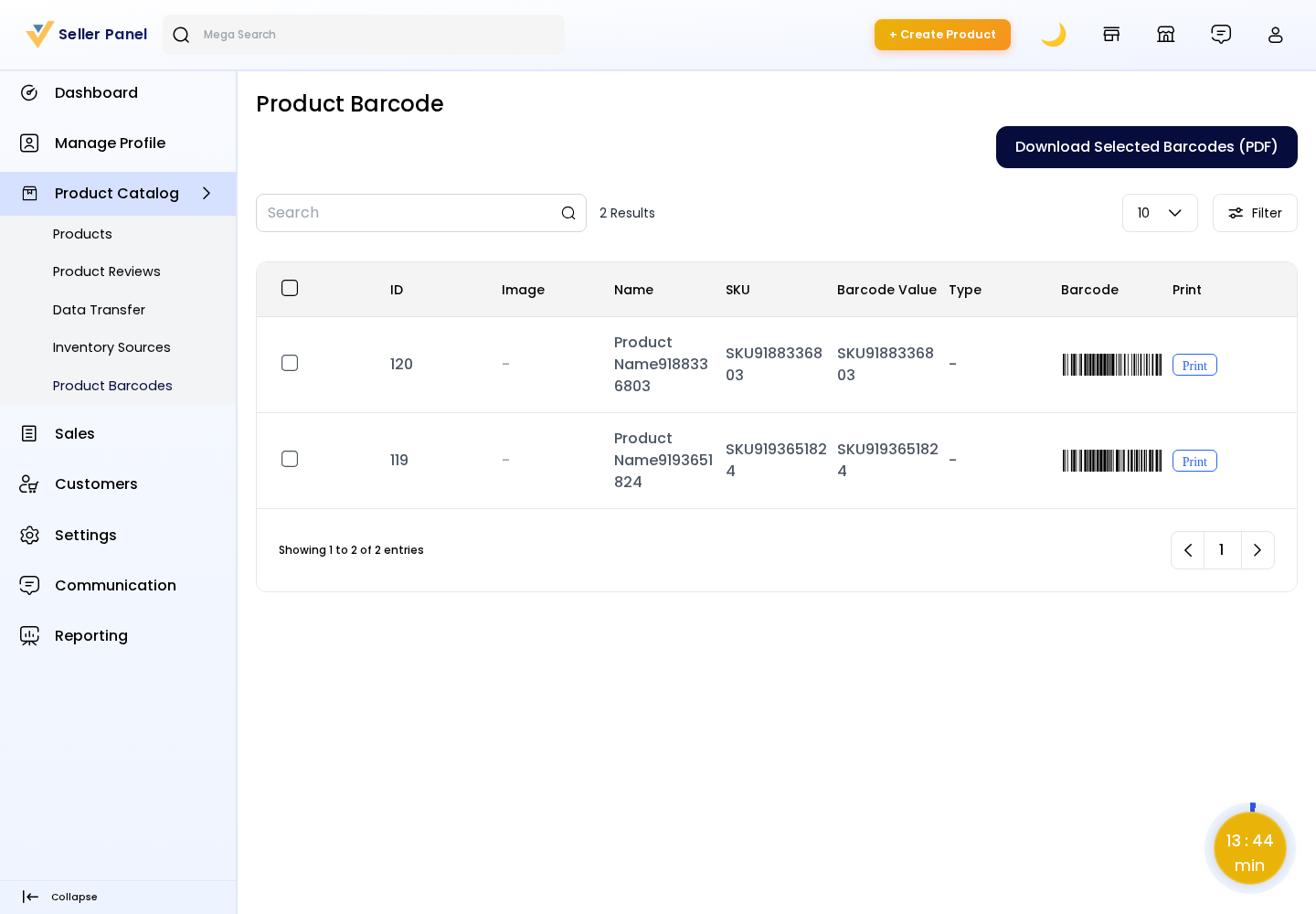
Sellers get a Product Barcode entry under Product Catalog in the seller panel. From their DataGrid, sellers can browse, mass-generate, print, and download barcodes for their own products.
Access is controlled by three seller permissions: Product Barcode (view), Generate, and Download.
Storefront Display
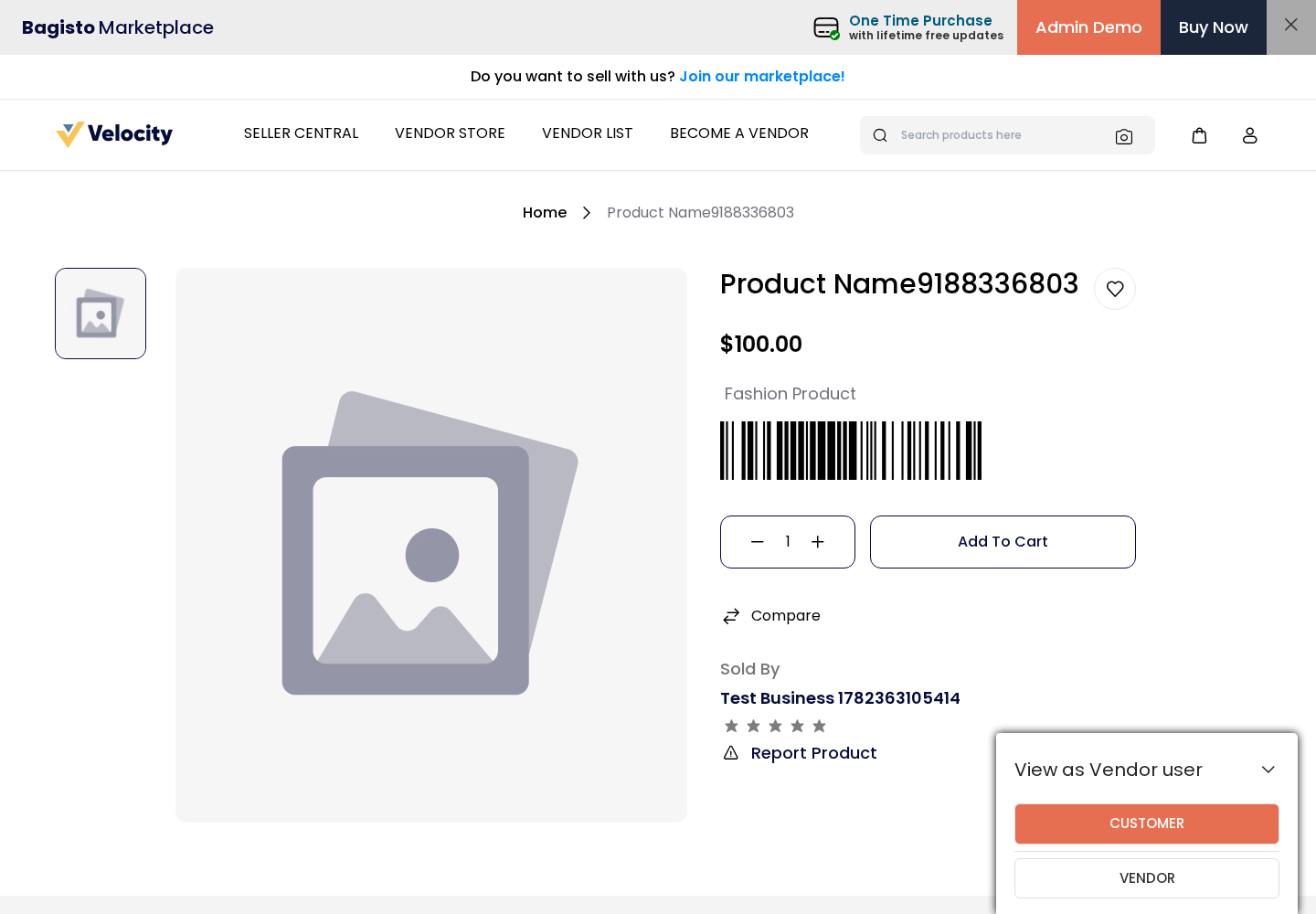
When Show on Shop is enabled in the admin configuration, the product's barcode image is displayed on the storefront product detail page, just after the short description, so customers can scan it directly.
Bulk Generation Command
Admins can also generate barcodes in bulk from the command line:
php artisan marketplace:barcodes:generate           # generate for products missing a barcode
php artisan marketplace:barcodes:generate --all     # regenerate for every product
php artisan marketplace:barcodes:generate --type=qr # force a specific symbology
The command processes all products, including configurable variants, with a progress bar.