
Taxes
This screen decides how tax is calculated and how it's shown. The tax categories and tax rates themselves are created under Settings >> Taxes; see Taxes. All settings on this screen apply to the whole store.
Choose the tax categories
- Go to Configure >> Sales >> Taxes.
- In Tax Categories, choose the Shipping Tax Category.
- Choose the Product Default Tax Category.
- Click Save Configuration.
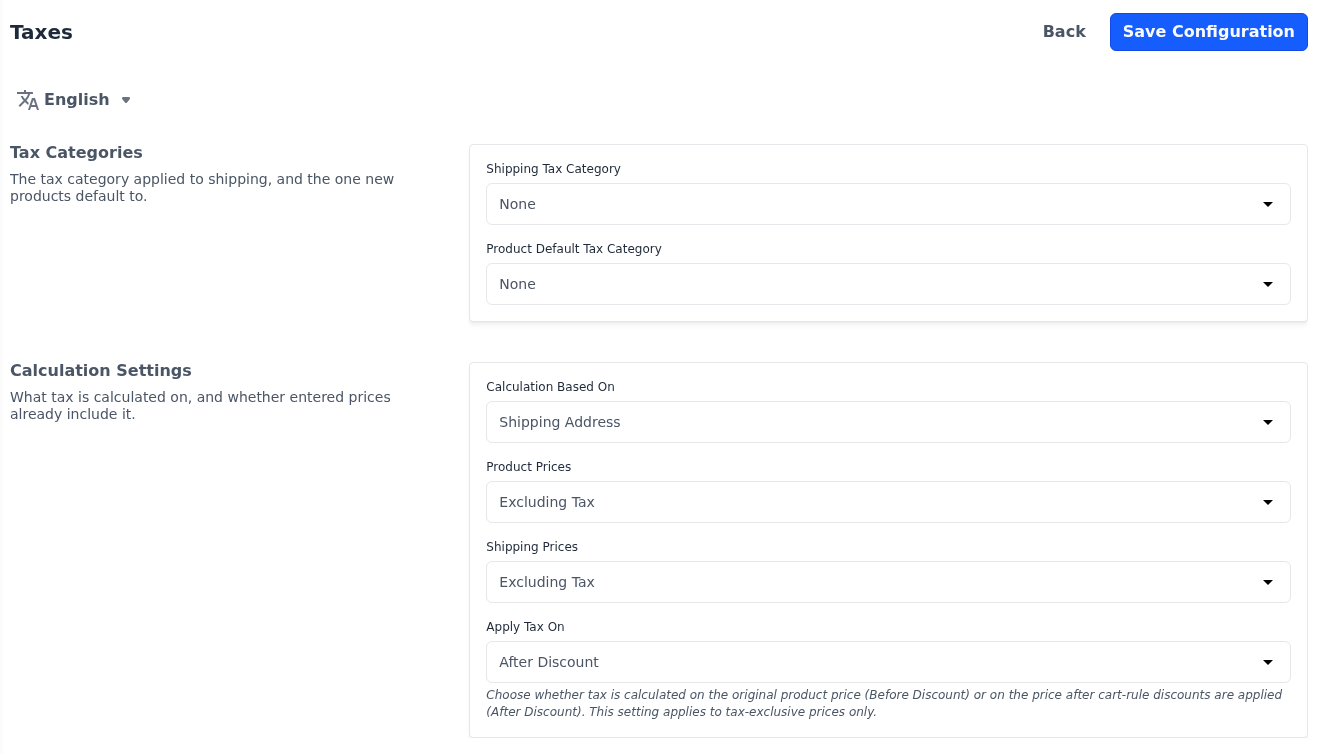
Shipping Tax Category: The tax category used to tax shipping. If none is chosen, shipping isn't taxed.
Product Default Tax Category: The tax category used for products that don't have a tax category of their own. If none is chosen, those products aren't taxed.
Decide how tax is calculated
- Go to Configure >> Sales >> Taxes.
- In Calculation Settings, choose the options described below.
- Click Save Configuration.
| Setting | What it does |
|---|---|
| Calculation Based On | The address whose tax rates apply. Shipping Address, the default, uses the shipping address for products that are shipped, and the billing address for virtual, downloadable and booking products. Billing Address always uses the billing address. Shipping Origin uses the address set under Shipping Settings. |
| Product Prices | Excluding Tax, the default, when the prices you enter don't include tax, so tax is added on top. Including Tax when they already include it, so the tax is worked out from the price and shoppers pay the price as entered. |
| Shipping Prices | The same choice for shipping rates. |
| Apply Tax On | After Discount, the default, calculates tax on the price after cart rule discounts. Before Discount calculates it on the original price. For products it applies only while Product Prices is Excluding Tax, and for shipping only while Shipping Prices is Excluding Tax. |
Set a default destination
Tax is calculated before a shopper enters an address, for example in the cart. Until then, a signed-in customer's default address is used if they have one. Otherwise the default destination is used.
- Go to Configure >> Sales >> Taxes.
- In Default Destination Calculation, choose the Default Country.
- Choose the Default State.
- Enter the Default Post Code.
- Click Save Configuration.
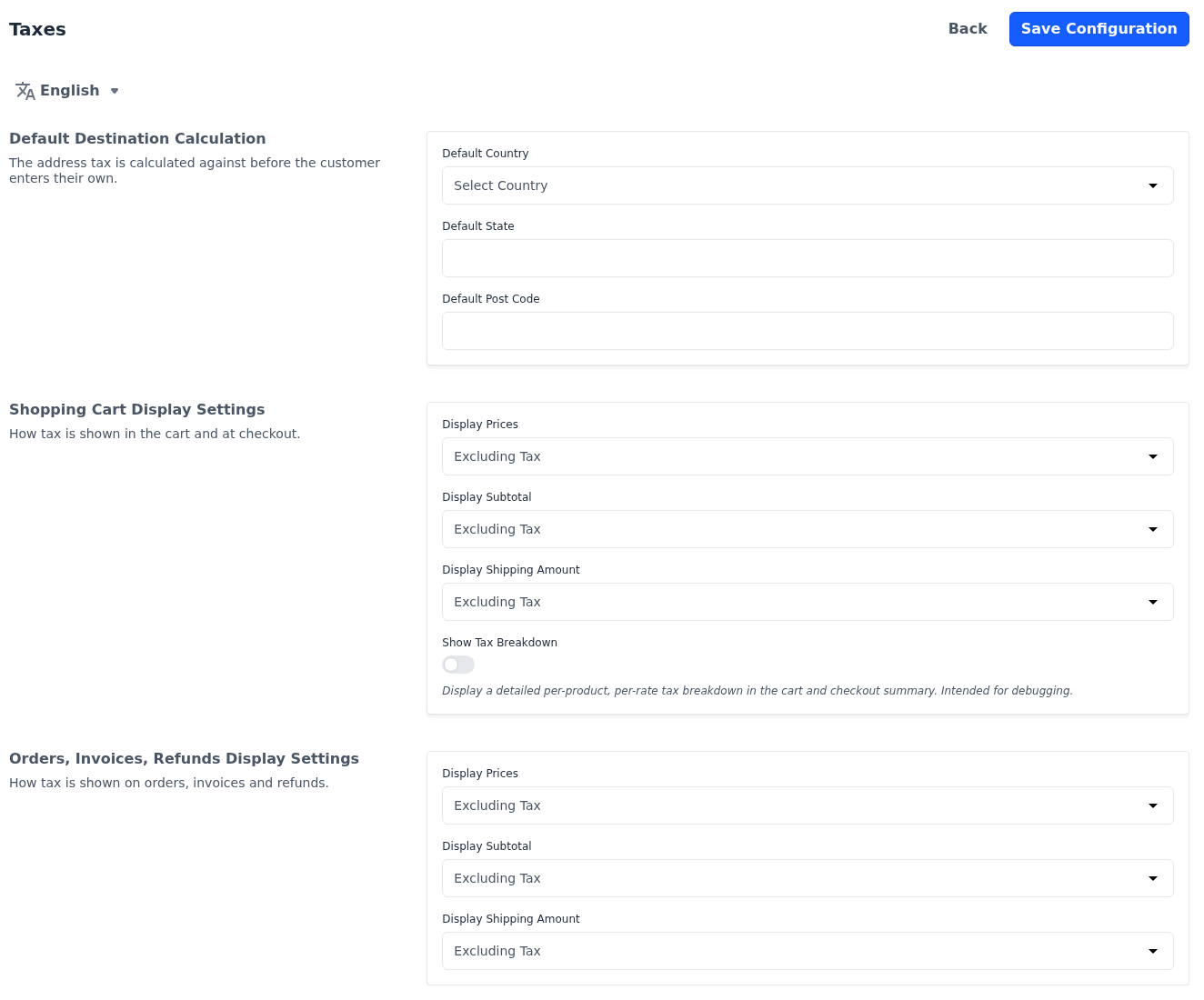
If Default Country is empty, tax isn't calculated until the shopper's address is known.
Choose how tax is displayed
- Go to Configure >> Sales >> Taxes.
- In Shopping Cart Display Settings, choose the Display Prices.
- Choose the Display Subtotal.
- Choose the Display Shipping Amount.
- Switch Show Tax Breakdown on or off.
- In Orders, Invoices, Refunds Display Settings, choose the Display Prices.
- Choose the Display Subtotal.
- Choose the Display Shipping Amount.
- Click Save Configuration.
Each Display setting has these options:
- Excluding Tax: the amount without tax. This is the default.
- Including Tax: the amount with tax.
- Excluding and Including Both: both amounts.
Shopping Cart Display Settings apply to the cart, the mini cart, the checkout summary and the cart of an order you create in the admin panel. Orders, Invoices, Refunds Display Settings apply to orders, invoices and refunds in the admin panel, to a customer's orders on the storefront, and to the order emails and invoice PDF. How tax appears on an order is described in Orders.
Show Tax Breakdown lists the tax for each product and tax rate in the cart and checkout summaries. It's meant for checking your tax setup.