
Quick Order
The Quick Order feature allows companies to add multiple products to their cart instantly using product SKUs or by uploading a CSV file.
It helps save time during bulk or repeat purchases by simplifying the product selection process.
Steps to Use Quick Order
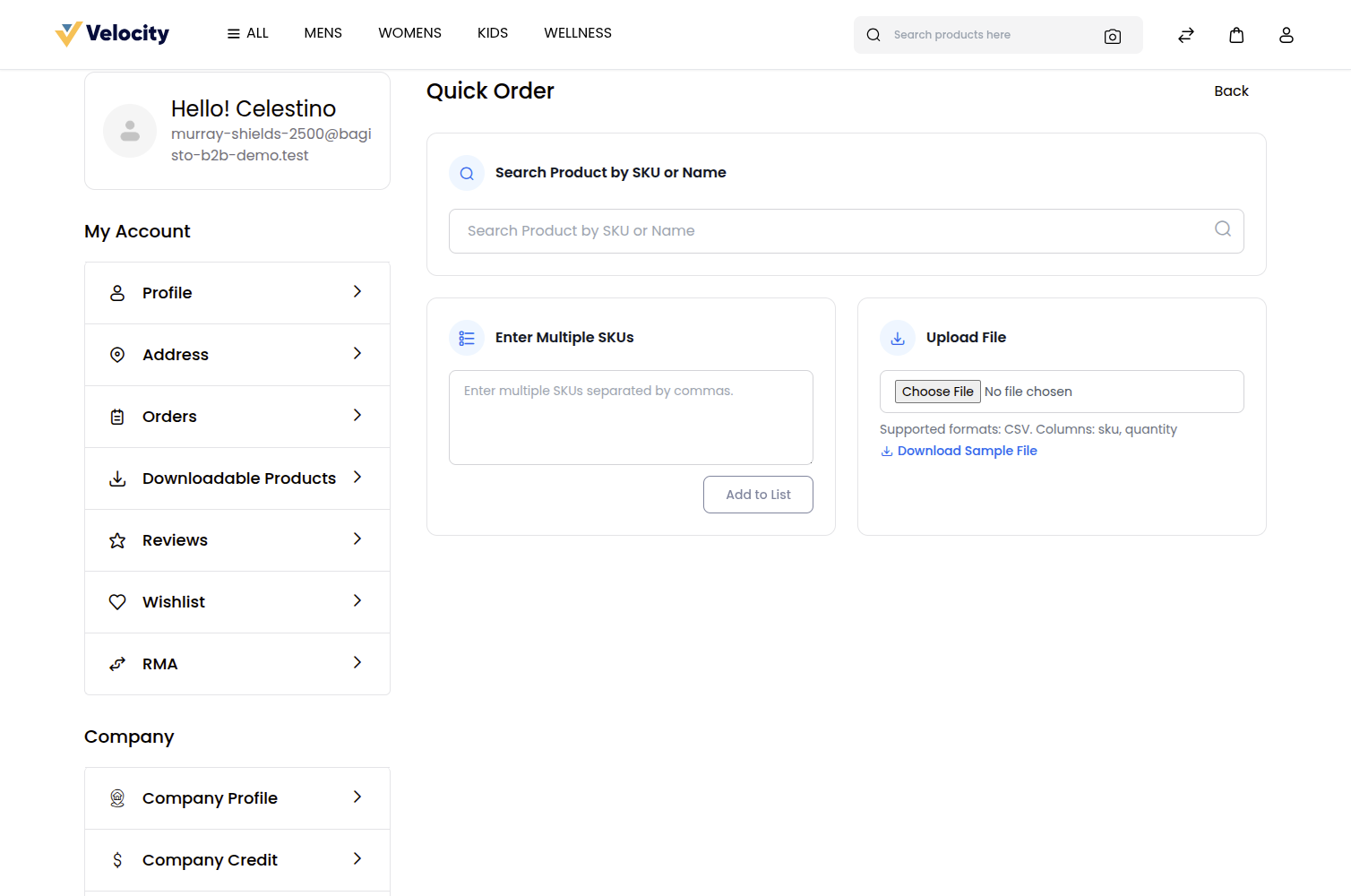
Step: 1 Go to My Account → Profile → Quick Order from the company storefront. The Quick Order page will open, as shown in the image below.
Available Options
1) Search Product by SKU or Name – Enter a product SKU or name to search for products quickly.
2) Enter Multiple SKUs – Add multiple product SKUs at once by separating them with commas.
3) Upload File – Upload a CSV file to add products in bulk.
Step: 2 Search for a product using its SKU or product name. Once a matching product is found, it will be displayed in the search results, as shown in the image below.
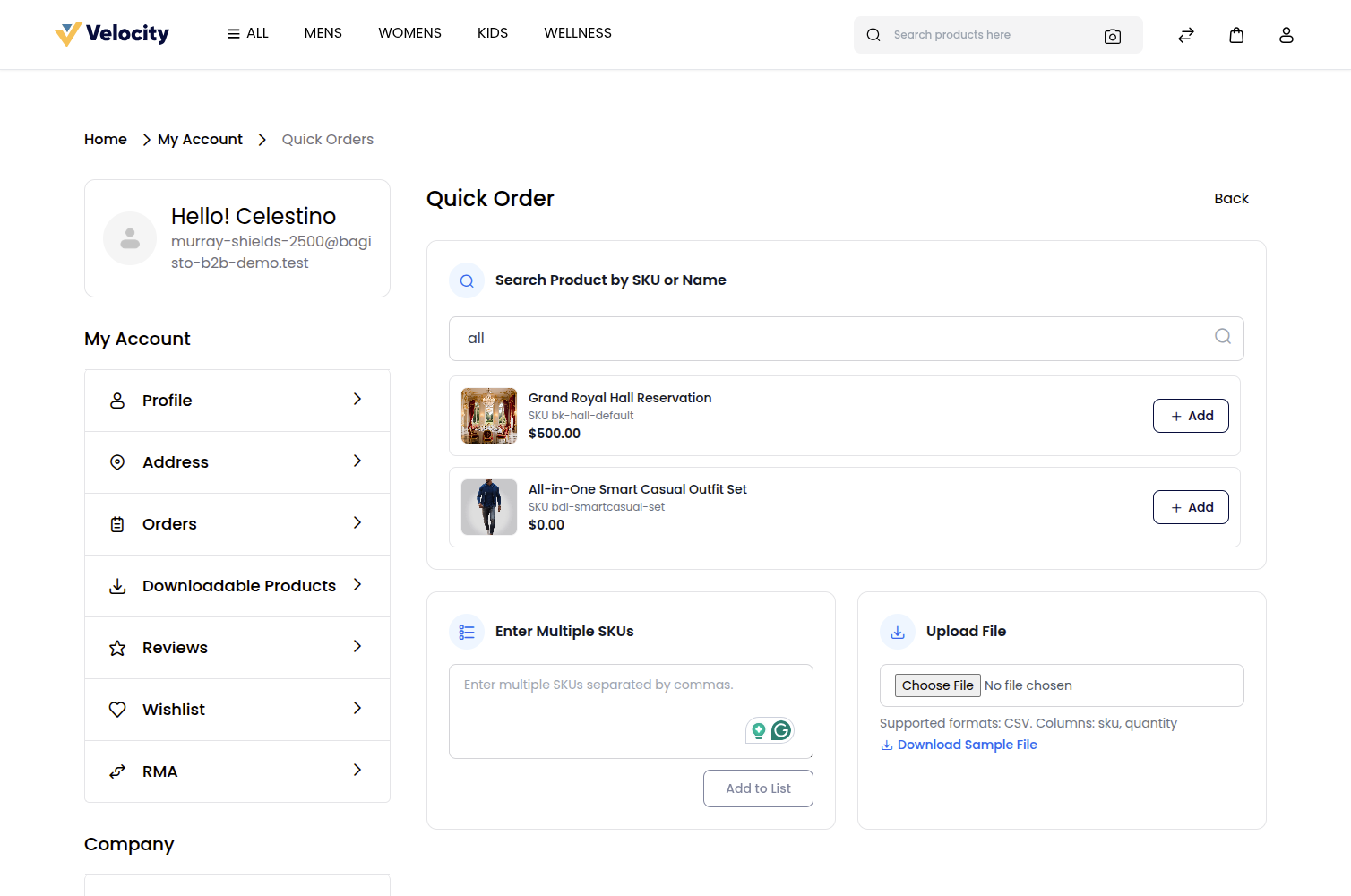
Click Add to List to include the product in the Selected Products section.
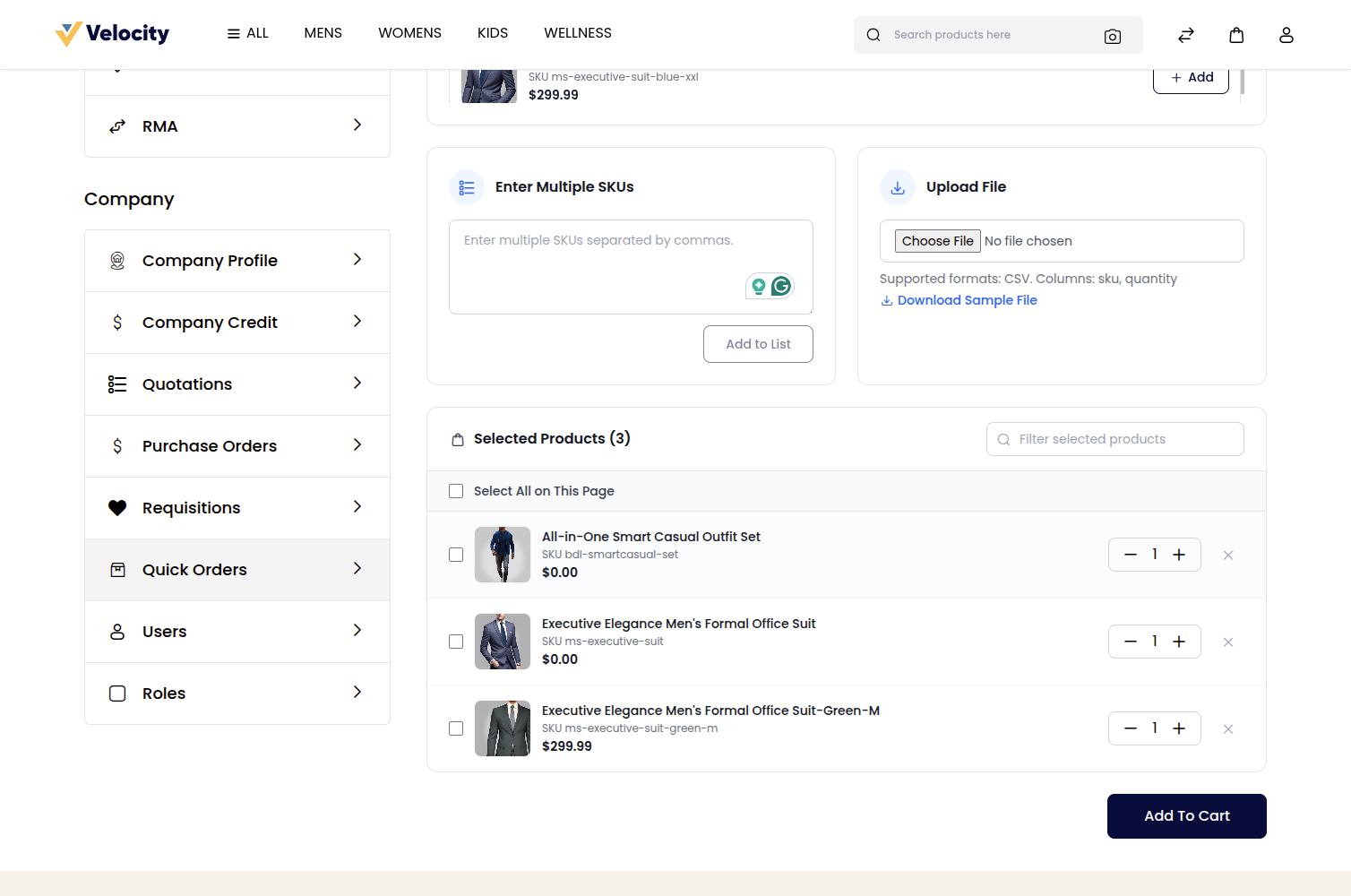
Step: 3 Review the products added to the Selected Products list. After confirming the required products and quantities, click Add To Cart to move all selected products directly to the shopping cart for checkout.
The Quick Order feature enables companies to place bulk orders quickly and efficiently without browsing multiple product pages.