
Inventory
The Inventory screen decides whether shoppers can order more of a product than you have in stock, and the stock level the admin dashboard highlights. These settings apply to the whole store.
Allow back orders
A back order is an order for more units than you have in stock. Allowing back orders keeps products buyable while you restock.
- Go to Configure >> Catalog >> Inventory.
- In Product Stock Option, switch Allow Back Orders on.
- Click Save Configuration.
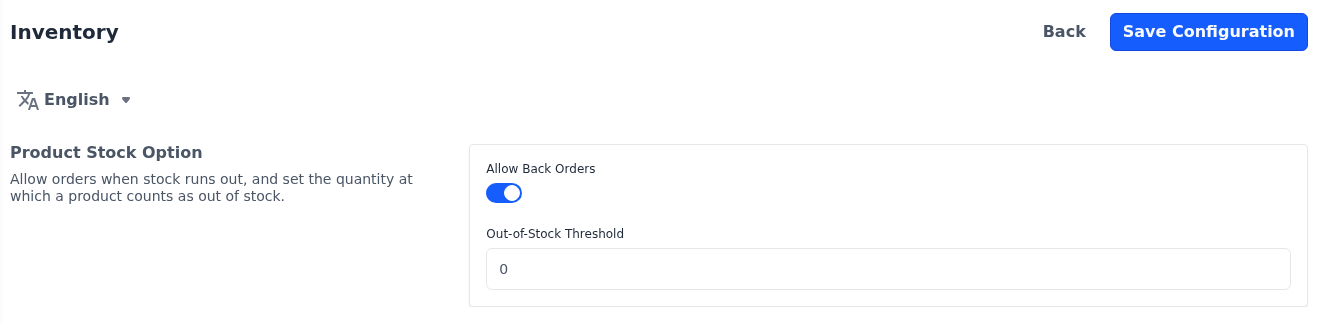
While it's on, products that have Manage Stock switched on can be added to the cart and ordered even when their stock runs out. This covers simple products and the variants of configurable products, and bundle and grouped products through the products in them.
While it's off, shoppers can't add more units than you have in stock, and out-of-stock products can't be bought. Products with Manage Stock switched off can always be bought.
Set the out-of-stock threshold
- Go to Configure >> Catalog >> Inventory.
- In Product Stock Option, enter the Out-of-Stock Threshold.
- Click Save Configuration.
The default is 0. On the admin dashboard, the Stock Threshold card shows the stock of each product it lists in red when the stock is at or below this number, and in green above it, so you can see what needs restocking.