
Create Refund
A refund gives a customer money back for invoiced products, for shipping, or as an extra amount. You can refund an order a part at a time. Each refund is listed on the order and under Sales >> Refunds.
You can only refund what's been invoiced. The Refund button appears once an order has an invoice with something left to refund; the order doesn't need to be shipped.
Create a refund
Go to Sales >> Orders.
Open the order.
Click Refund. The Create Refund panel opens with each invoiced product that can still be refunded.
For each product, enter the Qty To Refund. It starts at the quantity invoiced and not refunded yet. Enter 0 to leave a product out.
Enter the Refund Shipping amount.
Enter an Adjustment Refund, if you're giving back an extra amount.
Enter an Adjustment Fee, if you're keeping back an amount.
Click Update Totals. The summary is worked out again.
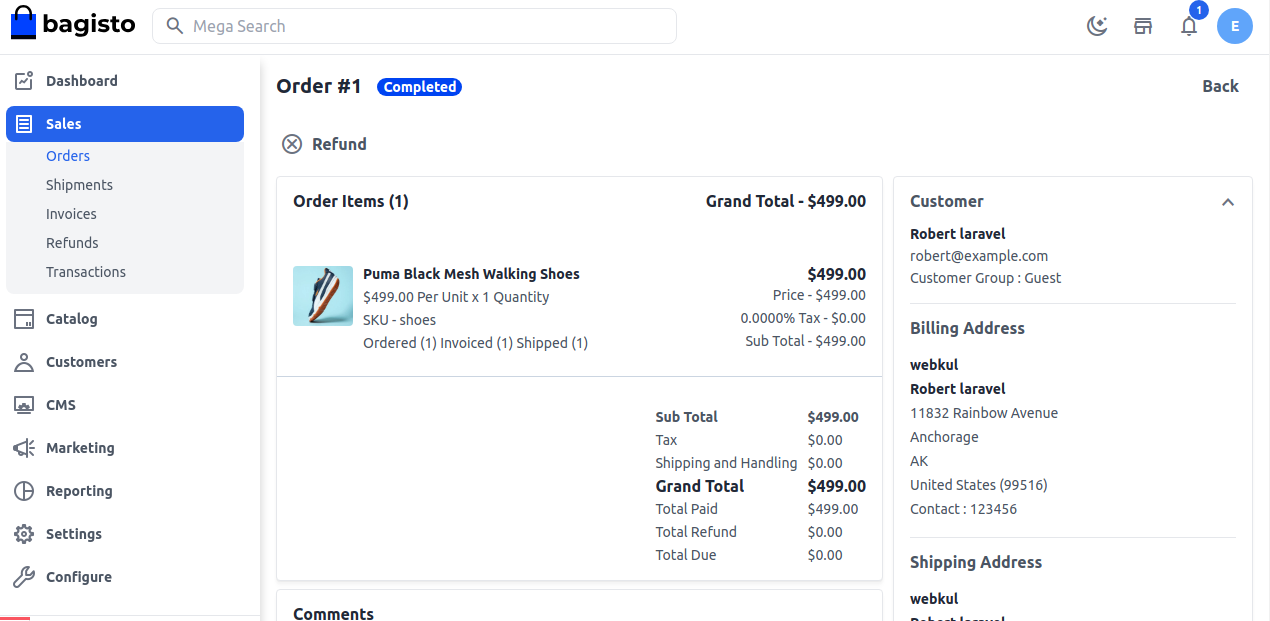
Click Refund.
You'll see Refund created successfully, and the refund is listed in the order's Refund card.
The refund amounts
| Field | What it does |
|---|---|
| Qty To Refund | How many units of the product to refund. Their price, tax and discount are included in the refund. It can't be more than was invoiced and not refunded yet. |
| Refund Shipping | The shipping charge to give back. It starts at the shipping invoiced and not refunded yet, less any shipping discount, and can't be more than the shipping invoiced and not refunded yet. |
| Adjustment Refund | An extra amount added to the refund, such as a goodwill payment. |
| Adjustment Fee | An amount taken off the refund, such as a restocking fee. |
The summary shows the Subtotal, Discount Amount, Tax Amount and Grand Total. The Grand Total is the subtotal plus tax, refund shipping and adjustment refund, minus the discount and adjustment fee. The tax includes the tax on the shipping you refund.
Every amount must be 0 or more. You'll see a message instead of a refund when:
- the grand total of the refund is 0: Refund amount should be non zero.
- a quantity is more than can be refunded: We found an invalid quantity to invoice items.
- the refund doesn't pass the store's refund limit: Refund Amount with an amount and can not proceed. If you see this after entering an Adjustment Refund, create the refund without it and pay the extra amount through your payment provider.
What a refund changes
- The order's Total Refund goes up by the refund's grand total.
- Refunded quantities are added back to stock, for products that manage stock.
- The order's status is worked out again. When everything in the order is refunded, or refunded and canceled, it becomes Closed. See Order statuses.
- Links for downloadable products expire once all of that product is refunded or canceled.
- A refund can't be edited, deleted or reversed.
For an order paid with PayPal Smart Button, the refund amount is also paid back to the customer through PayPal. For other payment methods, the refund is recorded in Bagisto only, so pay the customer back through the payment method they used.
When the notifications are on, the customer and the admin are emailed about the refund. See Notifications.
Return requests
A product with an open return request is refunded from the request with Refund Item. See RMA.
The Refunds screen
Go to Sales >> Refunds to see every refund with its ID, Order ID, Refunded Amount, Billed To and Refund Date.
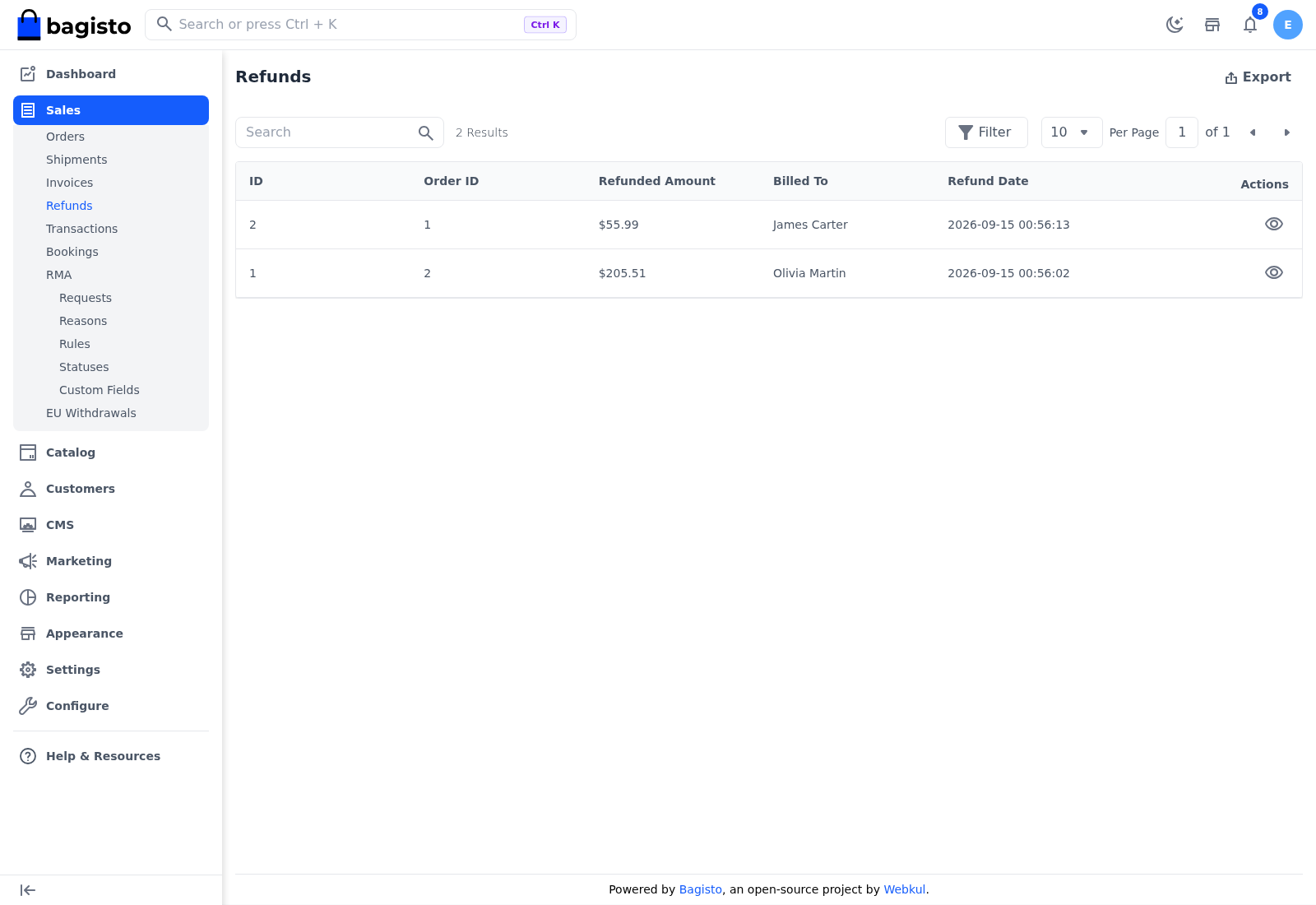
- Search and Filter: find refunds by order ID, amount, the billing name or refund date.
- Export: downloads the refunds as a CSV, XLS or XLSX file.
- View: opens the refund.
The refund page
Open a refund from the Refunds screen, or with View in the order's Refund card. The title shows the refund number, such as Refund #2.
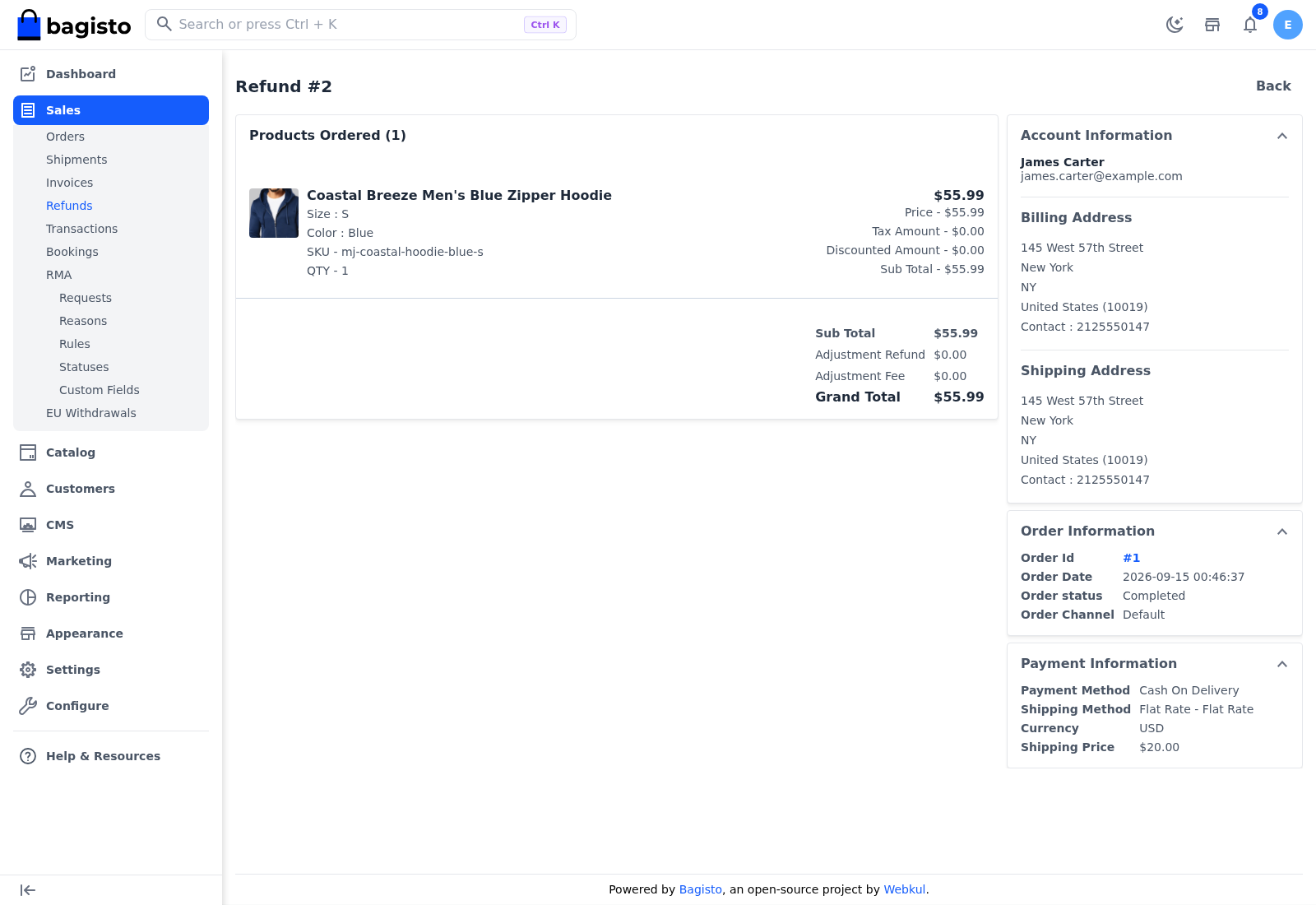
- Products Ordered lists the refunded products with their price, tax, discount and subtotal. Below them are the Sub Total, Shipping & Handling and Tax when there are any, the discount, the Adjustment Refund and Adjustment Fee, and the Grand Total.
- Account Information shows the customer's name and email, and the billing and shipping addresses.
- Order Information shows the Order Id, which links to the order, and the Order Date, Order status and Order Channel.
- Payment Information shows the Payment Method, Shipping Method, Currency and Shipping Price.