
Dealership Management
The Dealership Management system lets marketplace sellers add products that already exist in the store catalog, created by the admin.
Instead of building every product from scratch, dealers can simply pick items from the master catalog and publish them with their own price, stock, and details.
This makes listing faster, keeps product information consistent, and reduces the effort needed to start selling.
Dealers can also assign product from master catalog, making it simple to list products that already exist in the marketplace system.
Vendor Listing from Central Catalog
The Vendor Listing feature lets customers view all sellers in one place.
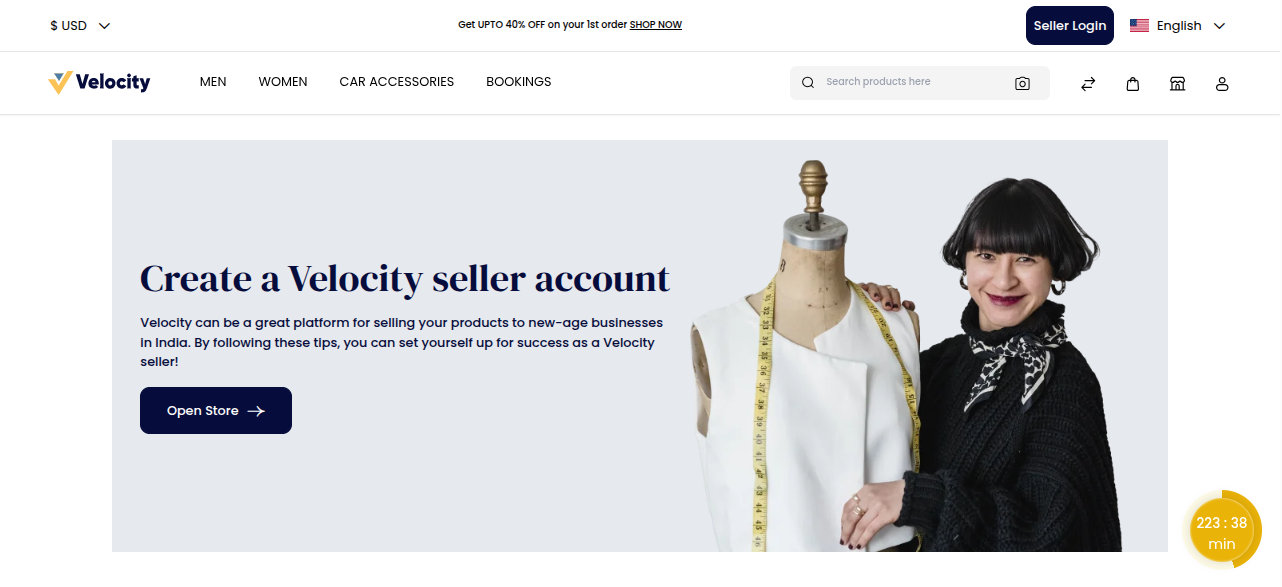
Each vendor is shown with important details like the store name, logo, address, ratings, and number of reviews.
This makes it easier for buyers to find and explore different sellers in the marketplace.
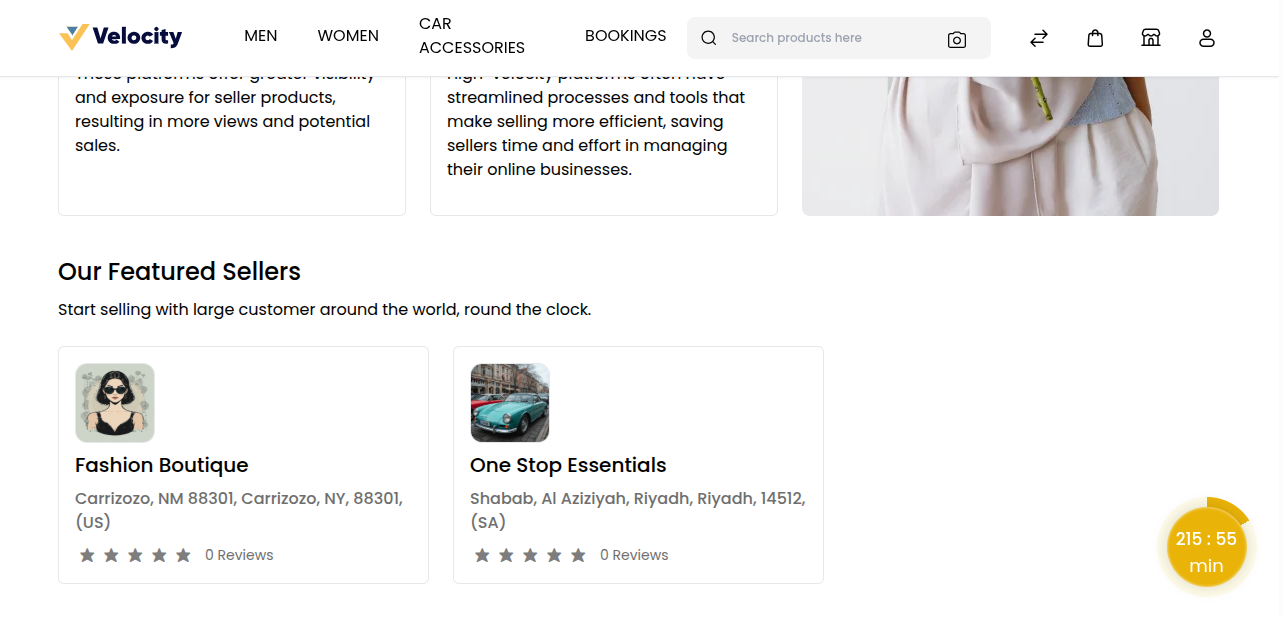
Customers can click on any vendor to open their store page, where they can view all products, read reviews, and check the complete seller information.
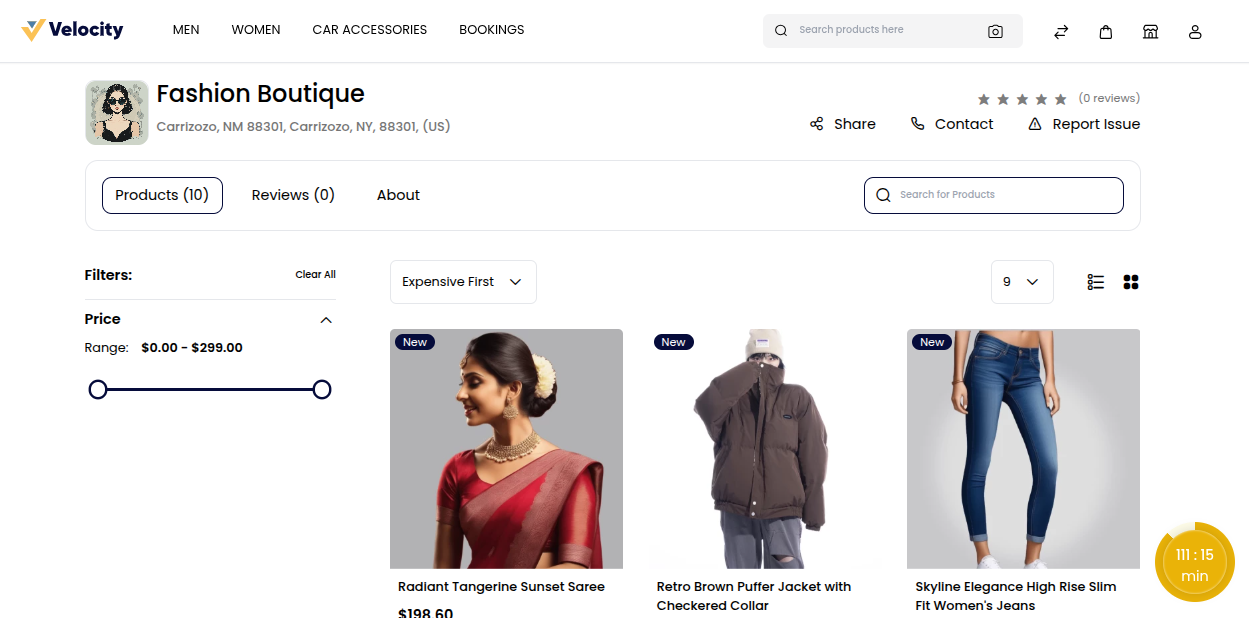
This helps build trust and gives vendors more visibility to attract buyers and increase sales.
Add Product from Marketplace Catalog
From the seller dashboard, go to Product Catalog → Products and click on it to open the product page.
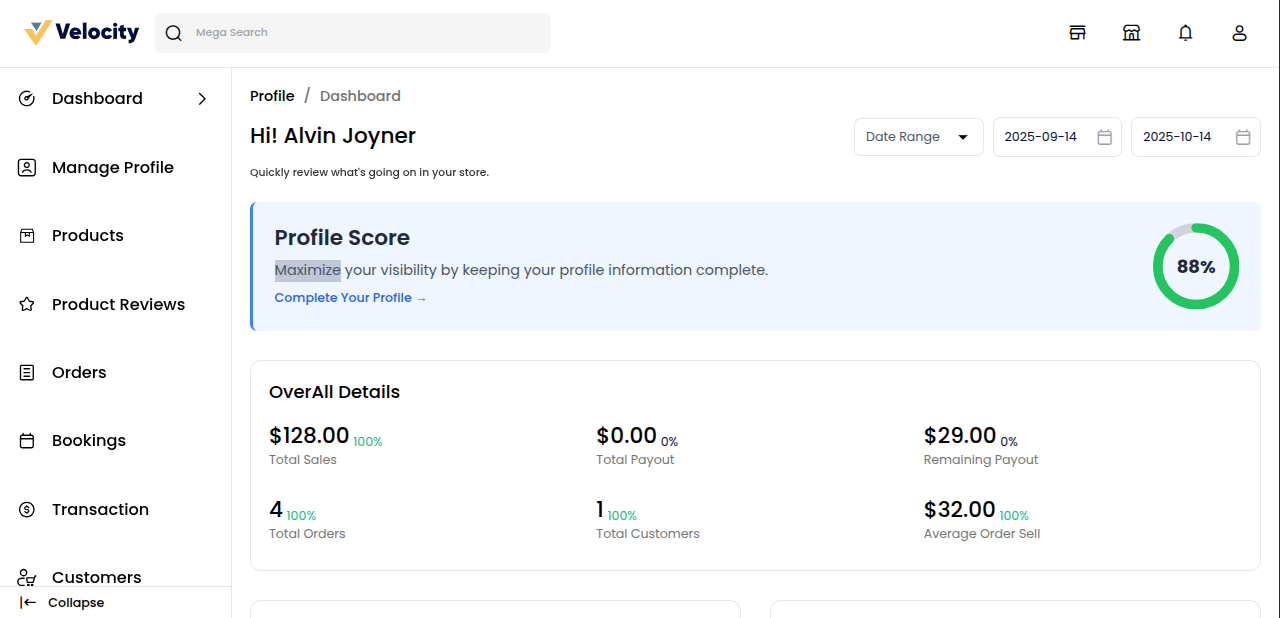
Click on the Add New Product button at the top right corner to begin adding a new product to your store.
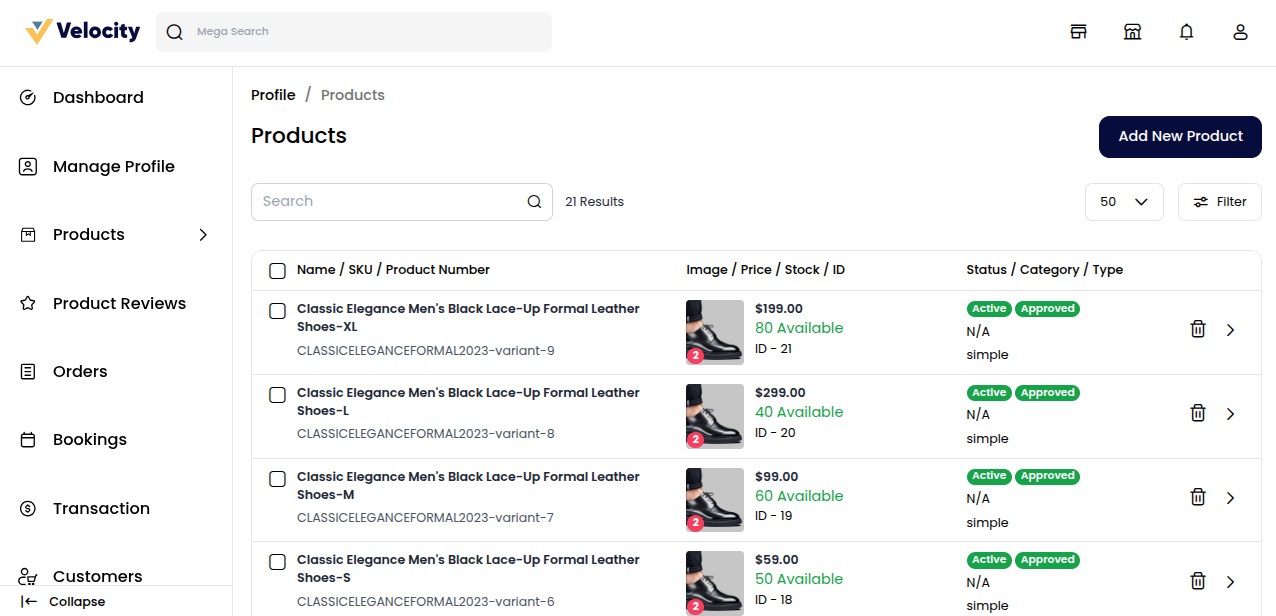
On the Search Products page, dealers can assign a product from the Master Catalog by searching for items already available.
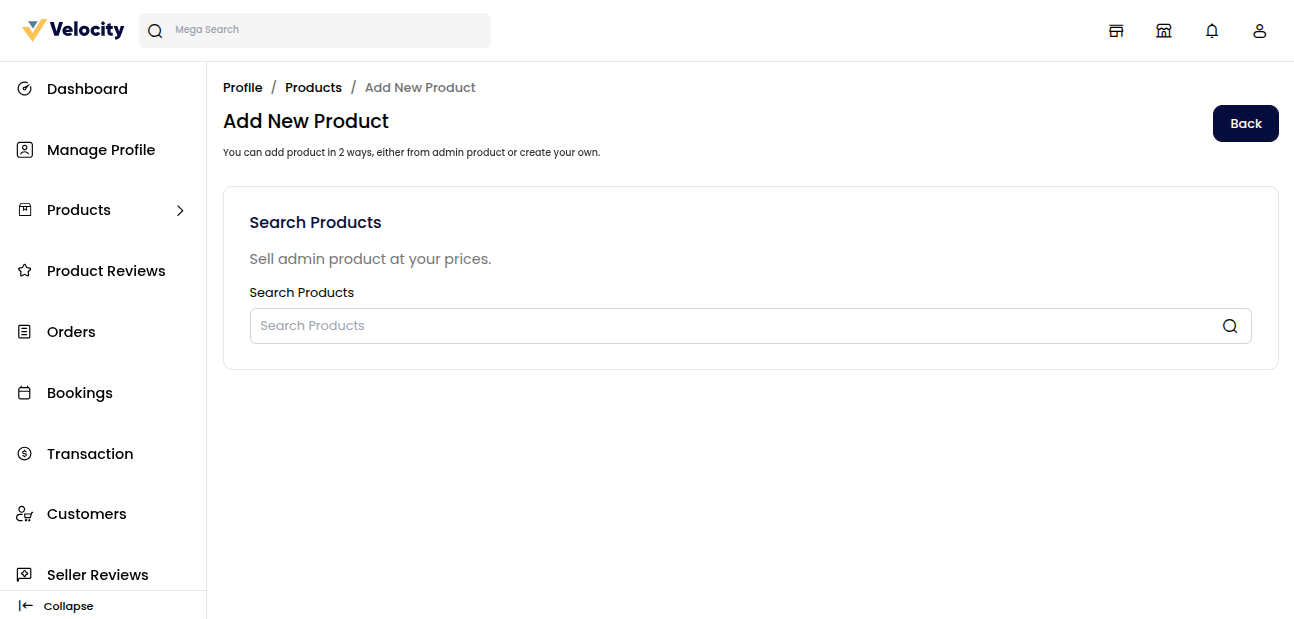
Type the product name in the search bar to locate it in the marketplace catalog.
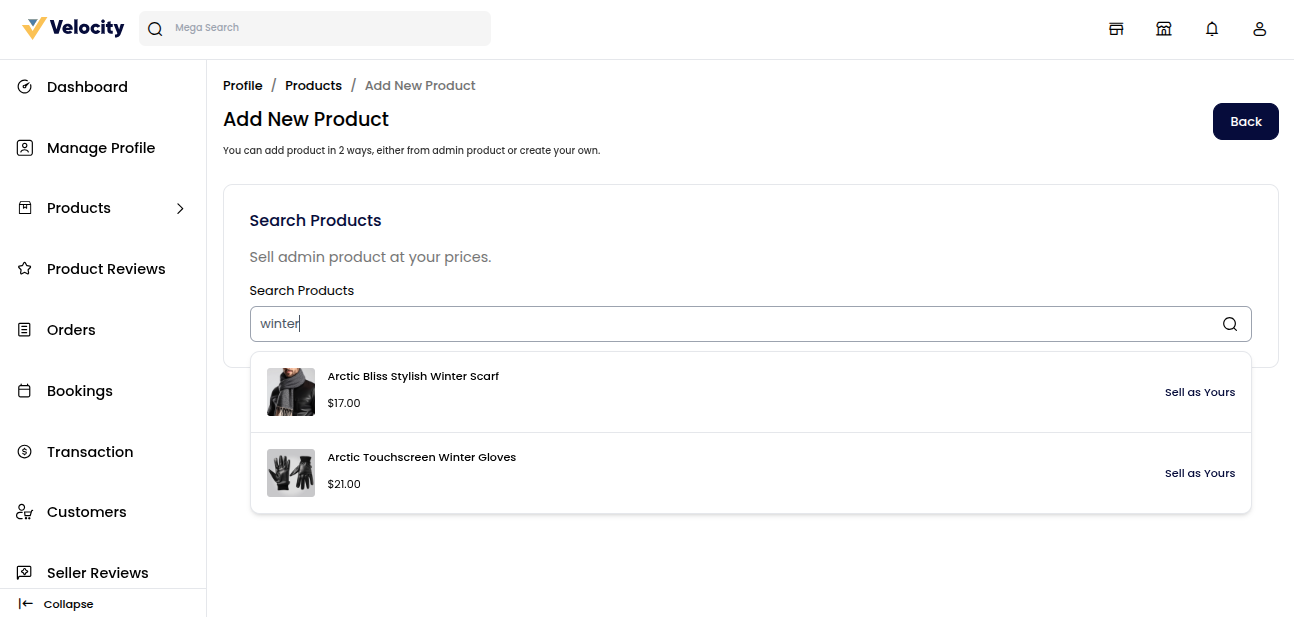
The system shows matching products in the search results. Dealers can select a product and sell on existing listing by using their own price and stock quantity.
Click on ‘Sell As Yours’ to create your personalized version of the existing product
List Existing Catalog Product
The platform also supports the list existing catalog product feature, which allows sellers to quickly add products from the global catalog without recreating product information.
This helps dealers save time and ensures product data stays consistent across the marketplace.
Product Attributes
Enter all the required details for your personalized version of the existing product.
1) Condition: Specify the condition of the product (New, Old).
2) Price: Enter the selling price you want to offer for this product.
3) Quantities: Add the available quantity of the product in inventory.
4) Description: Provide a brief description of the product.
5) Images: Upload product images to showcase the item.
6) Video: Optionally, add a video to give customers a better view of the product.
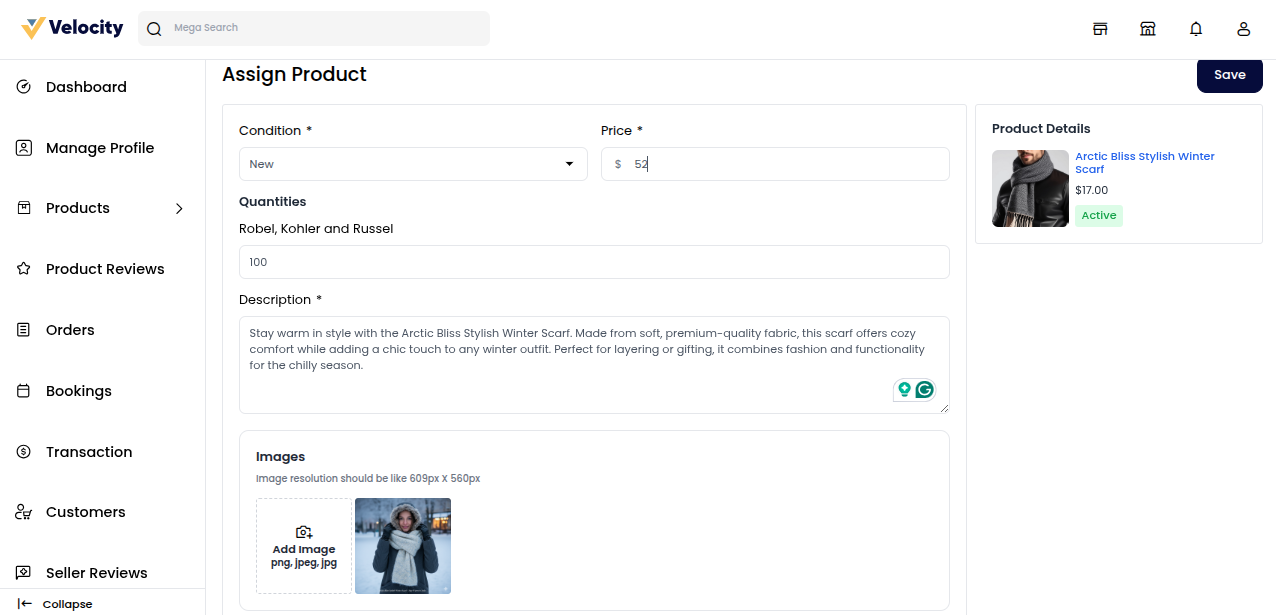
Click Save to add the product to your store. Initially, it will be marked as Disapproved.
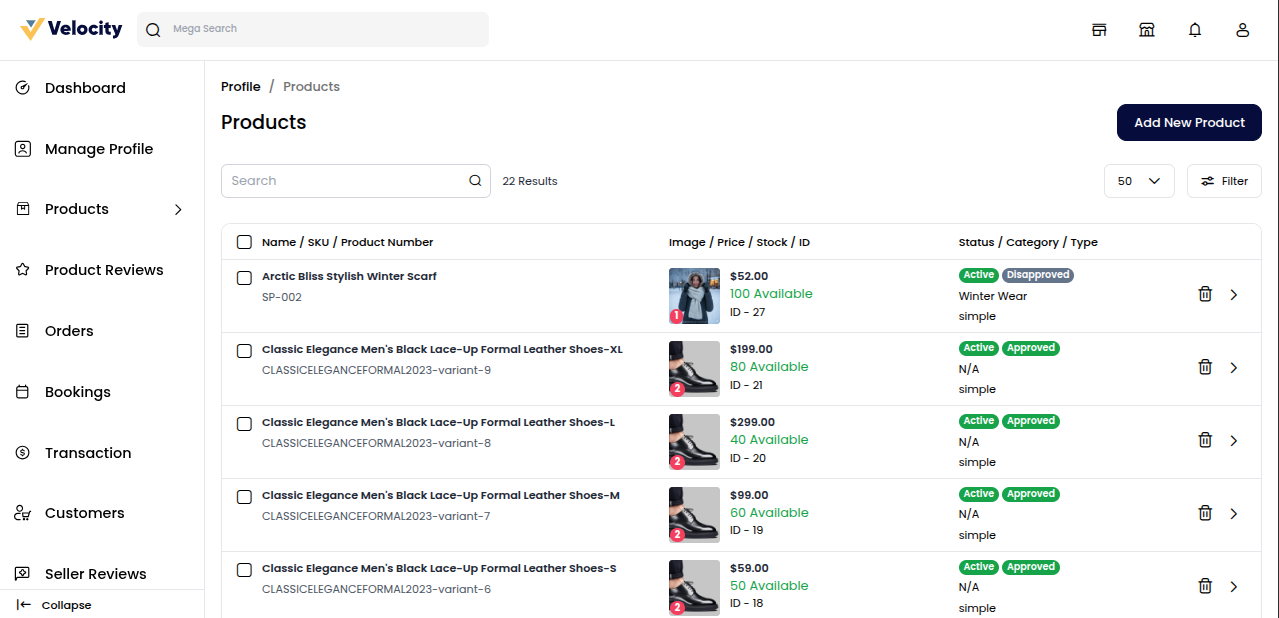
Note: Once the admin reviews and approves it, the status will change to Approved, and only then will the product be visible on the store frontend.
Admin Panel: Manage Dealers Product
From the Admin Dashboard, admins can approve or disapprove dealer added products. Only approved items appear on the storefront.
This ensures master catalog products stay consistent across all dealer listings.
Go to Marketplace >> Products to view and manage all your products from the seller dashboard.
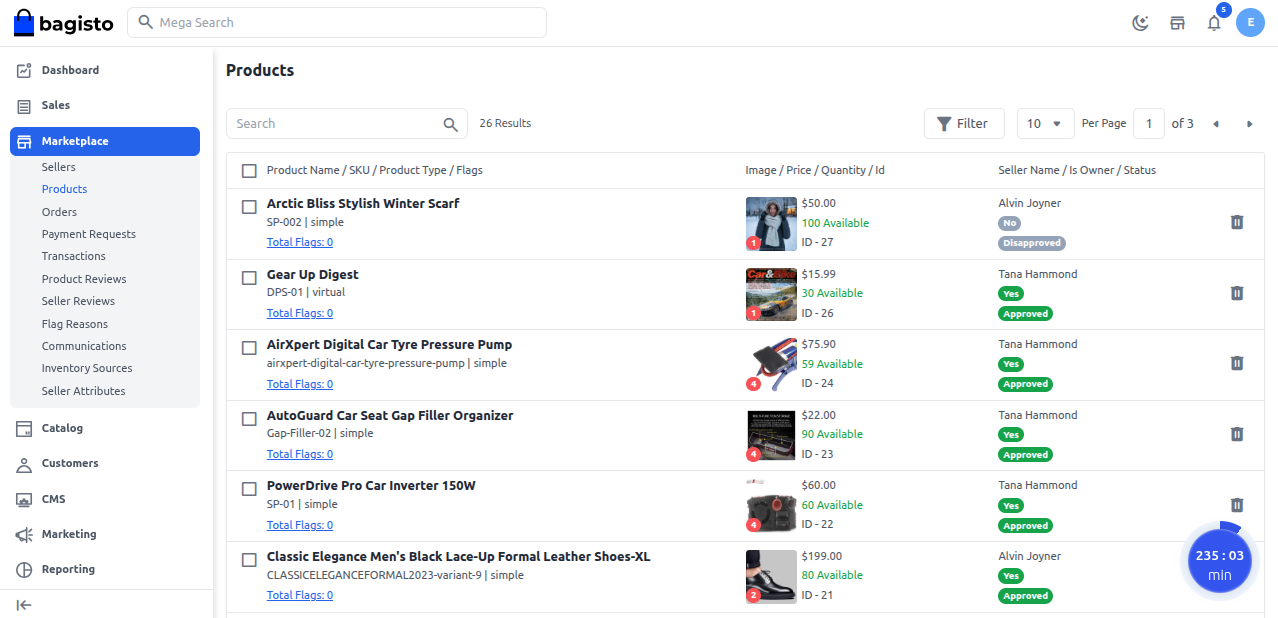
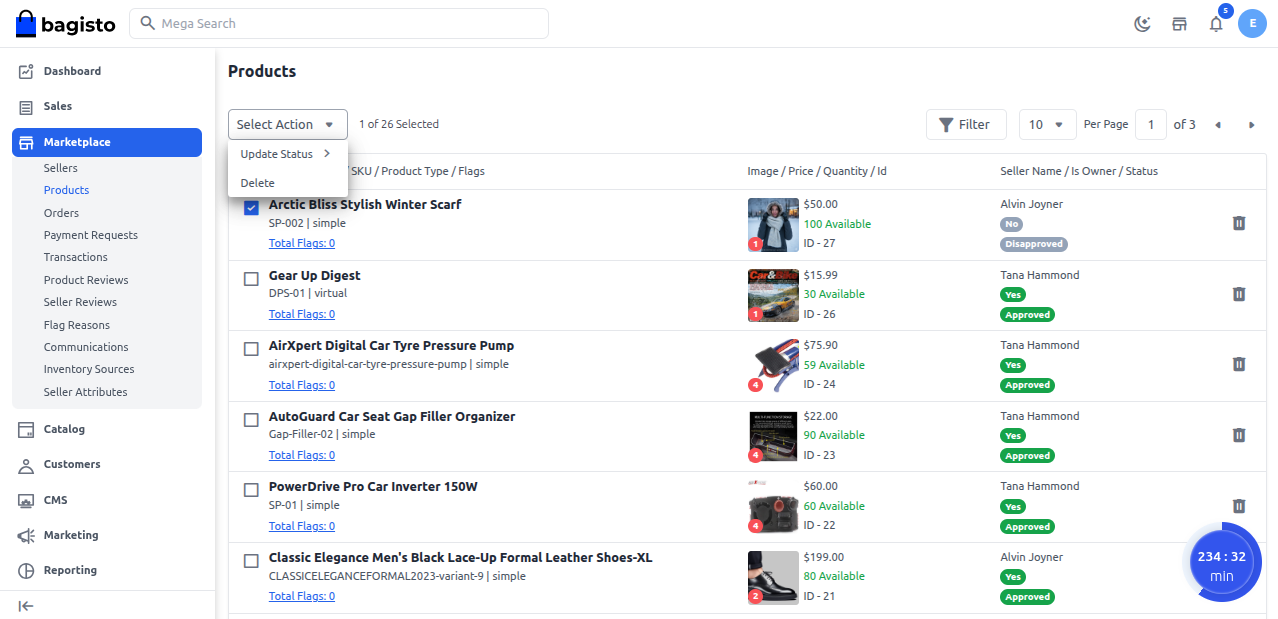
To approve a product, follow these steps:
Check the product checkbox for the item want to approve.
Go to the Select Action dropdown.
Click on Update Status.
Select Approved to approve the product.
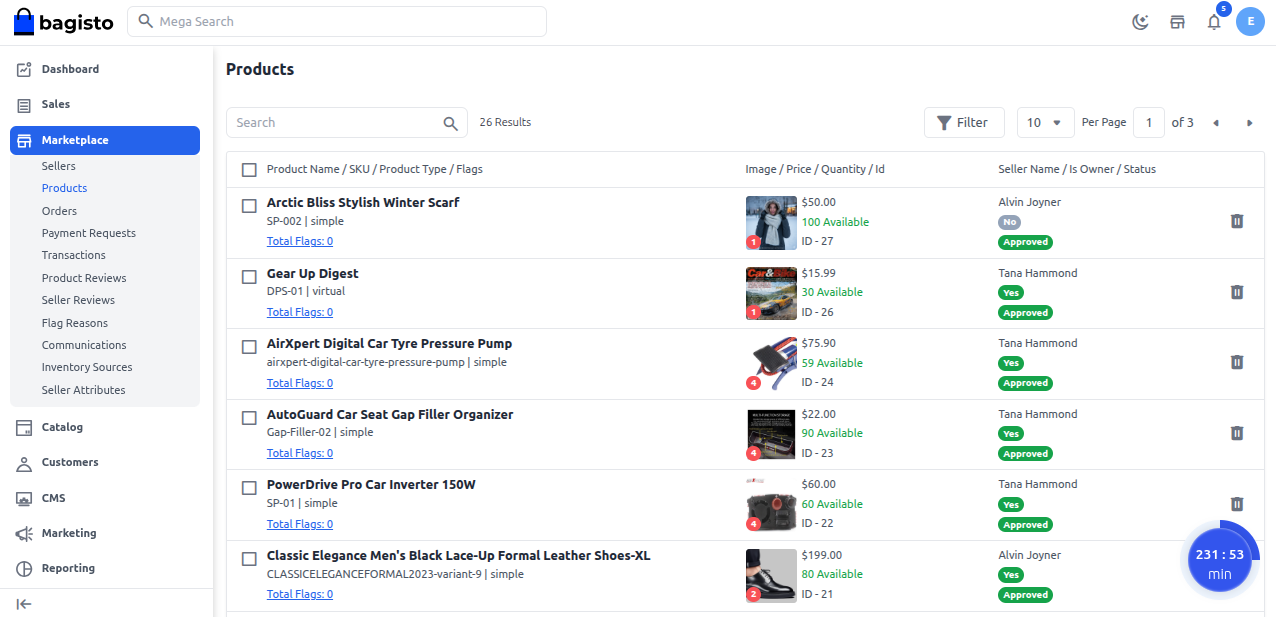
Once the product is approved, it will show as Approved on the Vendor Product page and under vendor listing, and will also become visible on the storefront for customers.
Product Preview – Dealership Side
After approval, changes reflect on the dealer side, including any products added through the dealer from the central catalog.
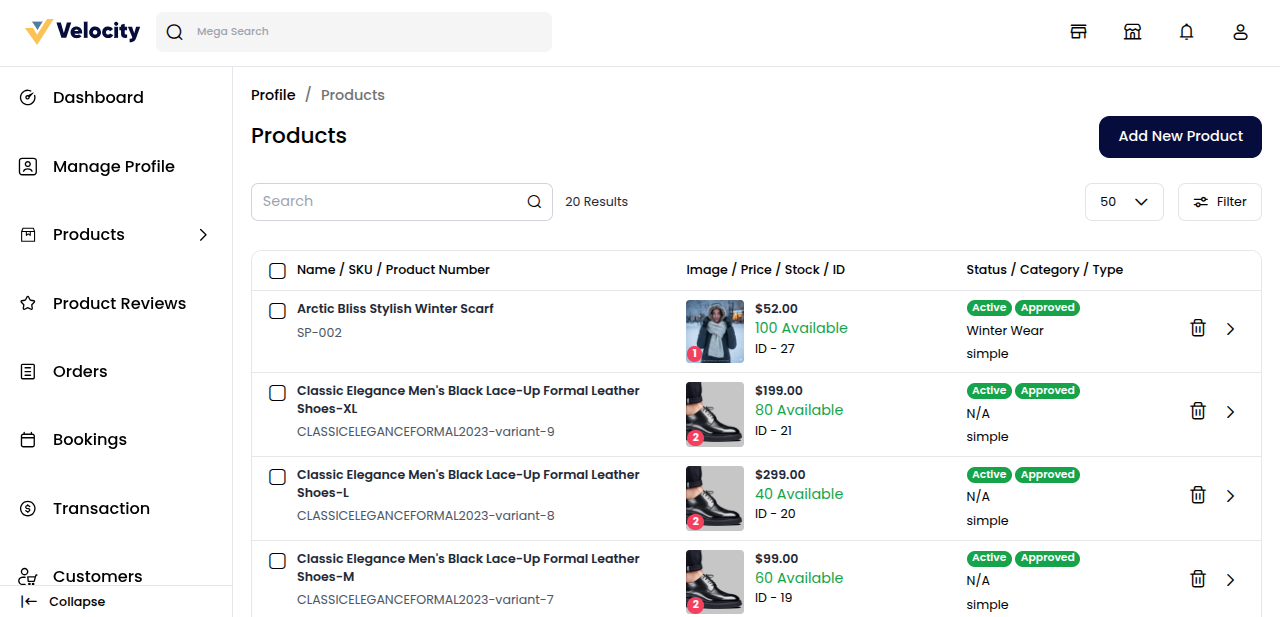
Store view
The approved product appears on the storefront for customers to browse and purchase.
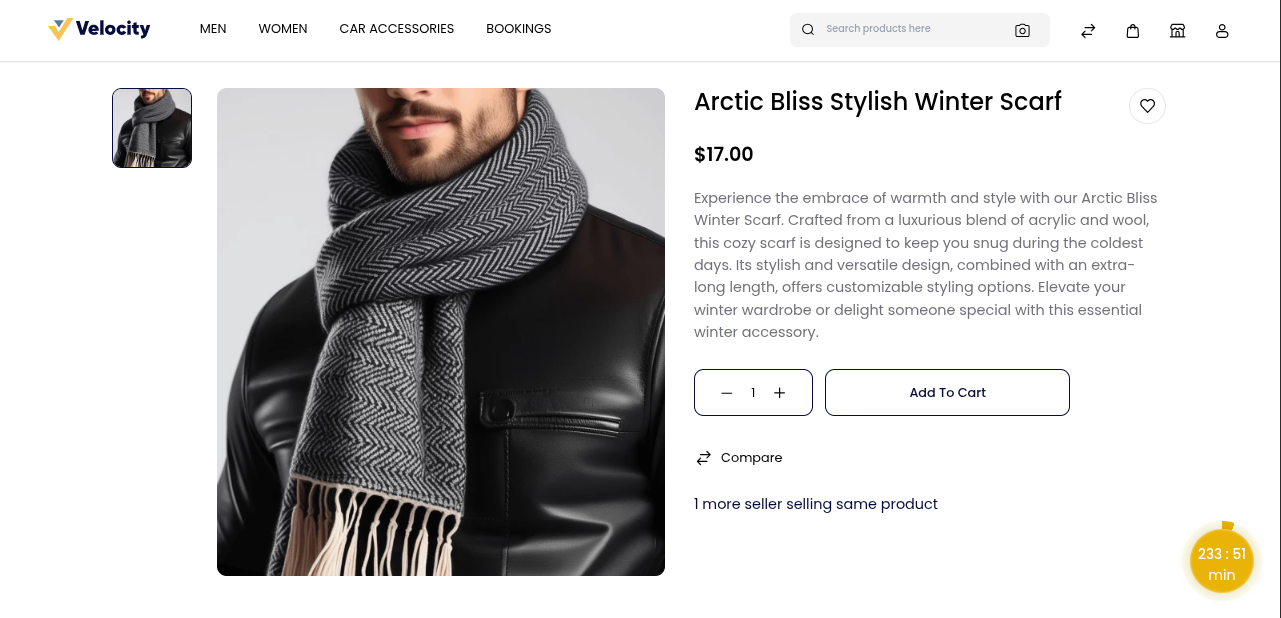
Customers can also click “1 more seller selling this product” to view other dealers offering the same item, making comparisons and purchases easier and helping dealers sell on existing listings more effectively.