
Quotation Handling
The Frontend Quotation Handling feature allows company users to view, track, and manage all their quotation requests directly from their dashboard.
Users can create, negotiate, and respond to quotations seamlessly directly from the storefront.
Accessing Quotations
Go to My Account → Profile → Quotations from the company storefront.
My Quotations
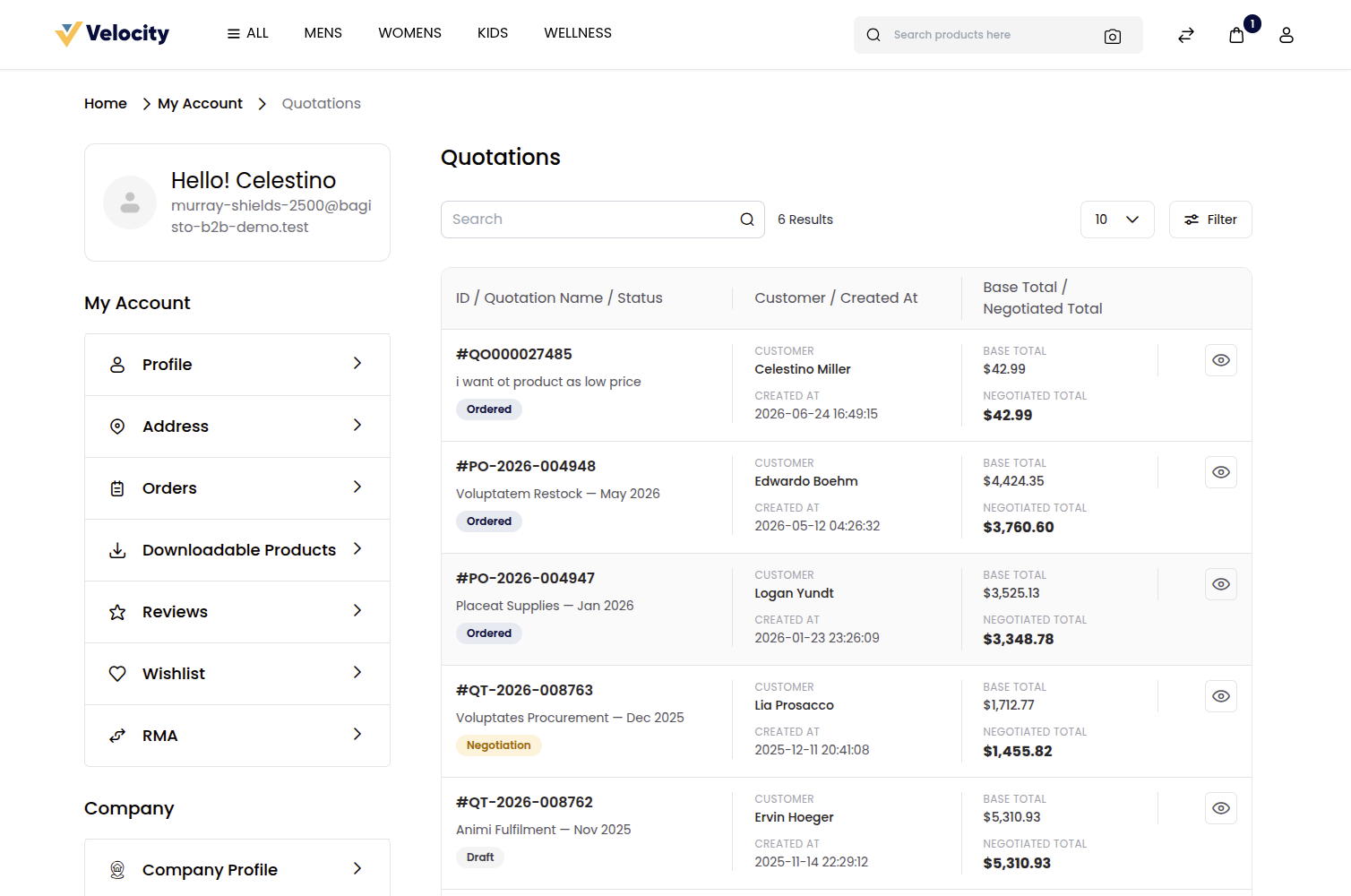
The My Quotations page displays all quotation requests submitted by the company. Each record includes essential details for easy tracking and management.
Quotation Details Include:
1) ID: Unique identifier for each quotation.
2) Quotation Name: Title assigned to the quotation.
3) Company: Name of the requesting company.
4) Base Total: Total amount before negotiation.
5) Status: Current stage (Draft, Open, Accepted, Rejected).
6) Created At: Date and time of quotation creation.
7) Actions: Use the View icon to view full quotation details and take further actions.
Quotation Details
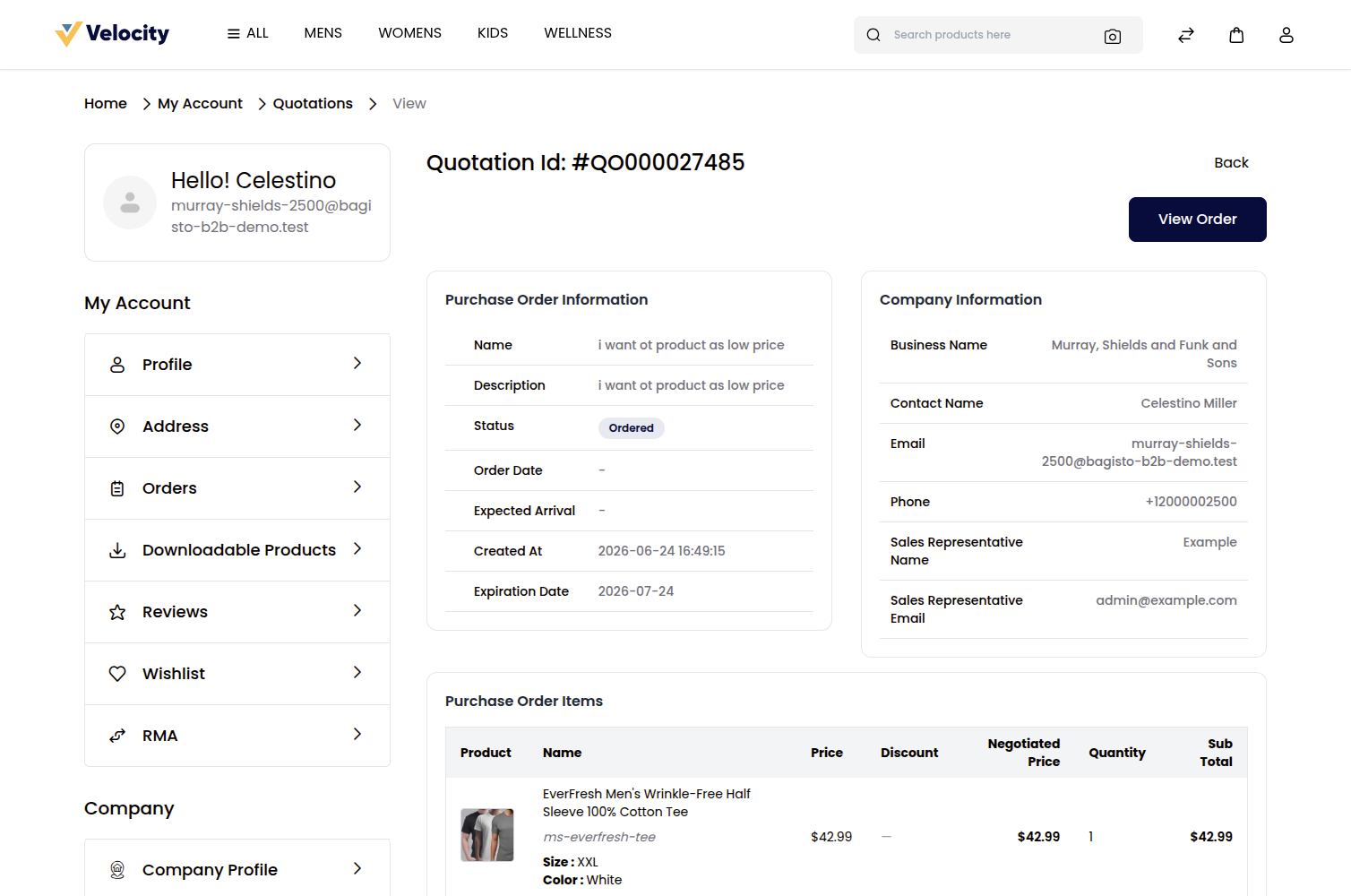
Click the View icon under the Actions column to open detailed quotation information.
This section provides complete details of the selected quotation, including Quotation Information, company information, Quotation Items, and Quotation Messages. As shown in the image below.
Quotation Messages
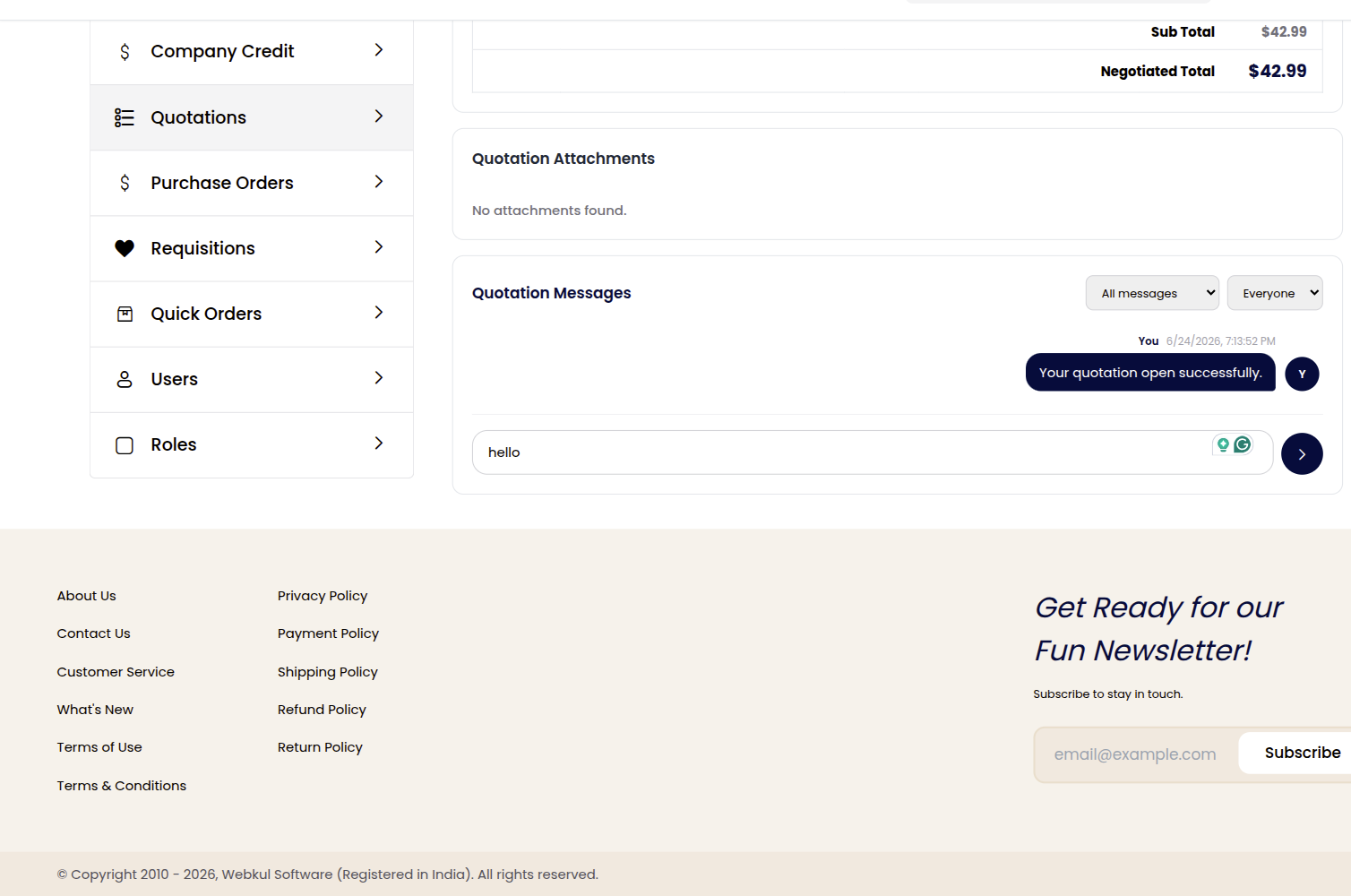
At the bottom of the quotation details page, users can directly communicate with the admin through the Quotation Messages section.
How to Send a Message:
Click the Message button.
Enter your text in the “Enter your message here…” field.
Click Send to deliver your message.
All messages are displayed under the conversation thread with details like sender name, message content, and timestamp.
Note: The negotiation on the seller side is handled by the company's assigned Sales Representative, whose name and email are shown on the quotation. The entire Quotation Messages block is hidden for company users who do not have the Messages permission. See the Role Based Permissions and Sales Representatives guides.
Quote Again
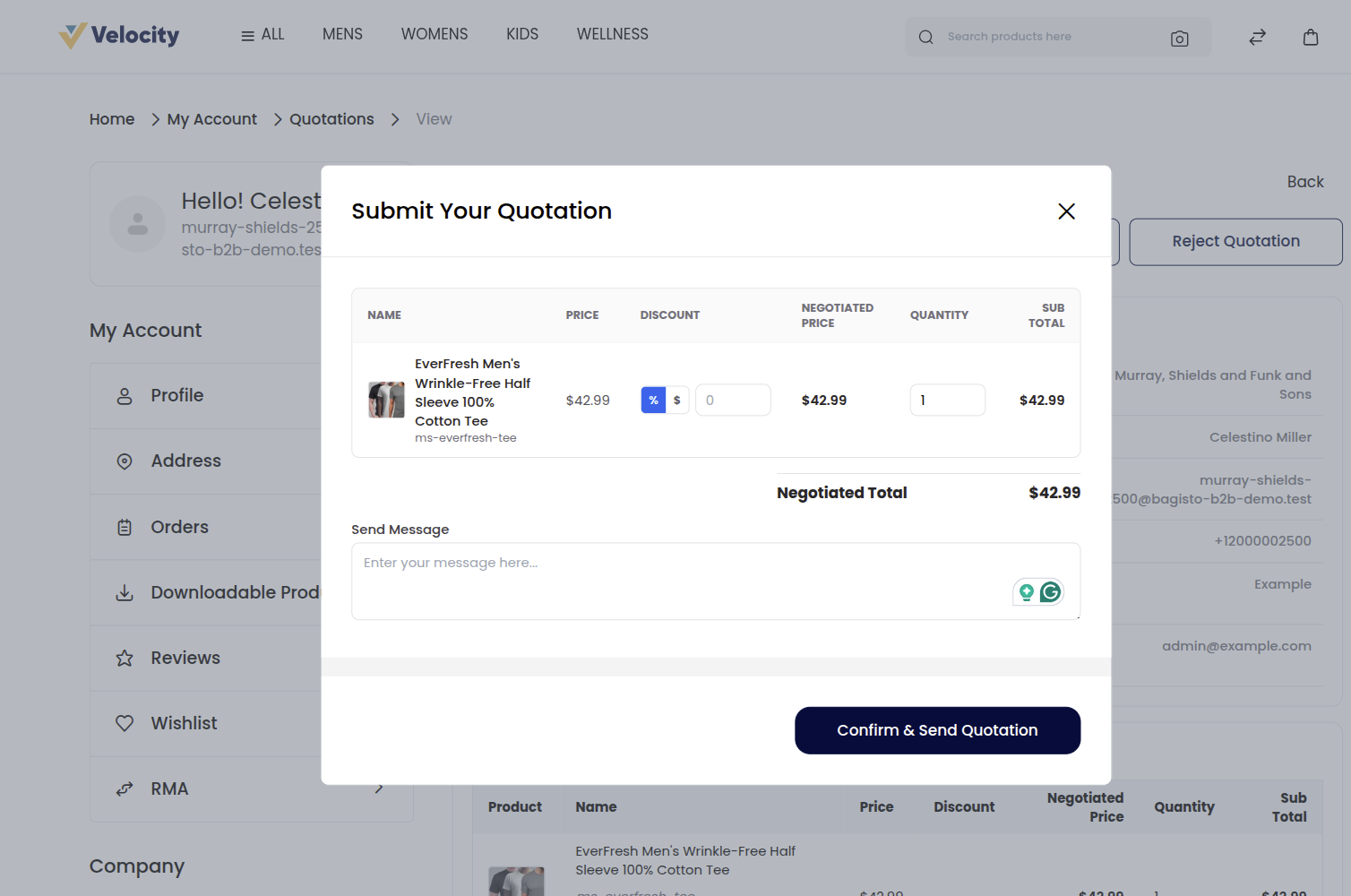
If you wish to revise or resend a quotation, click the Quote Again button.
This allows you to update the negotiated price, quantity, or include additional remarks before resubmitting it to the admin.
Fields Include:
1) Name: Product name in the quotation.
2) Negotiated Price: Updated agreed price.
3) Quantity: Revised product quantity.
4) Message Field (Required): Add a note before submitting.
Click Save to submit the revised quotation for admin review.
Reject Quotation
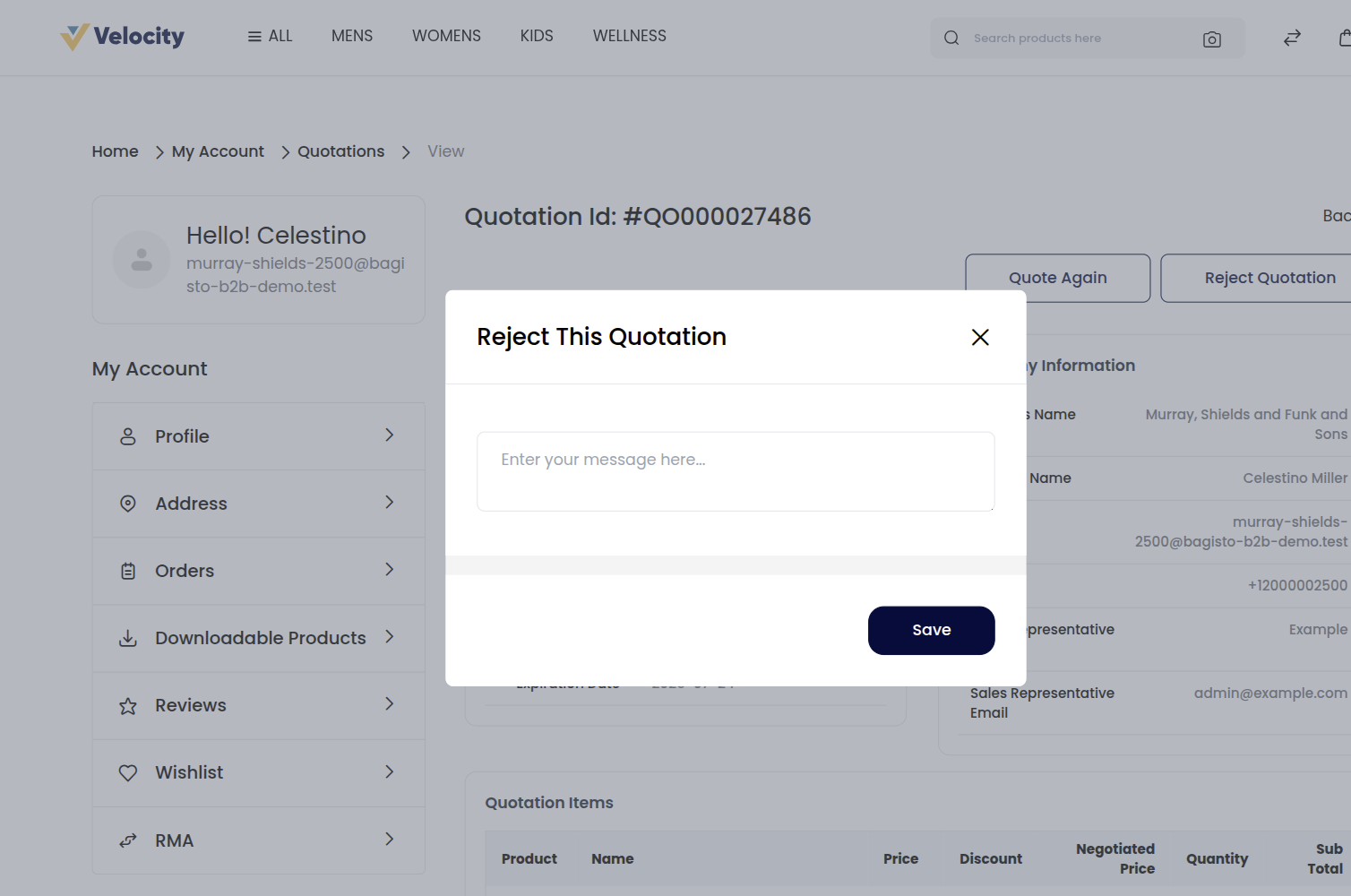
To decline a quotation, click the Reject Quotation button.
A dialog box appears, allowing you to specify the reason for rejection.
Steps:
Enter your message or reason for rejection.
Click Save to confirm.
Once saved, the quotation status updates accordingly to reflect the action taken.
Quotation Management (Admin End)
The Quotation Management feature enables both admin and company users to review, negotiate, approve, or reject quotations seamlessly.
Accessing Quotations
Navigate to B2B → Quotations from the admin panel.
This section displays all quotation requests received from company users for review and action.
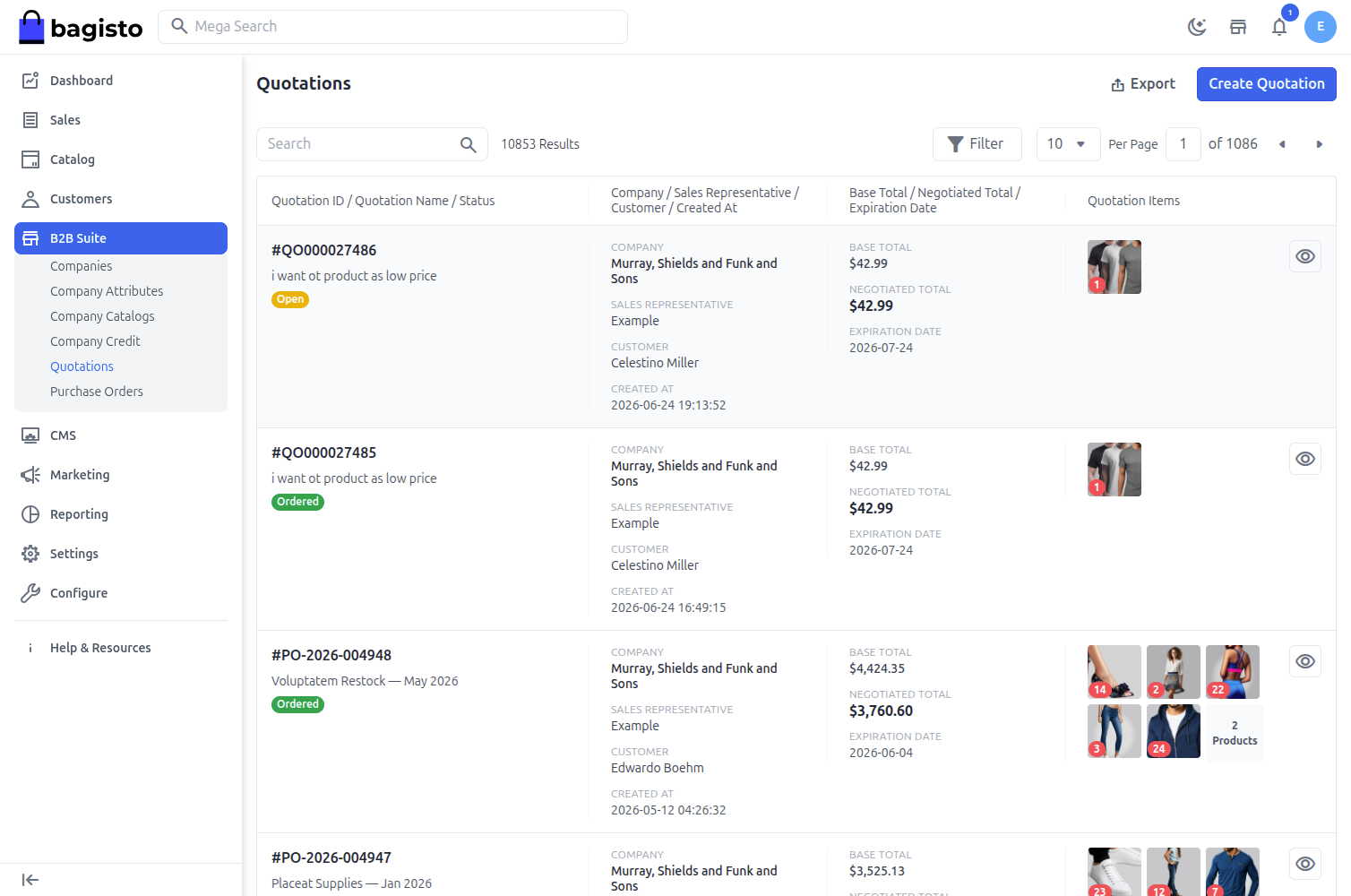
Quotations List
The Quotations page lists all submitted quotations along with key details for tracking, management, and negotiation.
Admins can also use options like Export, Create Quotation, Search, and Filter to manage records efficiently.
Quotation Details Include:
1) Quotation ID / Quotation Name: Unique identifier and title for each quotation.
2) Status: Current stage of the quotation (e.g., Open, Accepted, Rejected).
3) Company / Customer: Name of the company and customer associated with the quotation.
4) Created At: Date and time when the quotation was created.
5) Base Total / Negotiated Total: Original and negotiated amounts for the quotation.
6) Expiration Date: Validity period of the quotation.
7) Quotation Items: Products included in the quotation.
Quotation Details
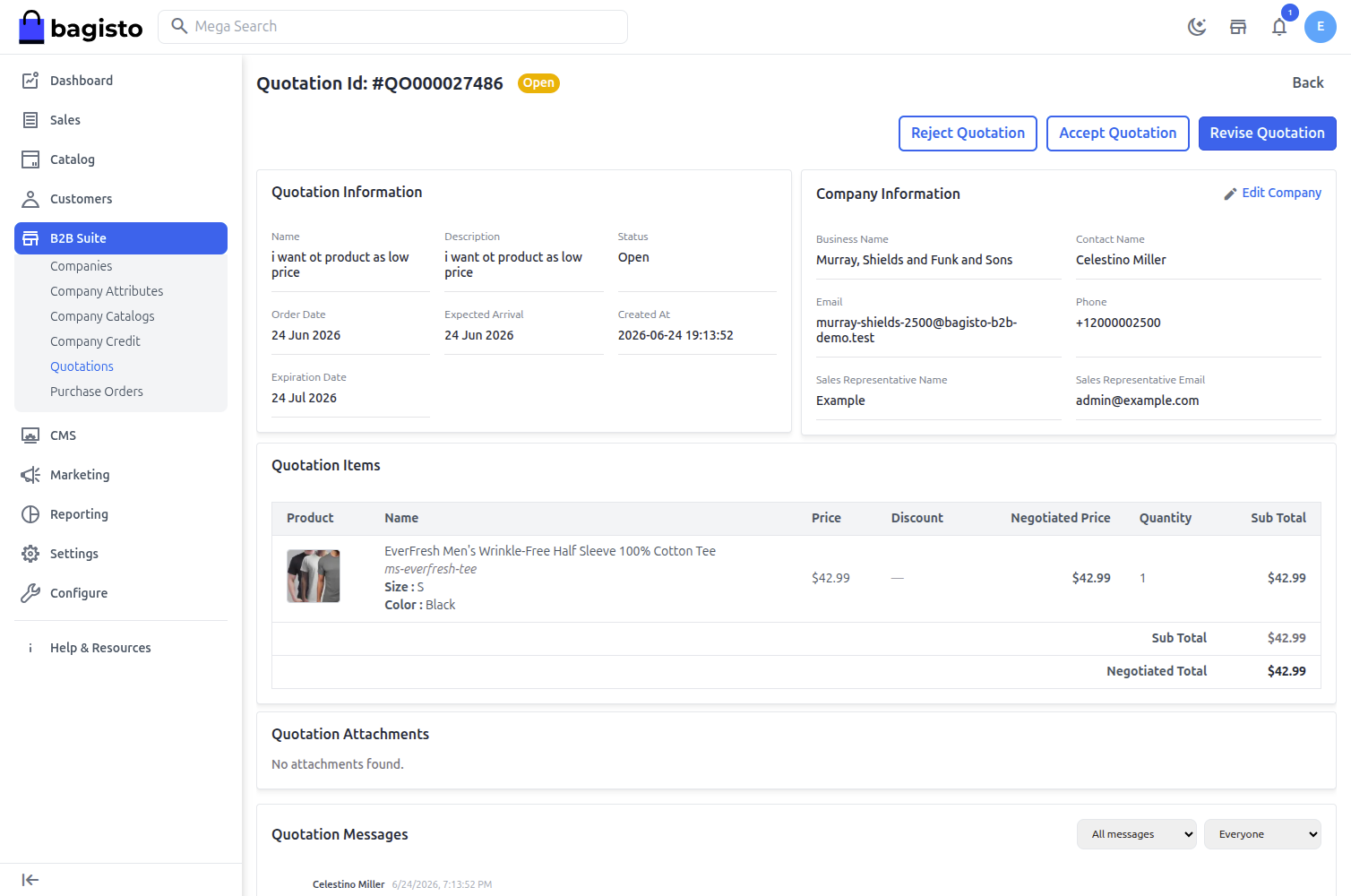
Click the View icon next to the quotation entry to open the detailed quotation view.
This section provides complete information about the selected quotation, including Quotation Information, company information, Quotation Items, and Quotation Messages. As shown in the image below.
Quotation Messages
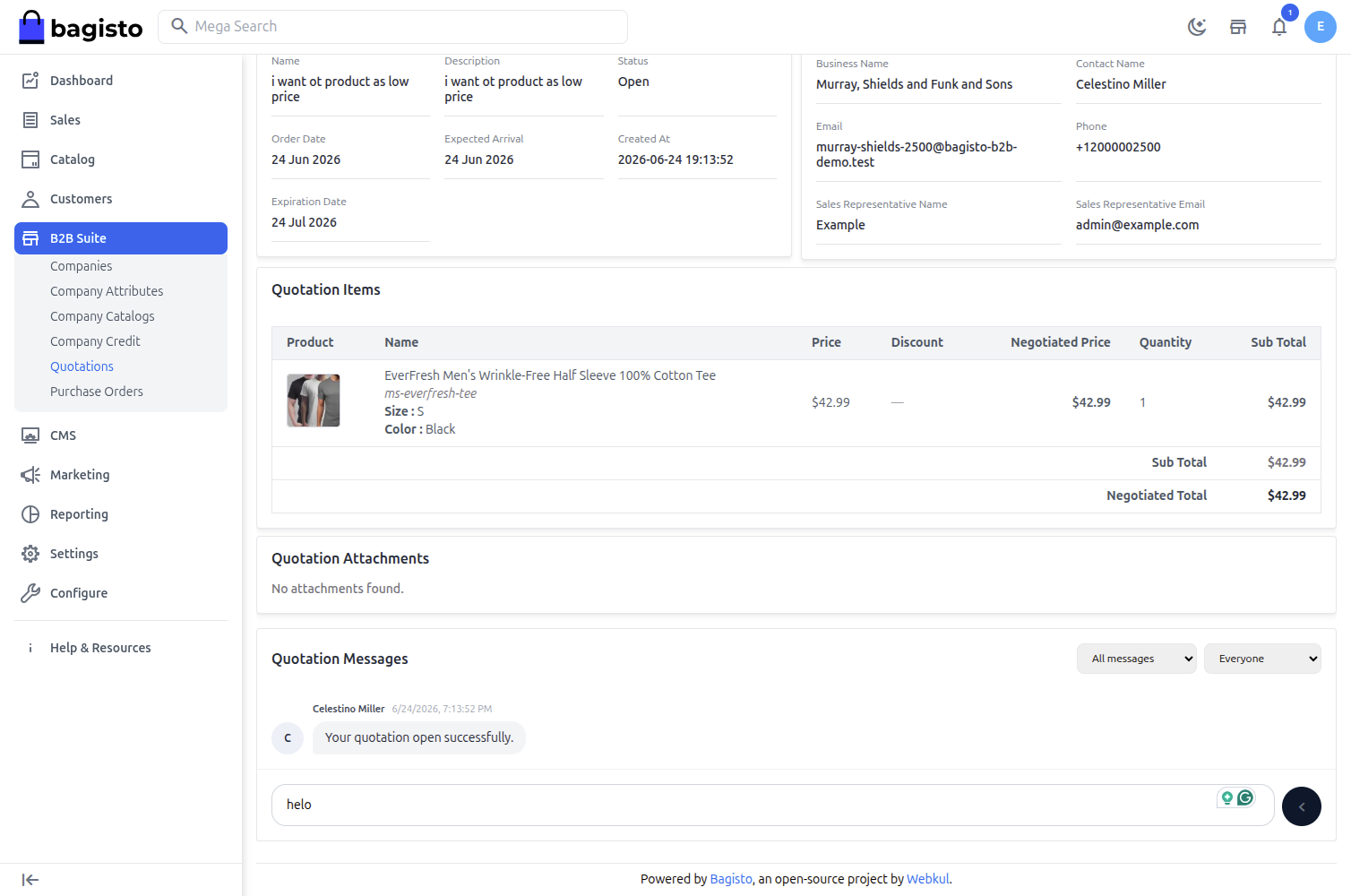
Admins and company users can exchange messages directly within the quotation using the Quotation Messages section.
How to Send a Message:
Click the Message button.
Type your text in the “Enter your message here…” field.
Click Send to deliver the message.
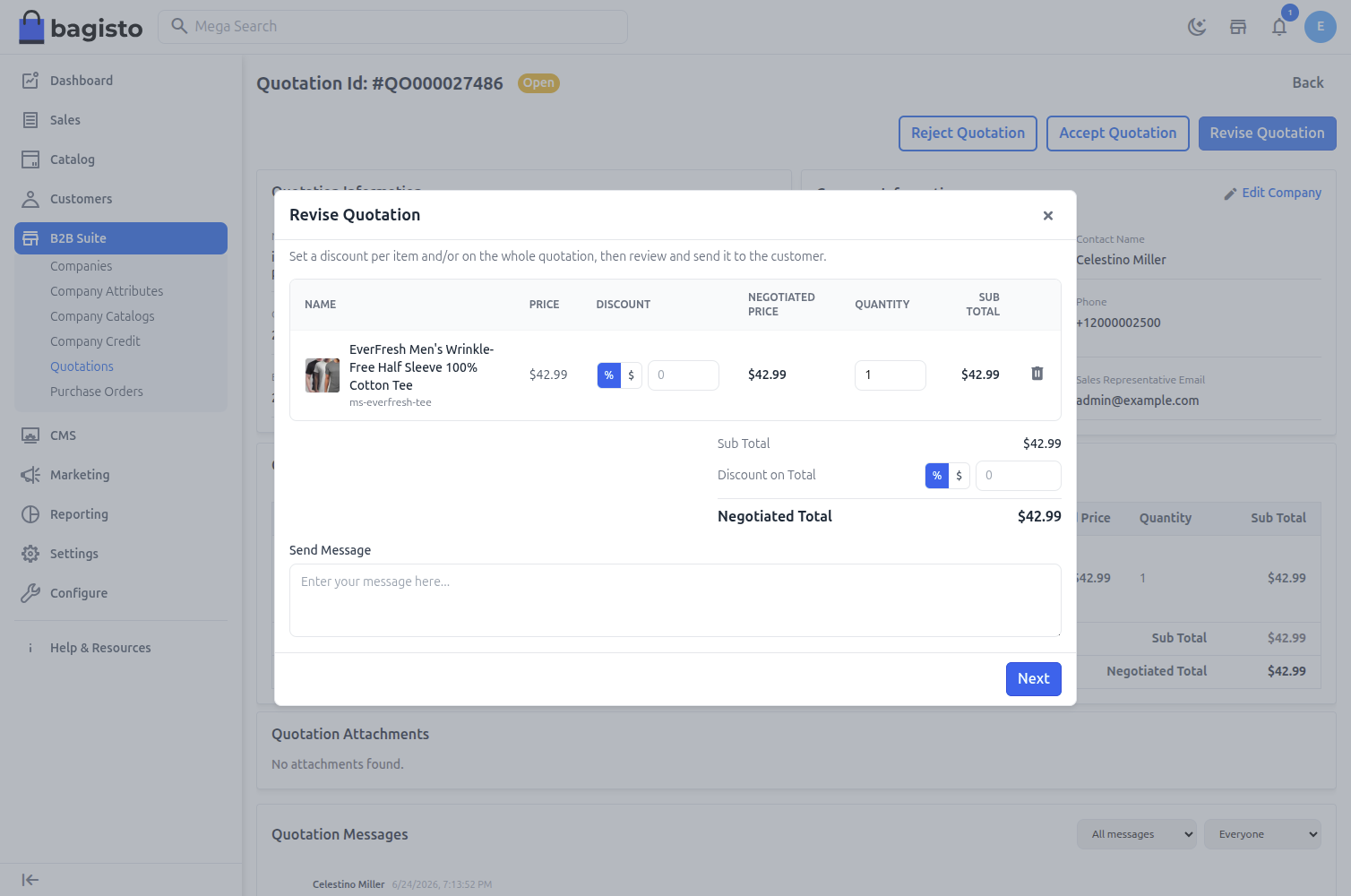
Send Quotation
Admins can modify and resend quotations with updated negotiation terms.
Fields Include:
1) Name: Product name.
2) Negotiated Price: Revised quotation price after discussion.
3) Quantity: Updated product quantity.
4) Message Field (Required): Add negotiation notes or remarks before submission.
Click Save to send the updated quotation to the company user for review.
Accept or Reject Quotation
Once negotiation is complete, admins can finalize the quotation.
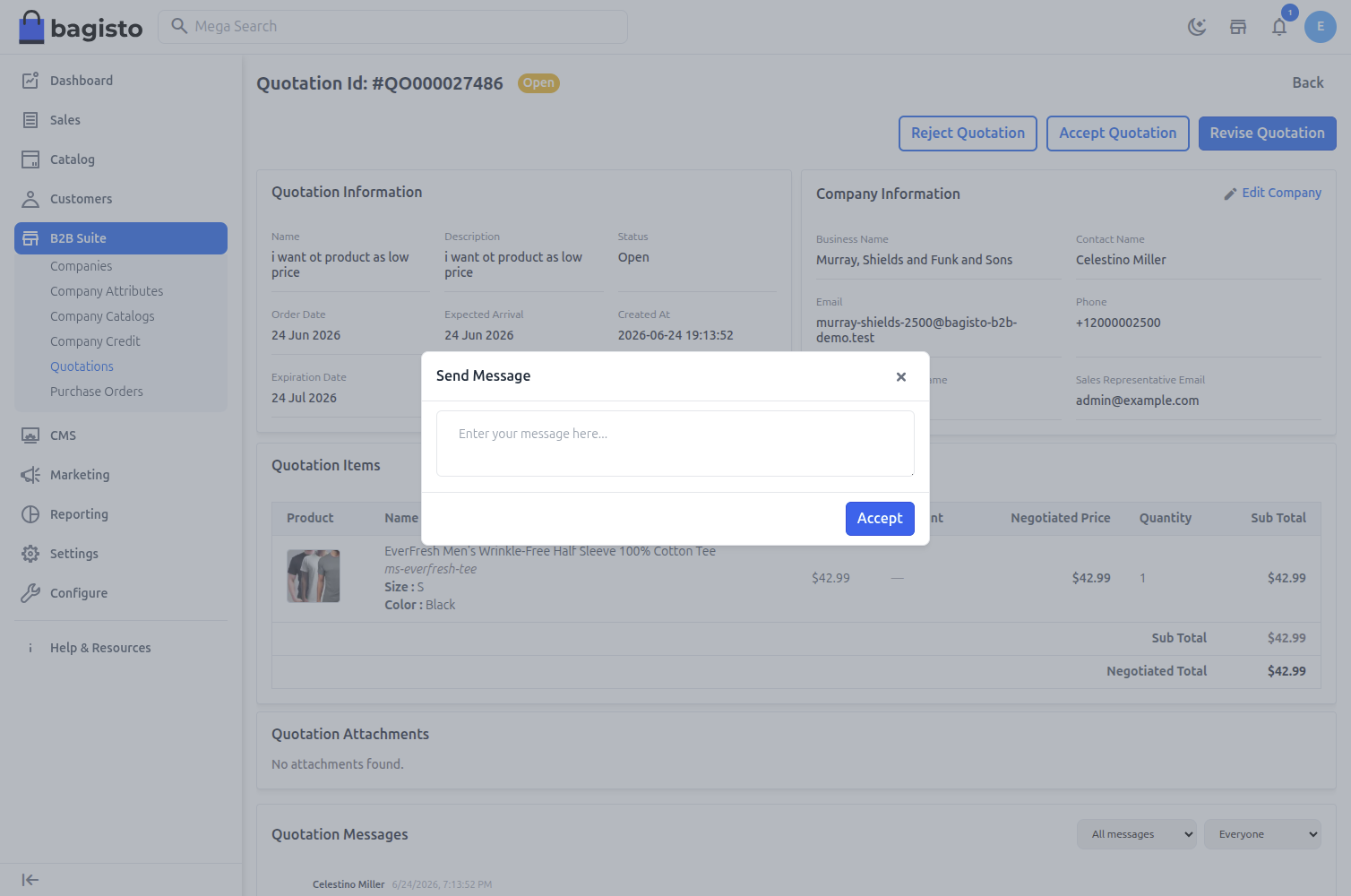
Accept Last Quotation:
Click the Accept Last Quotation button to approve.
Enter a message and click Save to confirm.
The quotation status updates to Accepted on the storefront, enabling the company to proceed with the purchase via the Add to Cart button.
Note: Once a quotation is accepted, you cannot modify the product quantity. To make changes, a new quotation must be raised.
Reject Quotation:
Click the Reject Quotation button.
Enter the reason for rejection in the message field.
Click Save to finalize the action.
Note: Once a quotation is finalized (Accepted or Rejected), no further modifications to products or pricing are allowed.