
Two-Factor Authentication (2FA)
Two-factor authentication adds a second step to signing in to the admin panel. After your password, you enter a six-digit code from an authenticator app on your phone, so someone who learns your password still can't sign in.
Each admin user turns it on for their own account, from My Account. It isn't required: there's no setting that turns it on for every user, and one admin can't turn it on or off for another.
Before you start
- Install an authenticator app on your phone. The screen mentions Google Authenticator, but any authenticator app that adds an account by scanning a QR code and shows six-digit codes works.
- Make sure your account's email address in My Account is one you can read. Your backup codes are emailed to it.
Turn on two-factor authentication
In the header, click your profile picture or initial in the top-right corner.
Click My Account.
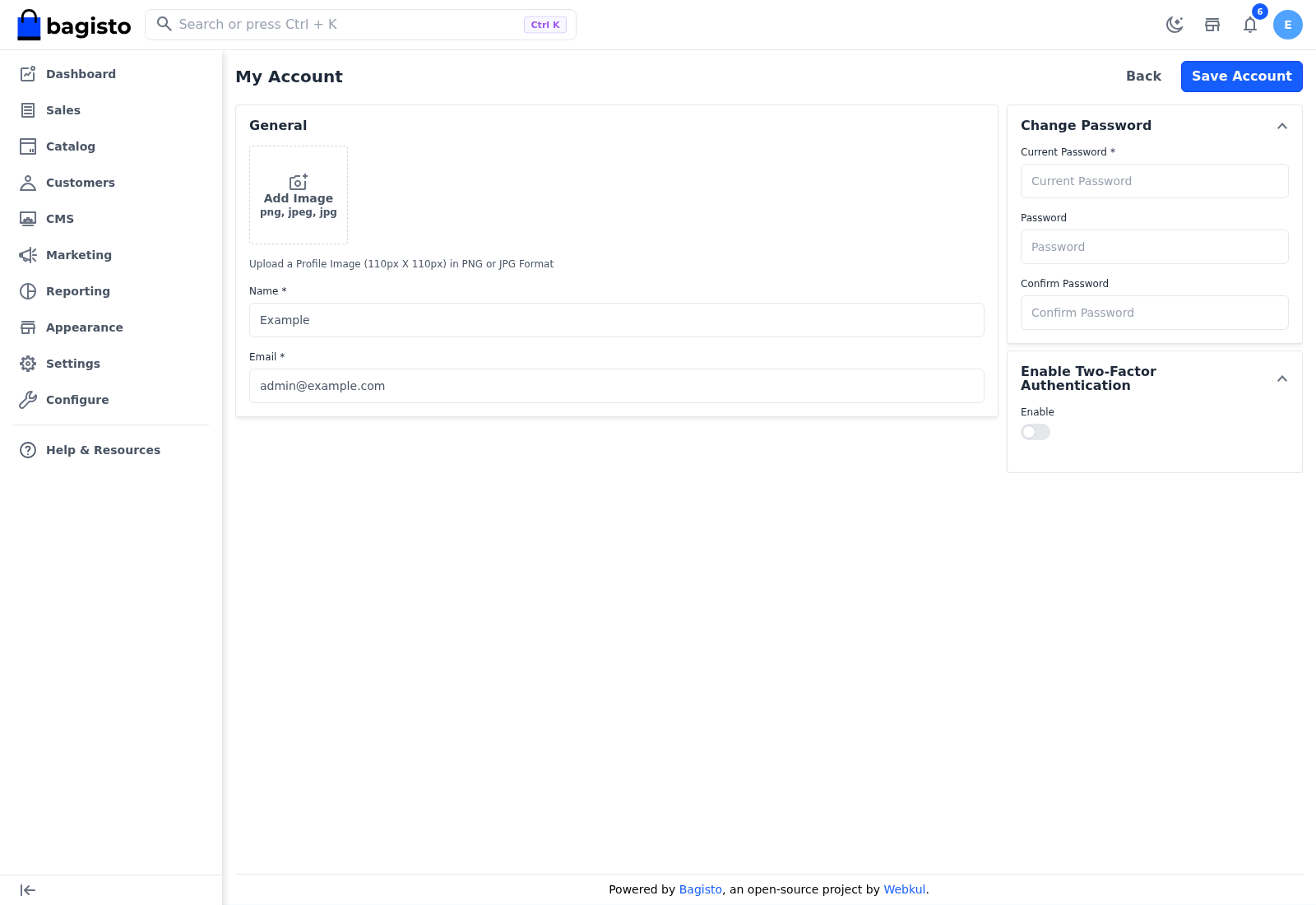
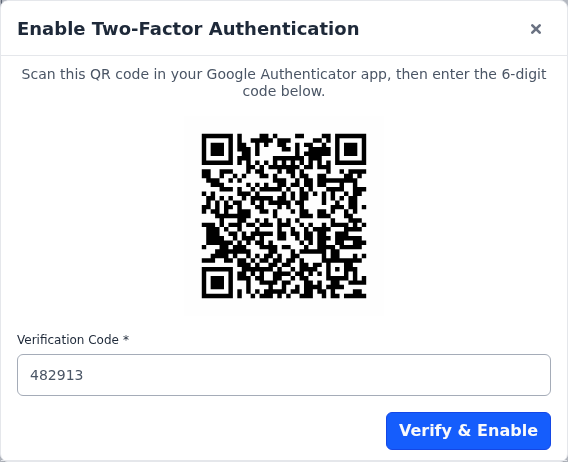
In Enable Two-Factor Authentication, switch Enable on. A pop-up opens with a QR code.
Open your authenticator app and scan the QR code. The app adds your store account and starts showing a six-digit code.
Enter the code in Verification Code.
Click Verify & Enable.
The message Two-Factor Authentication enabled successfully. appears, and the pop-up shows your backup codes. The switch takes effect straight away, so you don't need to click Save Account.
If the code is wrong or has already changed in the app, Invalid verification code. appears. Enter the code the app shows now and try again.
If you close the pop-up before you click Verify & Enable, the switch turns off again and two-factor authentication stays off.
Save your backup codes
A backup code signs you in instead of a code from the app, for example when your phone isn't with you. You get eight, and each works once.
In the pop-up, click Download to save the codes as a text file.
Keep the file somewhere safe that isn't your phone, such as a password manager.
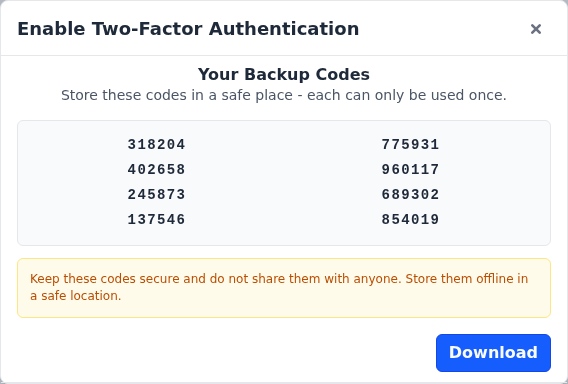
The same codes are sent to your account's email address.
The codes are shown only once
After you close the pop-up, you can't see the codes again or get new ones. To get a new set, turn two-factor authentication off and on again. You then scan a new QR code, and the old codes stop working.
Sign in with two-factor authentication
On the admin sign-in page, enter your Email Address and Password.
Click Sign In. The Verify Two-Factor Authentication screen opens.
In Verification Code, enter the six-digit code your authenticator app shows, or one of your backup codes.
Click Verify Code.
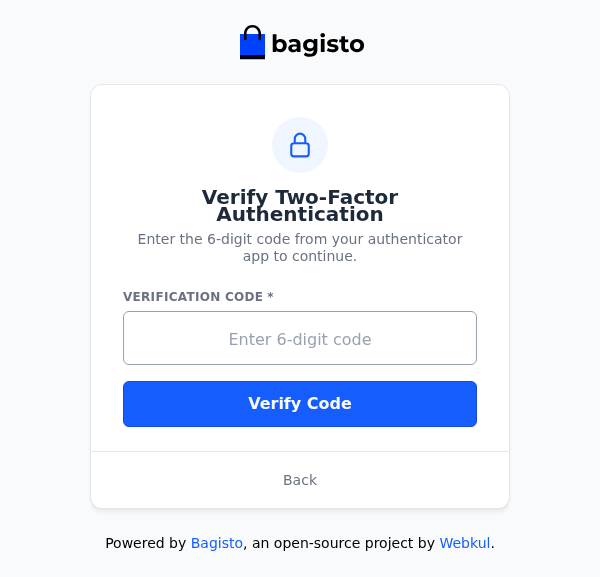
The message Two-Factor Authentication verified successfully. appears and the admin panel opens.
- You're asked for a code every time you sign in, not only on a new computer.
- A backup code is used up once you sign in with it.
- You can try five codes a minute. After that, wait a minute before you try again.
- Back signs you out and returns you to the sign-in page.
Turn off two-factor authentication
- In the header, click your profile picture or initial.
- Click My Account.
- In Enable Two-Factor Authentication, switch Enable off.
The message Two-Factor Authentication has been disabled. appears, and your next sign-in asks only for your password. Your backup codes stop working.
The switch turns off at once, without asking for a code, so don't leave your account signed in on a shared computer.
If you lose your phone
- You still have a backup code: sign in with it, then turn two-factor authentication off and on again to connect your new phone. You get new backup codes at the same time.
- You have no backup codes left: you can't sign in, and no other admin can turn it off for you in the admin panel. Ask the person who manages your store's server to turn two-factor authentication off for your account.