
Create Shipment
A shipment records which products have left an inventory source, and with which carrier and tracking number. Creating one takes the stock from the source you ship from, for products that manage stock. You can ship an order all at once or in several shipments.
Only products that need shipping can be shipped. Virtual and downloadable products count as shipped once they're invoiced.
Create a shipment
Go to Sales >> Orders.
Open the order.
Click Ship. The Create new Shipment panel opens.
Enter the Carrier Name, such as the courier you use. This is optional.
Enter the Tracking Number. This is optional.
Choose the Source the products ship from. The inventory sources of the order's channel are listed.
For each product, check Qty. To Ship under the source you chose. Qty. Available shows the stock at each source. Enter 0 for a product you aren't shipping now. For a later shipment of the same order, lower Qty. To Ship to the quantity that's left to ship.
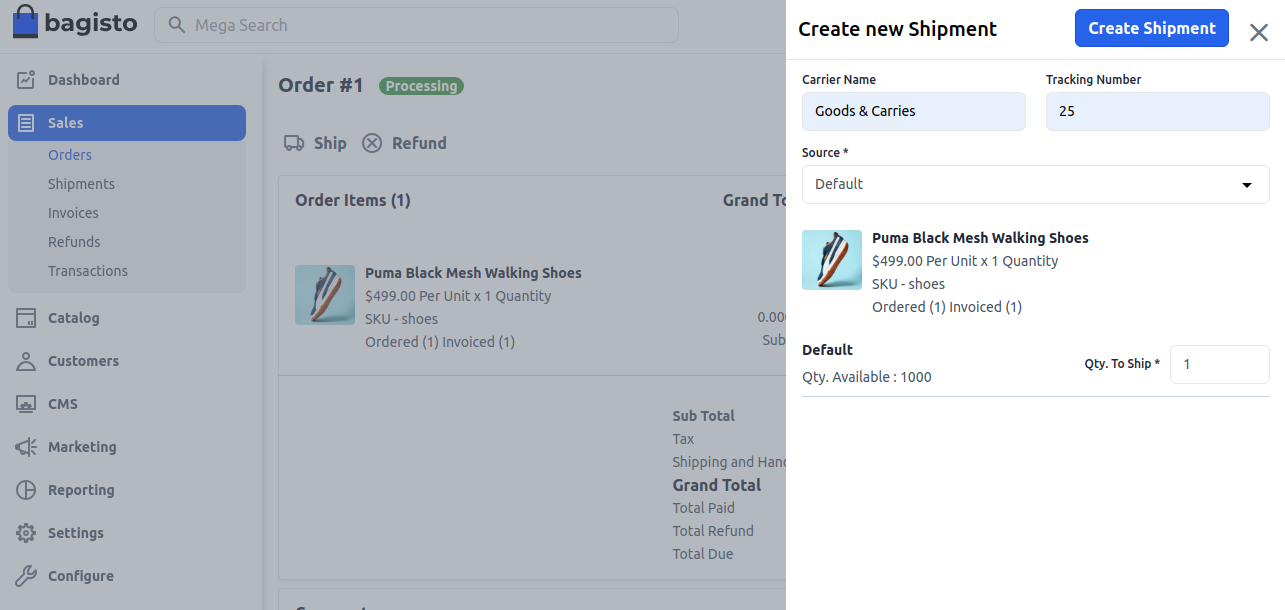
Click Create Shipment.
You'll see Shipment created successfully, and the shipment is listed in the order's Shipments card.
- Qty. To Ship can only be entered for the source you chose, and only when that source has the product in stock.
- The quantity can't be more than is left to ship, or more than the source has in stock. Otherwise, or when every quantity is 0, you'll see Qty. Invalid.
- When a product has a return request, the panel shows An RMA request is available for the product with a quantity of and the requested quantity, and that quantity is taken off what you can ship. See RMA.
- You can ship before or after invoicing. If an invoice of the order is still Pending, shipping moves the order to Pending Payment. See Order statuses.
- Shipments can't be edited or deleted.
When the notifications are on, the customer, the admin and the contact of the inventory source are emailed about the shipment. See Notifications.
To add a source or its stock, see Inventory Sources.
The Shipments screen
Go to Sales >> Shipments to see every shipment with its ID, Order ID, Total Quantity, Inventory Source, Shipment To, Order Date and Shipment Date.
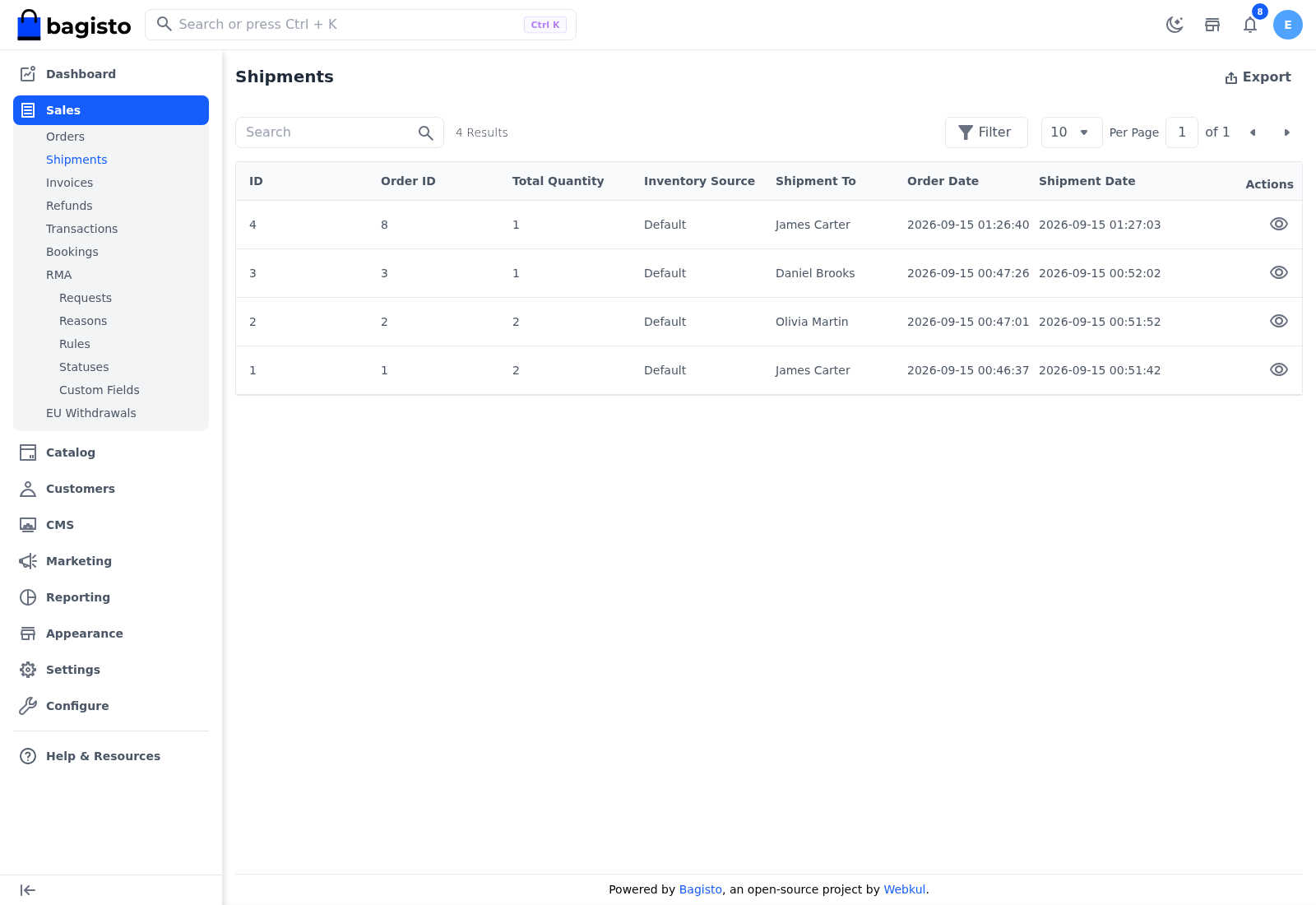
- Search and Filter: find shipments by order ID, inventory source or the name the shipment was sent to. You can also filter by quantity and dates.
- Export: downloads the shipments as a CSV, XLS or XLSX file.
- View: opens the shipment.
The shipment page
Open a shipment from the Shipments screen, or with View in the order's Shipments card. The title shows the shipment number, such as Shipment #3.
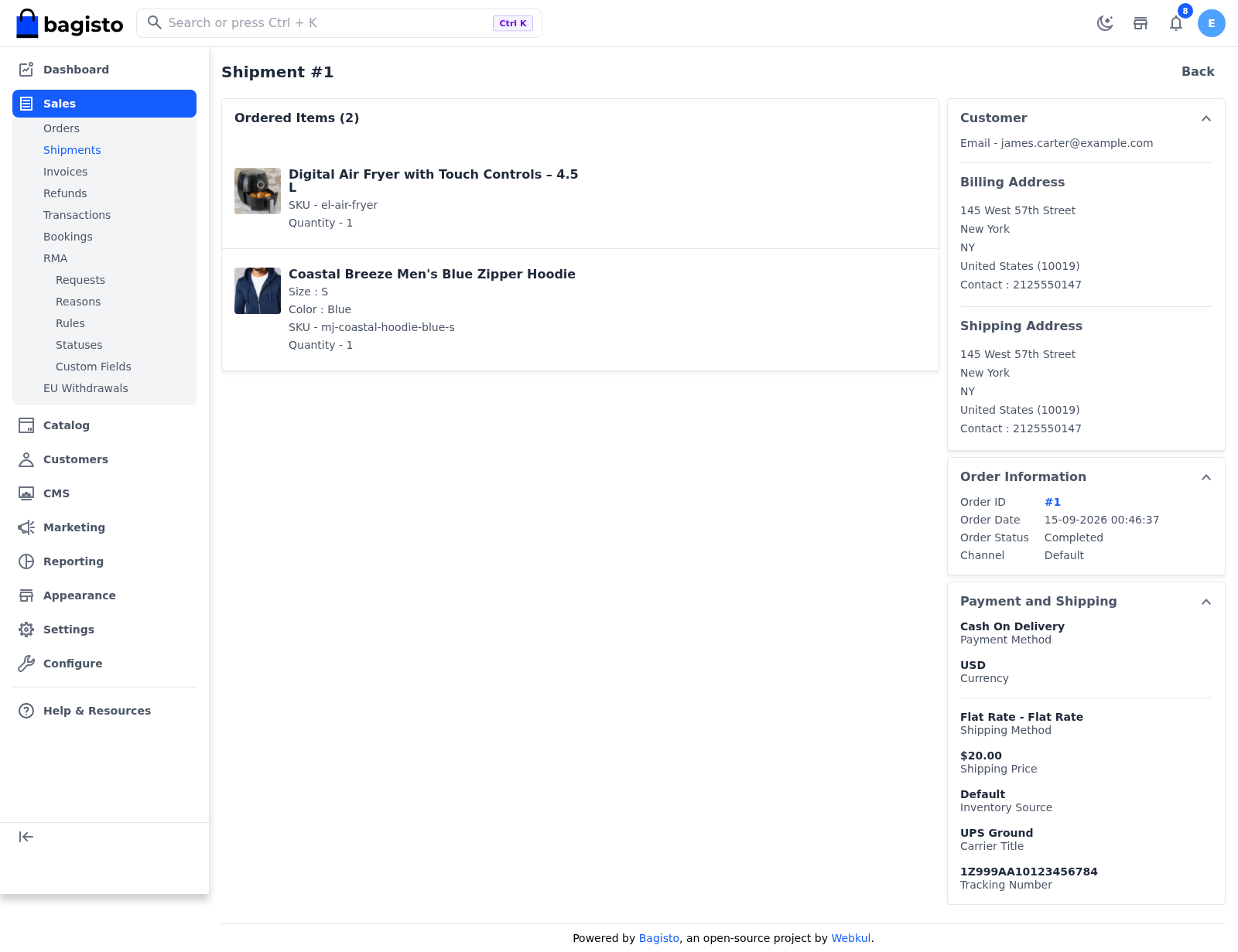
- Ordered Items lists the shipped products with their SKU and quantity.
- Customer shows the customer's email, and the billing and shipping addresses.
- Order Information shows the Order ID, which links to the order, and the Order Date, Order Status and Channel.
- Payment and Shipping shows the Payment Method, Currency, Shipping Method and Shipping Price, the Inventory Source, and the Carrier Title and Tracking Number when you entered them.