
Users
Users are the people who can sign in to the admin panel. Each user has one role, which decides what they can see and do, so create the role before you add the user.
Your users
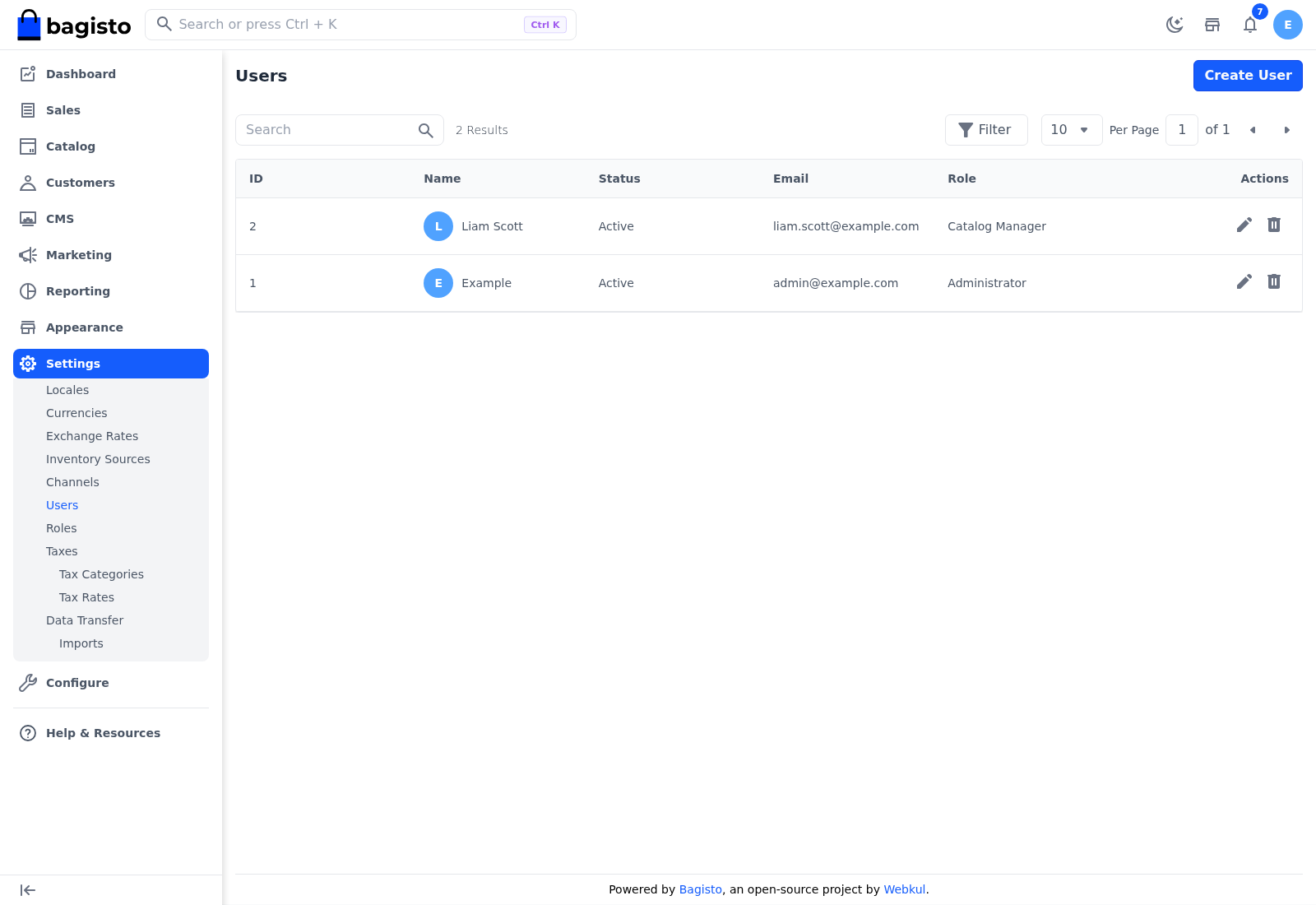
Go to Settings >> Users to see every user with their ID, Name, Status, Email and Role. Search by name, email, status or role, or use Filter to show, for example, only inactive users or the users with one role.
Create a user
Go to Settings >> Users.
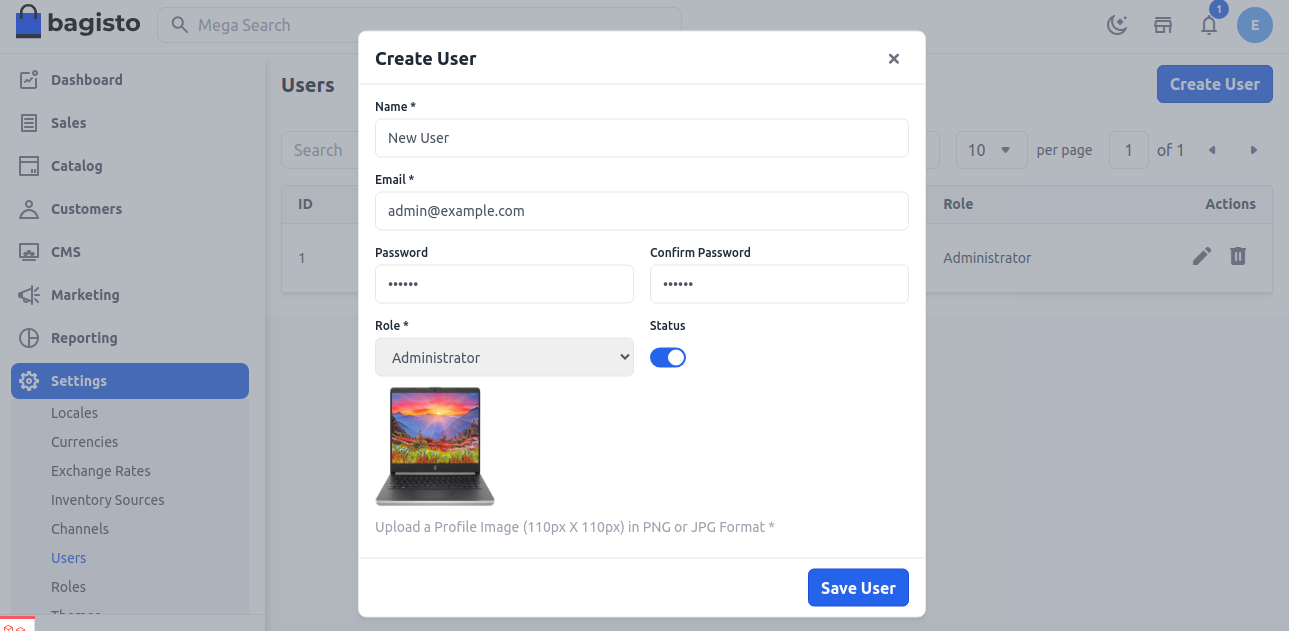
Click Create User. The Create User form opens.
Enter the user's Name and Email. The user signs in with this email address.
Enter a Password of at least 6 characters, and enter it again in Confirm Password.
Choose the Role.
Switch Status on so the user can sign in.
Optionally, upload a profile image. A 110 × 110 px image in PNG or JPG format is recommended.
Click Save User.
The message User created successfully. appears and the user is listed. Share the email address and password with the user so they can sign in to the admin panel.
Each user can then change their own name, password and picture, and turn on two-factor authentication, from My Account.
Block a user's access
If Status is off, the user can't sign in and sees the message Your account is yet to be activated, please contact administrator. A user who is already signed in is signed out the next time they open a page.
Turn Status off to block a user's access without deleting the account.
Edit a user
- Go to Settings >> Users.
- Click the edit icon of the user. The Edit User form opens.
- Change the details, role or status.
- To keep the current password, leave Password and Confirm Password empty.
- Click Save User.
The message User updated successfully. appears.
- You can't change your own Status. The switch isn't shown when you edit your own account.
- While only one user has a role with All permissions, that user's role can't be changed. Give another user a role with All permissions first.
- Don't switch off the Status of the only user with full access, or no one will be able to manage the whole store.
Delete a user
- Go to Settings >> Users.
- Click the delete icon of the user.
- Click Agree to confirm.
You can't delete your own account or the last user.
Users can't reset each other's two-factor authentication. If a user loses both their phone and backup codes, see If you lose your phone.