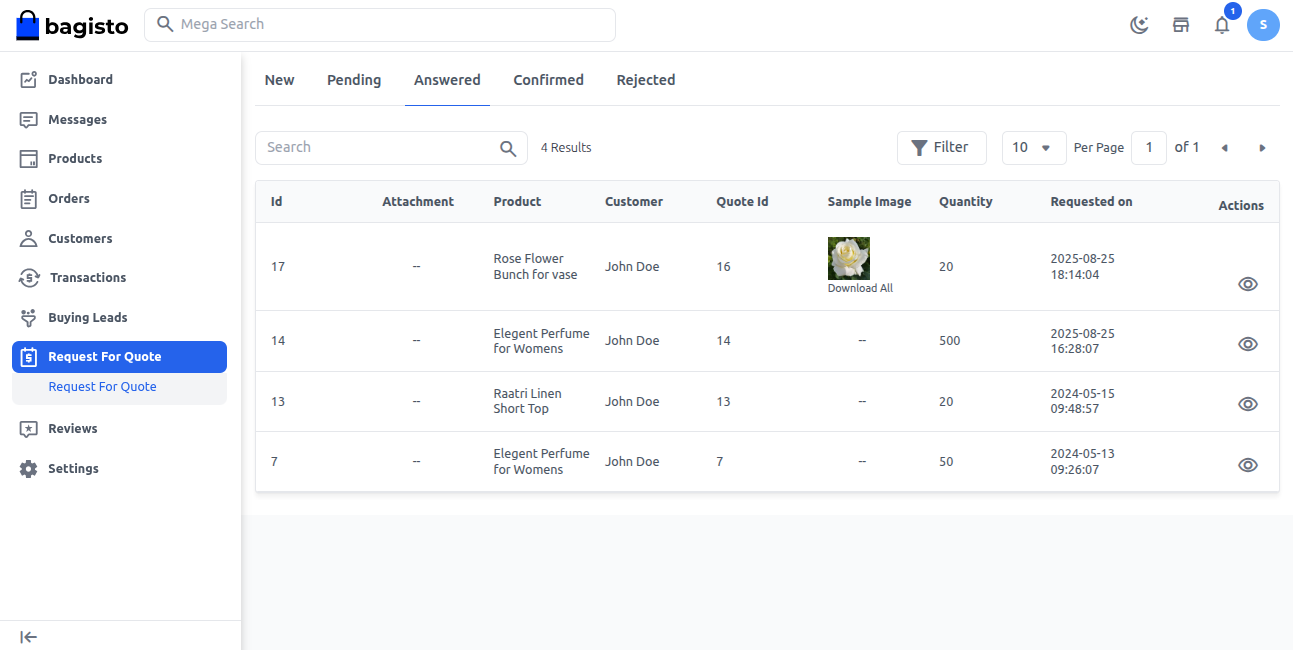
Request for Quotes
Request for Quotes (RFQ) in a B2B marketplace helps buyers ask sellers for prices before placing an order. Instead of placing an order directly, buyers can send a detailed quote request with their requirements, and sellers respond with tailored offers. This makes it easier to compare prices, negotiate, and choose the right deal.
Note: The RFQ feature can only be used by signed-in customers.
Create Request for Quotes
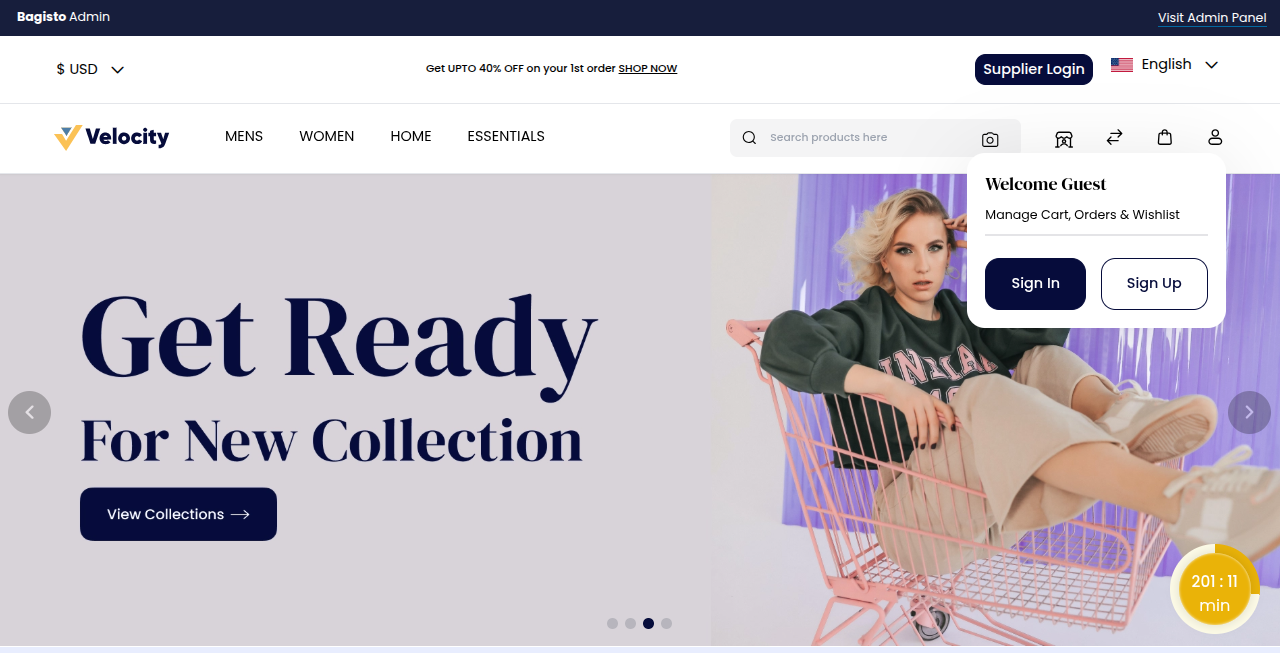
To begin using the RFQ feature, customers need to sign in to their account.
Click the profile icon at the top right corner of the page.
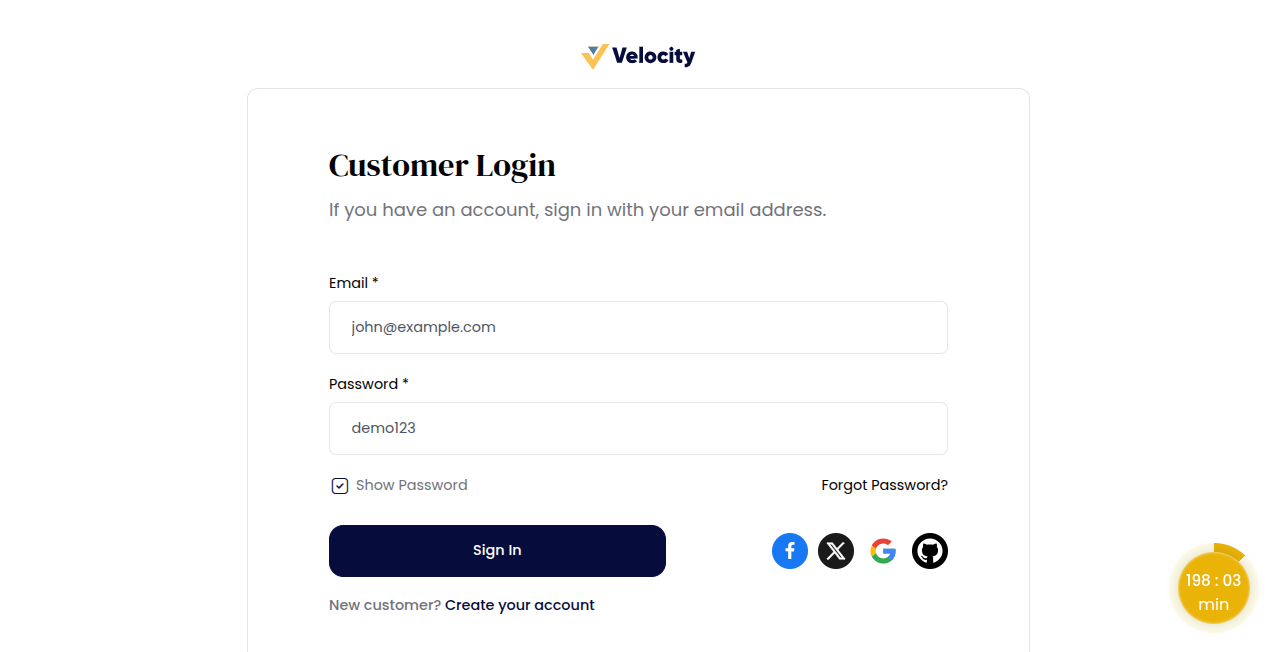
Enter your email and password.
Click the Sign In button.
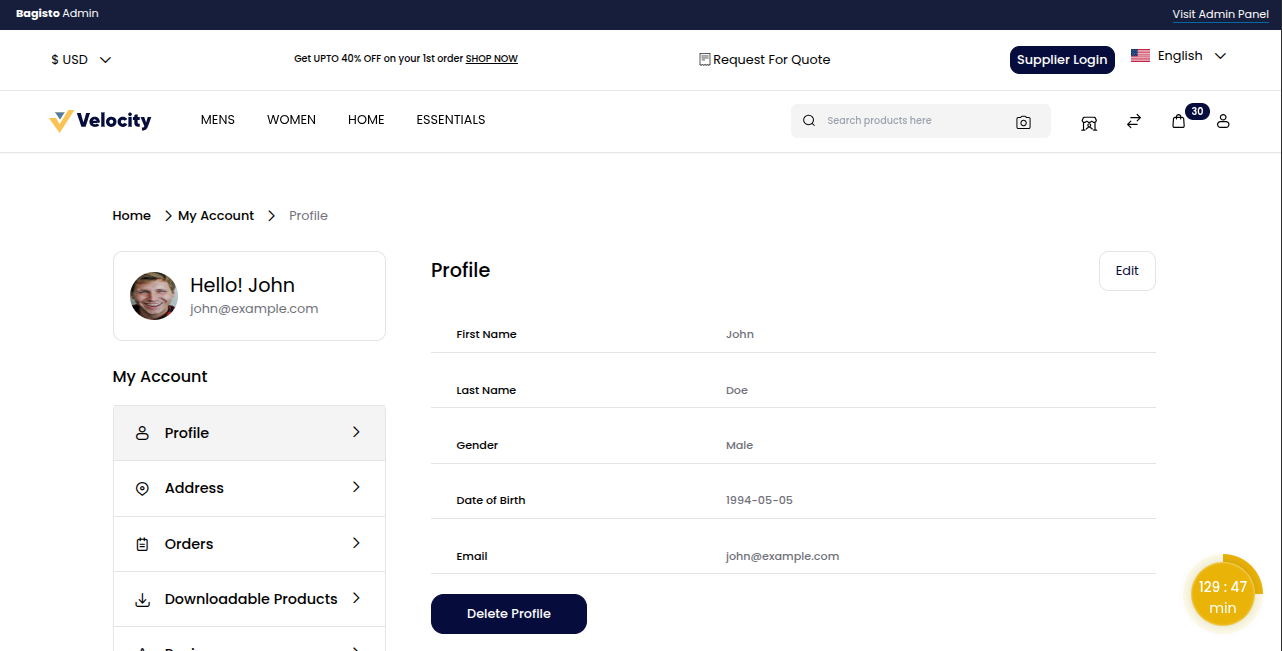
Click Request for Quote in the website header to open the Request for Quote page.
This feature enables customers to submit their requirements and request a personalized price offer. Required details must be filled out before sending the quote.
Quote Information
Quote Title: A short name for your request.
Quote Description: A clear explanation of what you need.
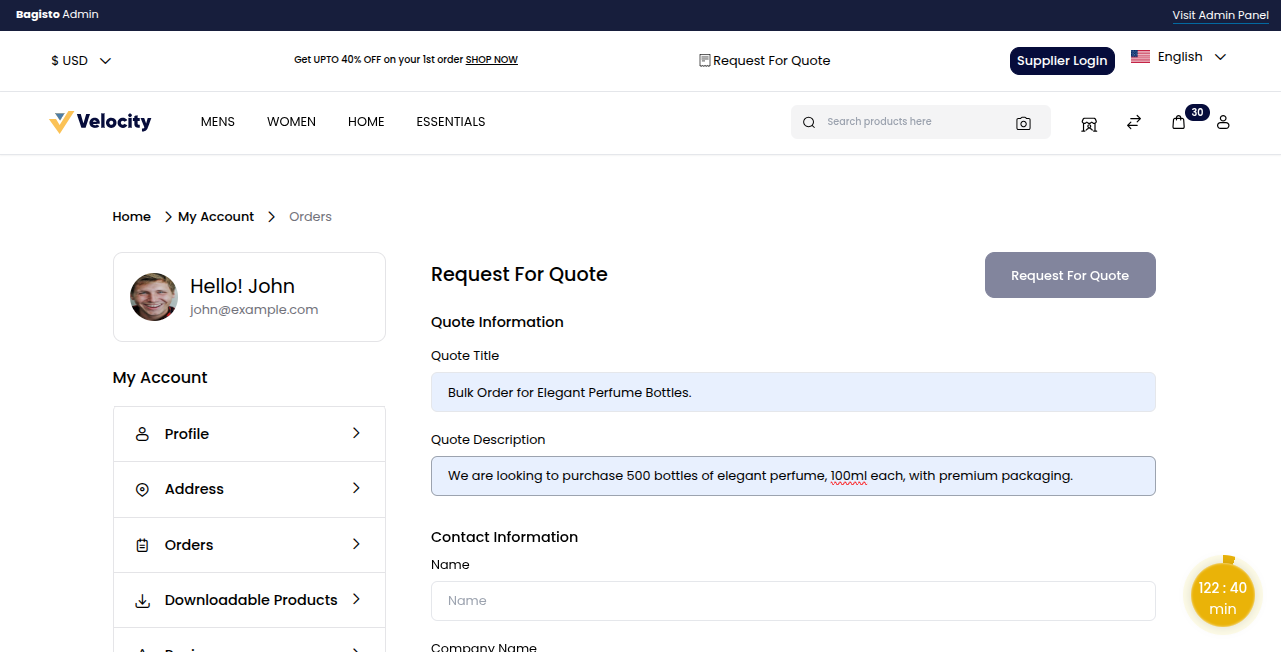
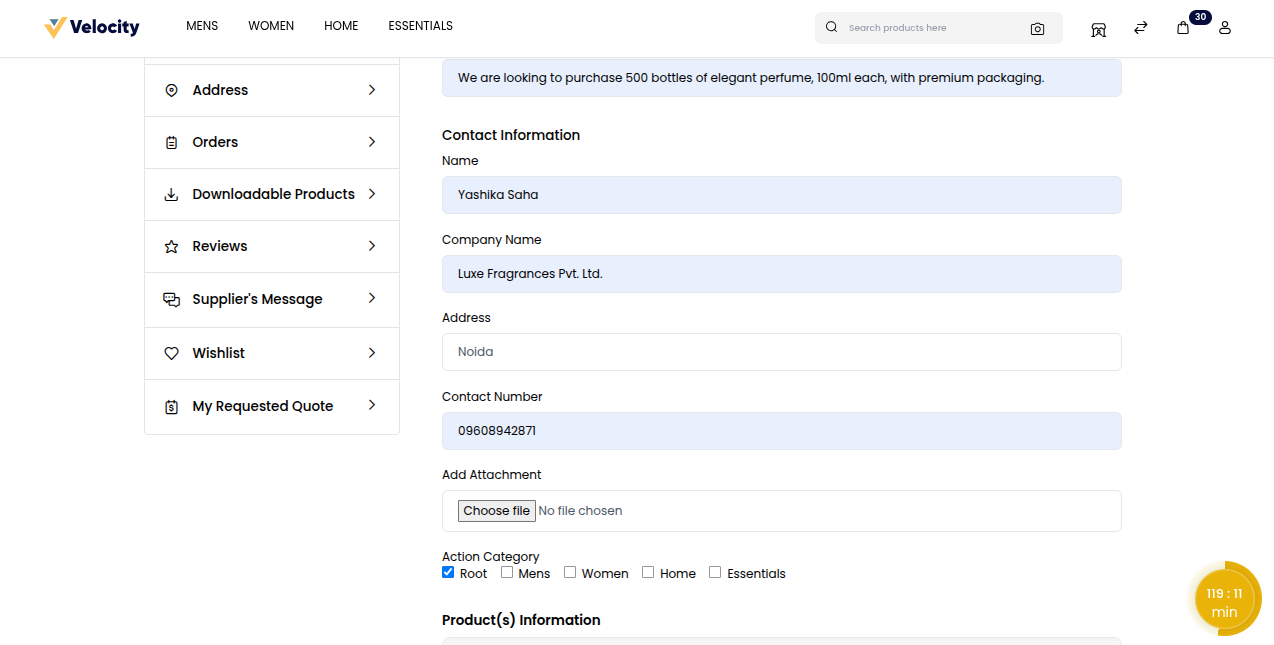
Contact Information
Name: Enter full name for identification.
Company Name: Provide the name of the organization.
Address: Mention the complete organization address.
Contact Number: Add a valid phone number for communication.
Add Attachment: Upload files like product specs or design references.
Action Category: Select at least one Action Category.
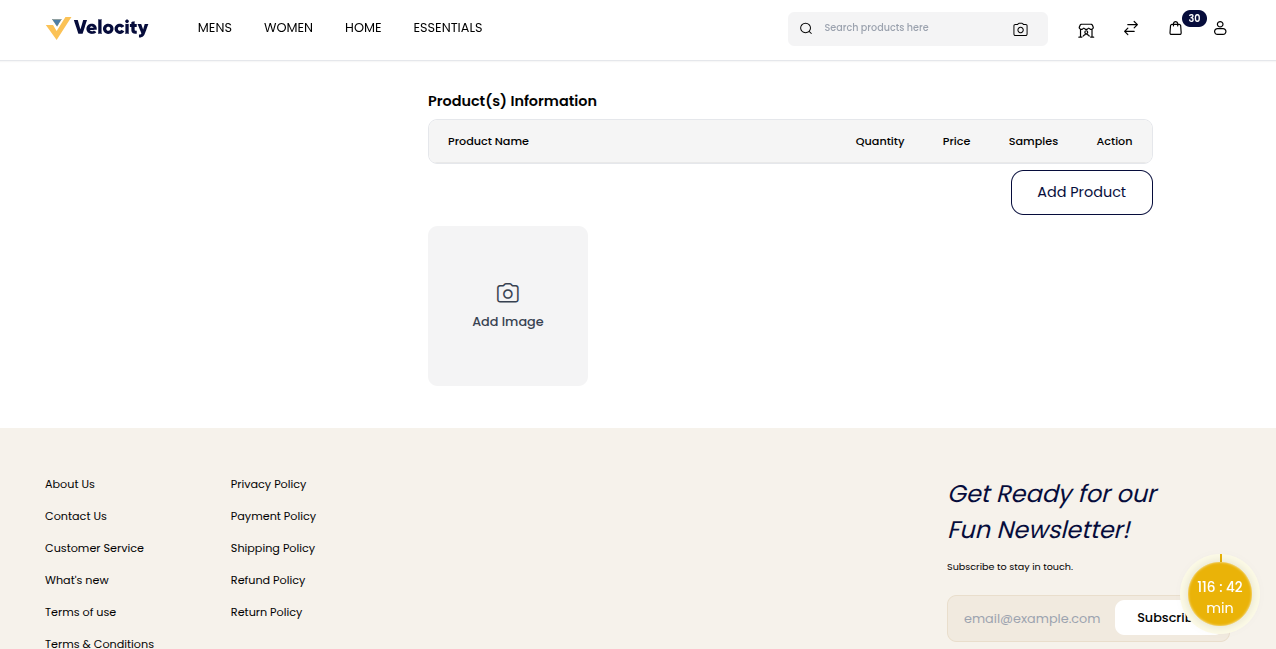
Product Information
Click the Add Product button.
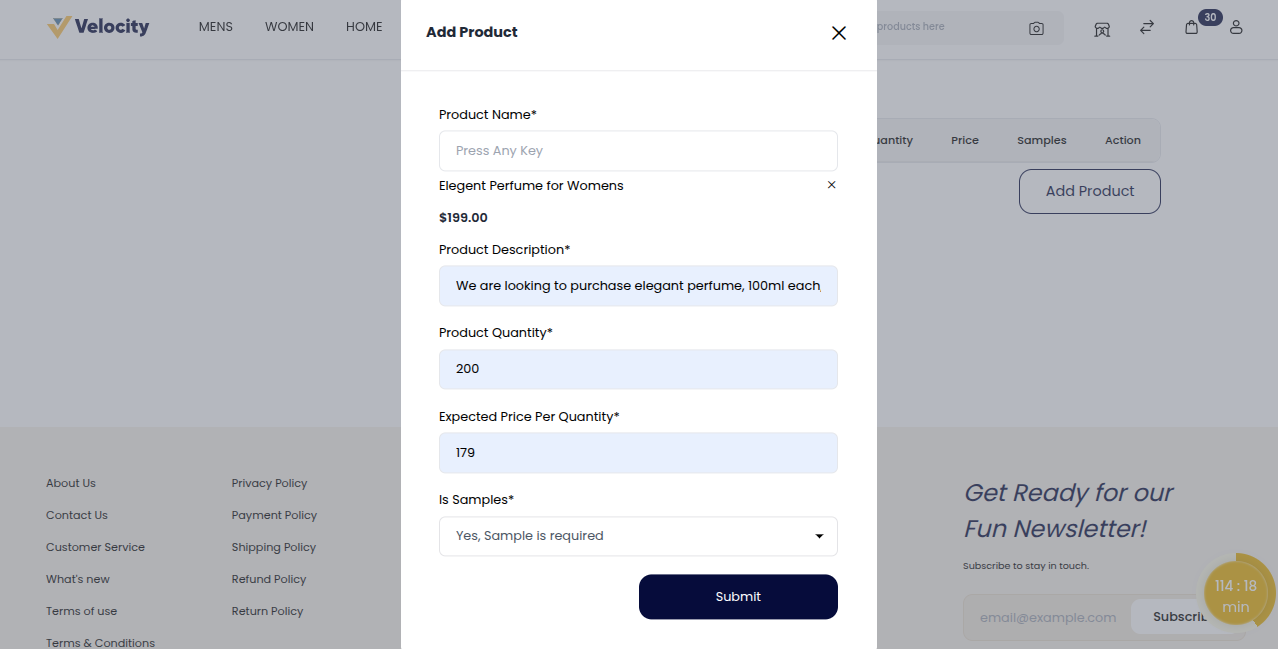
In the pop-up window, enter the product details:
Product Name: Specify the product you want to request.
Product Description: Add important details for the product.
Product Quantity: Enter the total number of units needed.
Expected Price Per Quantity: Mention the price you expect per unit.
Is Samples: Choose if the product needs a sample or not.
Image: Enter an image for reference.
Click the Submit button to confirm and add your product information.
When all requirements are filled, go to the top right corner and click the Request for Quotes button.
Customers are redirected to My Requested Quotes after raising a request, where all their earlier requests are listed.
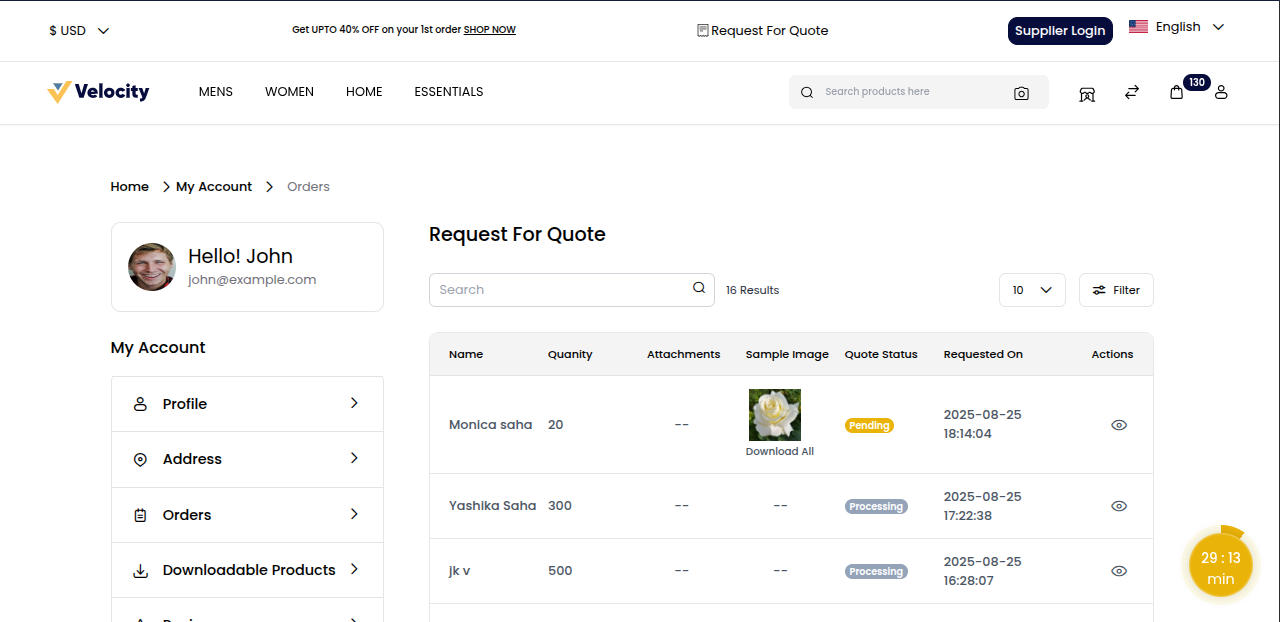
Reviewing the supplier's response
Select a specific request you raised and click the Action icon to open the Quote Request page.
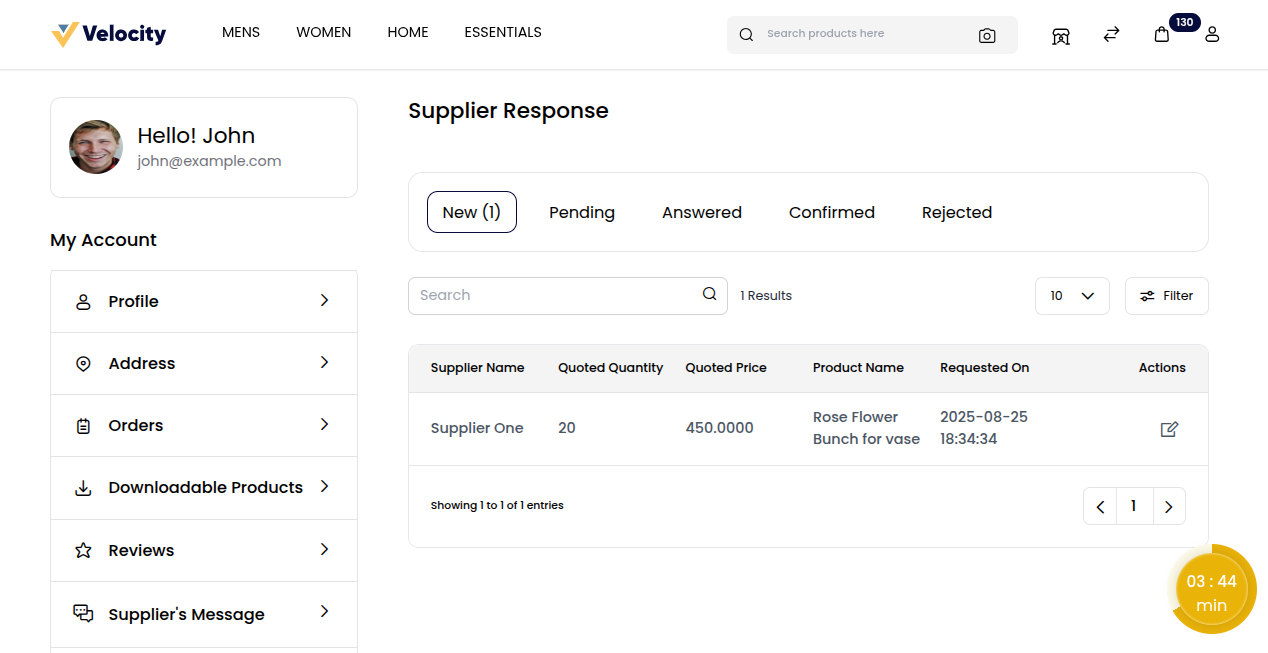
Review the Quote Request and the Quote Summary. You can either accept or reject a quotation after reviewing the seller’s response.
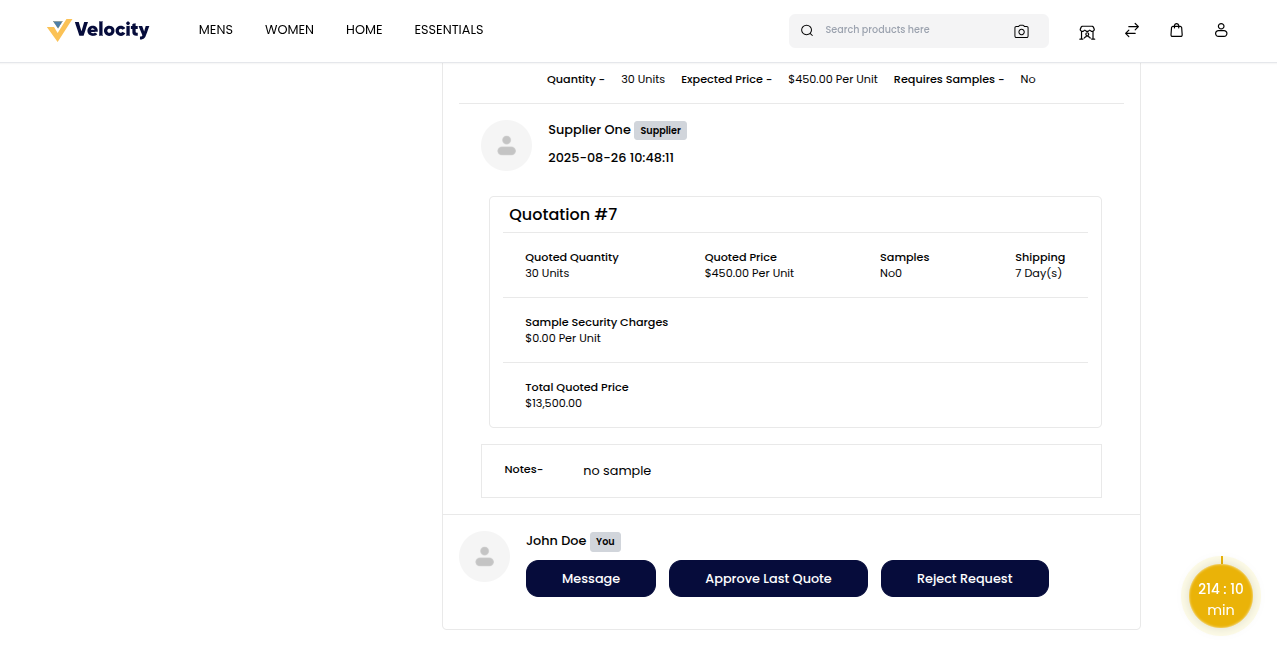
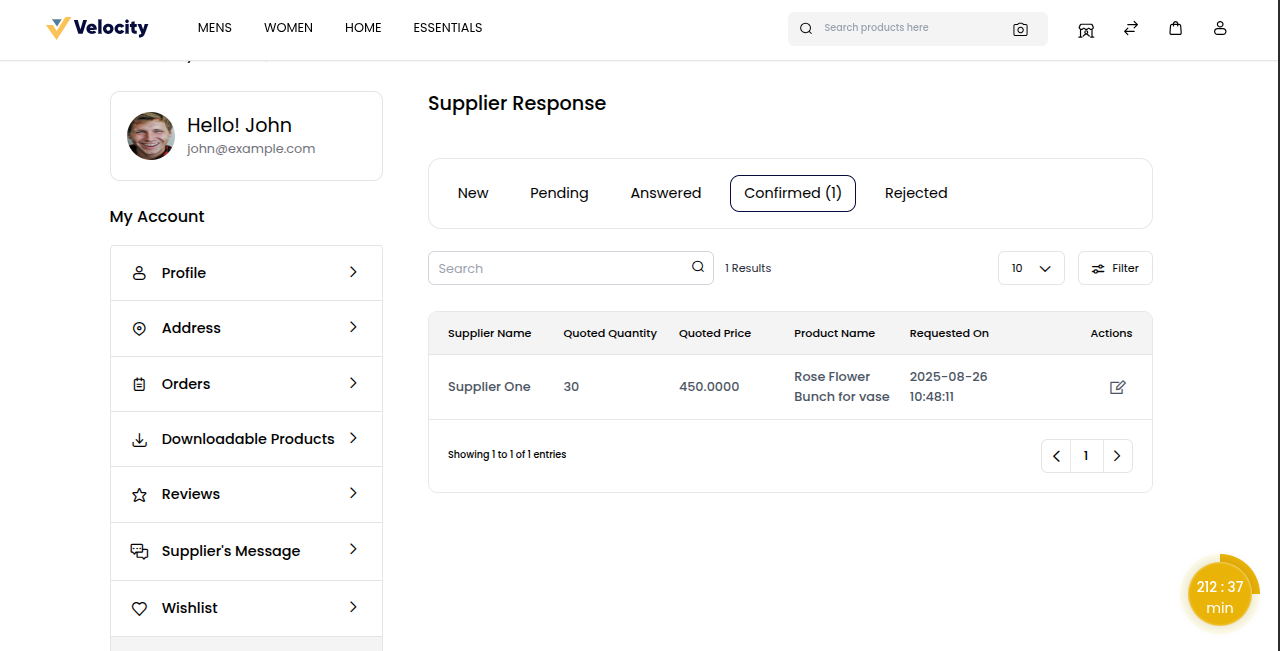
Click Approve Last Quote to confirm the quotation. Once approved, the quotation status changes to Confirmed. This ensures the agreed terms are locked, preventing further changes.
Seller Dashboard
In the Seller Dashboard, click Buying Leads. The seller finds the details of the RFQs here.
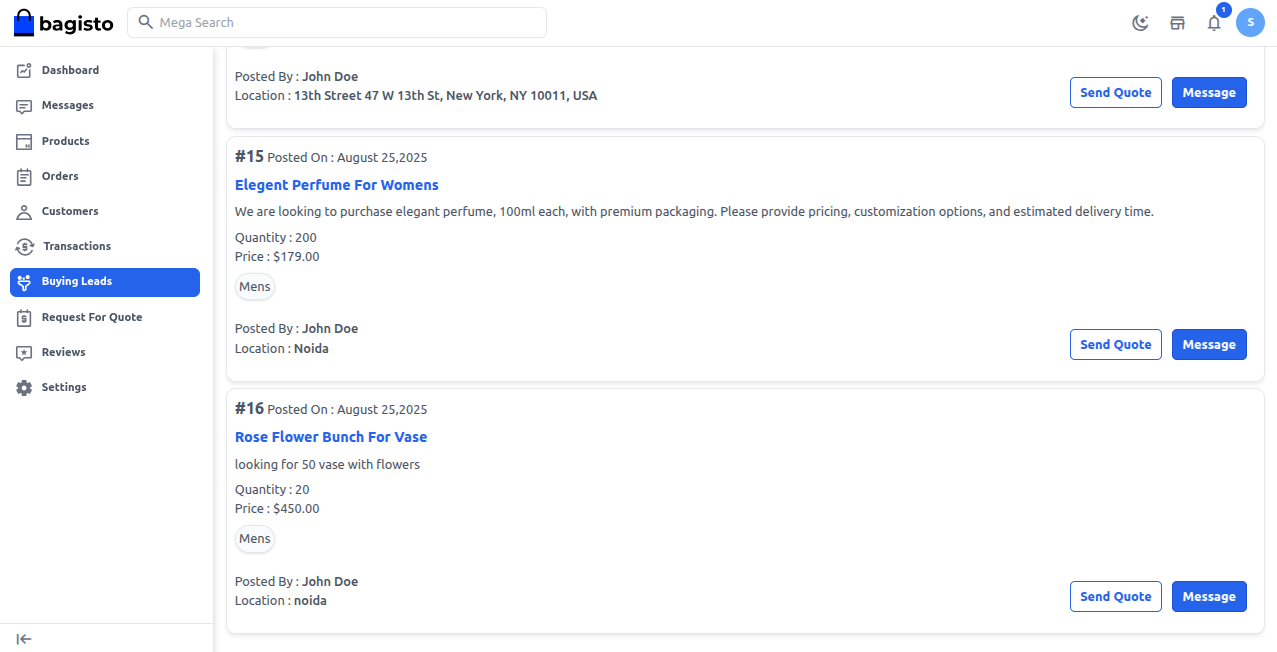
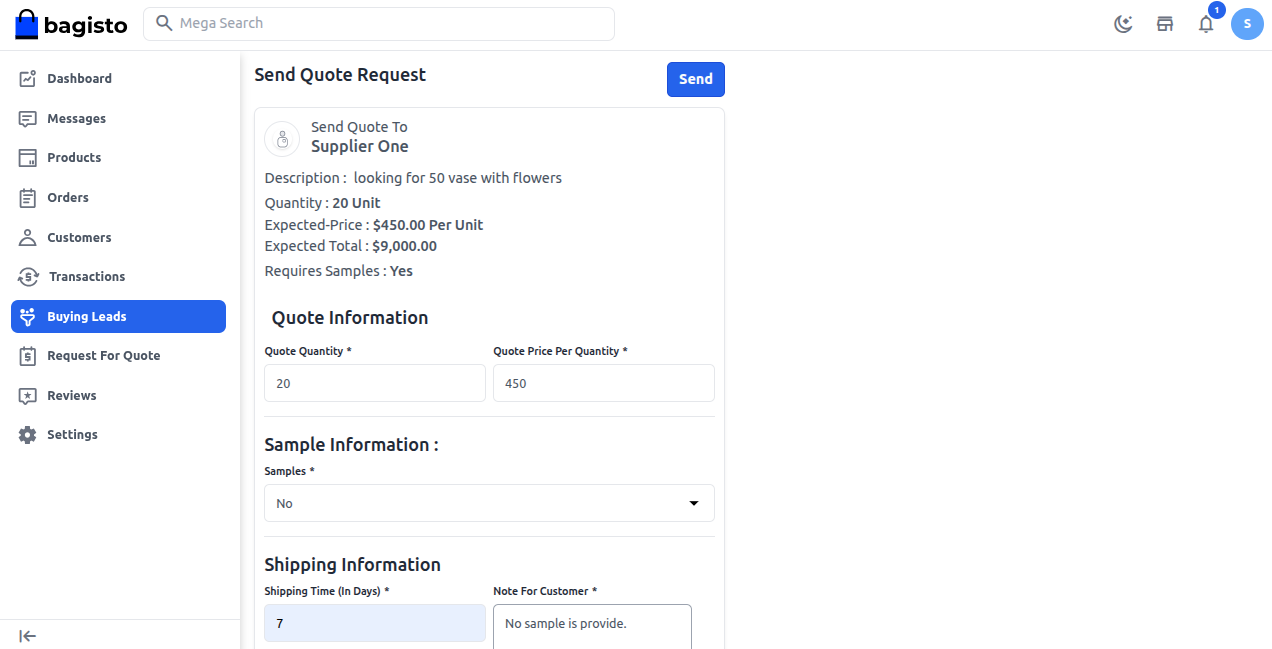
Click the Send Quotes button. The Send Quote Request page opens.
Enter the required details, including Quote Quantity, RFQ Quote Price per Quantity, Sample Information and Shipping Information.
Click the Send button.
After sending a quote, sellers are redirected to the Request For Quote page, where sellers can view all details, including new, pending, answered, confirmed, and rejected.