
Notifications
The Notifications screen decides which emails your store sends to customers, to the admin and to inventory sources. Each switch applies to the whole store.
- Go to Configure >> Email >> Notifications.
- In Notifications, switch each email on or off, as described in the table.
- Click Save Configuration.
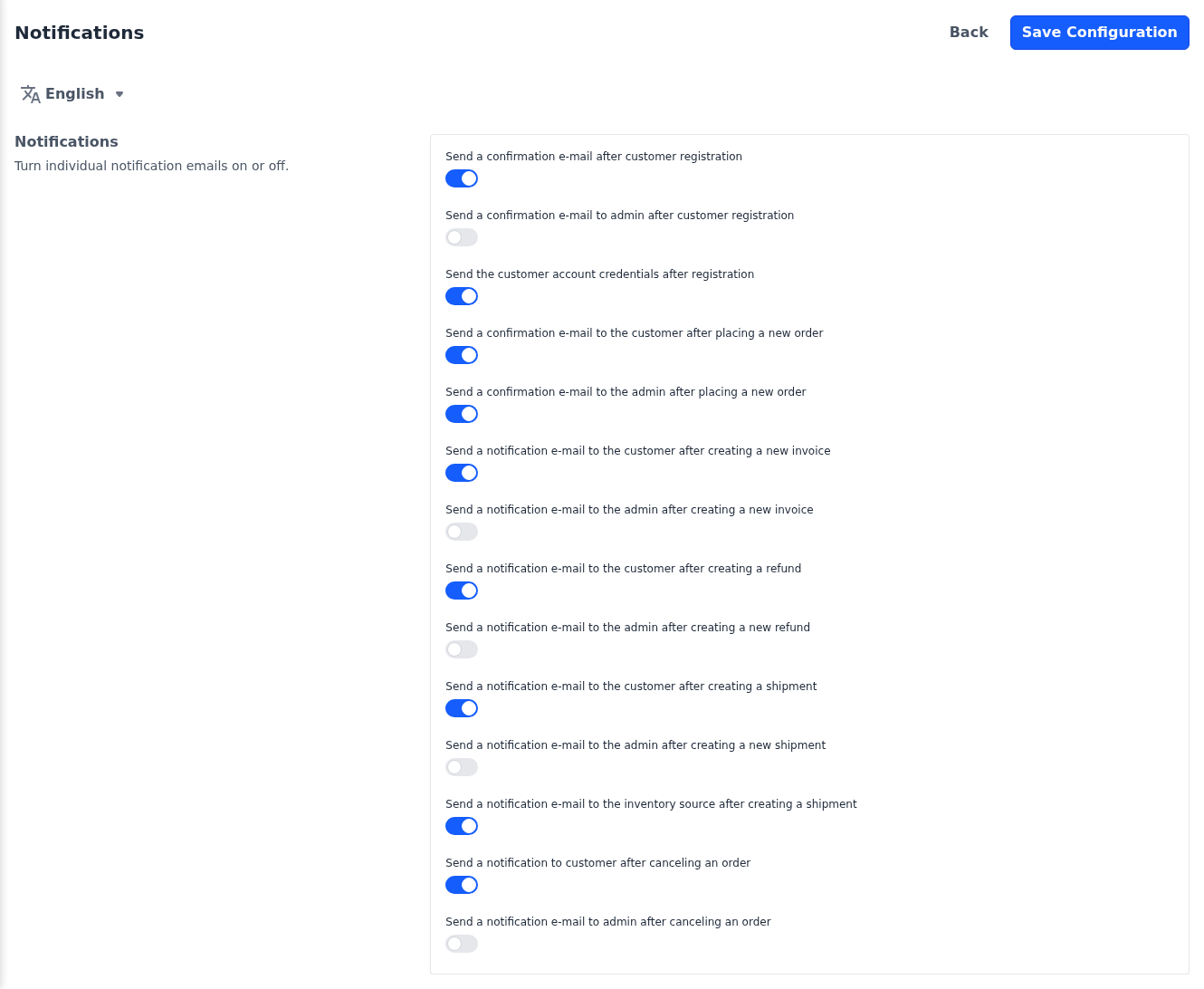
| Setting | What it does |
|---|---|
| Send a confirmation e-mail after customer registration | Sends the customer a welcome email when their account is created, on the storefront or in the admin panel. A customer who signs up on the storefront while email verification is on gets it after verifying their address. |
| Send a confirmation e-mail to admin after customer registration | Sends the admin an email when a customer account is created, on the storefront or in the admin panel. |
| Send the customer account credentials after registration | Sends the customer their sign-in details when you create their account in the admin panel. |
| Send a confirmation e-mail to the customer after placing a new order | Sends the customer an order confirmation after they place an order. |
| Send a confirmation e-mail to the admin after placing a new order | Sends the admin an email when an order is placed. |
| Send a notification e-mail to the customer after creating a new invoice | Sends the customer an email when an invoice is created for their order. |
| Send a notification e-mail to the admin after creating a new invoice | Sends the admin an email when an invoice is created. |
| Send a notification e-mail to the customer after creating a refund | Sends the customer an email when a refund is created for their order. |
| Send a notification e-mail to the admin after creating a new refund | Sends the admin an email when a refund is created. |
| Send a notification e-mail to the customer after creating a shipment | Sends the customer an email when a shipment is created for their order. |
| Send a notification e-mail to the admin after creating a new shipment | Sends the admin an email when a shipment is created. |
| Send a notification e-mail to the inventory source after creating a shipment | Sends the contact of the inventory source the shipment is sent from an email when the shipment is created. |
| Send a notification to customer after canceling an order | Sends the customer an email when their order is canceled. |
| Send a notification e-mail to admin after canceling an order | Sends the admin an email when an order is canceled. |
A new installation switches on every email to customers, the email to the inventory source and the new order email to the admin, and leaves the other emails to the admin off.
Emails are sent from the addresses set under Email Settings, and emails to the admin go to the Admin Email Address set there.
The actions that send these emails are described in Customers, Create Order, Orders, Create Invoice, Create Shipment, Create Refund and Return Merchandise Authorization (RMA).