
Customer Reviews
Reviews let shoppers rate a product and tell other shoppers what they think of it. Reviews build trust in your products, so they help sell them. Every new review waits for your approval, and nothing appears on the storefront until you've approved it under Customers >> Reviews.
How shoppers write a review
Open the product's page on the storefront.
Open the Reviews tab.
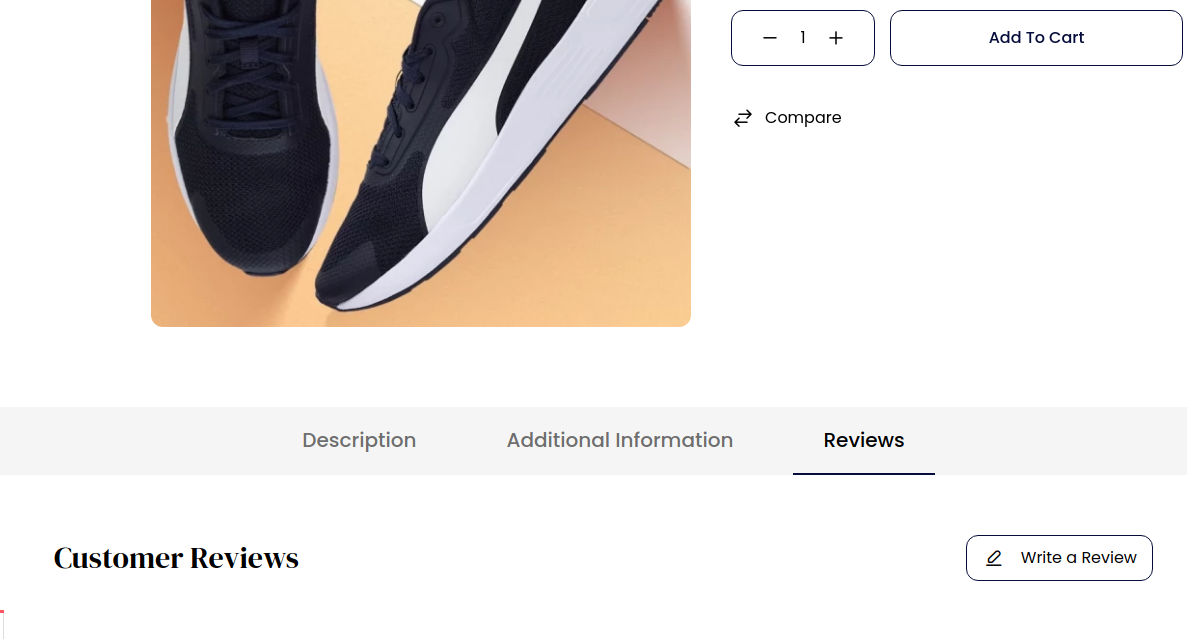
Click Write a Review.
Add photos or videos with Add Image/Video, if they like.
Choose the Rating, from one to five stars.
Enter the Title.
Write the Comment.
Click Submit Review.
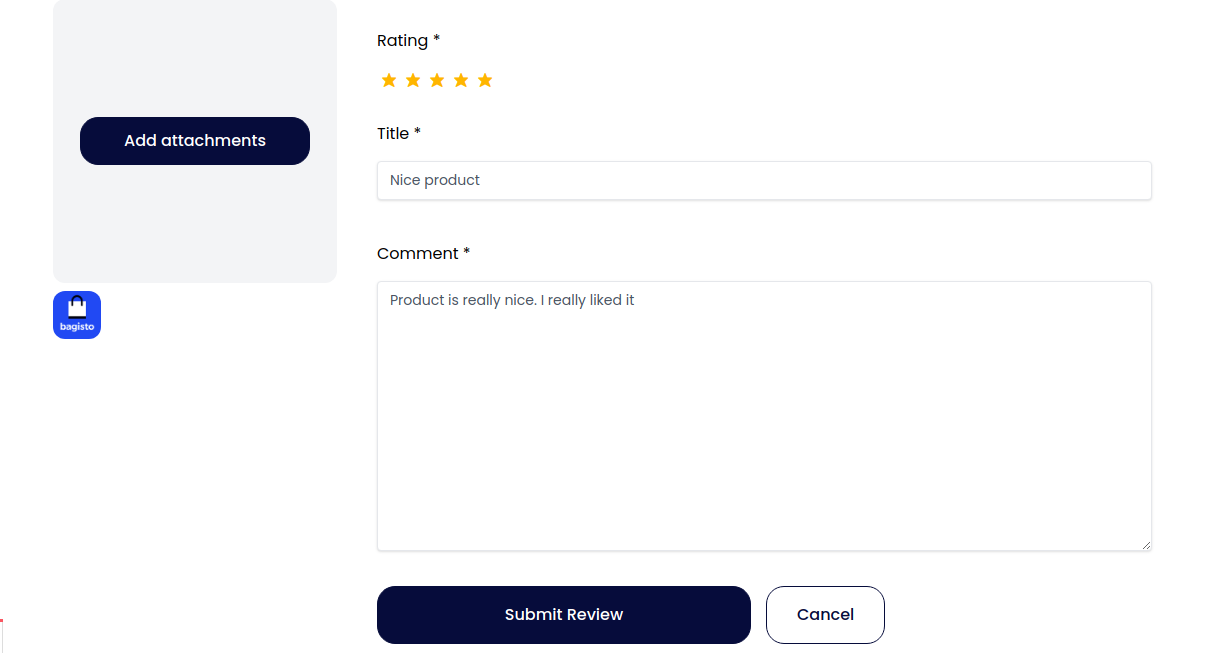
The shopper sees Review submitted successfully., and the review is held as Pending.
Signed-in customers can write reviews while Allow Customer Review is on. While Allow Guest Review is also on, shoppers who aren't signed in can write them too, and they enter their Name with the review. Both settings are described in Review.
What shoppers see
The Reviews tab shows approved reviews only, with the product's rating summary and the photos and videos attached to each review. When Review Translation is on, a Translate button under each review shows it in the shopper's language.
Customers see every review they've written, whatever its status, under Reviews in their account. See Customer Account.
The reviews list
Go to Customers >> Reviews.
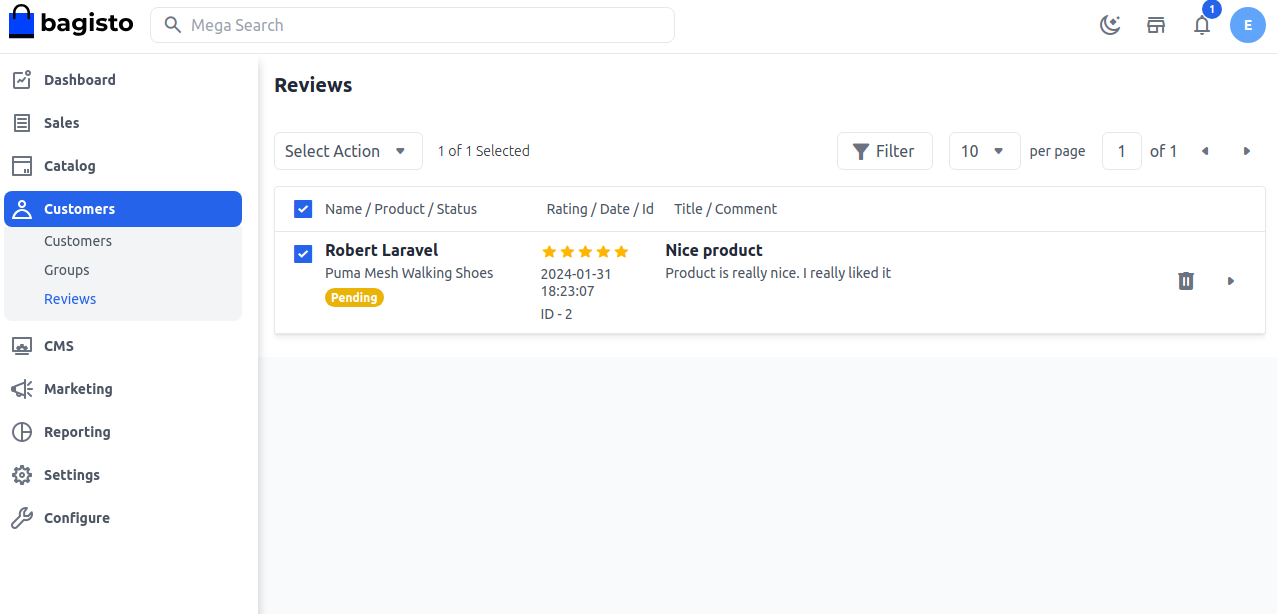
Each row shows three columns:
- Name / Product / Status: the reviewer's name, the product and the review's status.
- Rating / Date / Id: the stars given, when the review was written and its ID.
- Title / Comment: what the reviewer wrote.
Find reviews
- Search: type in the search box to find reviews by product, title or rating.
- Filter: click Filter and filter by Status, Rating, Id, Title or Date.
- Sort: click Name, Product, Status, Rating, Date, Id or Title in the header row.
Row actions
- Delete (the bin) deletes the review after you confirm.
- Edit (the arrow) opens the Edit Review panel.
Approve or disapprove a review
- Go to Customers >> Reviews.
- Click the arrow on the review's row. The Edit Review panel opens.
- Choose the Status: Approved, Disapproved or Pending.
- Click Save.
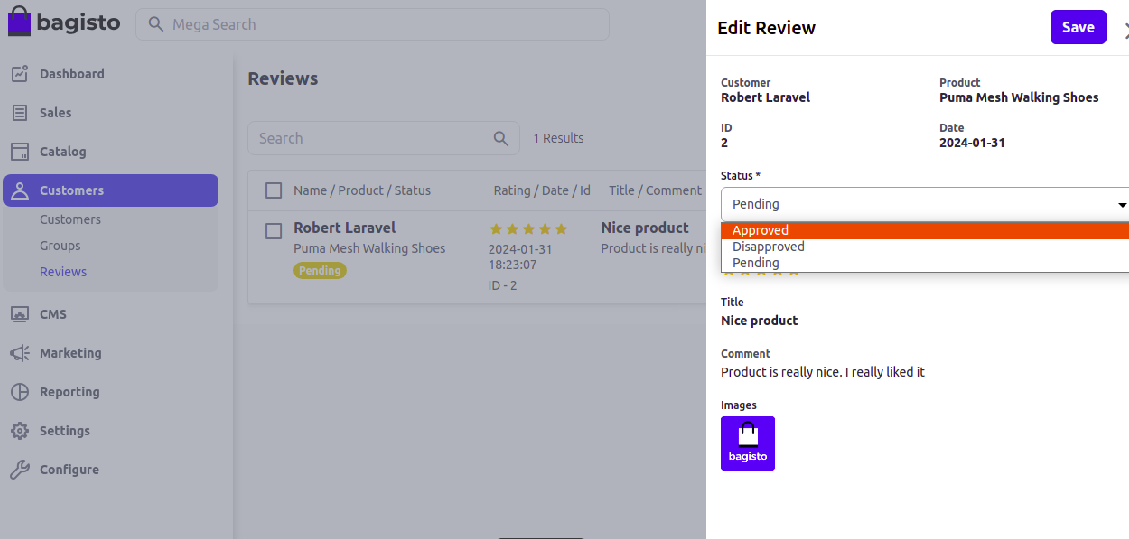
The panel shows the Customer, Product, ID and Date, the Rating, Title and Comment, and any Images the reviewer attached. Only the status can be changed: the review stays as the reviewer wrote it.
What each status does
| Status | On the storefront |
|---|---|
| Pending | Not shown. Every new review starts here. |
| Approved | Shown on the product page and counted in the product's rating. |
| Disapproved | Not shown. |
Change several reviews at once
- Go to Customers >> Reviews.
- Tick the reviews.
- Open Select Action.
- Choose Delete, or point to Update Status and choose Pending, Approved or Disapproved.
Deleting a review can't be undone.
Related settings
Who can write reviews, whether reviewer names are masked on the storefront and what the rating summary counts are set in Review.