
Company Catalog
The Company Catalog feature allows administrators to control exactly which products and categories a company's members can see and buy, and what prices they pay. This makes it possible to offer tailored, contract-style assortments and negotiated pricing to individual companies.
Each catalog defines three things:
- Product visibility – members of an assigned company only see and can purchase the products in the catalog.
- Category visibility – the storefront navigation and category pages are automatically limited to the categories derived from the assigned products.
- Pricing – custom flat prices, percentage discounts, or quantity-based (tier) pricing for the catalog's products.
Navigate to Admin Panel → B2B → Company Catalogs.
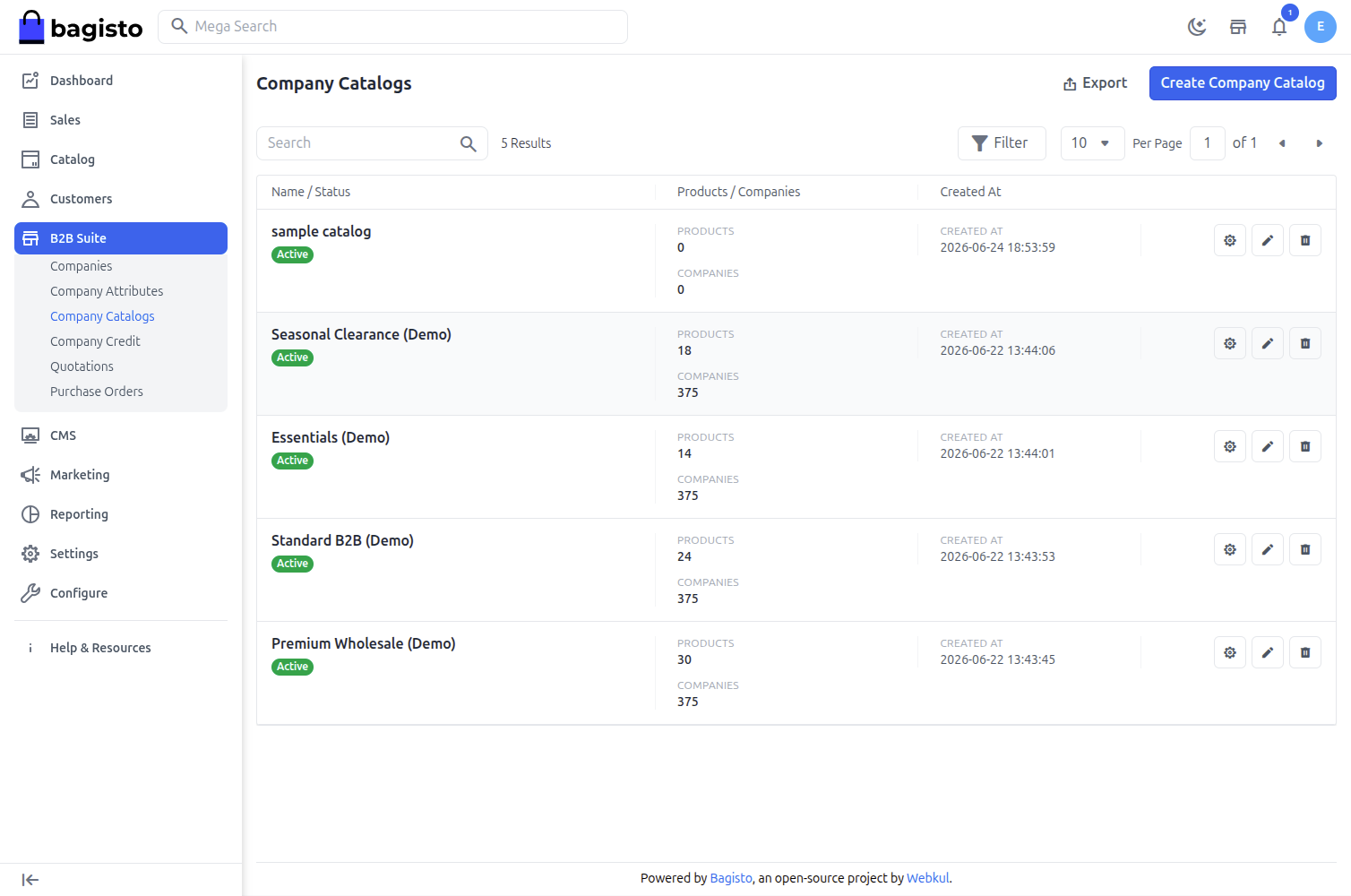
Company Catalogs List
This page lists all catalogs with their name, status, the number of assigned products, and the companies they apply to. From here you can Create Company Catalog, Edit, View or Delete a catalog.
Note: A catalog can be edited or deleted only by the admin who created it. Catalogs created by another admin are shown as read-only.
Create a Company Catalog
Step 1 — General Settings
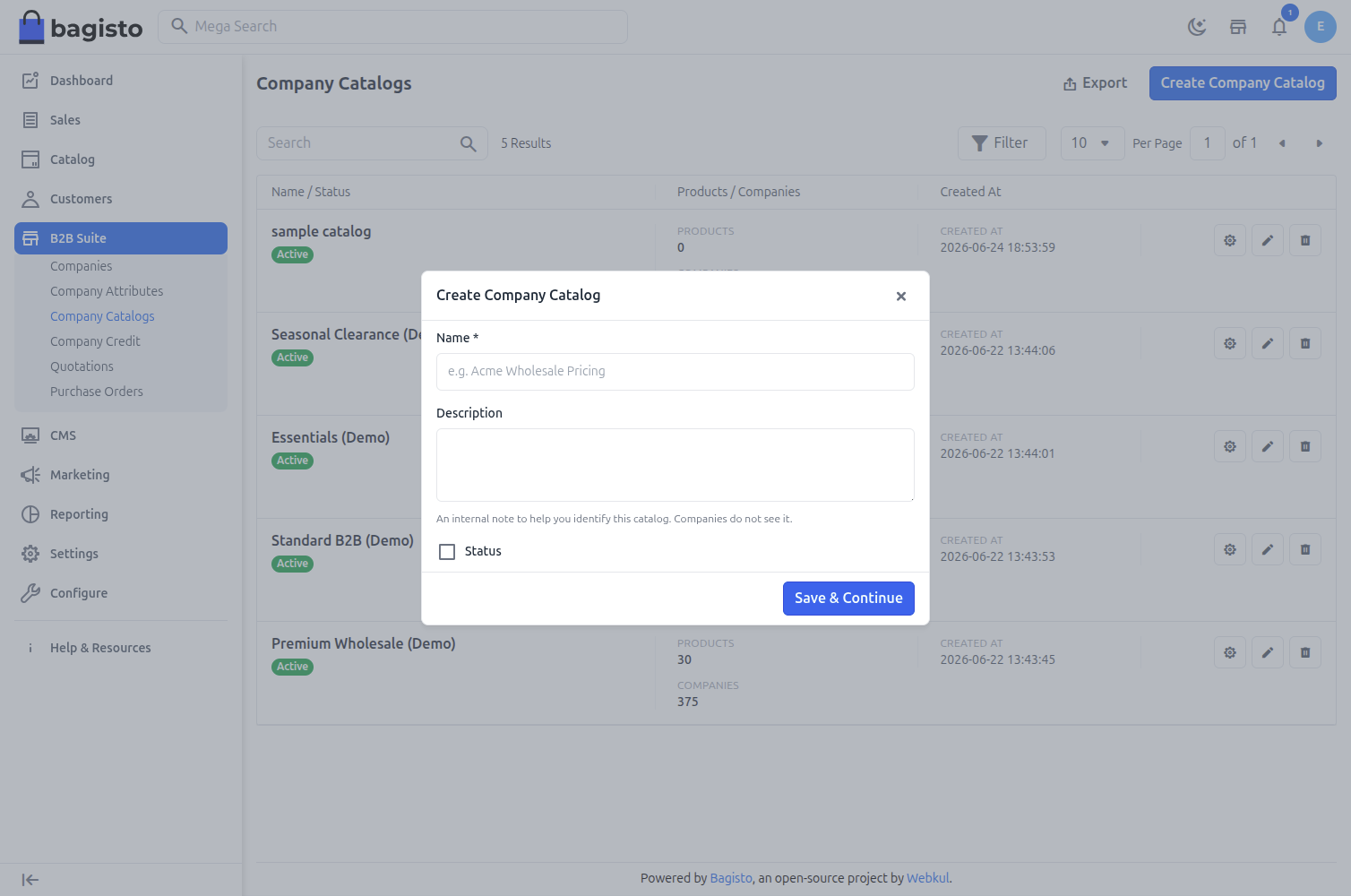
Click Create Company Catalog and fill in the general details.
1) Name – A name to identify the catalog (e.g. Acme Wholesale Pricing).
2) Description – An internal note to help you identify the catalog. Companies do not see it.
3) Status – Set the catalog as active or inactive.
Click Save & Continue to proceed.
Step 2 — Assign Products
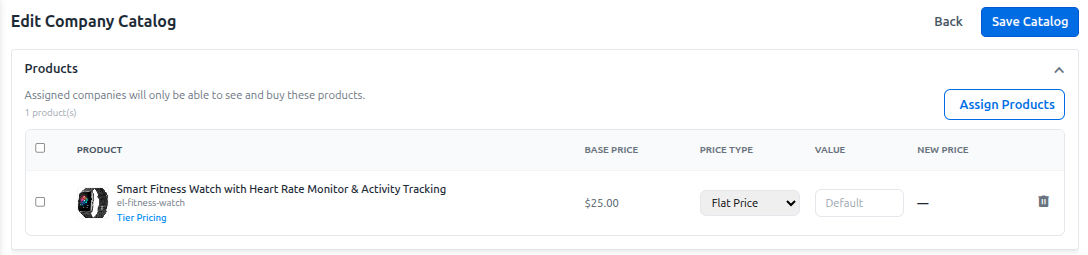
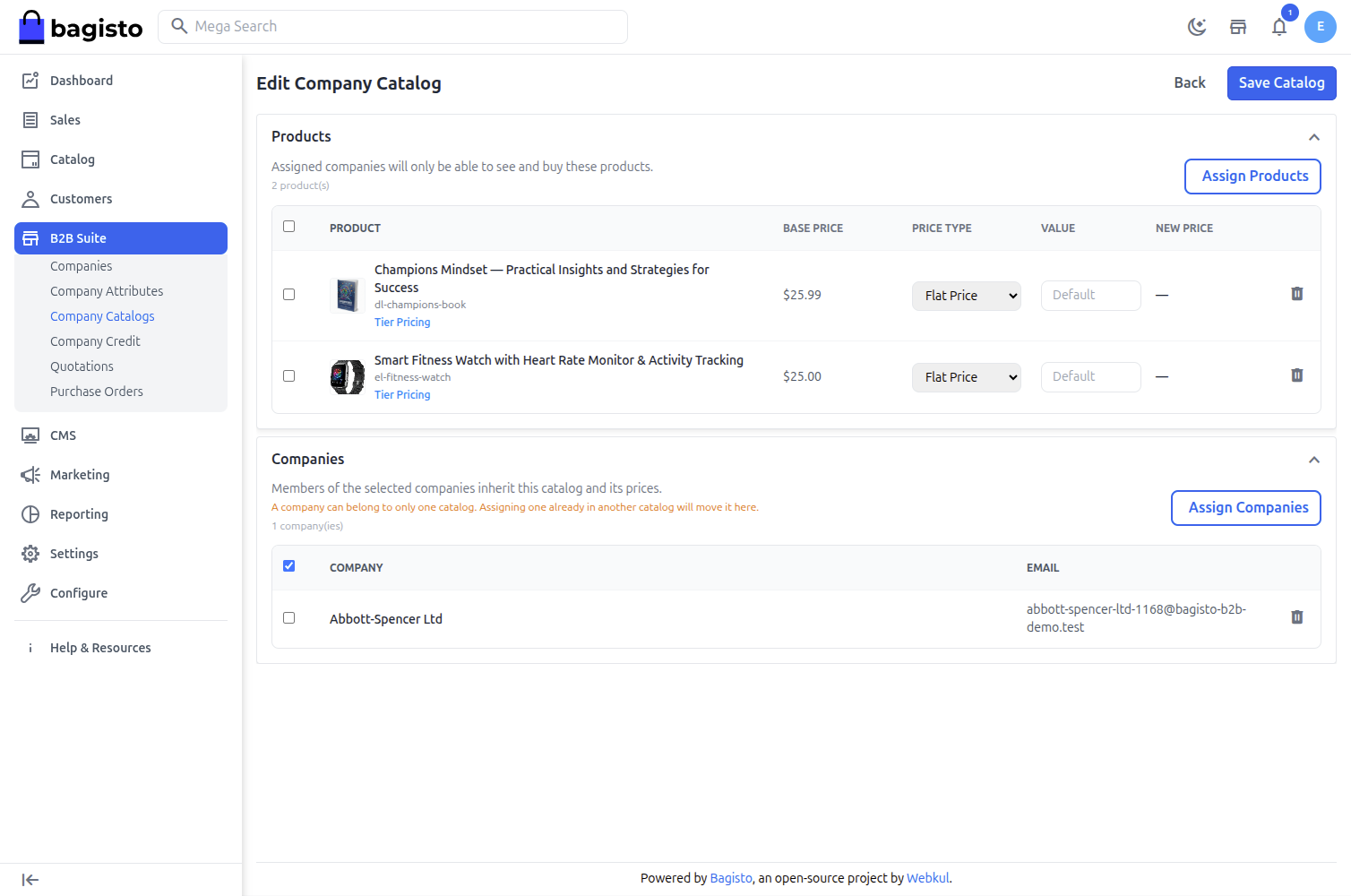
Search for products by name or SKU and add them to the catalog. Assigned companies will only be able to see and buy these products.
For each product (or each variant / associated / bundle child of a composite product), you can set a Catalog Price:
- Flat Price – A fixed catalog price for the product.
- Discount (%) – A percentage discount off the base price.
- Default – Leave the price unchanged (visibility only).
Step 3 — Tier (Volume) Pricing
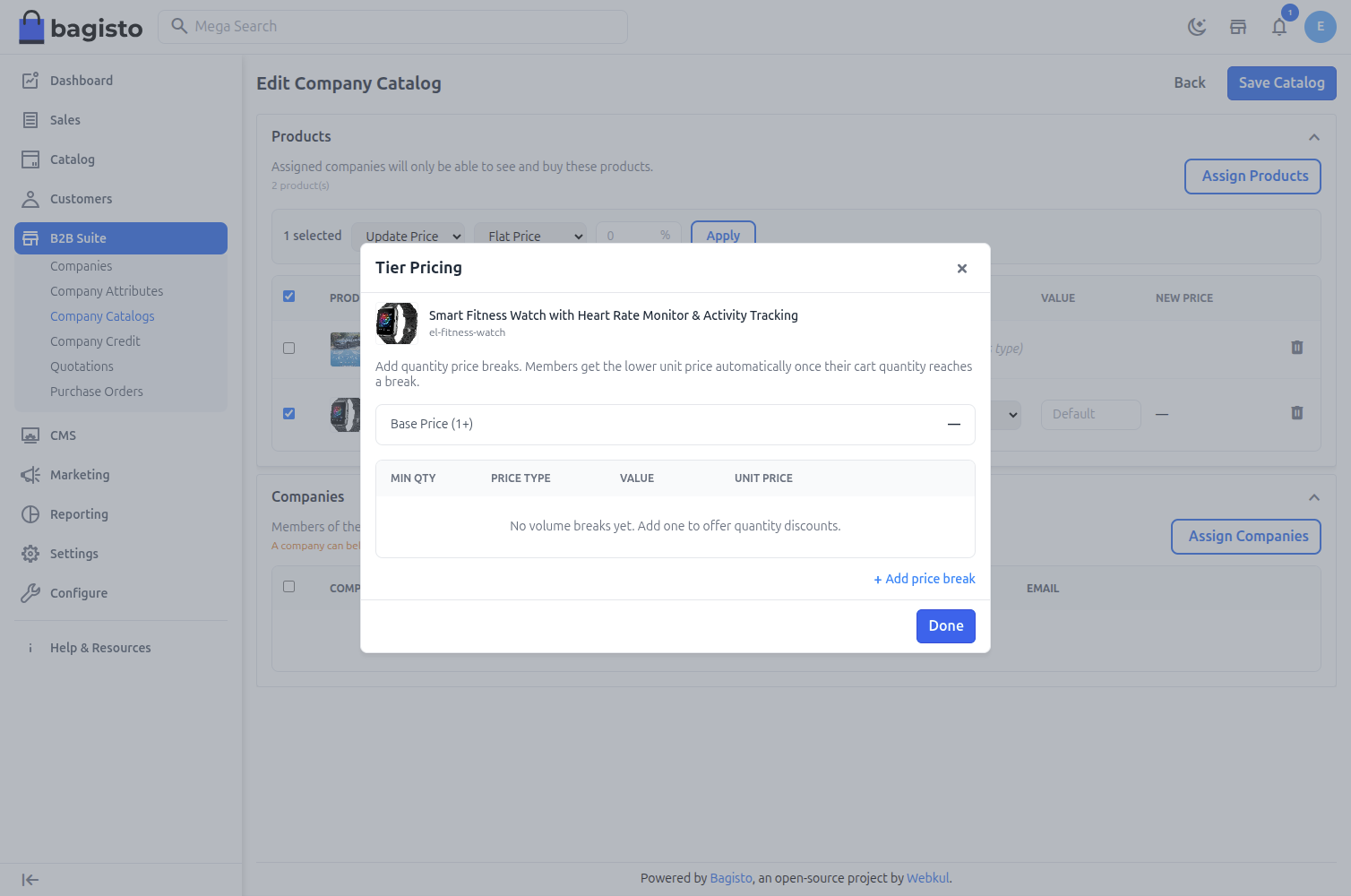
For any priced product you can add quantity price breaks. Members automatically get the lower unit price once their cart quantity reaches a break.
1) Min Qty – The minimum quantity required for the break.
2) Unit Price – The unit price applied at that quantity.
Use Add price break to add additional tiers. Break prices must decrease as the quantity rises.
Step 4 — Assign Companies
Search for companies by name or email and assign them to the catalog. Members of the selected companies inherit this catalog and its prices.
Note: A company can belong to only one catalog. Assigning a company that is already in another catalog will move it to this one.
Step 5 — Confirm Catalog Visibility
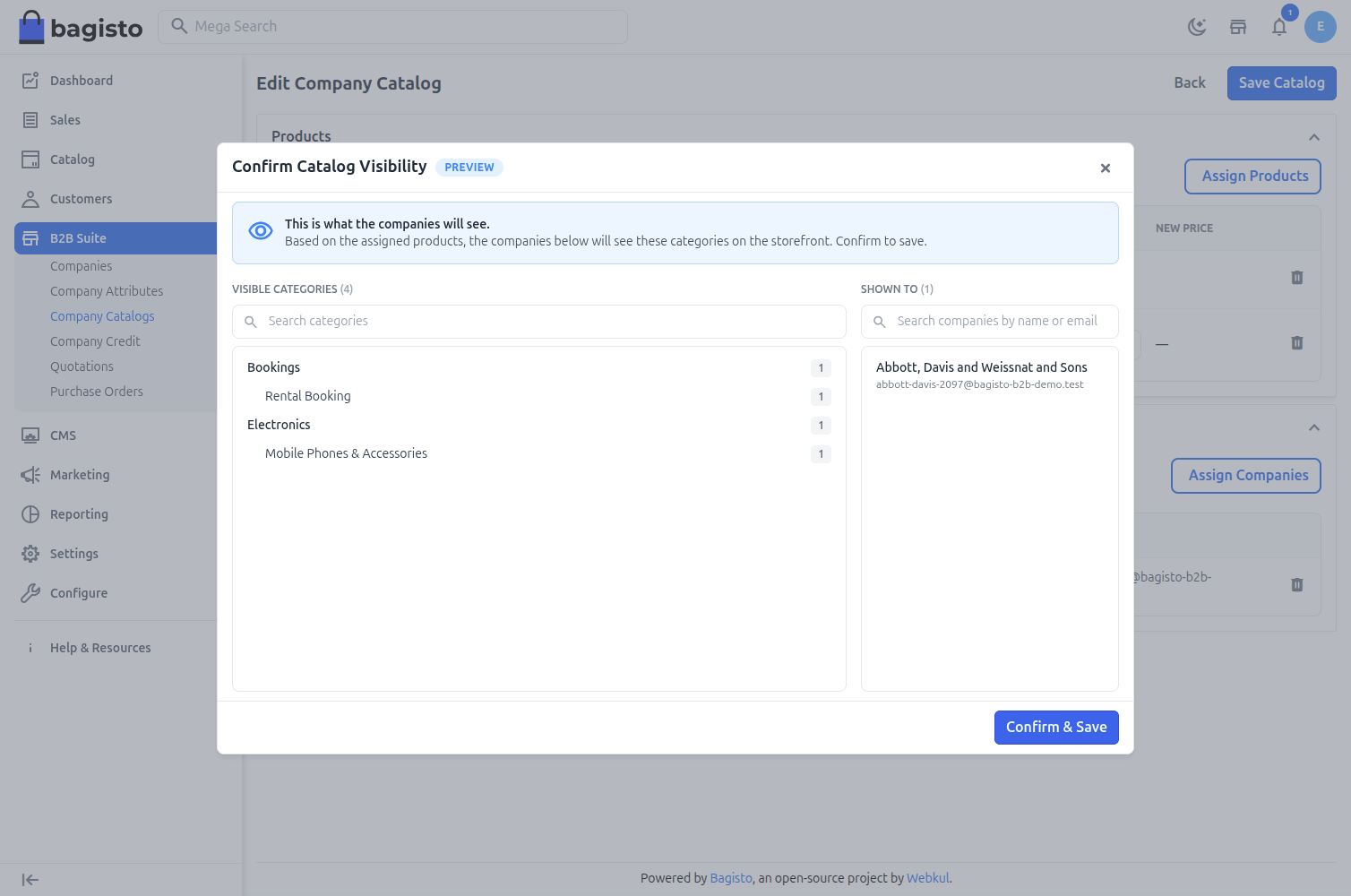
Before saving, a preview shows the categories the assigned companies will see on the storefront, based on the products you assigned. Review the derived categories and click Confirm & Save to apply the catalog.
How Customers Experience a Catalog
Once a company is assigned to a catalog:
- Members only see the catalog's products in listings, search and product pages.
- The storefront category navigation is limited to the catalog's visible categories; disallowed category pages return a 404.
- Catalog prices and volume breaks are applied automatically in product pages and the cart.
Note: Guests, store admins and customers not assigned to any catalog continue to see the full storefront.