
Customers Reporting
Reporting >> Customers shows who your customers are and how they buy: new customers, the customers who spend and order the most, the groups new customers join, and who writes reviews.
Choose the channel and dates
- Go to Reporting >> Customers.
- If your store has more than one channel, choose a channel, or leave All Channels.
- Click the date range at the top right.
- Choose a preset, or pick a start and an end date on the calendar.
Every card reloads for the channel and dates you chose. The report opens on the last 30 days. The presets are listed in Choose the channel and dates, and how figures are compared with the period before in Reading the cards.
Total Customers
The number of customer accounts created in the range, with the percentage change and a Customers Over Time chart.
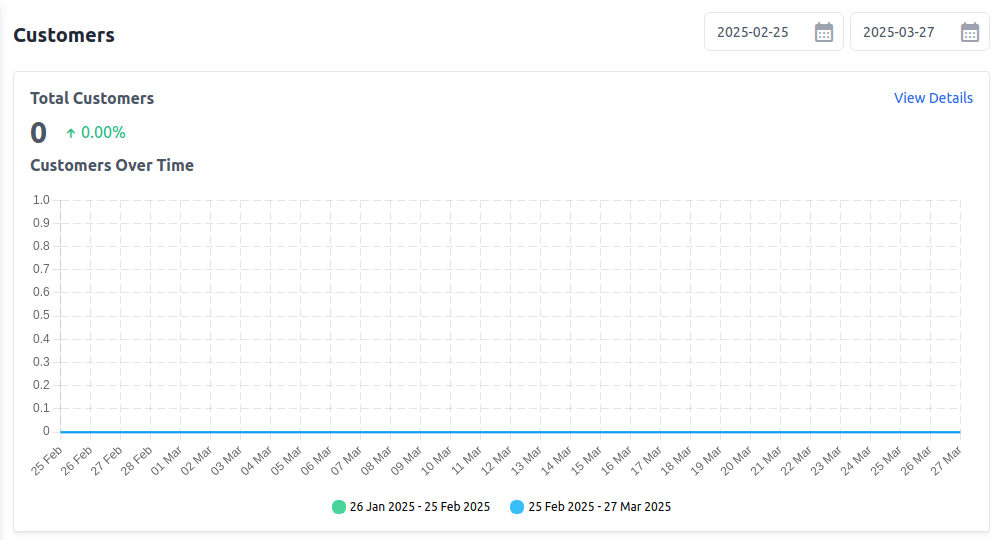
Customers With Most Sales
The five customers with the highest sales on orders placed in the range: the amount invoiced, minus refunds. Guests who ordered are included.
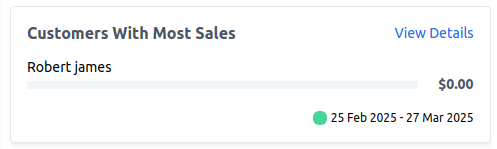
Customers With Most Orders
The five customers who placed the most orders in the range, whatever the orders' status. Guests who ordered are included.
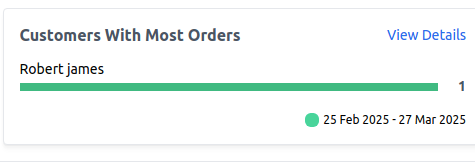
Top Customer Groups
The five customer groups with the most customers who registered in the range, counted by the group each customer is in now, with how many are in each. If nobody registered in the range, the card says No Data Available.
Customers With Most Reviews
The five customers with the most approved reviews written in the range. Reviews written by guests aren't counted.
View details and export
Every card has View Details, which opens the figures as a table.
- Click View Details on a card.
- If your store has more than one channel, choose the channel.
- For Total Customers, choose Day, Month or Year. For totals that cover every date you chose, use Day.
- Choose the dates.
The details page opens on All Channels and the last 30 days. Click a column heading to sort the table on screen. Back returns to the report.
| Card | Table columns |
|---|---|
| Total Customers | Interval, Customers |
| Customers With Most Sales | Name, Email, Total |
| Customers With Most Orders | Name, Email, Orders |
| Top Customer Groups | Name, Customers |
| Customers With Most Reviews | Name, Email, Reviews |
Export the table
- Click Export.
- Choose Export CSV or Export XLS.
The file covers the channel, period and dates chosen on the details page. The exported file keeps the original order, not the order you sorted on screen.
Permissions
A role needs Customers under Reporting to open this report, its details and its export.