
Sitemaps
A sitemap lists the pages of your storefront so search engines can find and index them. Bagisto builds sitemap files for your home page, categories, products and CMS pages, and serves them to search engines at one address for each channel.
Sitemaps are built only while Enabled is on in the Settings section of Configure >> General >> Sitemap. The File Limits section of that screen sets the Maximum no. of URLs per file. See Sitemap. While Enabled is off, saving a sitemap still shows a success message, but no files are built.
Create a sitemap
Go to Marketing >> Search & SEO >> Sitemaps.
Click Create Sitemap.
Enter the File Name. It must end in
.xml, for examplesitemap.xml, and contain only letters, numbers, hyphens, underscores and dots.Enter the Path, a folder inside your store's sitemap storage. It must start and end with
/, and can contain letters, numbers,_,-,.and/. Enter/to keep the files at the top of it.Under Channels, select the channels to build a sitemap for.
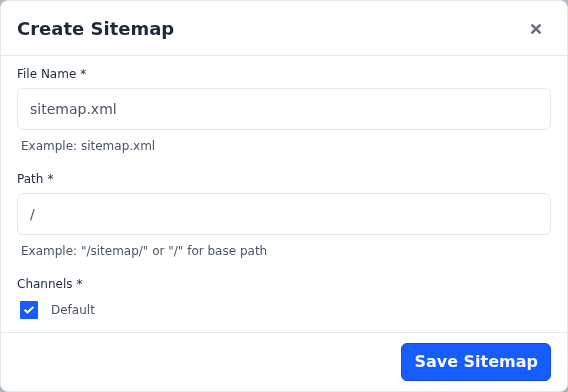
Click Save Sitemap.
Bagisto builds the files in the background after you save, which needs the queue worker your developer or host sets up. It adds numbers to the file name, so copy addresses from the list rather than typing them. See Scheduled Tasks.
Submit the sitemap to search engines
Submit https://your-store-address/sitemap.xml in Google Search Console, or in another search engine's tools. That address lists every sitemap file built for the channel you open it on. Your store's robots.txt already points search engines to it, and asks AI services not to use your content for training or as input.
The Sitemaps list shows each sitemap's ID, Channel, File Name, Path and Link for Google, with icons to edit and delete it. Link for Google shows the address of the file built for each channel.
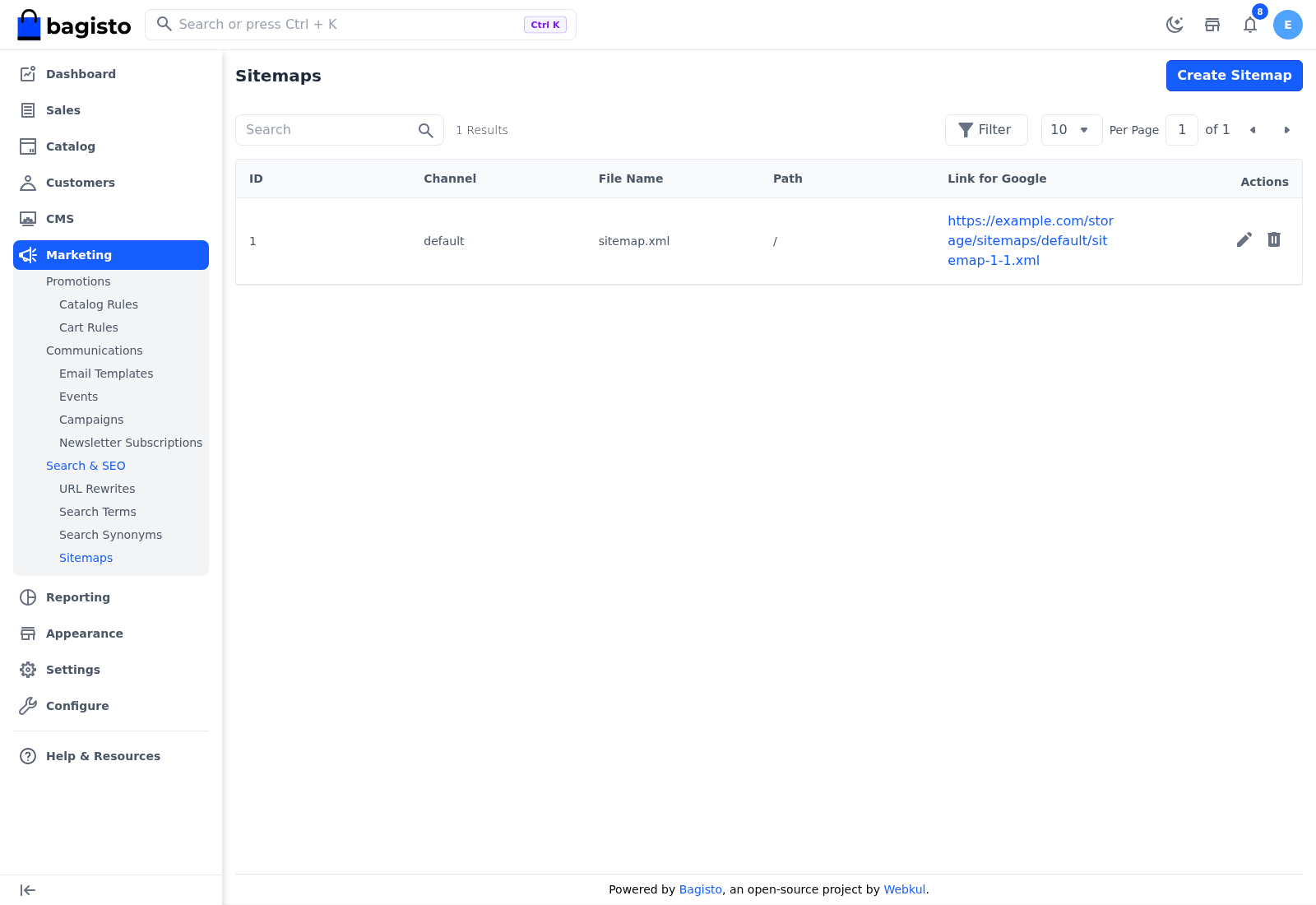
When a channel has more links than one file can hold, Bagisto splits them into several files and lists them all.
Rebuild the sitemap
Sitemap files aren't rebuilt on a schedule. After you add or remove products, categories or CMS pages, rebuild the sitemap:
- Go to Marketing >> Search & SEO >> Sitemaps.
- Click the edit icon of the sitemap.
- Click Save Sitemap.
Deleting a sitemap also deletes its files.