
Social Share
Social share adds share buttons to product pages, so shoppers can share a product on Facebook, X (Twitter), Pinterest, WhatsApp or LinkedIn, or by email.
- Go to Configure >> Catalog >> Products.
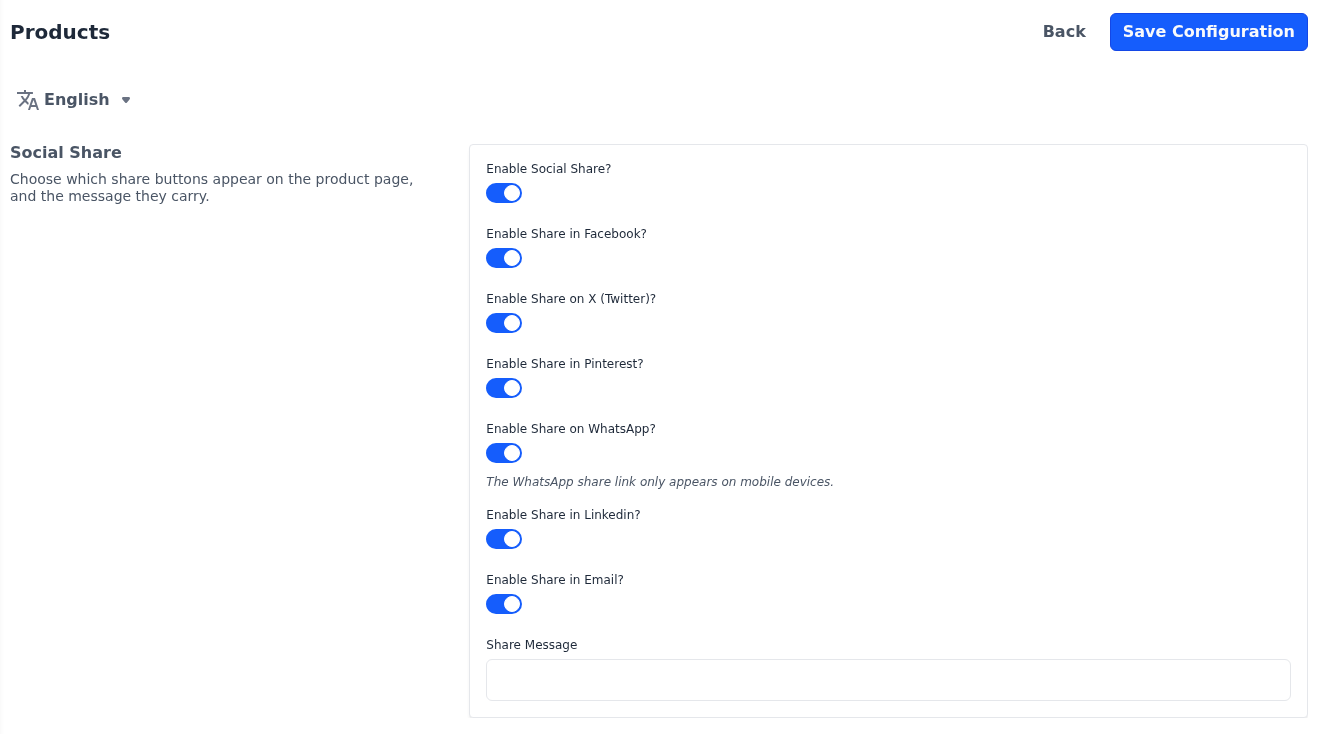
- In Social Share, switch Enable Social Share? on.
- Switch on each share button you want to offer, described below.
- Enter the Share Message.
- Click Save Configuration.
| Setting | What it does |
|---|---|
| Enable Social Share? | Shows sharing on product pages. While it's off, product pages show no share buttons. |
| Enable Share in Facebook?, Enable Share on X (Twitter)? and Enable Share in Pinterest? | Each adds that network's share button. |
| Enable Share on WhatsApp? | Adds a WhatsApp button, which opens the WhatsApp app with the product's link. |
| Enable Share in Linkedin? and Enable Share in Email? | Each adds a LinkedIn or an email share button. |
| Share Message | The text shared with the product's link. |
On small screens, product pages show a single Share button instead, which opens the device's own sharing options. These settings apply to the whole store.