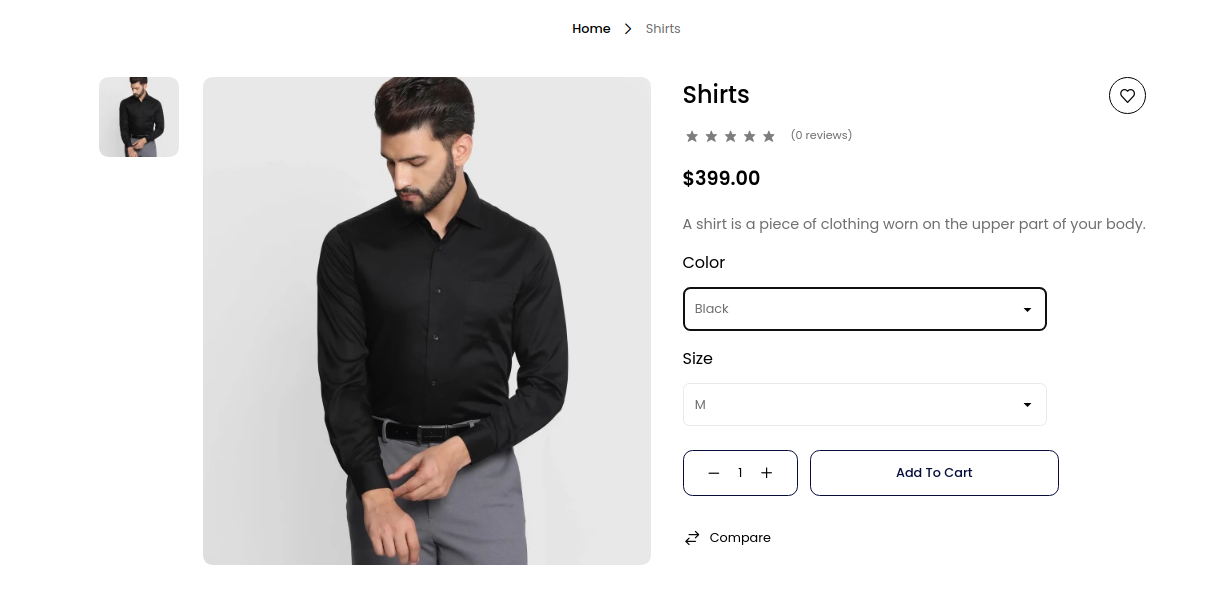
Configurable Product
A configurable product is one product page for an item that comes in variants, such as a T-shirt in several colors and sizes. Each variant is a simple product with its own SKU, price, weight, stock and images. Shoppers pick the values they want on the product page, and the matching variant is what they buy.
This page covers what's specific to configurable products. For the sections every product shares, see Products.
Before you start
- The attributes the variants differ by, such as Color and Size, must be Select attributes with Use To Create Configurable Product switched on. See Product Attributes.
- Those attributes must be in the attribute family you choose. See Attribute Families.
Create a configurable product
Go to Catalog >> Products.
Click Create Product.
Choose Configurable as the Type.
Choose the Family.
Enter the SKU.
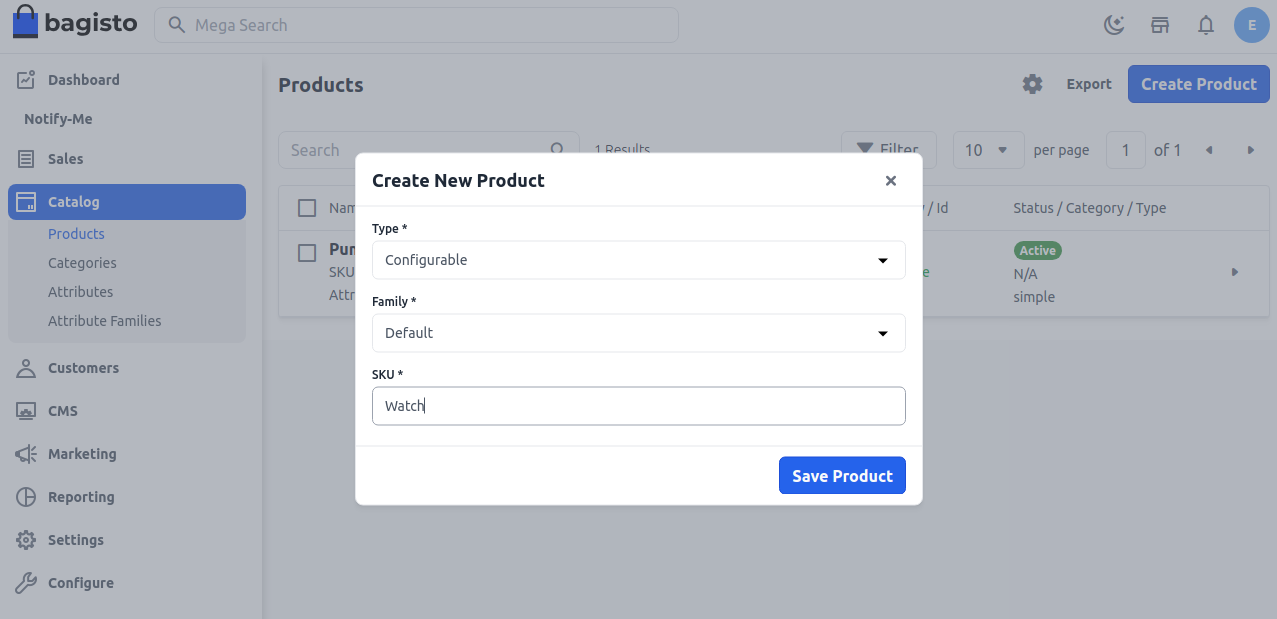
Click Save Product. The Configurable Attributes step lists every value of the family's configurable attributes.
Click the × on each value you don't sell. Removing all of an attribute's values leaves that attribute out.
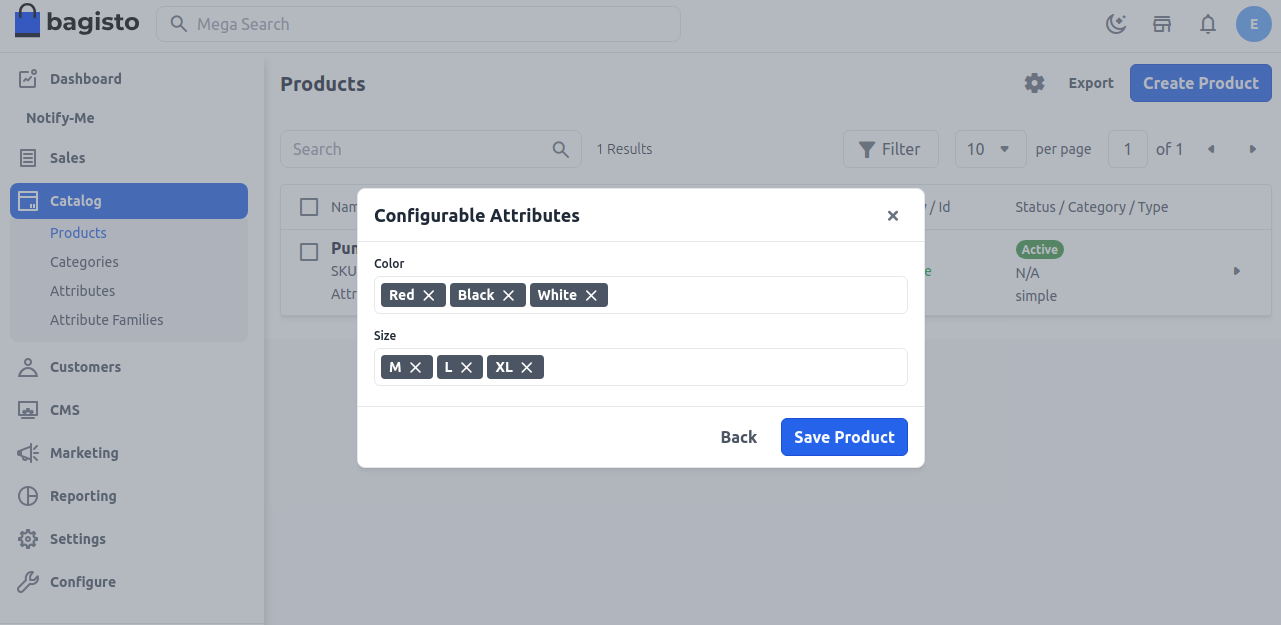
Click Save Product. The product is created with one variant for every combination of the remaining values, and its edit screen opens.
To go back to the type, family and SKU, click Back instead of saving.
Fewer values, fewer variants
Three colors and four sizes make twelve variants. Remove the values you don't stock before you save, so you don't have to delete extra variants afterwards.
What the configurable product holds
The configurable product itself has no Price, Shipping or Inventories section, because each variant has its own. Its other sections, such as Description, Images and Categories, describe the product page shoppers see. See The edit screen.
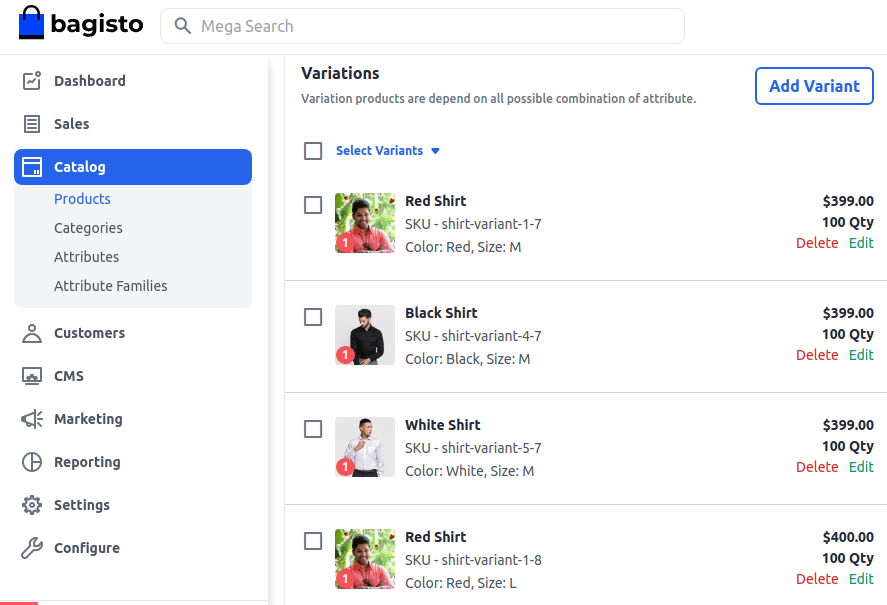
The Variations section lists the variants, each with its image, name, SKU, values, price and quantity.
Set up the variants
New variants are named Variant followed by numbers, and their SKUs are made from the product's SKU, such as linen-summer-shirt-variant-1-6. They start with a price and weight of 0 and no stock, so rename them and set their prices before you sell the product. The quickest way is to change several variants at once.
In Variations, tick the variants to change. To tick every variant with a value, such as every Black variant, use Select Variants.
Open Select Action and choose what to change: Edit Names, Edit SKU, Edit Prices, Edit Inventories, Edit Weight, Edit Status, Add Images, Remove Images or Remove Variants.
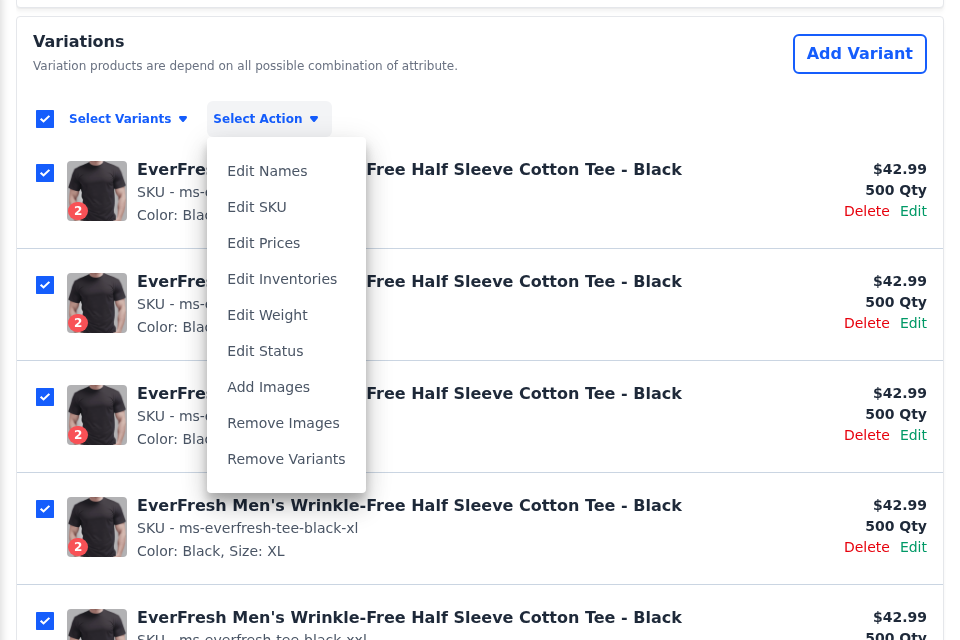
In the panel that opens, enter a value for each variant. To give every variant the same value, enter it once at the top and click Apply to All.
Click Save.
Click Save Product.
Edit one variant
- Click Edit on the variant. The Product panel opens.
- Change the Name, SKU, Price, Status or Weight, the Quantities for each inventory source, or the Images.
- Click Save.
- Click Save Product.
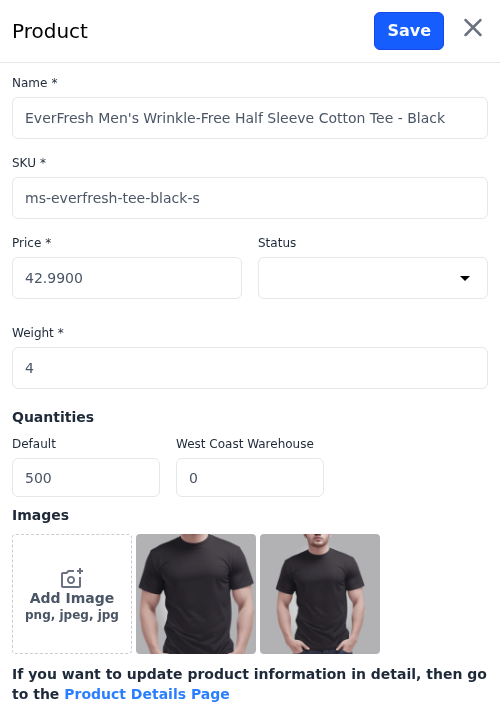
To change anything else about a saved variant, such as its description, click Product Details Page at the bottom of the panel. The variant's edit screen opens in a new tab.
Add or remove a variant
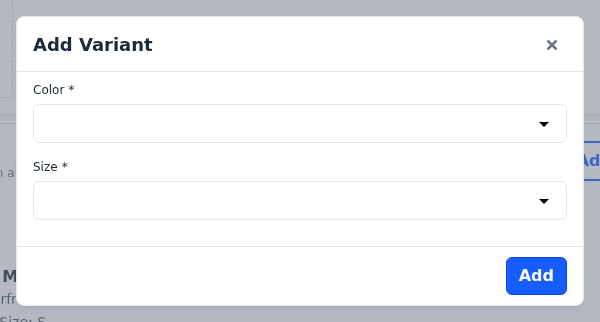
- Add Variant opens a dialog with a list for each configurable attribute. Choose the values and click Add. A combination that already exists isn't added twice.
- Delete on a variant's row removes the variant.
Click Save Product to keep the change.
What shoppers see
The product page shows the lowest variant price, labelled As low as, and a choice for each configurable attribute. The values shoppers pick decide which variant goes into the cart. When an attribute's Input Options is a color, image or text swatch, shoppers pick from swatches instead of a list. See Product Attributes.