
Customer Account
Shoppers who create an account get My Account on the storefront. There they manage their profile and addresses, follow their orders, download what they bought, and see their reviews, wishlist and requests. This page describes what customers can do there, so you know what they see when they ask for help. To look at a particular customer's account yourself, use Login as customer.
Sign up
Shoppers click Create your account on the sign-in page to open the Become User page.
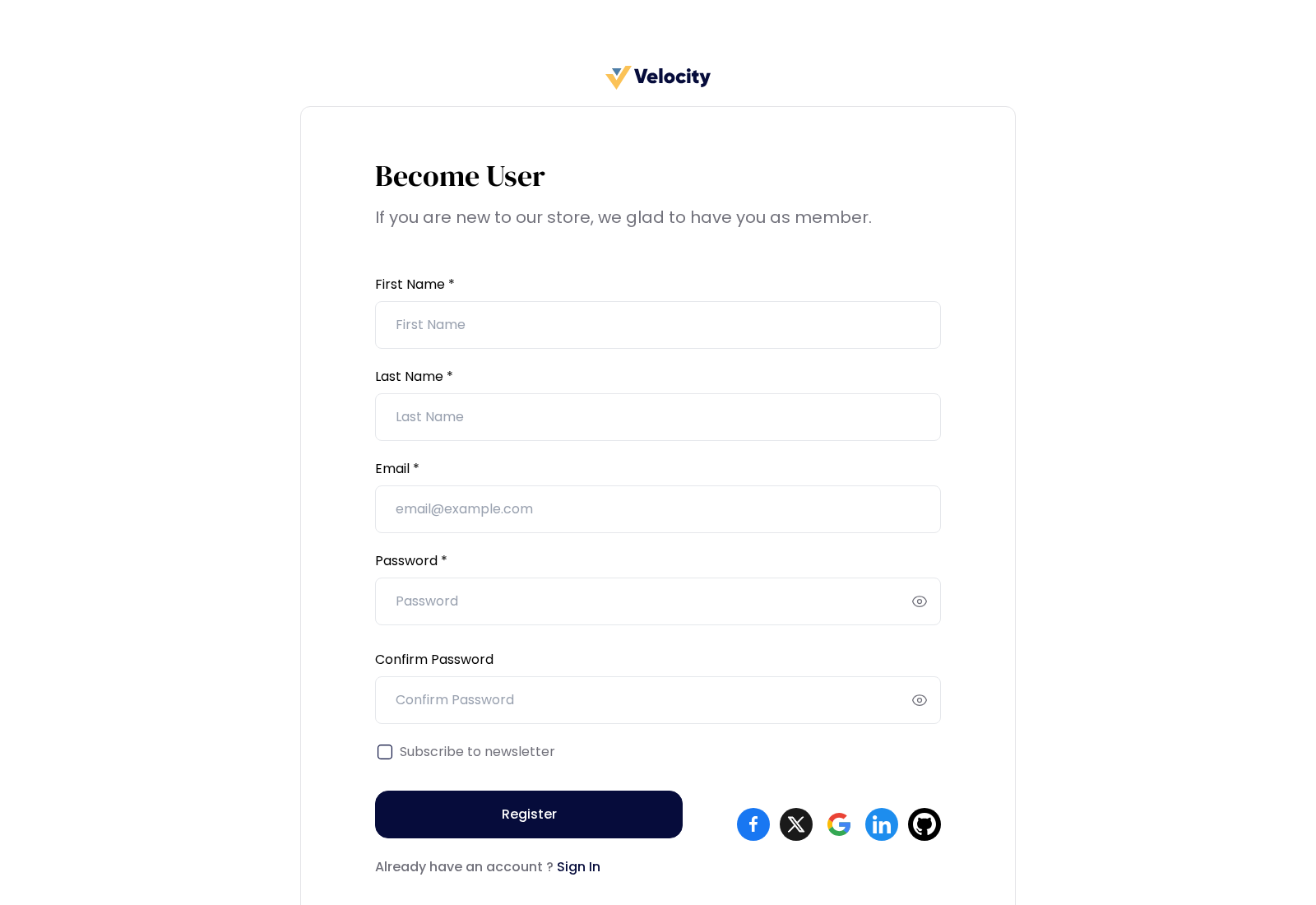
- First Name, Last Name, Email and Password are required. The password needs at least six characters, and Confirm Password must match it.
- Subscribe to newsletter appears while Allow NewsLetter is on in Customer Settings.
- An agreement checkbox appears while both Enable GDPR and the customer agreement are on in GDPR. Shoppers must tick it to register.
- A captcha check is added while Google Captcha is on.
- A button appears for each social account switched on in Customer Settings.
Register creates the account in the default customer group and opens the Customer Login page. While email verification is on, the customer must open the link in the verification email before they can sign in. See Customer Settings.
Sign in
The Customer Login page asks for the Email and Password. Forgot Password? sends the customer a link to set a new password. A captcha check is added while Google Captcha is on.
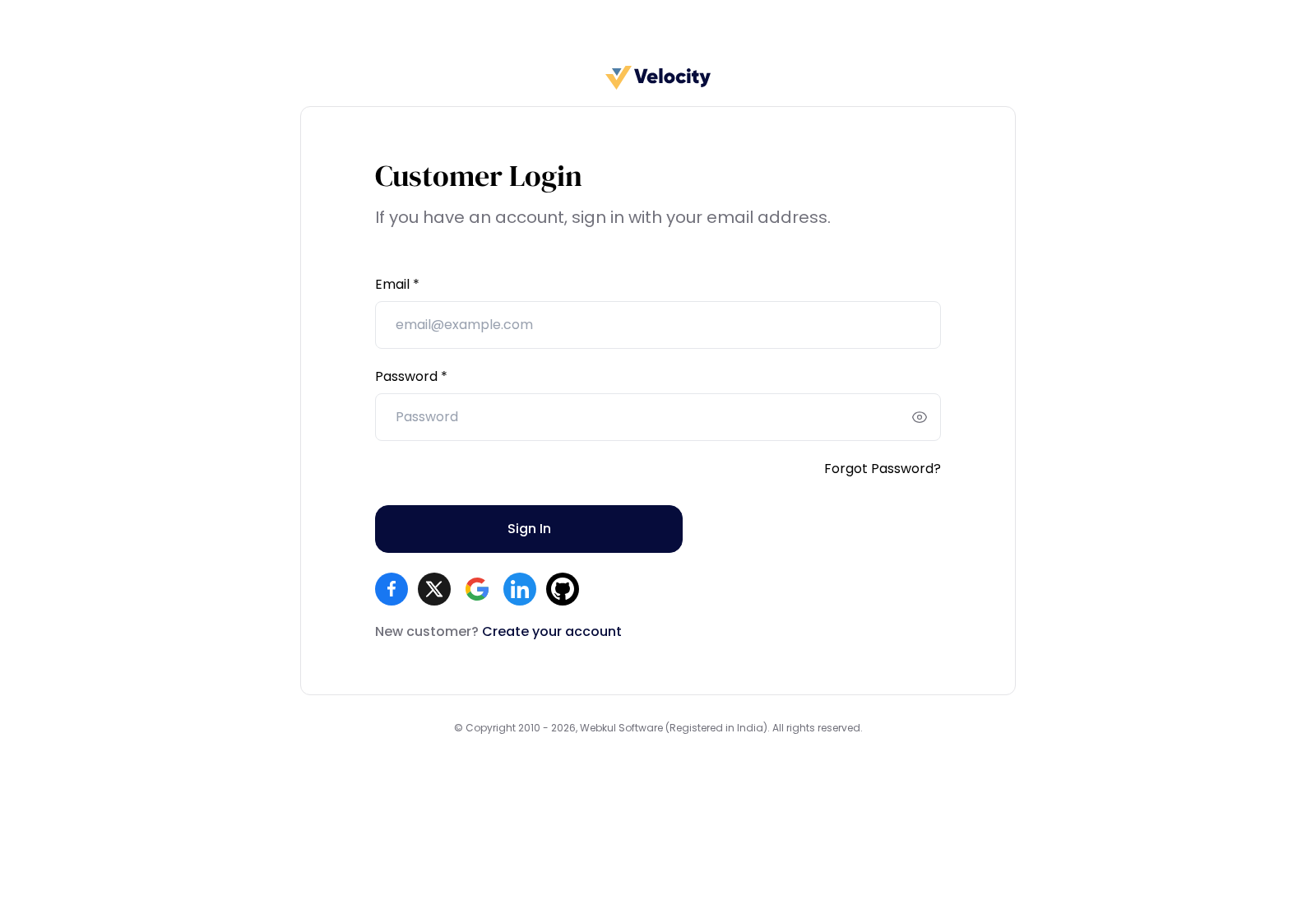
When signing in doesn't work, the page says why:
| Message | Why |
|---|---|
| Please check your credentials and try again. | The email or password is wrong. |
| Your activation seeks admin approval | The account's Status is off. See Edit customer details. |
| Verify your email account first. | The customer hasn't verified their email address. A Resend Verification Email link appears. |
After signing in, customers land on the home page or in their account, as set in Customer Settings.
The My Account menu
The My Account menu lists:
| Menu item | What customers do there |
|---|---|
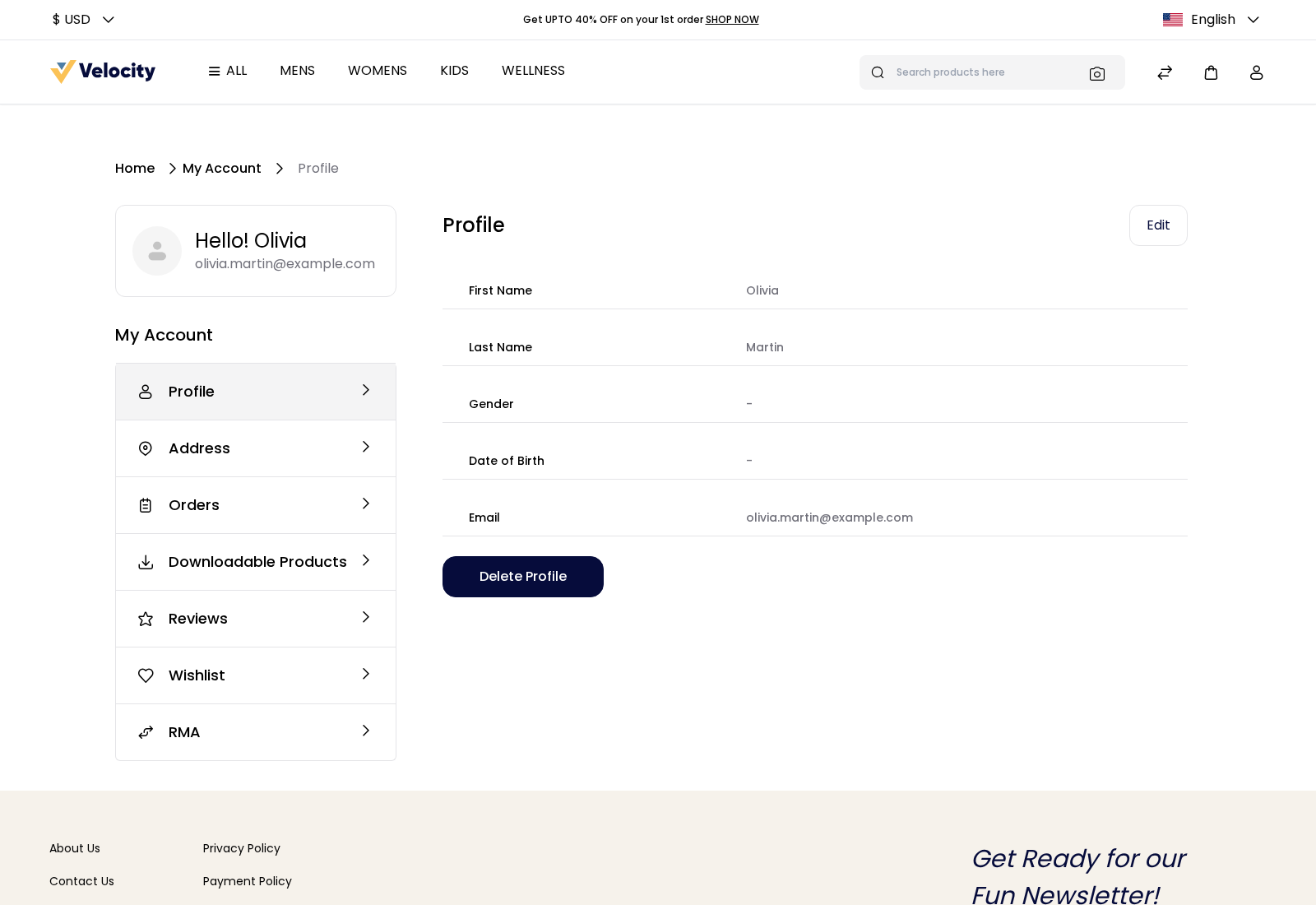
| Profile | See and edit their details, change their password, or delete their account. |
| Address | Manage their saved addresses. |
| Orders | Follow their orders, reorder, cancel and print invoices. |
| Downloadable Products | Download the files they bought. |
| Reviews | See the reviews they wrote. |
| Wishlist | Keep products for later. It appears while Allow Wishlist option is on in Customer Settings. |
| GDPR Requests | Download their data and ask for it to be updated or deleted. It appears while GDPR is on. See GDPR Data Requests. |
| RMA | Request returns. See Return Merchandise Authorization (RMA). |
Profile
Profile shows the customer's First Name, Last Name, Gender, Date of Birth and Email.
Edit the profile
Click Edit. The Edit Profile page opens.
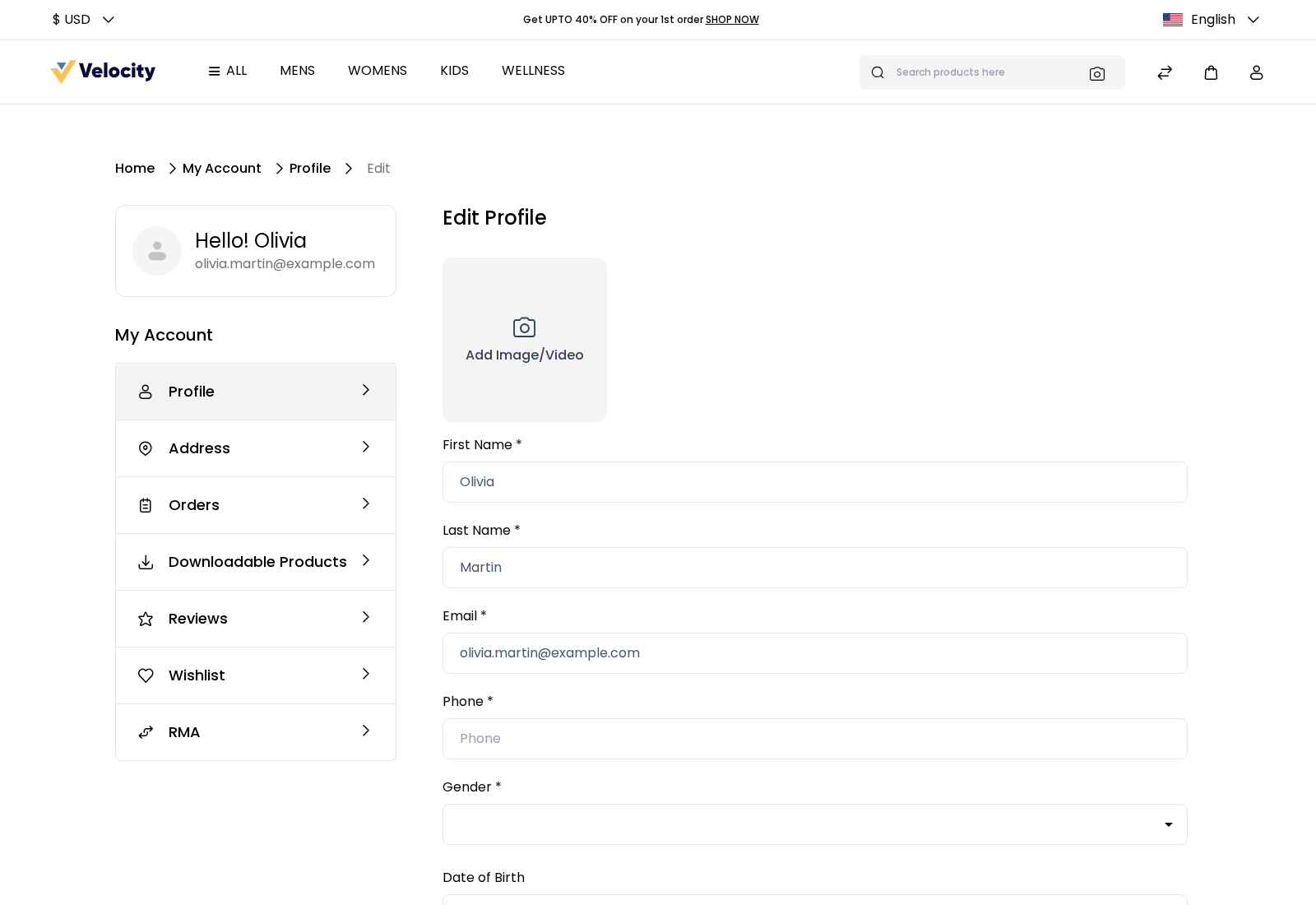
Change the details: the profile picture, First Name, Last Name, Email, Phone, Gender and Date of Birth.
To change the password, enter the Current Password, the New Password and Confirm Password.
Tick or untick Subscribe to newsletter.
Click Save.
Phone and Gender are required. Customers who signed up on the storefront add them the first time they save their profile.
Delete the account
- Click Delete Profile.
- Enter the account password.
- Click Delete.
The account is deleted and the customer is signed out. An account with an order that's still pending or processing can't be deleted: the page shows Cannot delete customer account because some Order(s) are pending or processing state.
Address
Address lists the customer's saved addresses. The default one is marked Default Address.
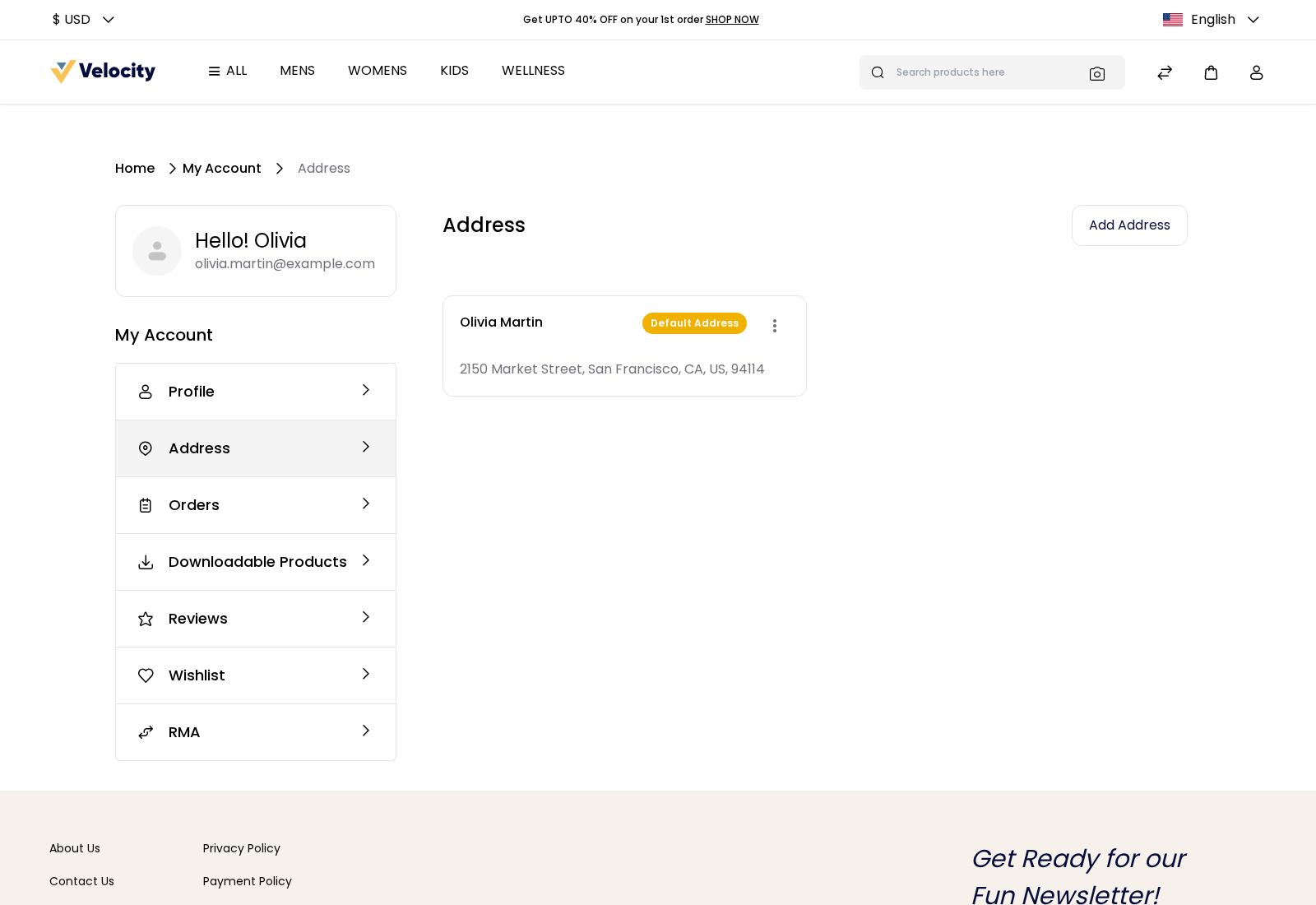
To add an address:
- Click Add Address.
- Fill in the Company Name, First Name, Last Name, Email, Vat ID, Street Address, Country, State, City, Post Code and Phone.
- Tick Set as Default to make it the default address.
- Click Save.
The menu on each address (the three dots) has Edit, Delete and, on addresses that aren't the default, Set as Default. Which address fields are required, and how many street lines the form has, is set in Address.
Orders
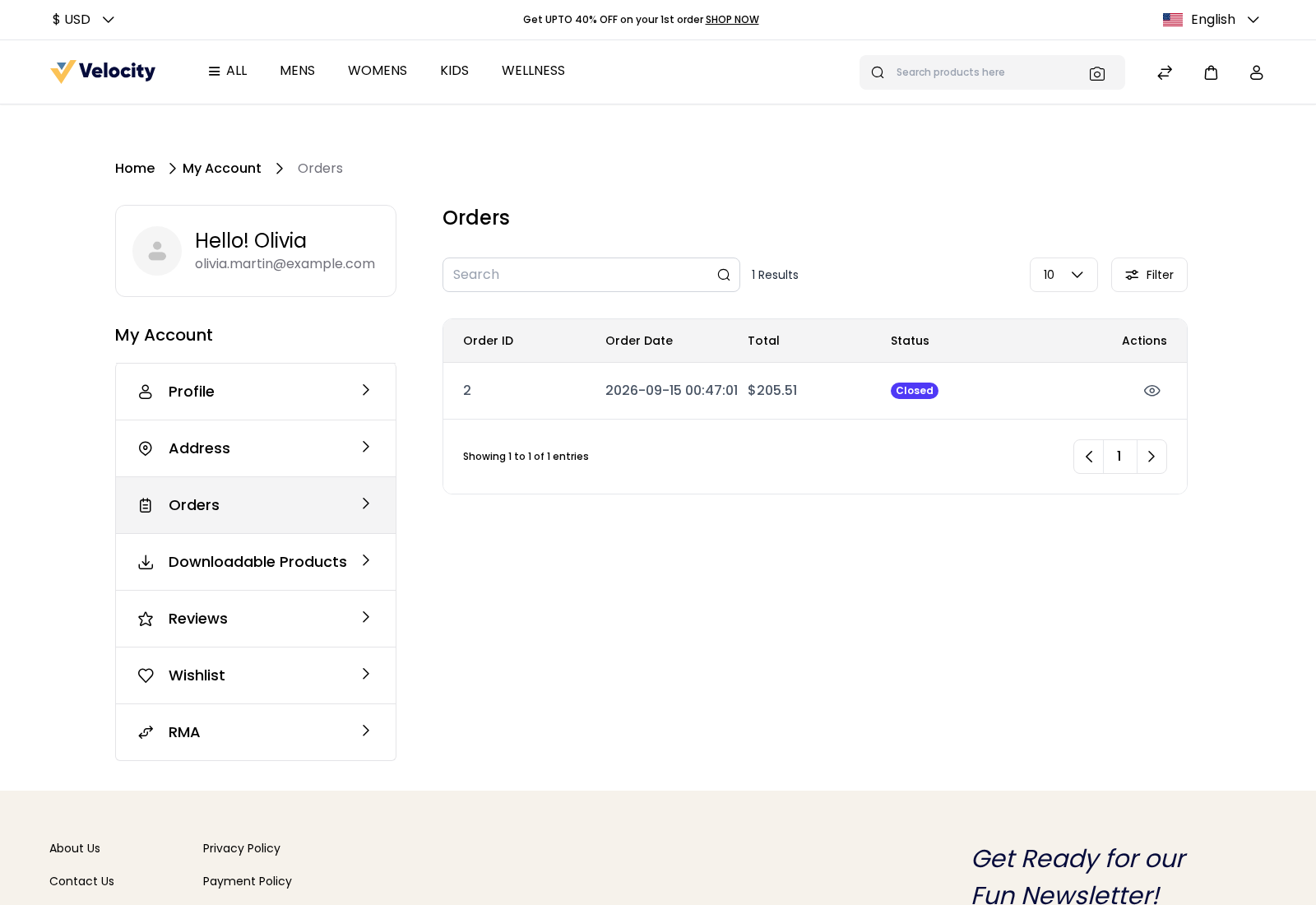
Orders lists the customer's orders with the Order ID, Order Date, Total and Status. Customers can search and filter the list, and click the eye icon to open an order.
The order page shows the items with their status, the totals, the shipping and billing addresses, and the shipping and payment methods. The Invoices, Shipments and Refunds tabs appear once the order has them.
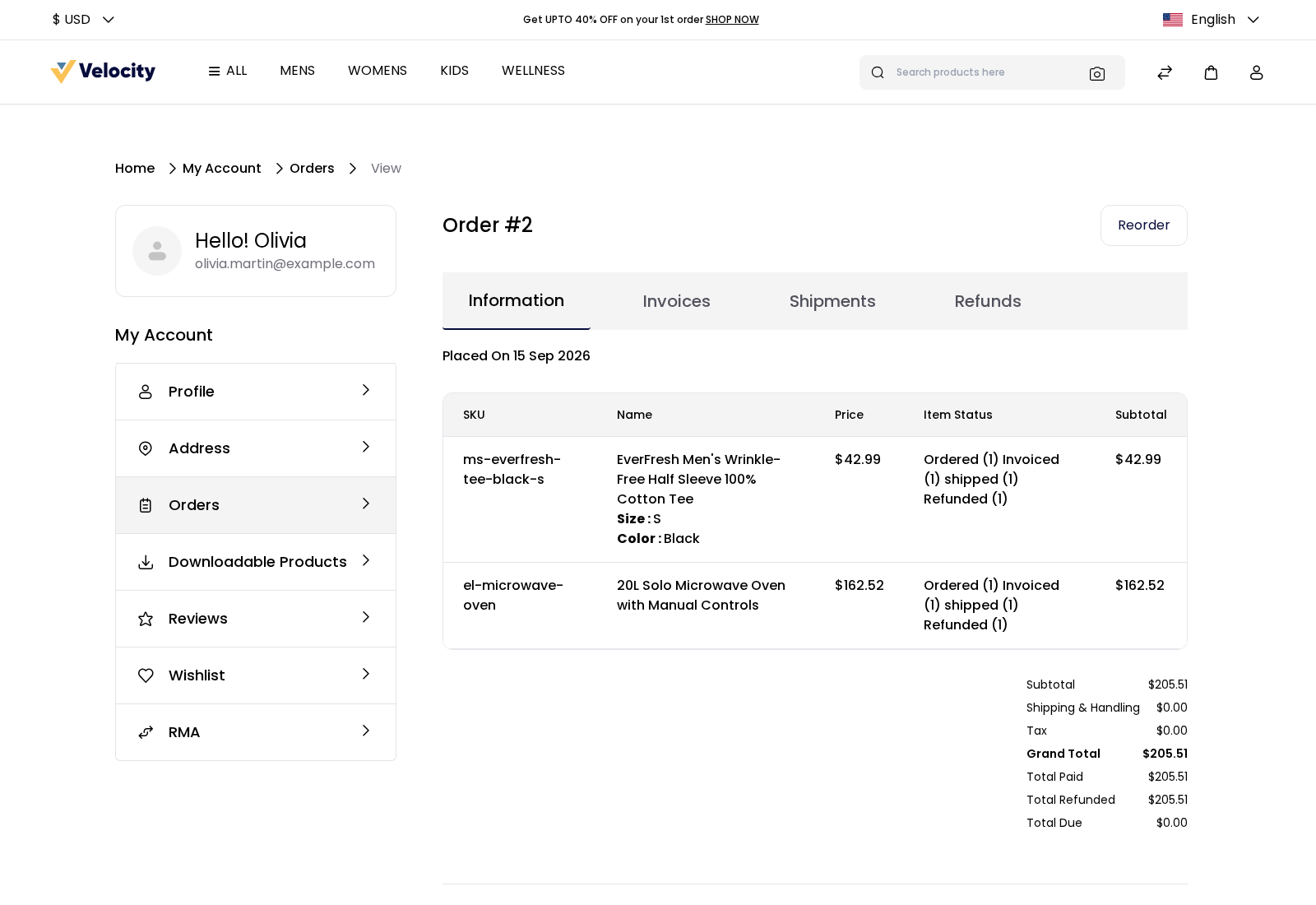
- Reorder adds the order's products to the cart again. It appears while Shop Reorder is on in Order Settings and the order's products can still be bought. Booking products are left out and have to be booked again.
- Cancel cancels the order after the customer confirms. It appears while some items haven't been invoiced or cancelled yet, unless the order is Closed or Fraud.
- Print, on an invoice in the Invoices tab, downloads the invoice as a PDF.
- Withdraw from Contract appears on orders from channels where EU withdrawals are on. After a withdrawal is made, the button reads View your withdrawal. See EU Withdrawal.
Downloadable Products
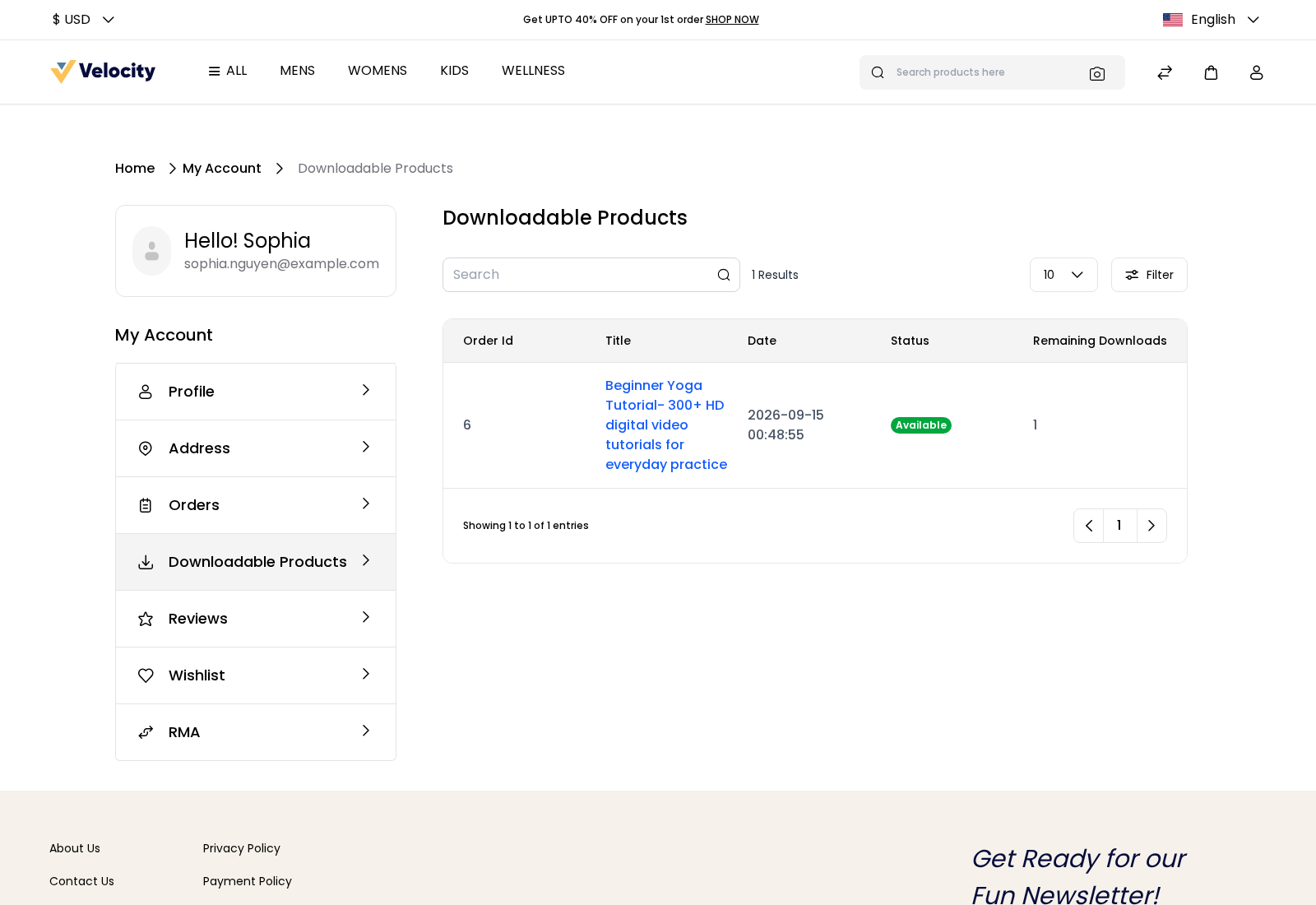
Downloadable Products lists the files the customer bought, with the Order Id, Title, Date, Status and Remaining Downloads. Clicking the title of an available file downloads it.
| Status | Meaning |
|---|---|
| Pending | The order hasn't been invoiced yet, so the file can't be downloaded. |
| Available | The file can be downloaded. |
| Expired | The customer has used all their downloads, or the order was cancelled or refunded. |
Remaining Downloads shows how many downloads are left: Download Allowed on the product's link, times the quantity bought, minus the downloads used. See Downloadable Product.
Reviews
Reviews lists the reviews the customer has written, five per page, with the product's image, the title, rating, date and comment. Clicking a review opens the product. Customers see all their reviews here, but a review appears on the product page only after you approve it. See Customer Reviews.
Wishlist
Wishlist lists the products the customer saved for later. For each product, customers can choose a quantity and click Move To Cart, or click Remove. See Details shows the options chosen for a product, such as its color and size, and Delete All empties the wishlist.
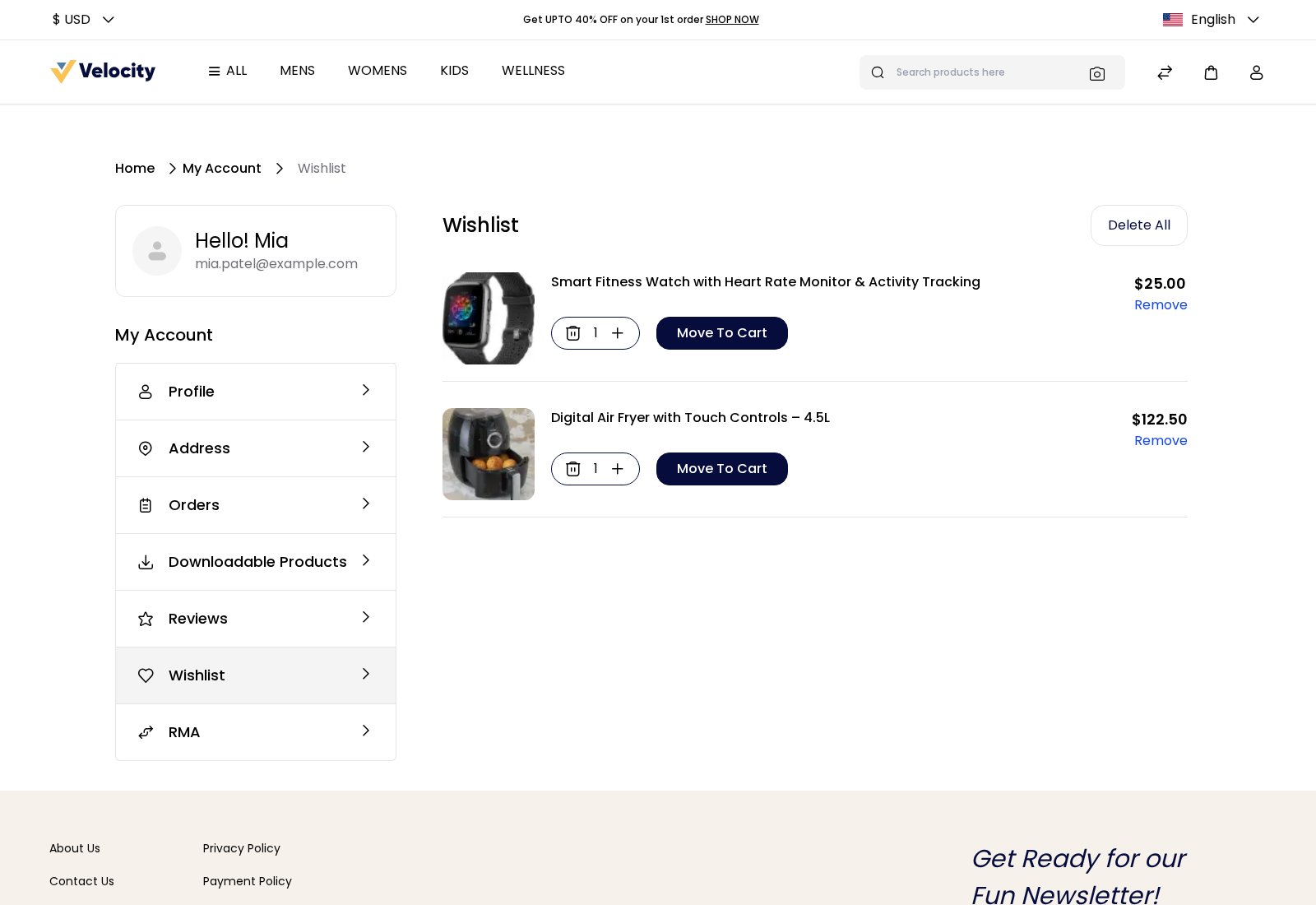
Move To Cart appears while Cart Page is on in Checkout.