
Products
Products are what you sell. Every product has a type, which decides how shoppers buy it, and an attribute family, which decides which fields you fill in. This page covers what every product shares: the products list, creating a product and the sections of the edit screen. Each product type has its own page for what's specific to it.
Product types
| Type | Use it for |
|---|---|
| Simple | One physical item with no choices to make, such as a desk lamp. |
| Configurable | An item sold in variants, such as a shirt in several colors and sizes. |
| Grouped | A set of simple products shown on one page, each bought in its own quantity. |
| Bundle | A kit the shopper puts together from options, such as an outfit with a choice of shoes. |
| Downloadable | Digital files, such as e-books, music or software. |
| Virtual | Services, memberships and passes that aren't shipped. |
| Booking | Appointments, events, rentals and table reservations. |
The products list
Go to Catalog >> Products.
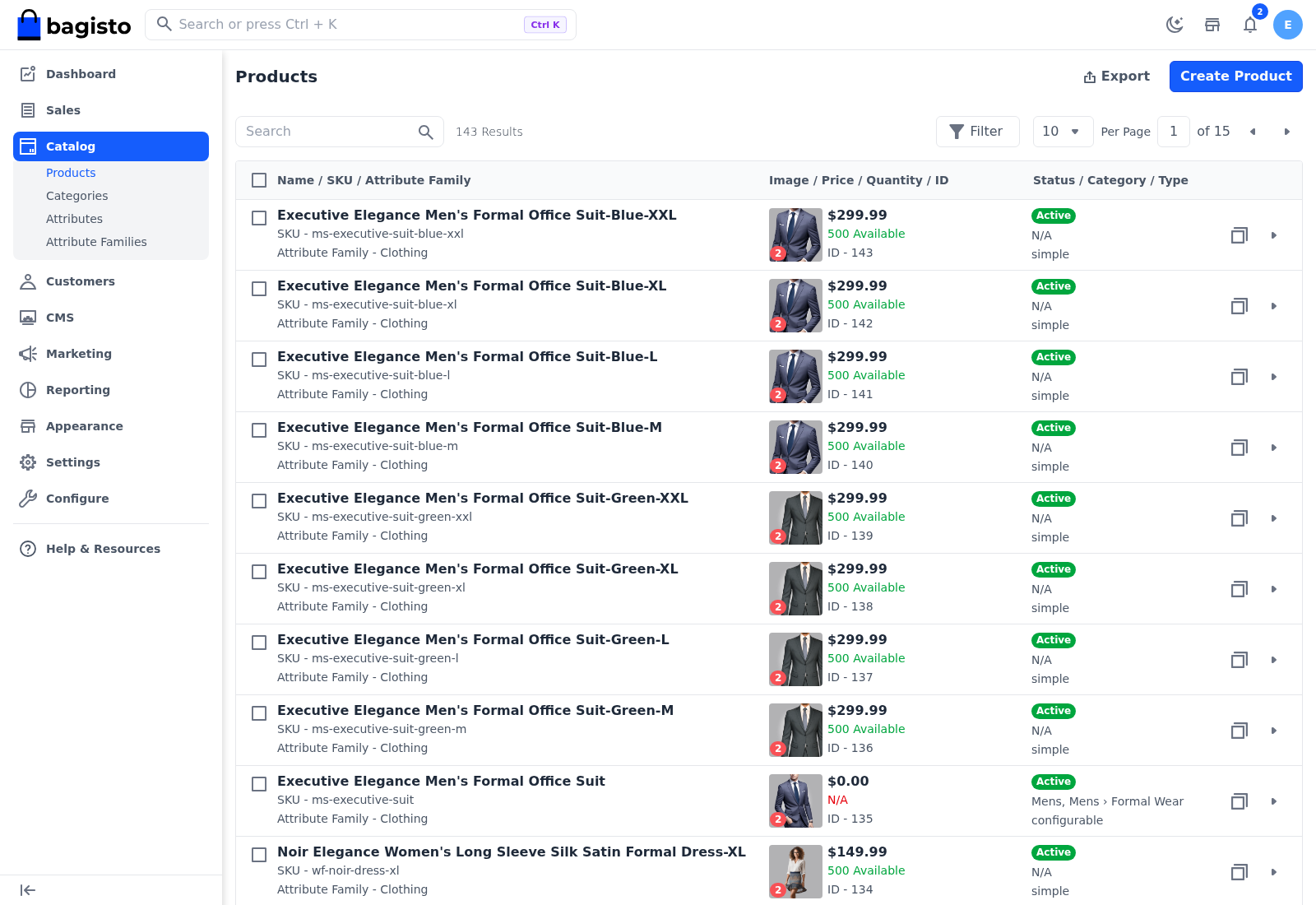
Each row shows three columns:
- Name / SKU / Attribute Family.
- Image / Price / Quantity / ID: the main image with the number of images on it, the price, and the stock:
- the quantity available, such as 500 Available, or Out of Stock, for products that keep stock;
- Stock Disabled for downloadable and booking products, and for products with Manage Stock switched off;
- N/A for configurable, grouped and bundle products, whose stock is kept on the products they contain.
- Status / Category / Type: Active or Disable, the product's categories, and its type.
The variants of a configurable product are listed too, as simple products, because each variant has its own SKU, price and stock.
Find products
- Search: type in the search box to find products by name.
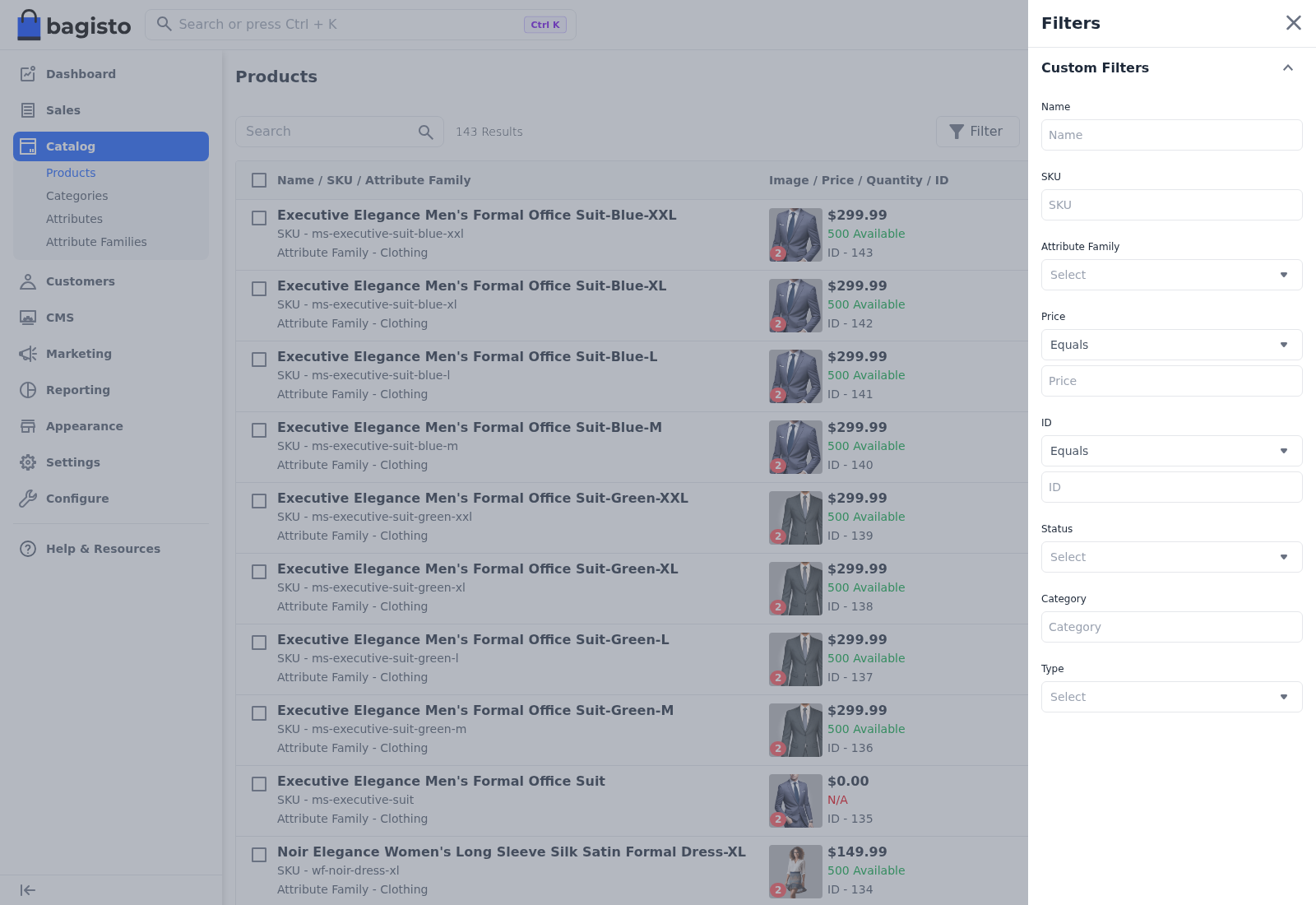
- Filter: click Filter and filter by Name, SKU, Attribute Family, Price, ID, Status, Category or Type. When you have more than one channel, you can also filter by Channel.
- Sort: click Name, SKU, Price, Quantity, ID, Status or Type in the header row.
Row actions
- Copy (the copy icon) creates a copy of the product. See Copying a product.
- Edit (the arrow) opens the product's edit screen.
Change several products at once
- Go to Catalog >> Products.
- Tick the products.
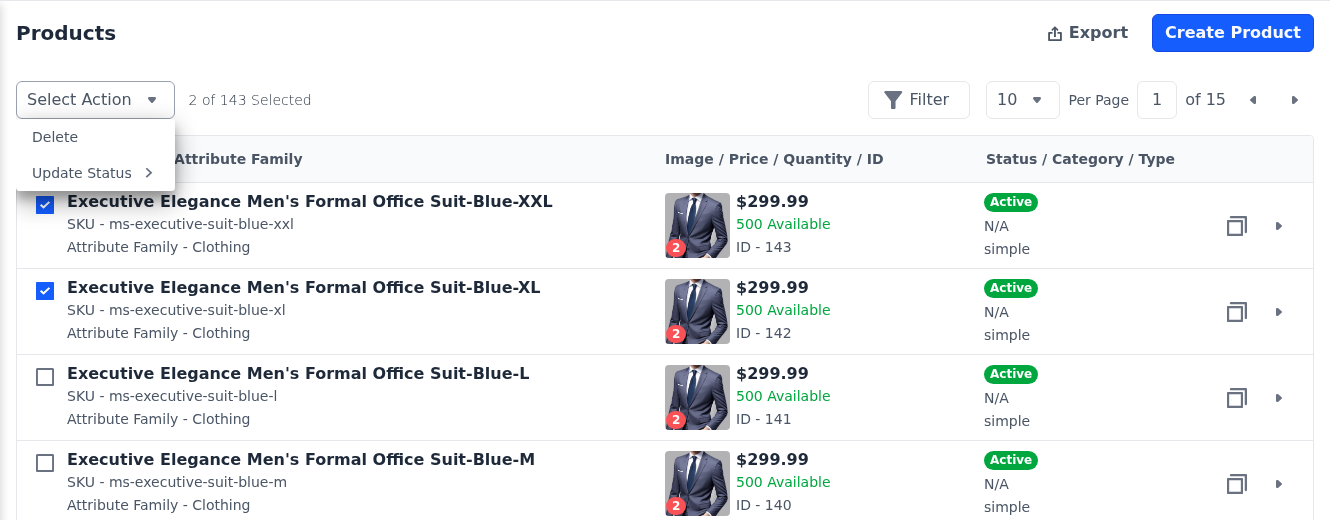
- Open Select Action.
- Choose Delete, or point to Update Status and choose Active or Disable.
Deleting a product can't be undone.
Export the list
- Go to Catalog >> Products.
- Click Export. The Download dialog opens.
- Choose CSV, XLS or XLSX.
- Click Export.
The file lists the products with every attribute value, so you can check or share your catalog in a spreadsheet. To bring products in from a file, see Data Transfer.
Copying a product
A copy saves time when a new product is close to an existing one. The copy:
- is named Copy Of followed by the original name;
- gets a URL key starting with copy-of- and a temporary SKU, and its Product Number, if it has one, also starts with copy-of-;
- is saved disabled, with the original's details, images, videos, channels, categories, stock, customer group prices, related products and customizable options.
Copying a configurable product also copies each of its variants, and each copied variant starts disabled with a temporary SKU. A variant can't be copied on its own.
Open the copy and change its SKU, Name, URL Key and Product Number. Then switch Status on.
Create a product
- Go to Catalog >> Products.
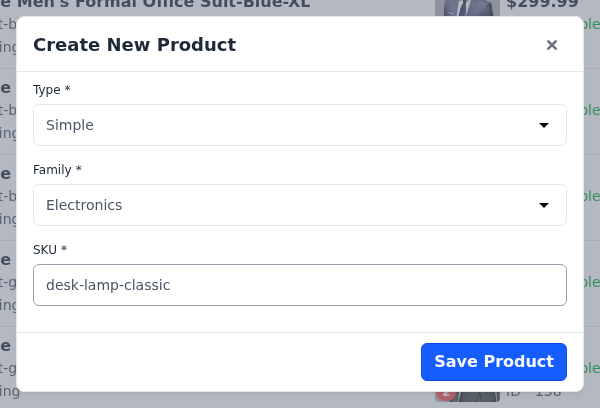
- Click Create Product. The Create New Product dialog opens.
- Choose the Type.
- Choose the Family, the attribute family whose fields the product uses.
- Enter the SKU, a unique code for the product. Use letters, numbers and hyphens, such as
desk-lamp-classic. - Click Save Product. The product is created and its edit screen opens.
A configurable product has one more step before it's created, where you choose the attribute values its variants are made from. See Configurable Product.
The type and family are fixed
The edit screen has no way to change a product's type or attribute family. If you chose the wrong one, delete the product and create it again.
The edit screen
The edit screen opens after you create a product, or when you click Edit on a row.
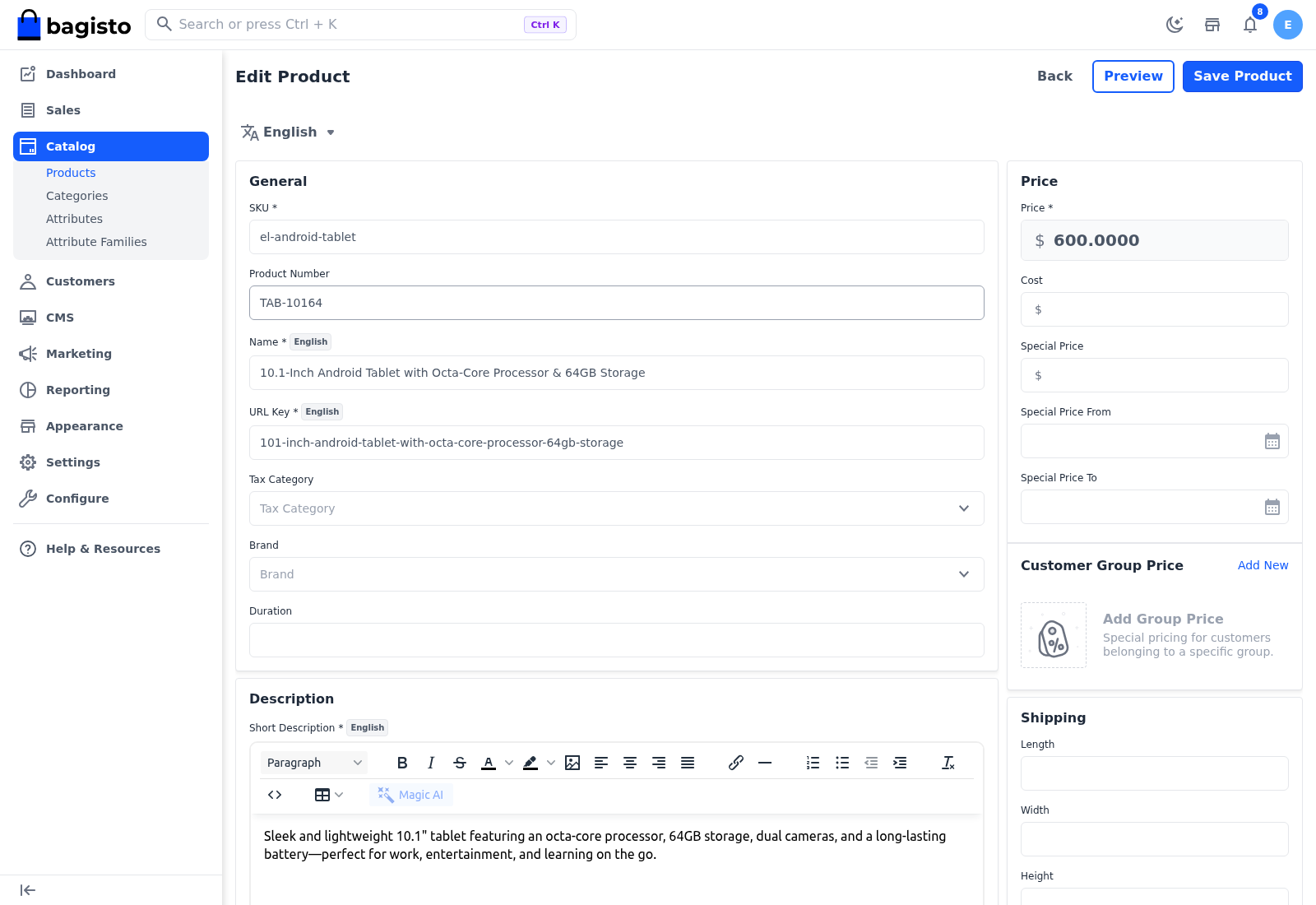
At the top:
- Back returns to the products list without saving.
- Preview opens the product on the storefront. It appears once the product is enabled, visible individually and has a URL key.
- Save Product saves every section and returns to the products list.
Below the title are the channel and language selectors. The channel selector appears when you have more than one channel, and the language selector when the channel has more than one language. A field with a language badge, such as Name, is saved separately for each language, and a field with a channel badge is saved separately for each channel. Choose the channel and language before you edit these fields.
The sections come from the product's attribute family, so the fields you see depend on the family and the type. The sections below are those of the Default family, in the order the screen shows them: the main column first, then the side column.
General
The product's identity:
| Field | What it does |
|---|---|
| SKU | The unique code you entered when creating the product. |
| Product Number | An optional number of your own, such as a manufacturer's part number. It must be unique. |
| Name | The name shoppers see. |
| URL Key | The last part of the product's storefront address. It's filled in from the name as you type, and it must be unique. |
| Tax Category | The tax category whose rates apply to the product. See Taxes. |
Renaming changes the address
Typing in Name rewrites the URL Key, so renaming a product also changes its storefront address. Check the URL Key before you save.
The Default family also adds Color, Size and Brand here. Brand isn't a separate feature: it's a select attribute, so you add brands as its options under Catalog >> Attributes. See Product Attributes.
Description
Enter the Short Description and the Description in the text editors. On the product page, the short description appears beside the images and the description further down.
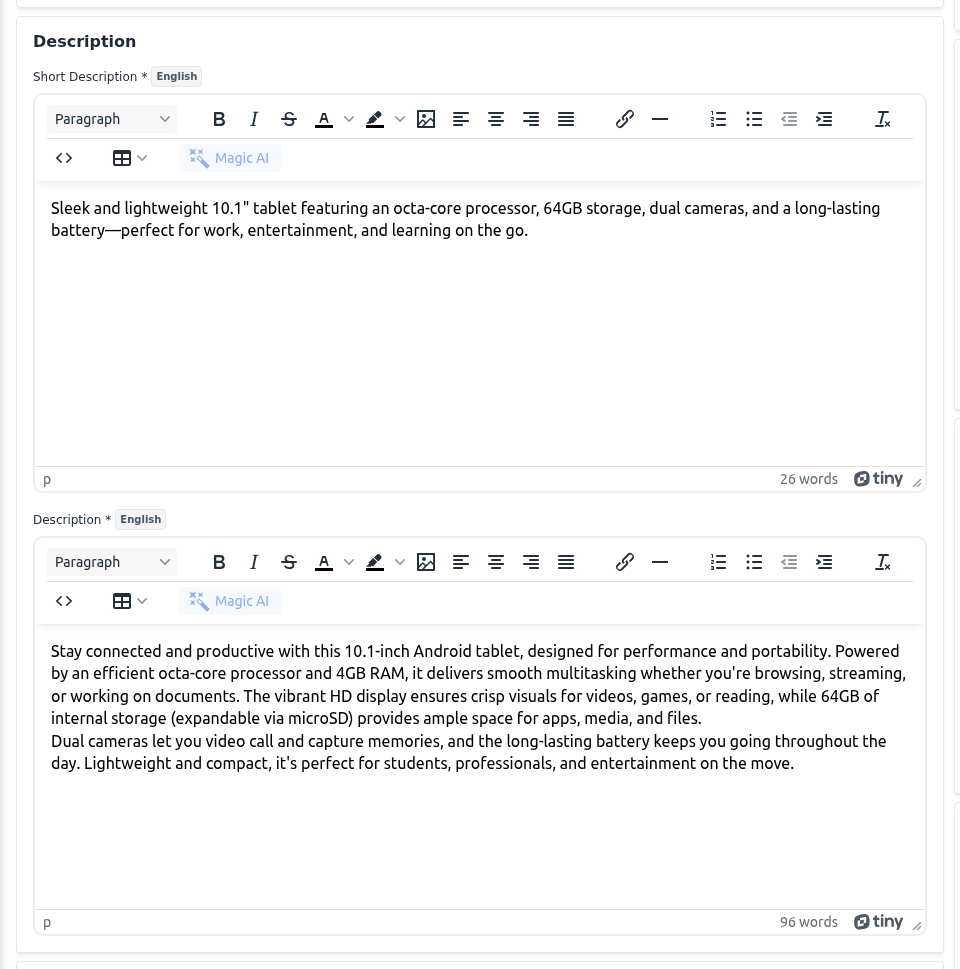
When Generative AI (Magic AI) is set up, the Magic AI button in each editor writes the text for you. See Generate Text Content.
Meta Description
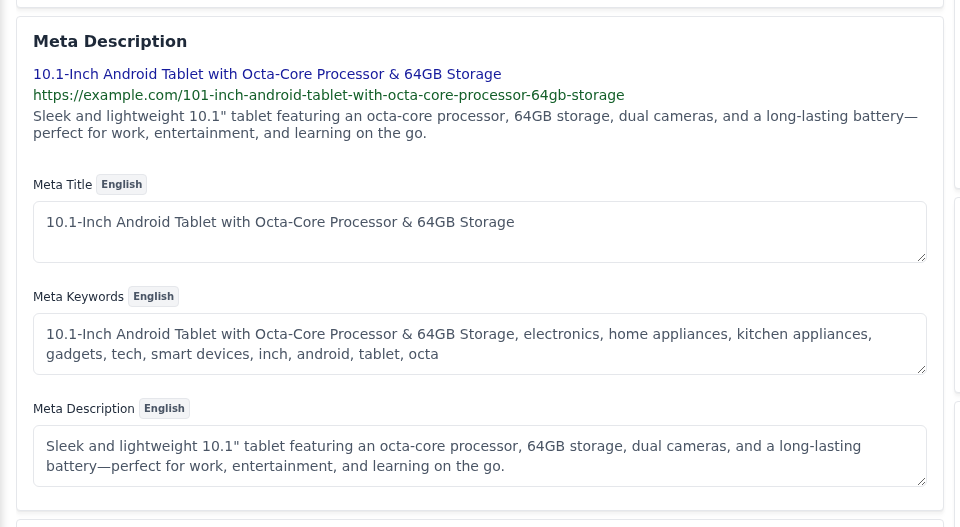
The fields search engines read. A preview at the top of the section shows how the product could appear in search results, and it updates as you type.
- Meta Title: the title of the product page, shown in the browser tab and search results. When it's empty, the product name is used.
- Meta Keywords: words and phrases the product should be found by.
- Meta Description: the summary shown under the title in search results. When it's empty, the start of the description is used.
Images
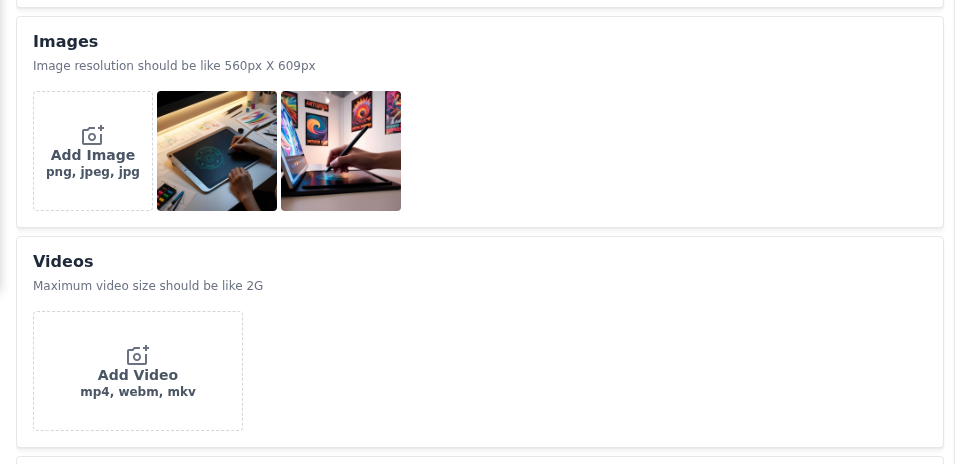
Click Add Image to upload images in JPG, PNG, WebP or BMP format. The recommended size is 560 × 609 pixels. The empty tiles are labelled Front, Next, Zoom, Use Cases and Size to suggest the views to upload.
- Reorder: drag an image to a new position. The first image is the product's main image.
- Remove: point to the image and click the bin icon.
- Alt text and file name: point to the image and click the pencil icon. In the panel that opens, enter the Alt Text and File Name, or upload a new file under Replace Image.
When image generation is set up, the Magic AI button next to Add Image creates product images from a description. See Generate Product Images.
Videos
Click Add Video to upload videos, such as MP4 or WebM files. Drag the videos to reorder them. The largest video you can upload is set by Allowed File Upload Size in the Attribute configuration.
The product type's section
Next comes the section for the product's type, such as Variations for a configurable product or Downloadable Links for a downloadable one. Simple and virtual products get Customizable Item. Each type's page describes its section.
Related, up-sell and cross-sell products
Three sections let you suggest other products:
| Section | Where shoppers see it |
|---|---|
| Related Products | On this product's page. |
| Up-Sell Products | On this product's page, as better or pricier alternatives. |
| Cross-Sell Products | On the cart page, as add-ons when this product is in the cart. |
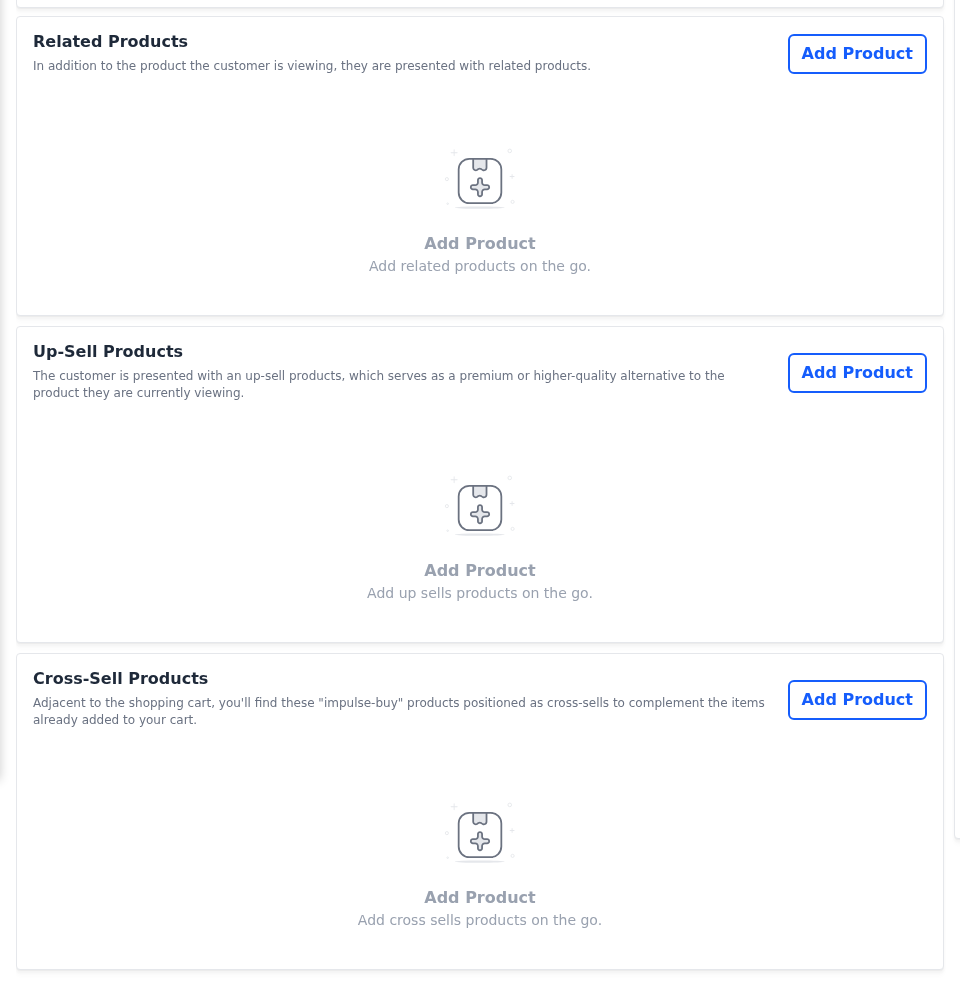
To add products to one of these sections:
Click Add Product in the section. The Select Products panel opens.
Search for the products by name.
Tick the products.
Click Add Selected Product.
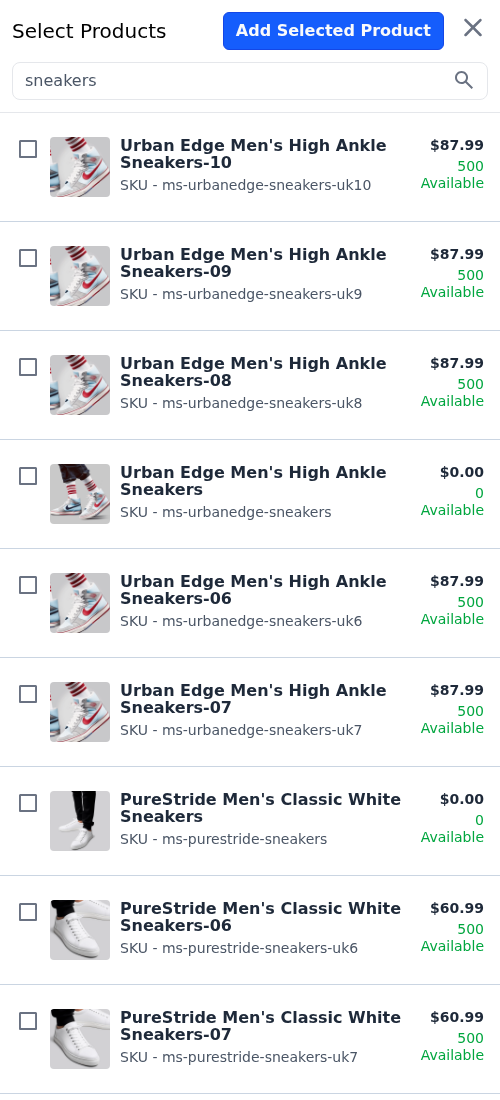
Click Save Product.
To remove a product from a section, click Delete on its row.
The number of related, up-sell and cross-sell products shoppers see is set in Product View Page and Cart View Page. Cross-sell products appear only while Cross sell Products is on in Checkout.
Price
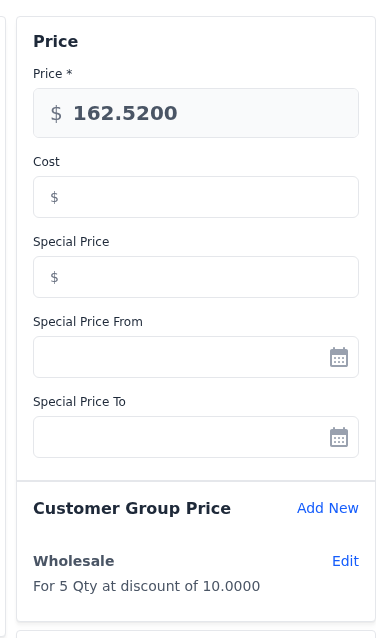
| Field | What it does |
|---|---|
| Price | The regular price. |
| Cost | What the product costs you. Shoppers don't see it. |
| Special Price | A sale price. It must be lower than Price. |
| Special Price From | The first day of the sale. Leave it empty to start the sale at once. |
| Special Price To | The last day of the sale. It can't be before Special Price From. Leave it empty to keep the sale running. |
The sale dates follow the channel's time zone. Configurable, grouped and bundle products have no Price section, because their price comes from the products they contain.
The Customer Group Price block, below the price fields, sets lower prices for a customer group or for larger quantities. Click Add New to add one. See Customer Group Pricing.
Shipping and settings
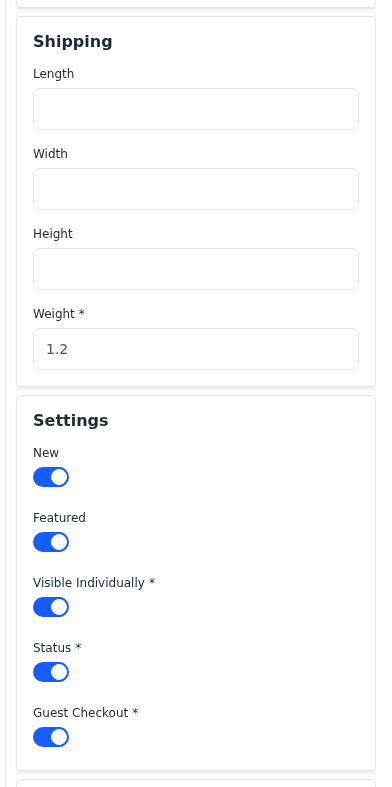
Shipping holds the product's Length, Width, Height and Weight. Weight is required. Configurable, grouped, bundle, virtual, downloadable and booking products don't have this section; each variant of a configurable product has its own weight.
Settings holds five switches:
| Switch | What it does |
|---|---|
| New | Marks the product as new. Product carousels on your storefront can be set to show only new products. |
| Featured | Marks the product as featured. Product carousels can be set to show only featured products. |
| Visible Individually | Gives the product its own page and lists it in categories and search. Switch it off for products you only sell as part of another product. |
| Status | Switch it on to sell the product. A disabled product doesn't appear on the storefront. |
| Guest Checkout | Lets shoppers who aren't signed in buy the product. It only works when Allow guest checkout is on in Checkout. If any product in the cart has it off, the shopper must sign in to check out. |
Carousels are theme sections; see Themes & Sections.
Inventories
The Inventories section tracks the product's stock.
- Manage Stock: switch it on to track stock. When it's off, the product is always in stock.
- Pending Ordered Qty: the quantity ordered but not shipped yet. It's taken off the inventory source's stock when the order ships.
- One quantity field for each active inventory source. Enter the quantity you hold at each source. See Inventory Sources.
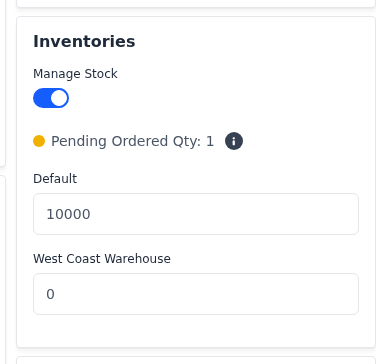
Configurable, grouped, bundle, downloadable and booking products have no Inventories section. To let shoppers order more than you hold, see Inventory.
RMA
Allow RMA and RMA Rules decide whether shoppers can return the product and under which rule. The section always appears for simple products, including the variants of configurable products. Configurable, grouped and bundle products have it when their type is selected in Allow Product Type For RMA in the RMA configuration. Virtual, downloadable and booking products never have it. See Return Merchandise Authorization (RMA).
Channels
When you have more than one channel, the Channels section lists them. Tick the channels the product is sold in. A product must be in at least one channel.
Categories
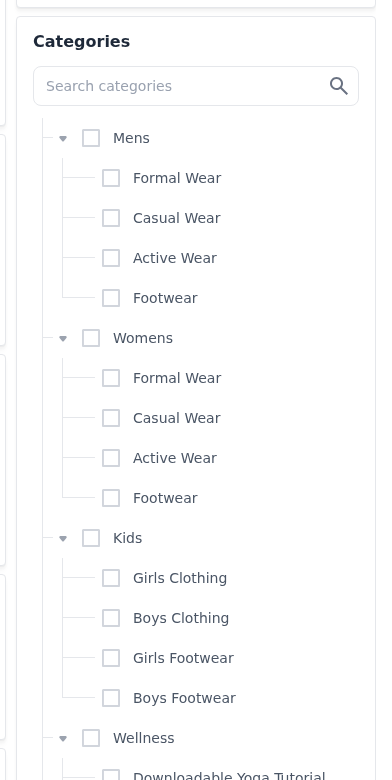
Tick the categories the product belongs to. Use the search box to find a category in a long tree. The tree lists the active categories under the selected channel's root category; categories the product has in other channels' trees stay assigned. See Categories.
How the family and the type decide the fields
The attribute family decides the sections and fields: each of its groups becomes a section, in the group's column and position, and each attribute in a group becomes a field. To add a field to products, create the attribute and add it to the family. See Attribute Families.
The product type then hides the sections it doesn't use:
| Type | Price | Shipping | Inventories | Guest Checkout | RMA | Type's section |
|---|---|---|---|---|---|---|
| Simple | Yes | Yes | Yes | Yes | Yes | Customizable Item |
| Configurable | No | No | No | Yes | If allowed | Variations |
| Grouped | No | No | No | Yes | If allowed | Group Products |
| Bundle | No | No | No | Yes | If allowed | Bundle Items |
| Downloadable | Yes | No | No | No | No | Downloadable Links and Downloadable Samples |
| Virtual | Yes | No | Yes | Yes | No | Customizable Item |
| Booking | Yes | No | No | No | No | The booking section, starting with Booking Type |