
Configuration overview
Configure holds the settings that decide how your store behaves: units and storefront content, generative AI, shipping and payment, checkout, orders and taxes, the catalog, customer accounts, email, search, file storage and caching. You set most of them once while setting up the store, and come back when something changes.
Open a configuration screen
- In the admin panel, click Configure in the left menu.
- Find the group you need, such as Sales.
- Click one of its tiles, such as Checkout.
- Change the settings.
- Click Save Configuration.
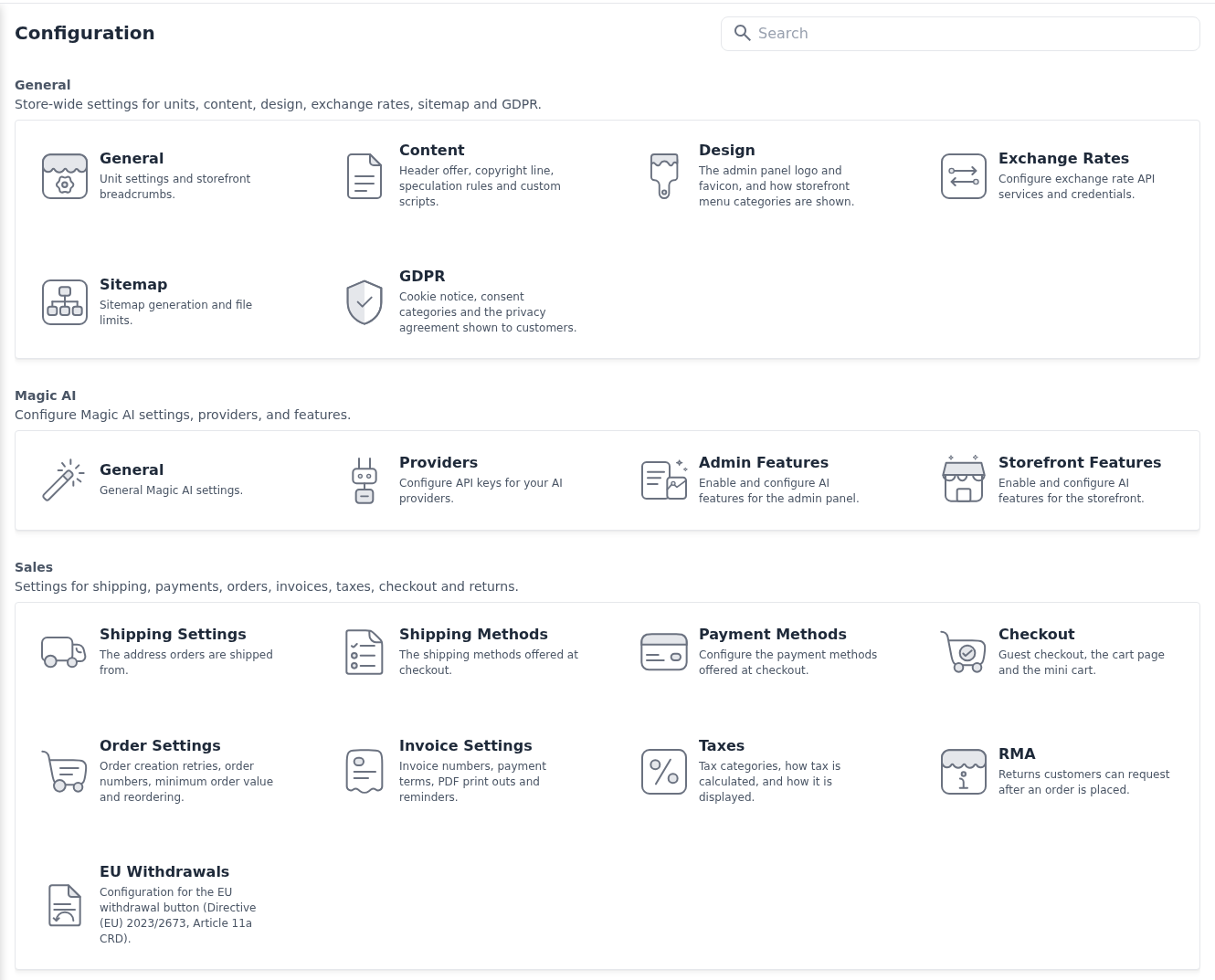
Click Back to return to the tiles without saving. Two screens have no Save Configuration button: Cache Management >> General, whose buttons act straight away, and About, which only shows information.
Find a setting
- Go to Configure.
- Click the Search box at the top of the Configuration page.
- Type at least two letters of a screen, section or setting name, such as
cookie. The matches appear below the box, each with its full path. - Click a match to open the screen that holds it.
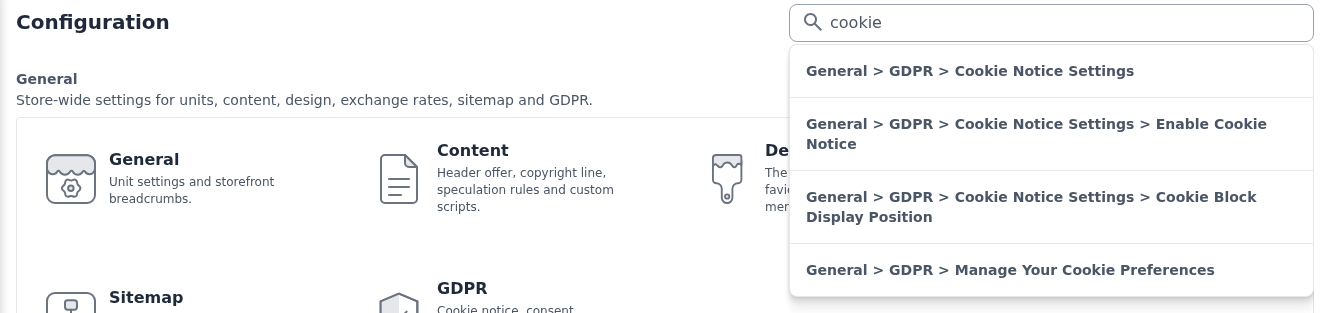
If nothing matches, the list shows No result found.
Settings per channel and per language
Some settings can differ from one channel or language to another. The badges beside a field's label tell you which:
- A field with the channel badge, such as Default, is saved for the channel you are editing.
- A field with the language badge, such as English, is saved for the language you are editing.
- A field with both badges is saved for that channel and language together.
- A field without a badge applies to the whole store.

To change the settings of another channel or language:
- Go to the configuration screen, such as Configure >> General >> GDPR.
- Choose the channel in the channel selector above the settings.
- Choose the language in the language selector beside it.
- Change the settings.
- Click Save Configuration.
The channel selector appears only when your store has more than one channel, and the language selector only when the chosen channel offers more than one language. Choosing another channel also switches to that channel's default language.
What each group covers
The groups appear on the Configuration page in this order.
| Group | Pages | What you set there |
|---|---|---|
| General | General, Content, Design, Exchange Rates, Sitemap, GDPR | The weight unit and breadcrumbs, the header offer, footer text, speculation rules and custom scripts, the admin logo and category menu, automatic exchange rates, sitemap limits and privacy consent. |
| Magic AI | Generative AI (Magic AI) | Switching generative AI on, provider API keys, and the AI features of the admin panel and the storefront. |
| Sales | Shipping Settings, Shipping Methods, Payment Methods, Checkout, Order Settings, Invoice Settings, Taxes, RMA, EU Withdrawals | Where you ship from, the shipping and payment methods, the cart and checkout, order and invoice numbers, tax calculation, returns and EU withdrawals. |
| Catalog | Products, Inventory, Rich Snippets | Product listings and pages, reviews, sharing, upload limits, price disclosure, back orders and structured data for search engines. |
| Customer | Customer Settings, Address, Google Captcha | New accounts, email verification, sign-in, social login, the wishlist and newsletter, address forms and bot protection. |
| Email Settings, Notifications | How email is sent, the sender addresses and which emails go out. | |
| Search Engines | Search Engines | Whether product search runs on the database or on Elasticsearch, and the Elasticsearch connection. |
| File Management | File Management | Where uploaded files are stored: on the server, in Amazon S3 or in Cloudflare R2. |
| Cache Management | Cache Management | Clearing and rebuilding caches, and the storefront's full page cache. |
| About | About | The versions and services your store runs on. |
Differences in Bagisto 2.4
This guide describes the Configuration screens of Bagisto 2.5. Most of them are the same in Bagisto 2.4, except for these:
- Search Engines, File Management and About are new in Bagisto 2.5, and so is the Omnibus Price Disclosure section under Catalog >> Products.
- In Bagisto 2.4, the search engine and the query length limits are set in the Search section under Configure >> Catalog >> Products. See Search Engines.
- In Bagisto 2.4, Allow customers to directly buy products is in the Storefront section under Configure >> Catalog >> Products. In Bagisto 2.5 it is in Product view page configuration.
- In Bagisto 2.4, the cart icon's Summary has its own My Cart section under Configure >> Sales >> Checkout. In Bagisto 2.5 it is in Mini Cart.
- In Bagisto 2.4, the Small Image, Medium Image and Large image sections under Configure >> Catalog >> Products set product image sizes and placeholders. Bagisto 2.5 doesn't have them. See Product Settings.
- The Full Page Cache screen under Cache Management, the PayGlocal payment method and the Driver setting under Email Settings >> Mail Driver arrived in Bagisto 2.4.10, so releases before 2.4.10 don't have them. See Cache Management and Email Settings.