
Orders
Every sale in your store is an order. The Orders screen lists them, and each order has a page where you invoice, ship, refund or cancel it. This page explains that screen, what the order page shows, and how invoices, shipments and refunds move an order from Pending to Completed or Closed.
How an order works
- A customer places an order at the storefront checkout, or you create one in the admin panel. The order starts as Pending.
- You create an invoice to bill the order. The order moves to Processing.
- You create a shipment to send the products. Products that don't need shipping, such as virtual and downloadable products, count as shipped once they're invoiced.
- When everything that wasn't canceled is invoiced and shipped, the order is Completed.
- If the customer gets money back, you create a refund.
You can invoice and ship in either order, and do each one in parts.
Customers can also ask to return items (RMA) or withdraw from a purchase (EU Withdrawal). Orders for booking products also appear in Bookings.
The Orders screen
Go to Sales >> Orders.
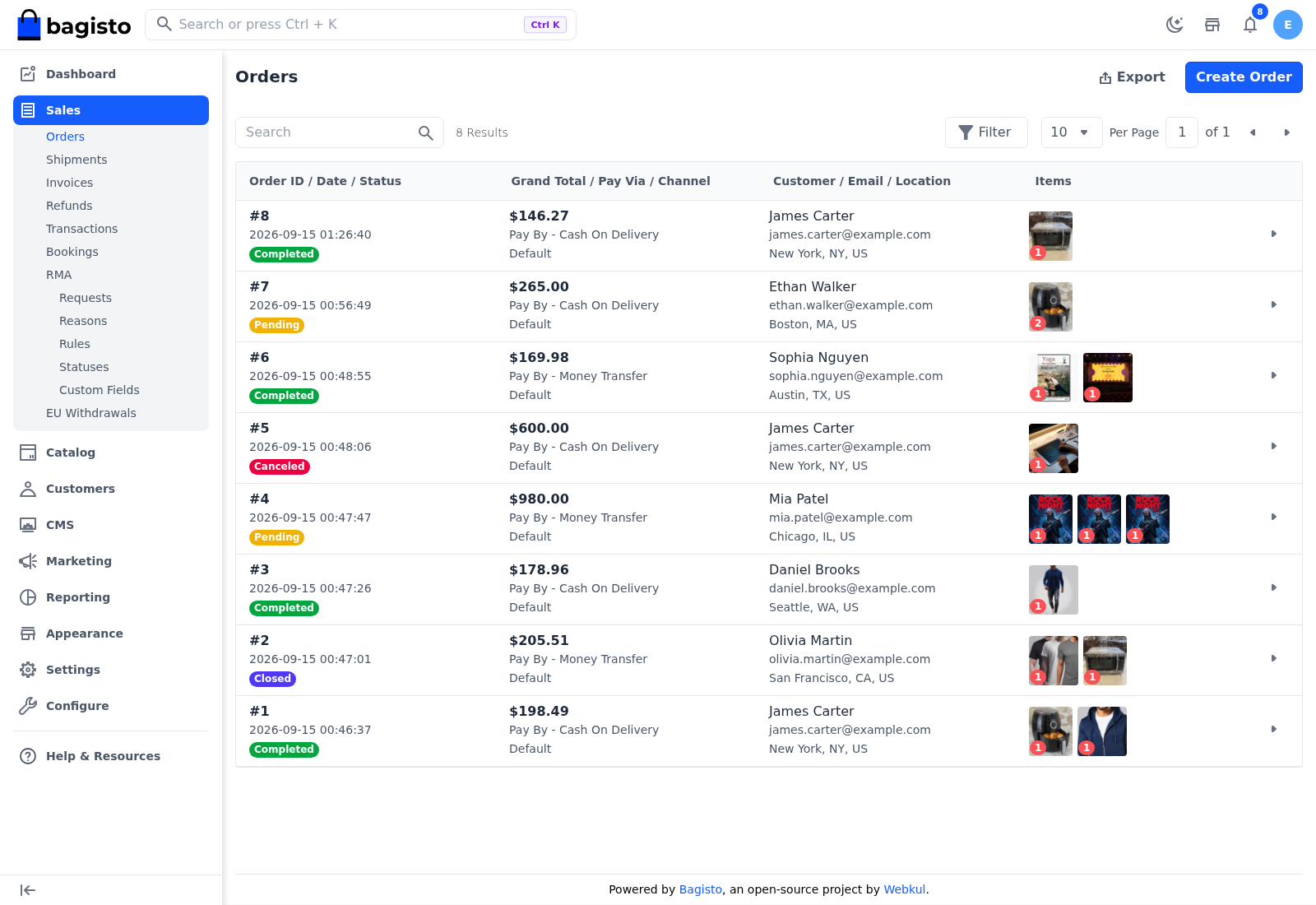
Each row shows:
- Order ID, Date and Status: the order number, when the order was placed, and its status.
- Grand Total, Pay Via and Channel: the order total in the base currency, the payment method (Pay By - Cash On Delivery, for example) and the channel it was placed on.
- Customer, Email and Location: the customer's name and email, and the city, state and country of the billing address.
- Items: pictures of up to three products with their quantities. When the order has more, a tile such as 2 + More Products is added.
Click the arrow at the end of a row to open the order.
- Sort: click Order ID, Date, Status, Grand Total, Customer or Email in the header row.
- Search: finds orders by order ID, status, customer name or email.
- Filter: narrows the list by Order ID, Status, Grand Total, Channel, Customer, Email or a Date range.
- Export: downloads the orders as a CSV, XLS or XLSX file. The Items column isn't included.
- Create Order: starts an order for a customer. See Create Order.
The order page
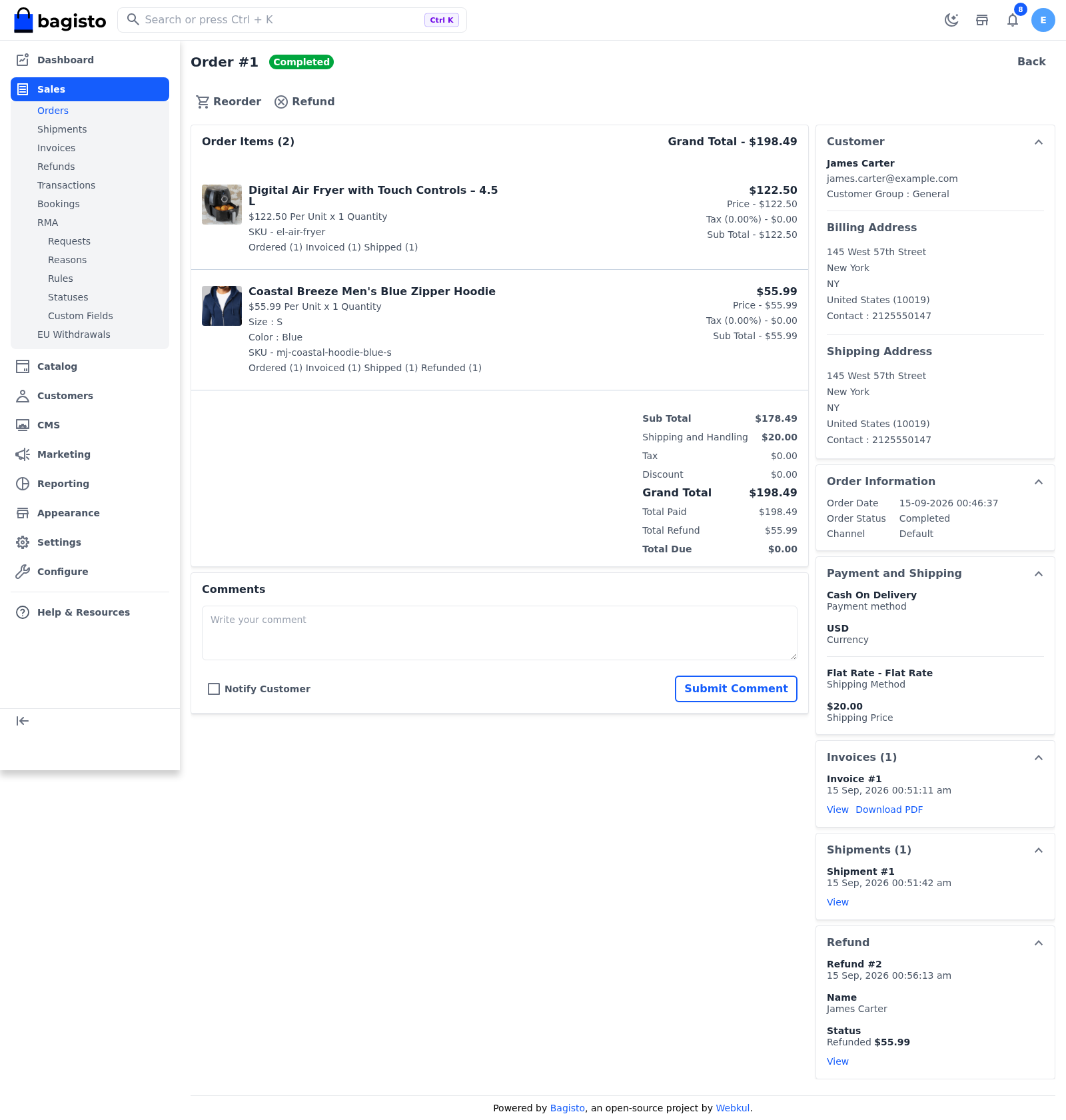
The title shows the order number, such as Order #12, with the order's status beside it. The buttons below the title are the actions the order allows right now.
If the order contains booking products that customers aren't allowed to cancel, a Non-Cancellable Booking Items notice appears. You can still cancel those items as an admin.
Order items and totals
Order Items lists each product with its price per unit and quantity, its options, its SKU, and how many units are Ordered, Invoiced, Shipped, Refunded and Canceled. On the right of each product are its Price, Tax, Discount (when the order has one) and Sub Total. Whether prices include tax follows the display settings in Taxes.
Below the products are the order totals:
| Total | What it shows |
|---|---|
| Sub Total | The products' total before shipping, tax and discount. |
| Shipping and Handling | The shipping charge. Shown only when the order has products to ship. |
| Tax | The tax on the order. |
| Discount | The discount on the order. |
| Grand Total | What the customer pays for the order. |
| Total Paid | The amount invoiced so far. |
| Total Refund | The amount refunded so far. |
| Total Due | The grand total minus the amount invoiced. A canceled order shows 0. |
Comments
Use Comments to keep notes on the order, or to send the customer a message.
- Go to Sales >> Orders.
- Open the order.
- In Comments, write your comment.
- To email the comment to the customer, tick Notify Customer.
- Click Submit Comment.
The comment is listed under the form with its date and Customer Notified or Customer Not Notified. Comments can't be edited or deleted.
Customer, payment and documents
The cards on the right show:
- Customer: the customer's name, email and Customer Group, and the Billing Address and Shipping Address. A guest order shows the guest customer group.
- Order Information: the Order Date, Order Status and Channel.
- Payment and Shipping: the payment method, the Currency of the order, and any details the payment method adds. For an order with a shipping address, it also shows the Shipping Method and Shipping Price.
- Invoices: each invoice with its date, a View link and a Download PDF link, or No Invoice Found.
- Shipments: each shipment with its date and a View link, or No Shipments Found.
- Refund: each refund with its date, the customer's name, the amount refunded and a View link, or No Refund Found.
Payments recorded against the order's invoices are listed in Transactions, not on the order page.
Actions on an order
Each button appears only when the order allows the action and your role has the permission for it. Invoice, Ship, Refund and Cancel aren't available on a Closed or Fraud order. Reorder can still appear, so you can place the order again.
| Action | When it appears | What it does |
|---|---|---|
| Reorder | The order belongs to a registered customer, its products can still be sold, and Admin Reorder is on in Order Settings. | Opens Create Order for the same customer with the same products in the cart. Booking products are left out, because they need a new date or slot. |
| Invoice | Some quantity isn't invoiced or canceled yet, and the order wasn't paid with PayPal Standard. | Opens New Invoice. See Create Invoice. |
| Ship | Some quantity of a product that needs shipping isn't shipped, refunded or canceled yet. | Opens Create new Shipment. See Create Shipment. |
| Refund | Some invoiced quantity or amount isn't refunded yet. | Opens Create Refund. See Create Refund. |
| Cancel | Some quantity isn't invoiced or canceled yet. | Cancels everything that isn't invoiced. |
To print or download an invoice, click Download PDF in the Invoices card, or open the invoice and click Print.
Cancel an order
- Go to Sales >> Orders.
- Open the order.
- Click Cancel.
- Click Agree.
Only the quantities that aren't invoiced are canceled. Their stock becomes available for sale again, and links for downloadable products expire. If nothing was invoiced, the order becomes Canceled. If part of it was invoiced, the order stays open for that part, and its status is worked out again.
A cancellation can't be undone. The customer is emailed if the cancellation email is on in Notifications.
Customers can also cancel an order from their account on the storefront while part of it isn't invoiced. Booking products that don't allow cancellation stay on the order, and an order with only those products can't be canceled by the customer.
Order statuses
| Status | What it means |
|---|---|
| Pending | The order has been placed and nothing is invoiced, shipped or canceled yet. |
| Pending Payment | The order is waiting for payment. It's set when you ship an order whose invoice is still Pending, or by the payment method's Set the order status after creating the invoice to setting when the invoice is created automatically. |
| Processing | Part of the order is invoiced, shipped, refunded or canceled, but the order isn't complete. |
| Completed | Everything that wasn't canceled or refunded is invoiced and shipped. A completed order stays Completed after a partial refund. |
| Canceled | Every quantity in the order is canceled. |
| Closed | Every quantity is refunded or canceled, with at least some of it refunded. |
| Fraud | The order has been marked as fraud. No screen in the admin panel sets this status; a payment or fraud-check extension can. |
How invoices, shipments and refunds change the status
Bagisto works out the status again each time you invoice, ship, refund or cancel. It counts every unit of every product in the order.
| What happens | Status afterwards |
|---|---|
| The order is placed. | Pending |
| You invoice part of the order, or all of it with nothing shipped yet. | Processing |
| You invoice all of an order that has no products to ship. | Completed |
| You ship part or all of the order. | Processing or Completed, or Pending Payment if an invoice is still Pending |
| Everything that wasn't canceled or refunded is invoiced and shipped, and no invoice is Pending. | Completed |
| You refund part of the order. | Usually stays Processing or Completed. If you refund everything that hasn't shipped and the rest is shipped, the order becomes Completed. |
| The payments you record for a Pending invoice in Transactions reach its total. | Processing, or Completed once the order has a shipment. Check the order's status afterwards, especially when only part of it is shipped. |
| Everything is refunded, or refunded and canceled. | Closed |
| You cancel an order before anything is invoiced. | Canceled |
| You cancel an order after invoicing part of it. | The invoiced part carries on: Processing, Completed or Closed |
What can't be undone
- Invoices, shipments, refunds and cancellations can't be edited or deleted once they're created. You can only change an invoice's status.
- A shipment takes the stock from the inventory source you ship from.
- A cancellation or refund can't be reversed. To bill the customer again, create a new order.
Emails
Whether the customer, the admin or the inventory source is emailed when an order is placed, invoiced, shipped, refunded or canceled is set in Notifications.
Permissions
A role needs these permissions under Sales to work with orders:
- Orders, with View, Create and Cancel.
- Invoices, with View, Create and Edit.
- Shipments, with View and Create.
- Refunds, with View and Create.
- Transactions, with View.