
Dashboard
The dashboard is the first page you see after you sign in. It sums up your store's sales, orders and customers for a period, lists today's orders, shows the products with the least stock, and ranks your best-selling products and customers.
To come back to it, click Dashboard in the sidebar or the logo in the header.
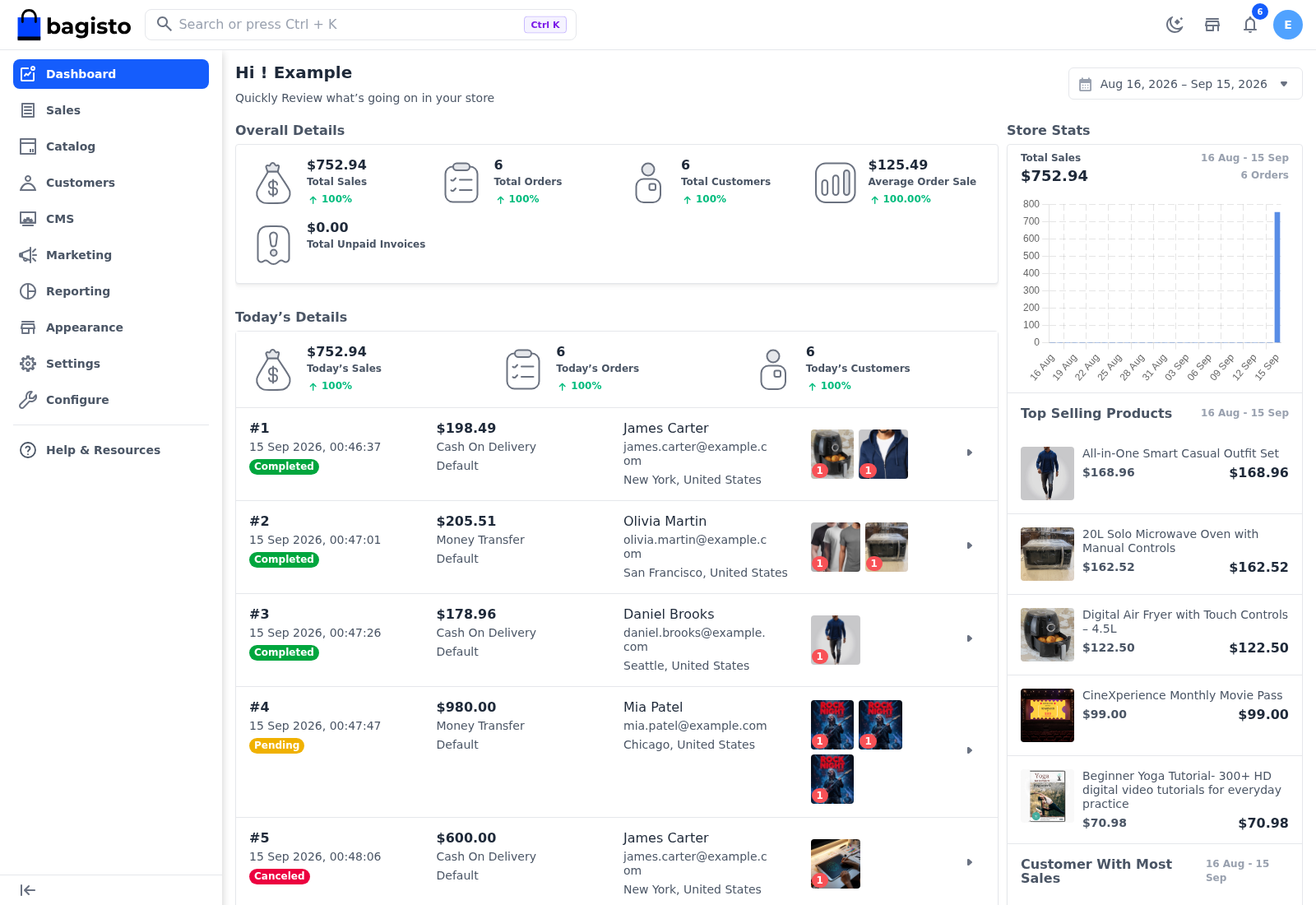
The page opens with a greeting that uses your name.
On a new store, most figures are 0 until the first orders are placed. Stock Threshold shows There is no product available until products have stock entered, Top Selling Products shows Add related products on the go. until an order in the period is invoiced, and Customer With Most Sales shows No Customer Found With Most Sales until the period has an order.
Choose the period and channel
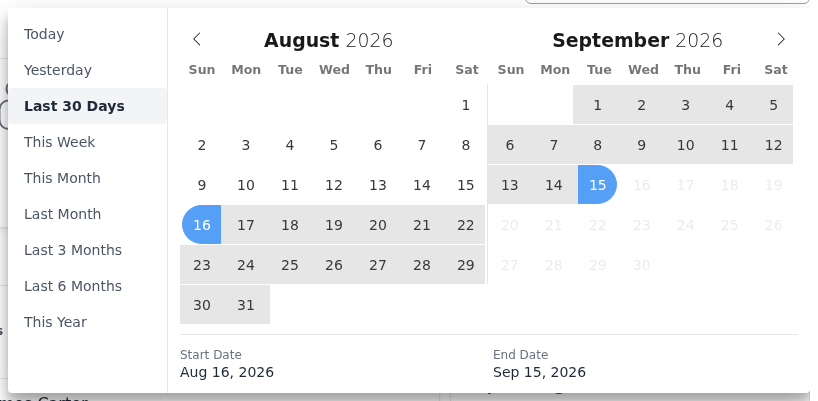
The dashboard opens on the last 30 days. To look at another period:
Click the date range at the top right.
Choose a preset, such as Today, This Week, Last 30 Days or This Year, or click the first and last day of the period on the calendar. Start Date and End Date under the calendar show your choice. You can't pick a day in the future.
If your store has more than one channel, choose a channel in the list beside the date range, or All Channels.
Every card reloads. The channel applies to every card except Total Unpaid Invoices. The period doesn't change Today’s Details or Stock Threshold.
How the figures are counted
- Sales are what has been invoiced minus what has been refunded, in your store's base currency. They're counted on the day the order was placed, even when it was invoiced later. An order that hasn't been invoiced yet counts as an order but adds nothing to sales.
- Orders are all orders placed in the period, whatever their status, including canceled ones.
- The percentage under a figure compares it with the same number of days before the period starts. For example, with Last 30 Days selected, it compares with the 30 days before that. A green arrow means the figure went up, a red arrow that it went down.
- With Today or Yesterday selected, the percentage isn't a useful comparison. To compare today with yesterday, use Today’s Details.
Overall Details
| Figure | What it shows |
|---|---|
| Total Sales | Sales in the period. |
| Total Orders | Orders placed in the period. |
| Total Customers | Customers who created an account in the period. |
| Average Order Sale | The average sale per order in the period. Orders that aren't invoiced yet count as 0. |
| Total Unpaid Invoices | The total of invoices in the Pending state, for all channels and dates. It has no percentage. |
To follow up on unpaid invoices, see Create Invoice.
Today’s Details
Today’s Sales, Today’s Orders and Today’s Customers show today's figures so far, compared with the whole of yesterday.
Below them, every order placed today is listed with the date and time it was placed, its status, total, payment method and channel, the customer's name and email, the billing city and country, and pictures of up to three items with a tile counting the rest. Click the arrow on an order to open it.
Stock Threshold
Stock Threshold lists the five products with the least stock, lowest first, with each product's picture, name, SKU, price and quantity. Stock is counted per inventory source, so a product kept at two sources can appear twice.
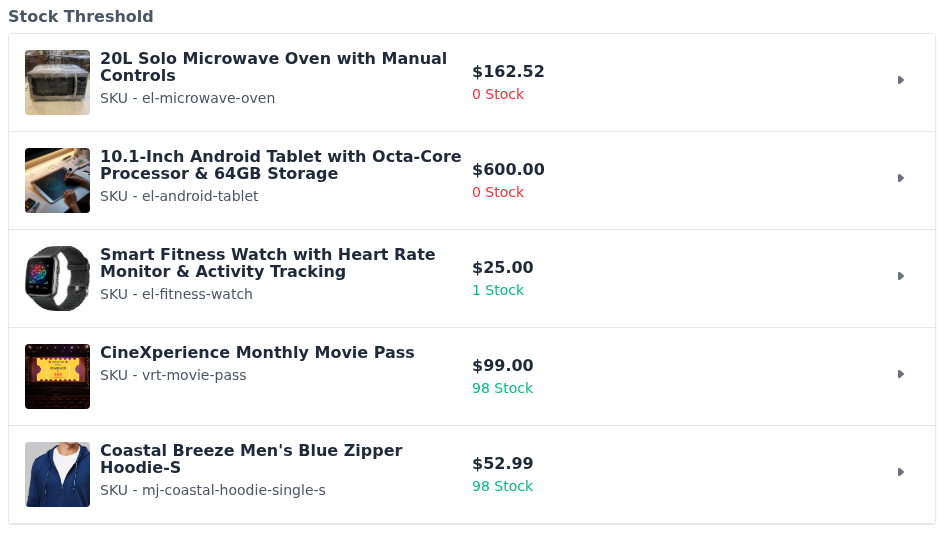
The quantity is green when it's above the Out-of-Stock Threshold set under Configure >> Catalog >> Inventory, and red when it's at or below it. Click the arrow on a product to edit it and add stock.
Store Stats
The right-hand Store Stats card has three sections, each showing the period it covers.
- Total Sales: your sales and number of orders, with a graph of sales over the period. The graph shows a bar per day, per week for longer periods, and per month for periods longer than five months.
- Top Selling Products: the five products with the most sales in the period, with the price each sold at and its sales: the item totals invoiced minus refunded, before discounts and without tax or shipping. Click a product to edit it.
- Customer With Most Sales: the five customers with the most sales in the period, with their name, email address, total sales and number of orders. Guest shoppers are included. A customer whose orders aren't invoiced yet is listed with a total of 0. Click a registered customer to open their account.
Who can see the dashboard
The dashboard needs the Dashboard permission in the user's role. A user whose role doesn't have it goes straight to the first page their role allows when they sign in, and Dashboard isn't shown in their sidebar.
For more detailed figures, such as sales by payment method or customers by group, see Reporting.