
Bookings
The Bookings screen shows every booking customers have made for booking products, such as appointments, event tickets, rentals and table reservations. You can see them on a weekly calendar or in a list. A booking is added when an order with a booking product is placed. To set up booking products, see Booking products.
Go to Sales >> Bookings. The screen opens in the calendar. Use the two buttons at the top right to switch between the calendar (the calendar icon) and the list (the list icon).
Calendar
The calendar shows one week at a time. Use the arrows beside the week's title to move to the previous or next week. A line marks the current time.
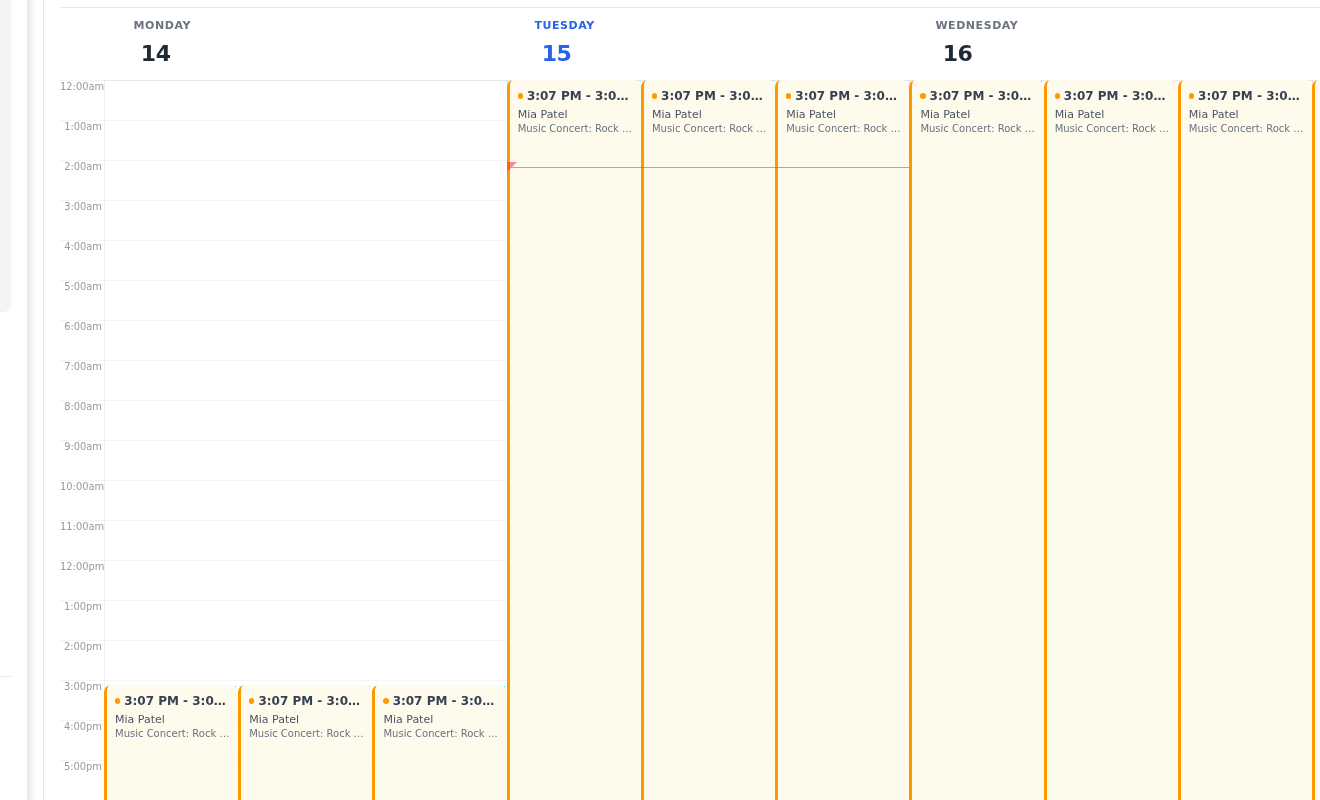
Each booking is a block from its start time to its end time. A booking longer than an hour also shows the customer's name and the product. The color shows the status of the booking's order:
| Color | Order status |
|---|---|
| Amber | Pending |
| Blue | Closed |
| Red | Canceled |
| Green | Completed and every other status |
See a booking's details
Go to Sales >> Bookings.
Click a booking on the calendar. The Booking Details window opens.
To open the order, click View Details.
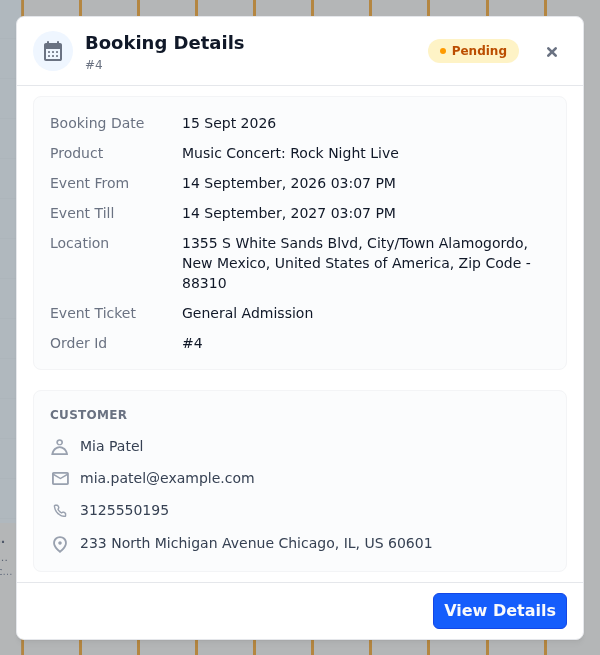
The window shows the order number and its status, such as Pending or Done, and:
- Booking Date: the date the booking was made.
- Product: the booked product, followed by the options the customer chose, such as the date, slot or ticket.
- Order Id: the order number.
- The customer's name, email, phone number and address.
List
The list shows each booking with its ID, Order ID, QTY, From, To and Created Date.
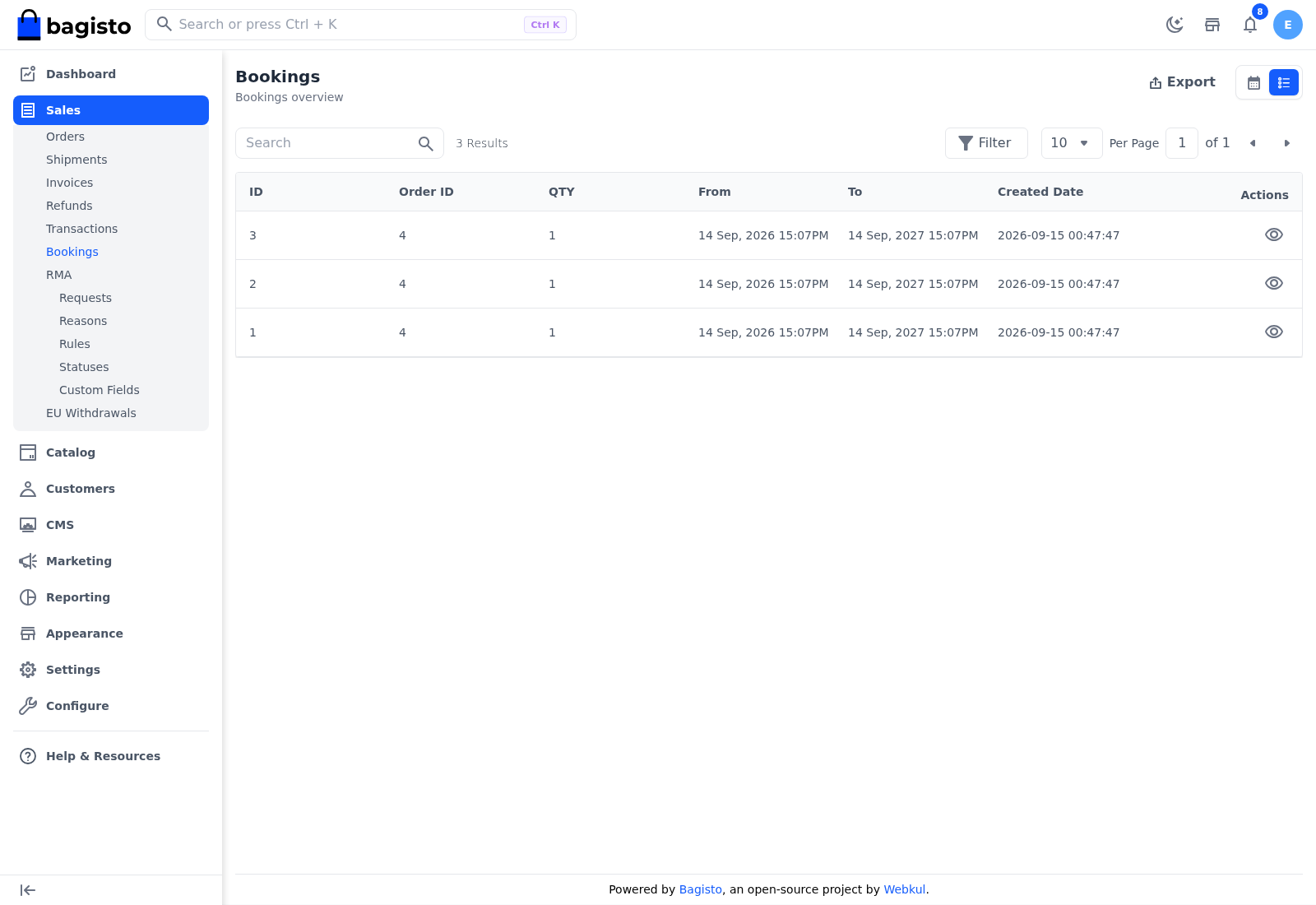
- From and To are the start and end of the booked slot. For a booking by day, such as a daily rental, they're the start of the first day and the end of the last day.
- QTY is the quantity ordered.
- Created Date is when the order was placed.
In the list you can:
- Search: find bookings by order ID, quantity or dates.
- Filter: narrow the list by any column, with date and time ranges for From, To and Created Date.
- Export: download the bookings as a CSV, XLS or XLSX file. Export is shown only in the list.
- View: open the booking's order.
Canceled and refunded bookings
Canceling or refunding an order doesn't remove its booking. The booking stays on the calendar and in the list, and its color on the calendar follows the order's status. To cancel or refund a booking, work on its order in Orders.
Permissions
A role needs the Bookings permission under Sales to open this screen.