
File Management
Uploaded files, such as product images, category banners and the logos in your settings, are stored on the server by default. If your store runs on more than one server, or you would rather keep files in object storage, you can store them in Amazon S3 or Cloudflare R2 instead. The File Management group has three screens, and every setting on them applies to the whole store.
General
- Go to Configure >> File Management >> General.
- In Settings, choose the Default Storage Driver.
- Click Save Configuration.
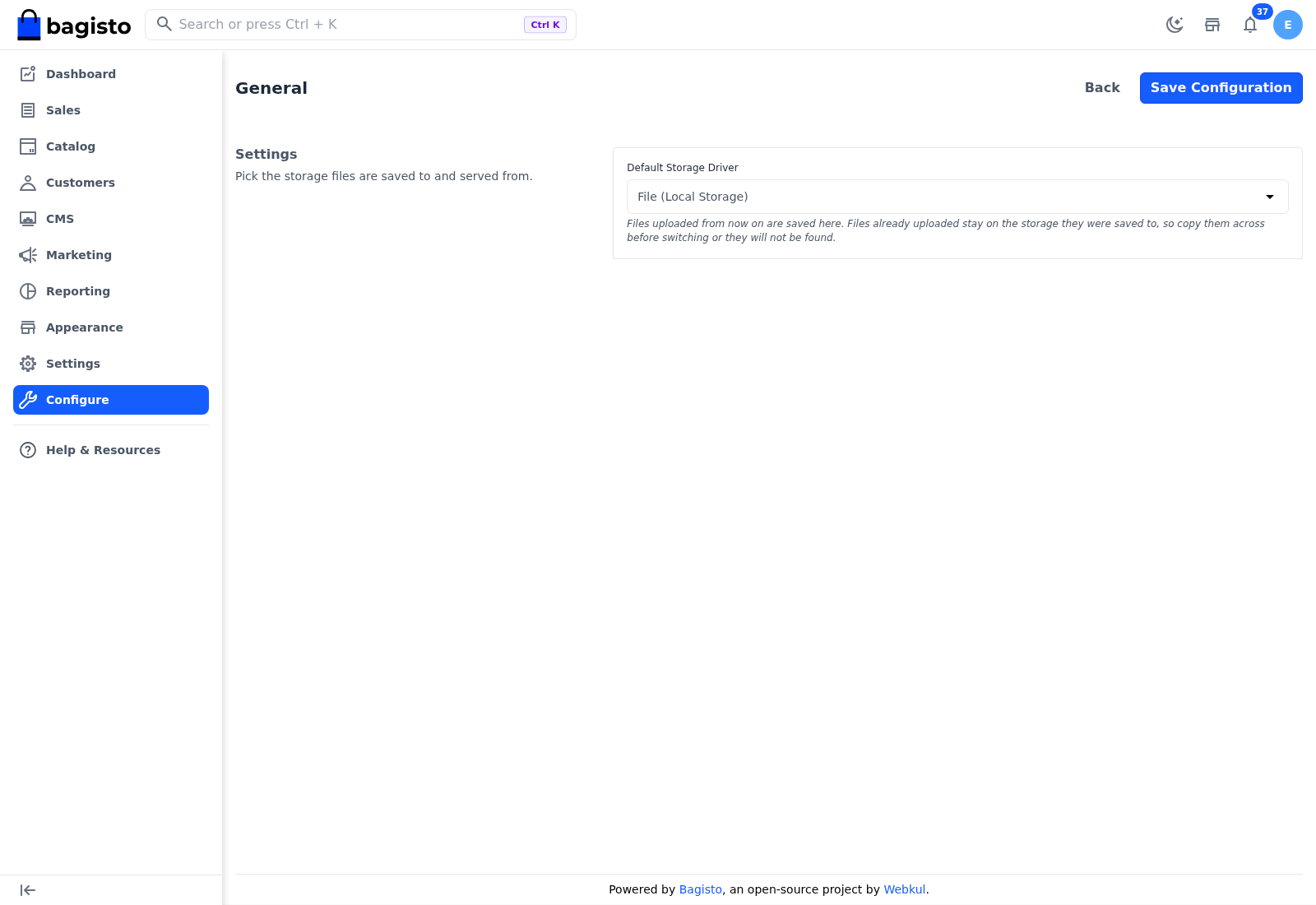
Default Storage Driver: Where files uploaded from now on are saved and served from:
- File (Local Storage) – the server's own disk. This is the default.
- Amazon S3 – an Amazon S3 bucket, or a bucket in any service that works with the S3 API. Set it up on the Amazon S3 screen first.
- Cloudflare R2 – a Cloudflare R2 bucket. Set it up on the Cloudflare R2 screen first.
The Storage card on the About screen shows which driver is in use.
Files already uploaded do not move
Switching the driver changes where new uploads go. Files uploaded earlier stay where they were saved, but the store looks for them on the new storage, so copy them across before you switch, or they won't be found on the storefront.
Amazon S3
- Go to Configure >> File Management >> Amazon S3.
- In Settings, enter the details described in the table.
- Click Save Configuration.
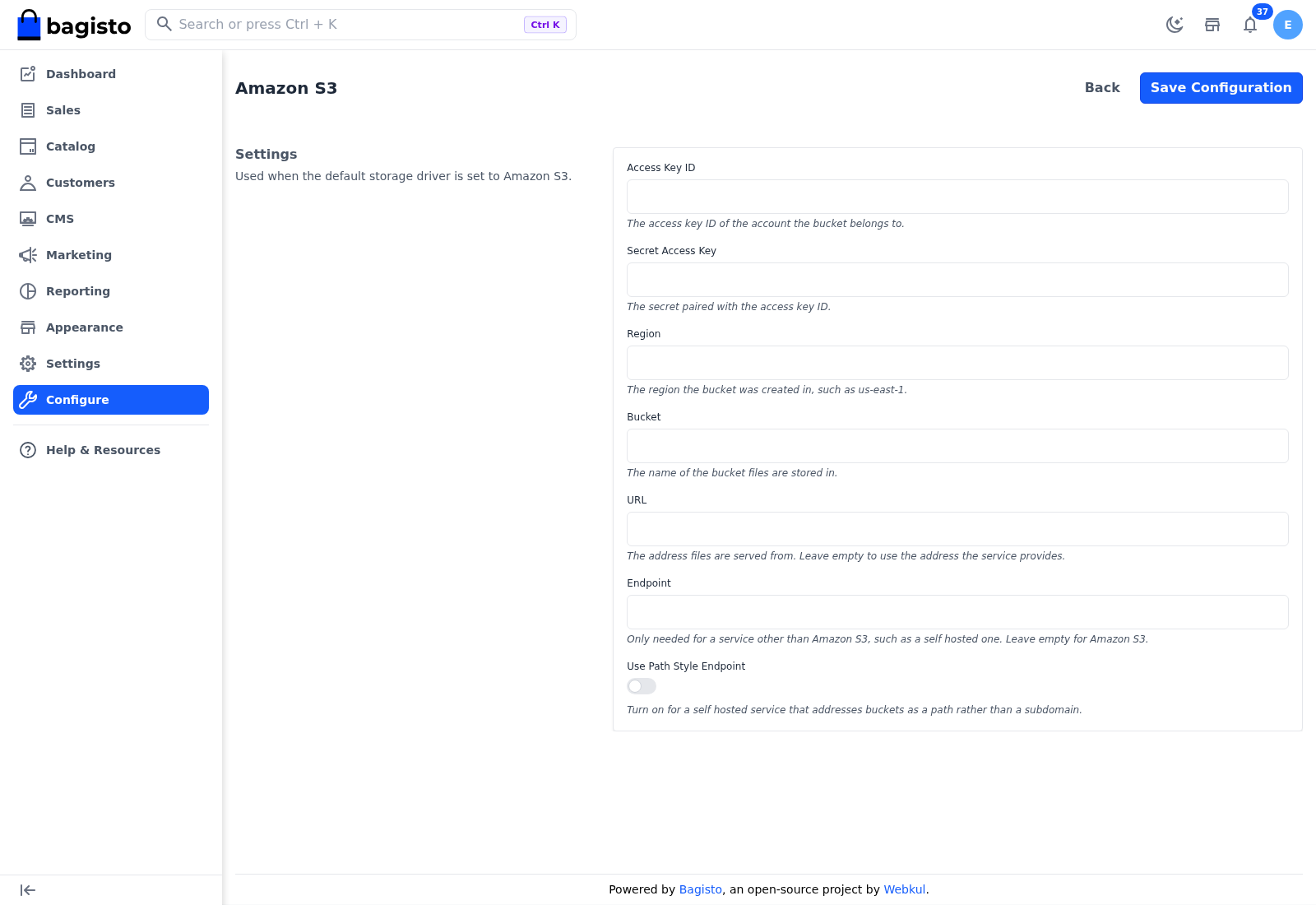
| Setting | What it does |
|---|---|
| Access Key ID | The access key ID of the account the bucket belongs to. |
| Secret Access Key | The secret paired with the access key ID. |
| Region | The region the bucket was created in, such as us-east-1. |
| Bucket | The name of the bucket files are stored in. |
| URL | The address files are served from. Leave it empty to use the address the service provides. |
| Endpoint | Only needed for a service other than Amazon S3, such as a self-hosted one. Leave it empty for Amazon S3. |
| Use Path Style Endpoint | Turn it on for a self-hosted service that addresses buckets as a path rather than a subdomain. Off by default. |
These settings are used only while the Default Storage Driver is Amazon S3. A field left empty uses the value from the server's environment file, if there is one.
Cloudflare R2
- Go to Configure >> File Management >> Cloudflare R2.
- In Settings, enter the details described in the table.
- Click Save Configuration.
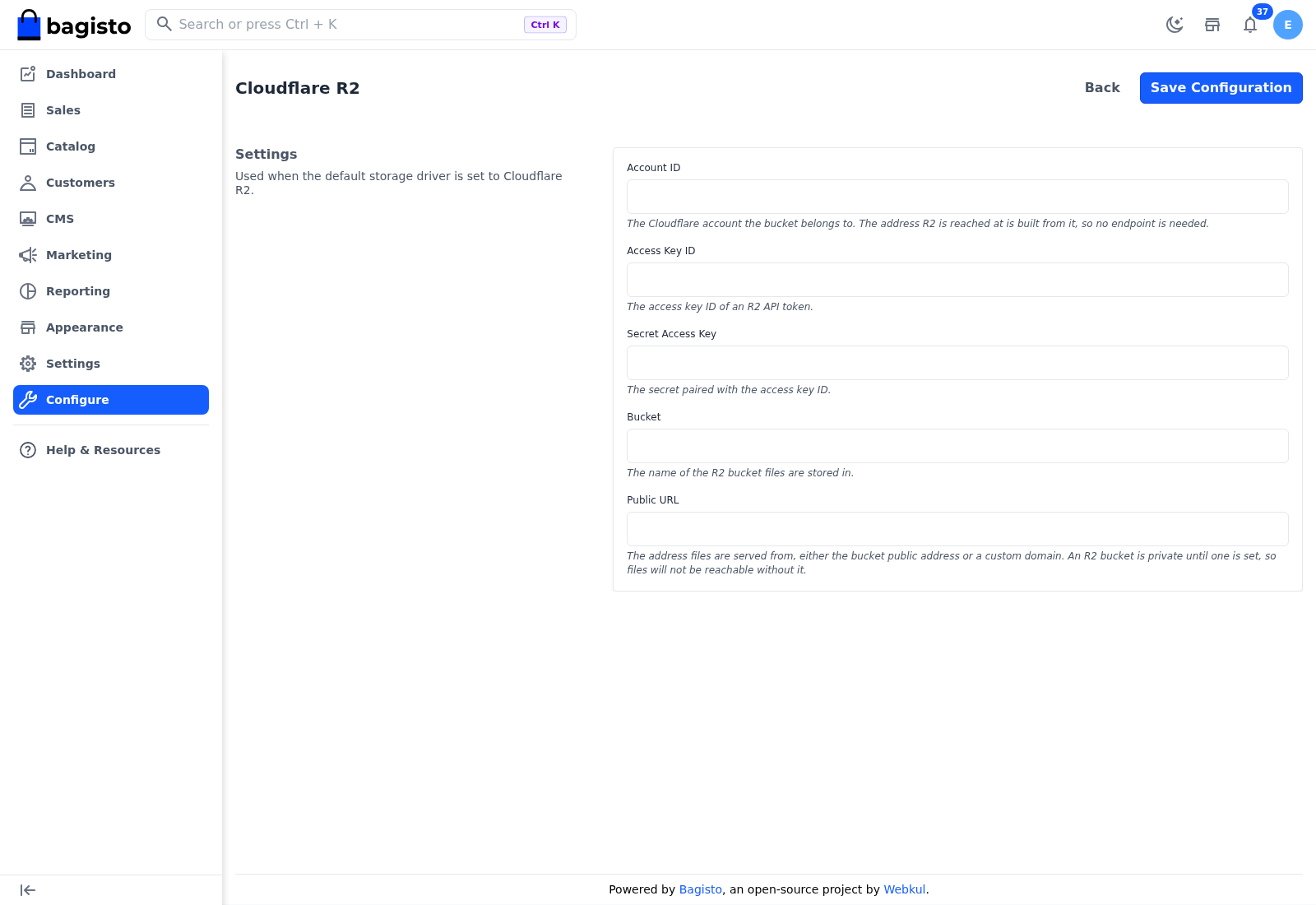
| Setting | What it does |
|---|---|
| Account ID | The Cloudflare account the bucket belongs to. The address of R2 is built from it, so no endpoint is needed. |
| Access Key ID | The access key ID of an R2 API token. |
| Secret Access Key | The secret paired with the access key ID. |
| Bucket | The name of the R2 bucket files are stored in. |
| Public URL | The address files are served from, either the bucket's public address or a custom domain. An R2 bucket is private until you turn on public access or connect a custom domain in Cloudflare. Enter that address here, or files can't be reached. |
These settings are used only while the Default Storage Driver is Cloudflare R2. A field left empty uses the value from the server's environment file, if there is one.
Differences in Bagisto 2.4
Bagisto 2.4 has no File Management group.