
GDPR Data Requests
Under the GDPR (General Data Protection Regulation), customers can ask you to correct or delete the personal data you hold about them. Bagisto lets customers send these requests from their account and download a copy of their data. You see the requests under Customers >> GDPR Data Requests, and the customer receives an email when you change a request's status. The change to the customer's data is made by you.
Before you start
Customers see GDPR Requests in their account only while Enable GDPR is on for the channel and language they're browsing. See GDPR. The list in the admin panel is always available.
What customers do on the storefront
Signed-in customers open GDPR Requests in My Account. The GDPR Data Requests page lists their requests with the ID, Type, Date, Message and Status.
Download their data
- PDF downloads a PDF with their account information, addresses and orders.
- HTML opens the same information in the browser.
Send a request
- Go to My Account >> GDPR Requests.
- Click Create Request. The Create New Request dialog opens.
- Choose the Type: Update to have their data corrected, or Delete to have it deleted.
- Write the Message, saying what should change. It can be up to 500 characters long.
- Click Save.
The request is listed as Pending. The customer receives an email about the request, and so does the admin email address set in Email Settings.
Revoke a request
While a request is Pending, the customer can click Revoke on its row to withdraw it. Its status changes to Revoked, and the customer and the admin receive an email. Revoke is greyed out on any request that isn't Pending.
Handle requests in the admin panel
Go to Customers >> GDPR Data Requests.
The list shows each request's ID, Customer Name, Status, Type, Message and Created At. Type reads Delete for a delete request and Edit for an update request.
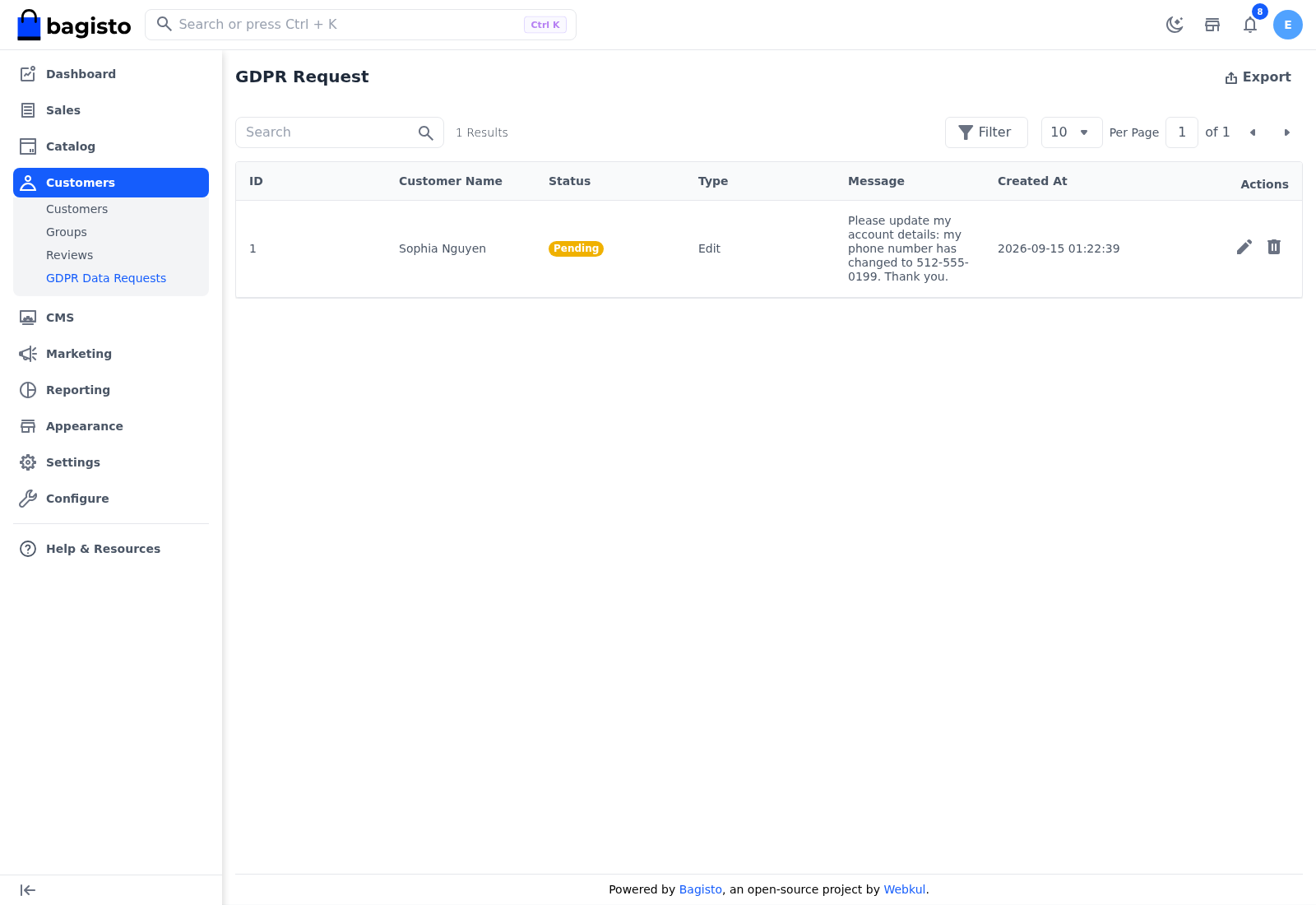
- Search: type in the search box to find requests by ID, customer name, status, type or message.
- Filter: click Filter and filter by ID, Customer Name, Status, Type or Created At.
- Export: click Export to download the list as CSV, XLS or XLSX.
- Edit (the pencil) and Delete (the bin) are at the end of each row.
Statuses
| Status | Use it when |
|---|---|
| Pending | The request is new. Customers can revoke a request only while it's pending. |
| Processing | You're working on the request. |
| Completed | You've made the change the customer asked for. |
| Declined | You won't make the change, for example because you must keep order records by law. |
| Revoked | The customer withdrew the request. |
Update a request
Go to Customers >> GDPR Data Requests.
Click the pencil on the request's row. The Edit GDPR Data Request dialog opens.
Choose the Status.
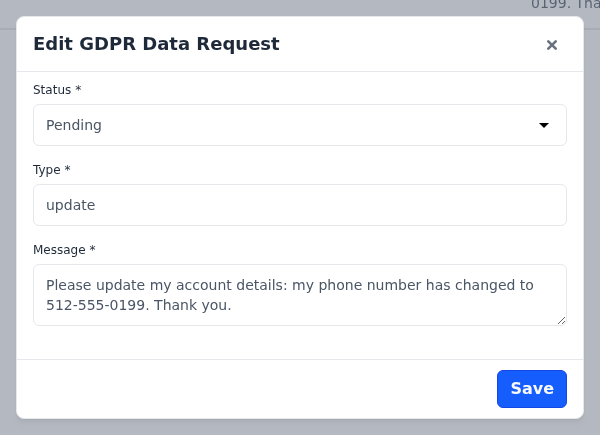
Click Save. The customer receives an email with the new status.
The dialog also shows the request's Type, which you can't change, and the Message. Leave the message as it is, because it holds the customer's request.
A status doesn't change the data
Changing a request's status doesn't update or delete anything. Make the change yourself on the customer's page under Customers >> Customers:
- An update request: correct the details with Edit on the Customer card, or edit the addresses. Then set the request to Completed. See Edit customer details.
- A delete request: set the request to Completed first, and wait until the customer has received the email. Then click Delete Account. Deleting the account also deletes the customer's GDPR requests, and their orders stay under Sales >> Orders. See Delete the account.
Delete a request
- Go to Customers >> GDPR Data Requests.
- Click the bin on the request's row.
- Click Agree to confirm.
This removes the request from the list. It doesn't change the customer's account.