
Booking Product
A booking product sells time or a place instead of an item: an appointment, a ticket to an event, a rental or a restaurant table. Shoppers pick a date and a slot, or tickets, on the product page, and the booking is placed with their order.
This page covers what's specific to booking products. For the sections every product shares, see Products.
Create a booking product
Create the product as described in Create a product, choosing Booking as the Type.
On the edit screen, the booking section comes after Videos and starts with Booking Type. The settings below it depend on the type you choose.
How it differs from other products
- No Shipping or Inventories section. Each booking type sets its own capacity instead, such as a quantity per slot or per ticket.
- No Guest Checkout or RMA settings. Shoppers sign in to book.
- The Price section stays. How the price is used depends on the type; see What shoppers pay.
Settings every booking has
| Setting | What it does |
|---|---|
| Booking Type | Default Booking, Appointment Booking, Event Booking, Rental Booking or Table Booking. |
| Location | The address shoppers see, with a View on Map link. It's required. |
| Qty | For default, appointment and rental bookings: how many bookings each slot can take. For a rental, that's how many units can be rented at the same time. |
| Available Every Week | For appointment, rental and table bookings. Yes takes bookings every week with no end date. No shows Available From and Available To. |
| Available From and Available To | The first and last day bookings can be made for. For an event, the date and time it starts and ends. Once Available To has passed, the product can't be booked. |
| Allow Booking Cancellation | Yes lets shoppers cancel it by cancelling the order from their account, while the order can still be cancelled. No shows a Cancellation Not Allowed notice on the product page. The choice is kept with each order, so changing it later doesn't affect bookings already placed. |
Choose the type before you first save
Once the product is saved with a booking type, Booking Type is locked and can't be changed.
Table bookings use Guest Capacity instead of Qty, and event bookings set a Quantity on each ticket.
Default booking
Use a default booking for something booked in slots you define, such as a banquet hall. Booking Information decides how the slots work:
- One Booking For Many Days: each slot runs from a start day and time to an end day and time, such as Friday 18:00 to Sunday 11:00, and is booked as a whole. Allow Overlapping Time Slots decides whether these slots may overlap.
- Many Bookings For One Days: each day has one opening window, split into slots of Slot Duration (Mins) with Break Time b/w Slots (Mins) between them.
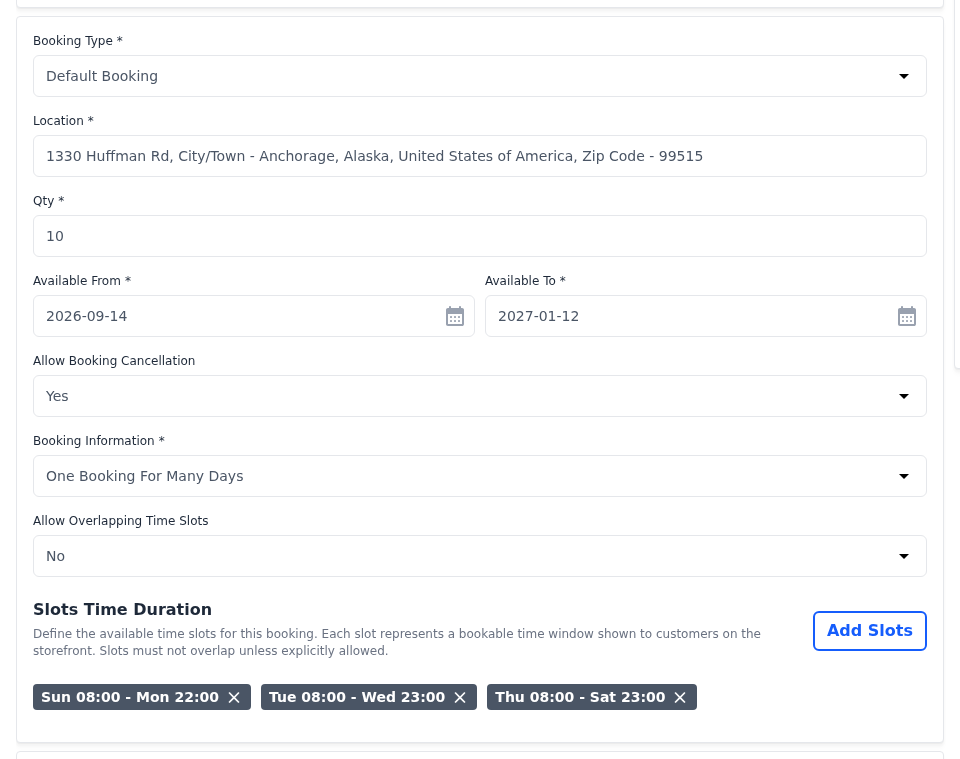
Add slots that span days
For One Booking For Many Days:
- In Slots Time Duration, click Add Slots. The Add Slots panel opens.
- Choose the From Day and enter the From Time.
- Choose the To Day and enter the To Time.
- Click Save. The slot appears as a label, such as Fri 18:00 - Sun 11:00.
- Click Save Product.
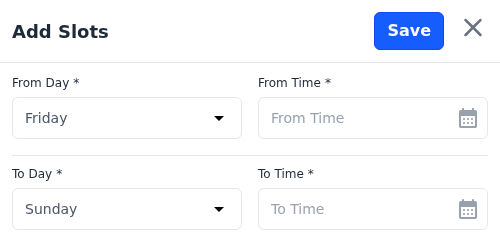
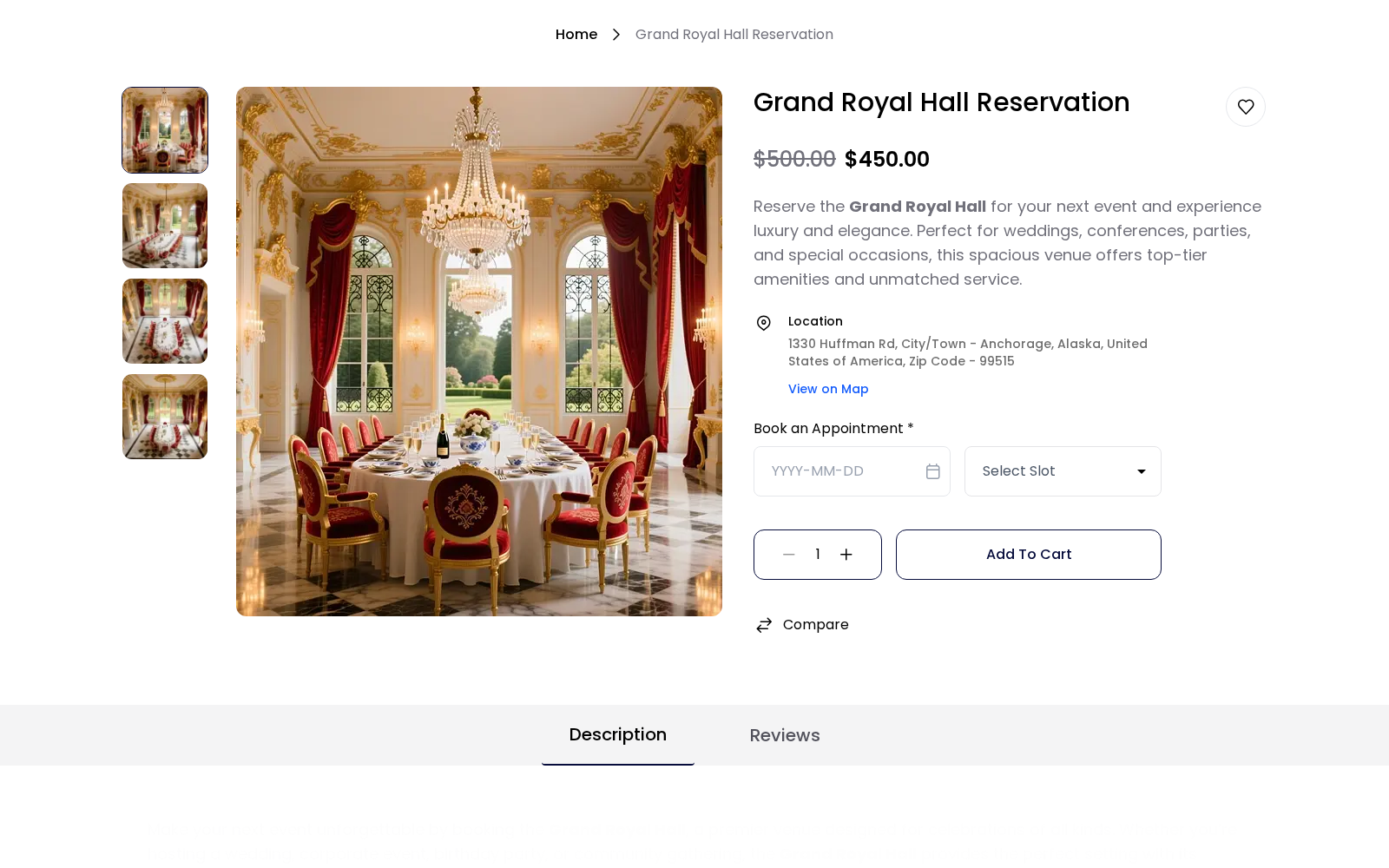
To remove a slot, click the × on its label. On the storefront, shoppers choose a date that falls on a slot's start day, then the slot.
Set daily opening hours
For Many Bookings For One Days, Slots Time Duration lists the days of the week, each with its window or Unavailable.
- Click Add next to a day. Once the day has a window, the link reads Edit.
- Enter the From and To time.
- Set the Status to Open.
- Click Save.
- Repeat for each day you're open.
- Click Save Product.
Each day holds one window; saving the day again replaces it. Save only windows with Status set to Open, and leave the days you're closed without a window. On the storefront, shoppers see the Slot Duration and choose a date and a slot.
Appointment booking
Use an appointment booking for services booked in time slots, such as consultations.
| Setting | What it does |
|---|---|
| Slot Duration (Mins) | The length of each appointment. |
| Break Time b/w Slots (Mins) | The gap between appointments. |
| Same Slot For All days | Yes uses the same opening hours every day. No lets you set hours for each day. |
| Allow Overlapping Time Slots | Whether your opening-hour windows may overlap. |
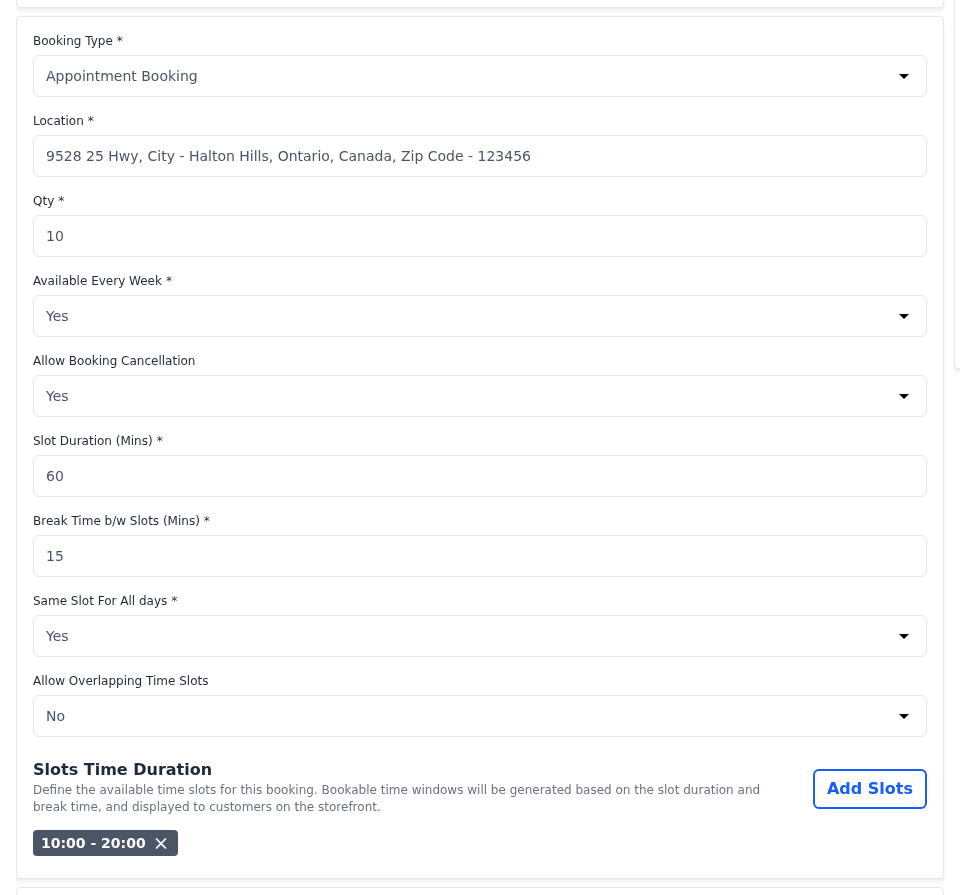
Set the opening hours
Appointment, rental and table bookings share the same hours editor.
- In Slots Time Duration, click Add Slots. When Same Slot For All days is No, click Add next to the day instead.
- Enter the From and To time of a window.
- To add another window, click Add Slots in the panel.
- Click Save.
- Click Save Product.
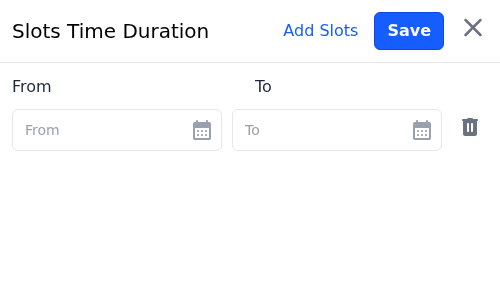
Each window must be at least as long as one slot. Bagisto splits every window into bookable slots of Slot Duration (Mins), with the break time between them. For example, a window from 10:00 to 20:00 with 60-minute slots and a 15-minute break gives slots starting at 10:00, 11:15, 12:30 and so on.
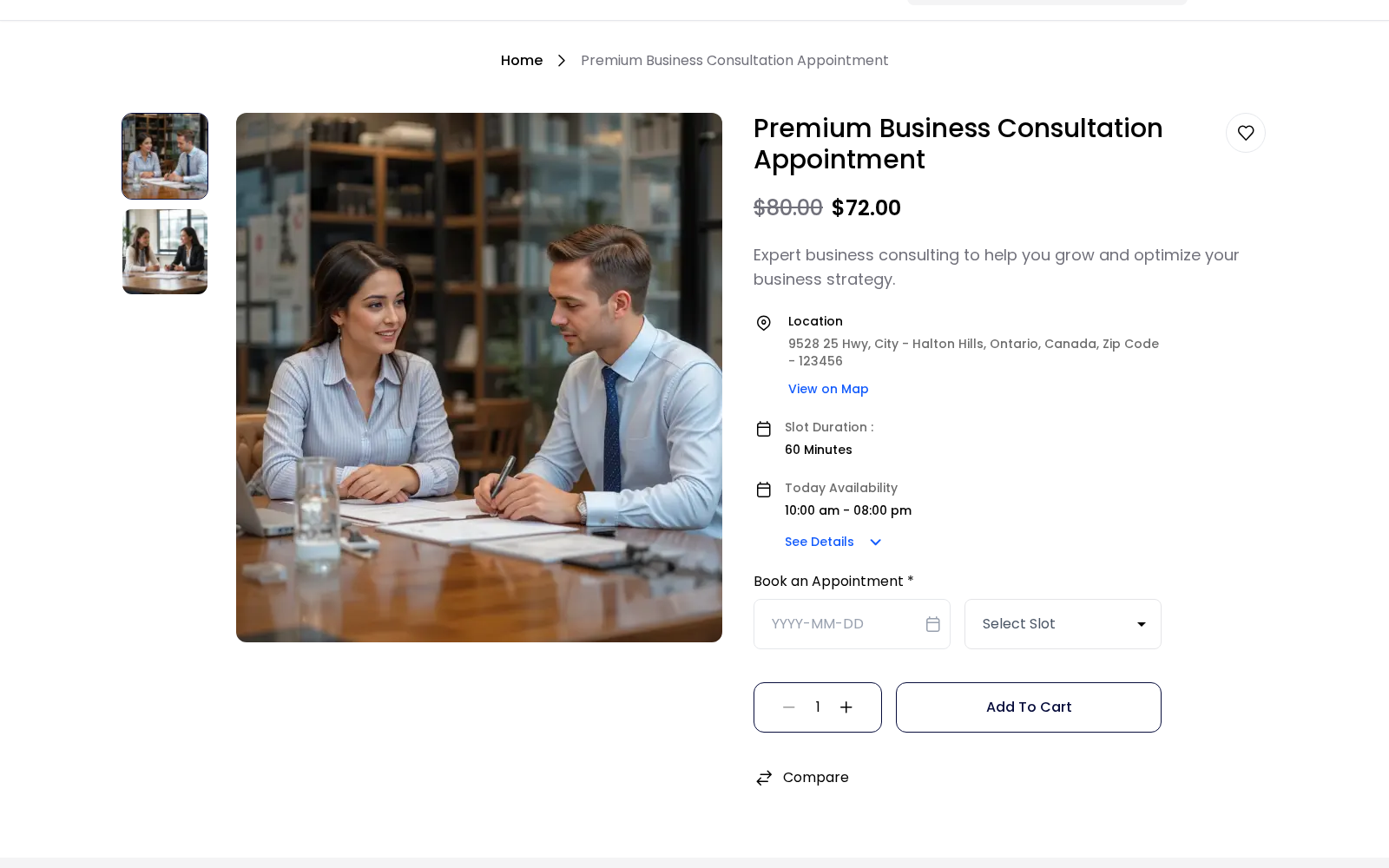
On the storefront, shoppers see the Slot Duration. When Available Every Week is Yes, they also see Today Availability and See Details for the rest of the week. They then choose a date and a slot under Book an Appointment.
Event booking
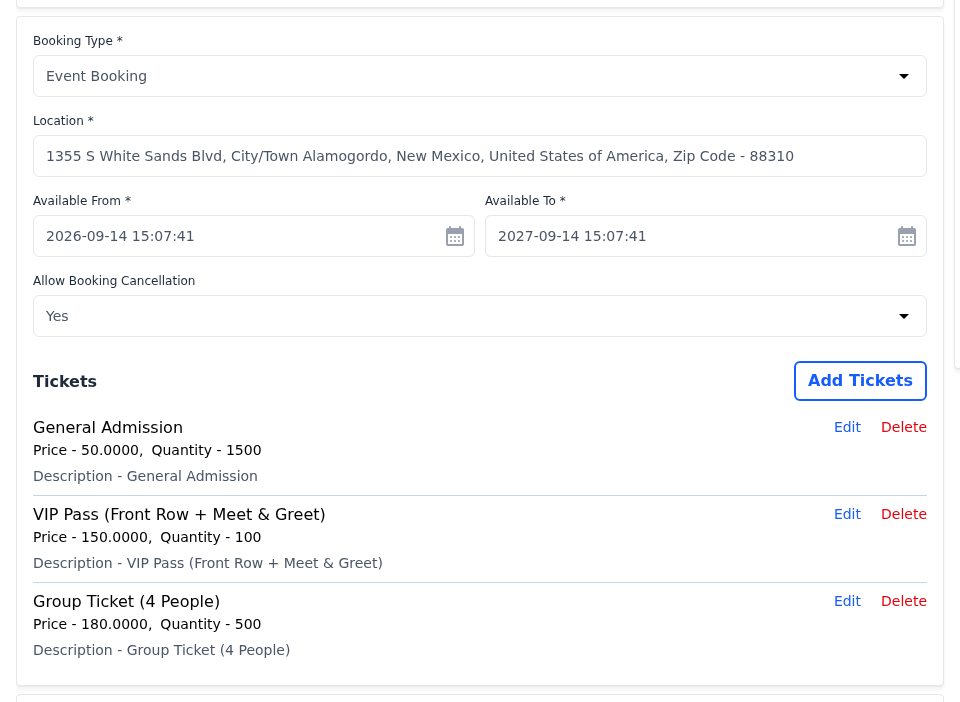
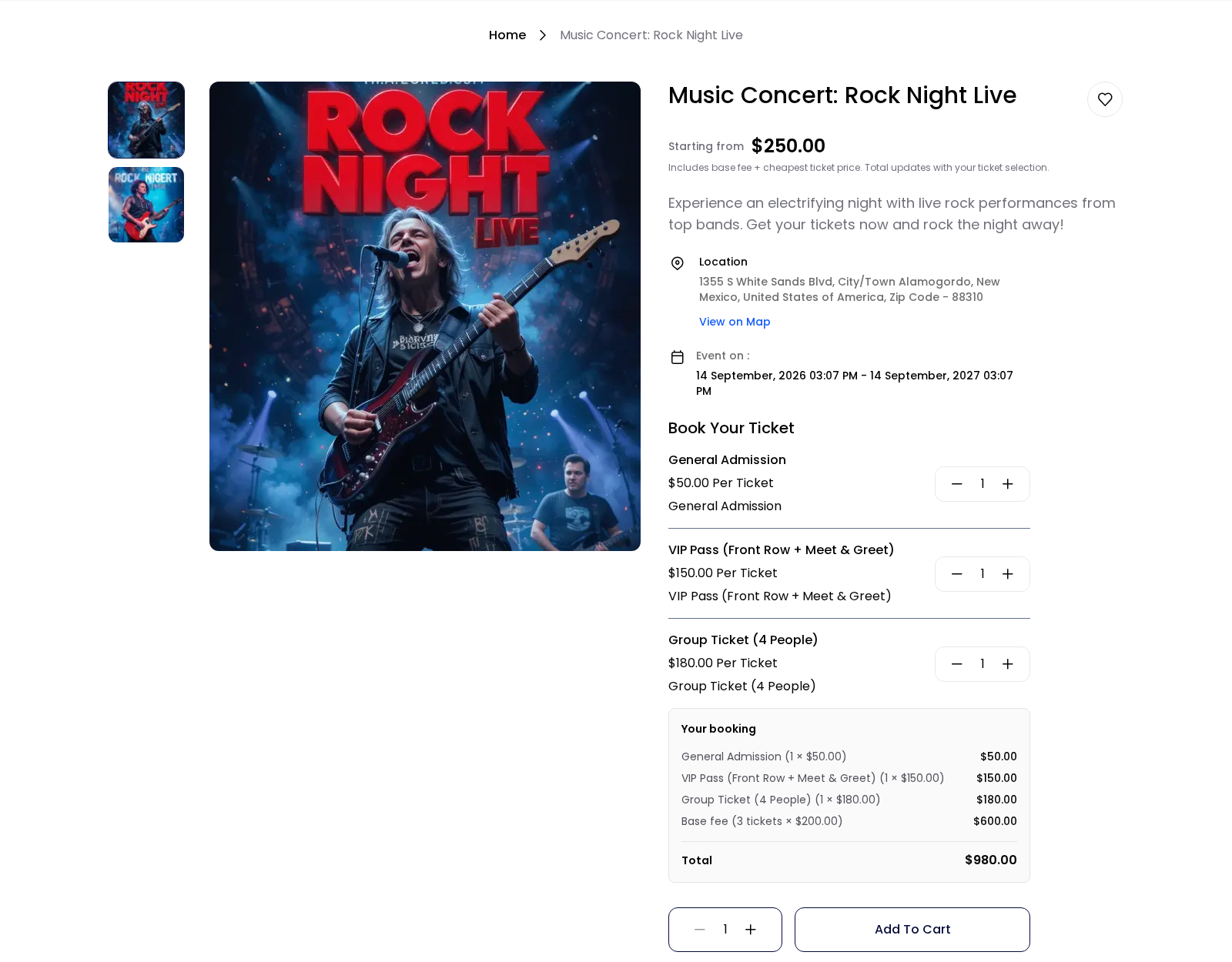
Use an event booking to sell tickets for an event, such as a concert. Available From and Available To are the date and time the event starts and ends, and each ticket has its own quantity.
Add tickets
- In Tickets, click Add Tickets. The Add Tickets panel opens.
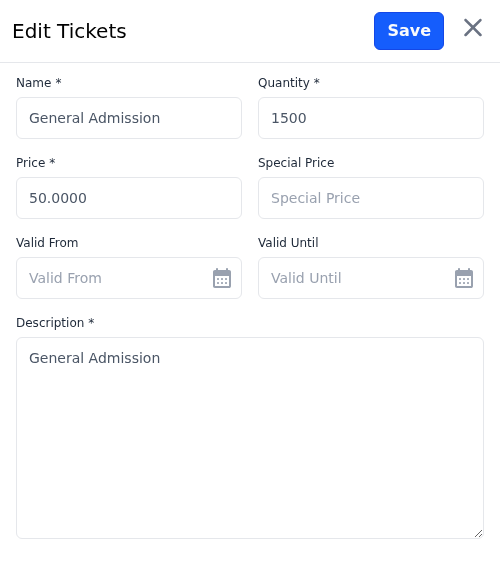
- Enter the ticket's Name, such as VIP Pass.
- Enter the Quantity available.
- Enter the Price.
- For a sale price, enter the Special Price.
- If the sale has dates, enter Valid From and Valid Until.
- Enter the Description.
- Click Save.
- Click Save Product.
Use Edit and Delete on a ticket to change or remove it. Ticket names and descriptions are saved for the language selected at the top of the edit screen.
On the storefront, shoppers see the event dates, then choose a quantity for each ticket under Book Your Ticket. Your booking lists the tickets and the Total.
Rental booking
Use a rental booking for things rented by the day or by the hour, such as cars or equipment.
| Setting | What it does |
|---|---|
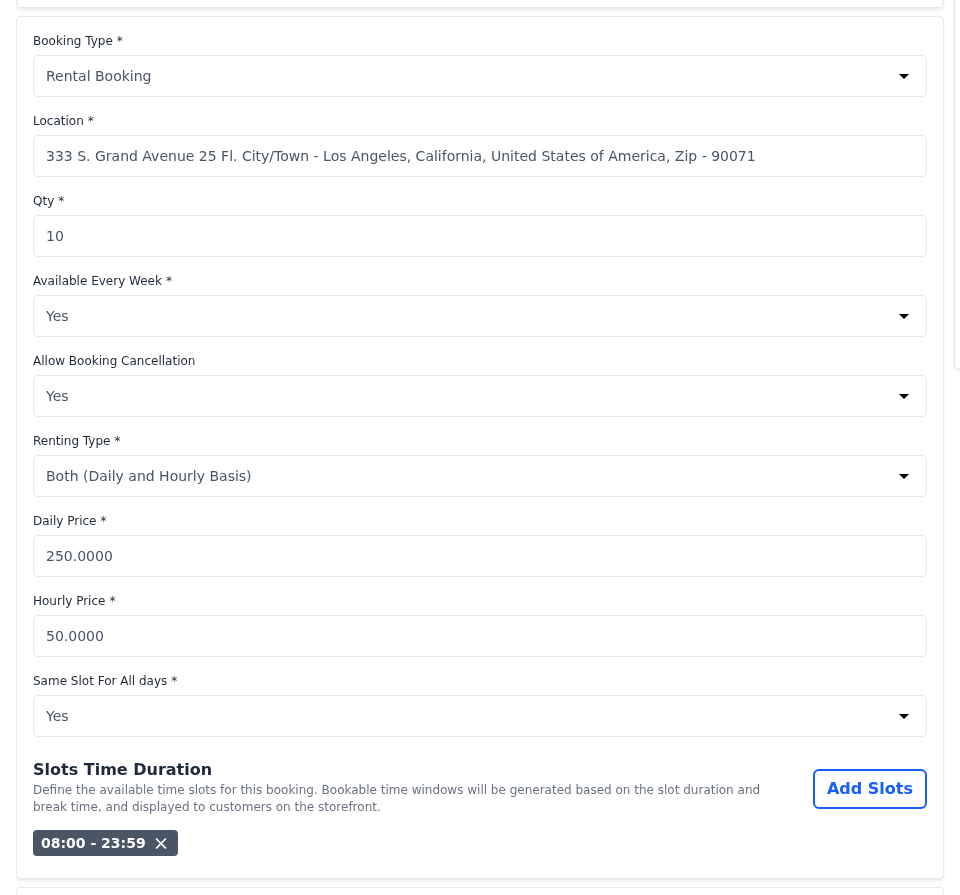
| Renting Type | Daily Basis, Hourly Basis or Both (Daily and Hourly Basis). |
| Daily Price | The rate per day. It appears for Daily Basis and Both. |
| Hourly Price | The rate per hour. It appears for Hourly Basis and Both. |
| Same Slot For All days | For hourly rentals: the same rental hours every day, or hours for each day. The hours editor follows, and each window must be at least one hour. |
On the storefront, shoppers offered both options choose Daily Basis or Hourly Basis under Choose Rent Option. For an hourly rental they choose a date, a slot and the hours, at least one hour in total; for a daily rental, the start and end dates. Your rental shows the total.
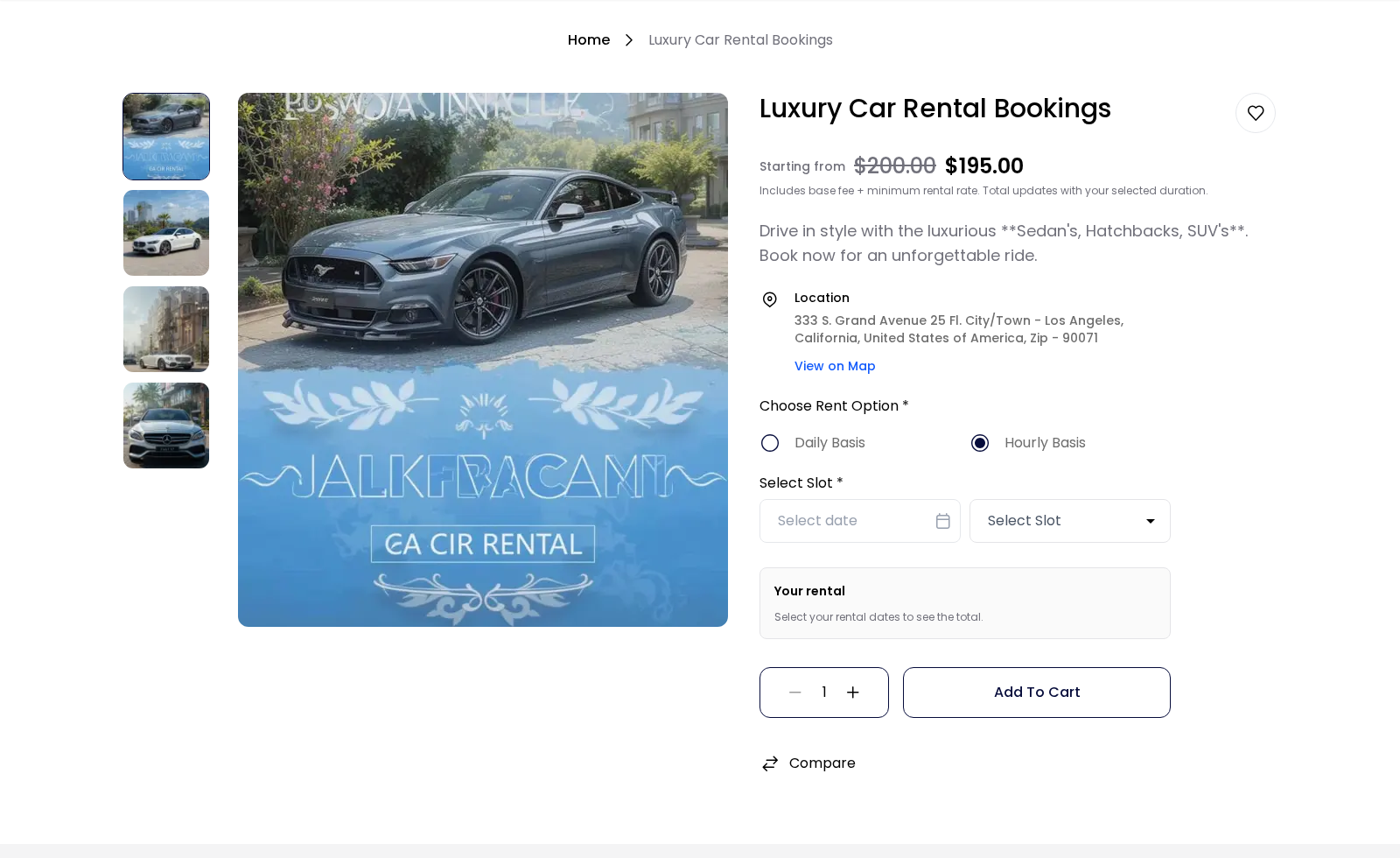
Table booking
Use a table booking for restaurant reservations.
| Setting | What it does |
|---|---|
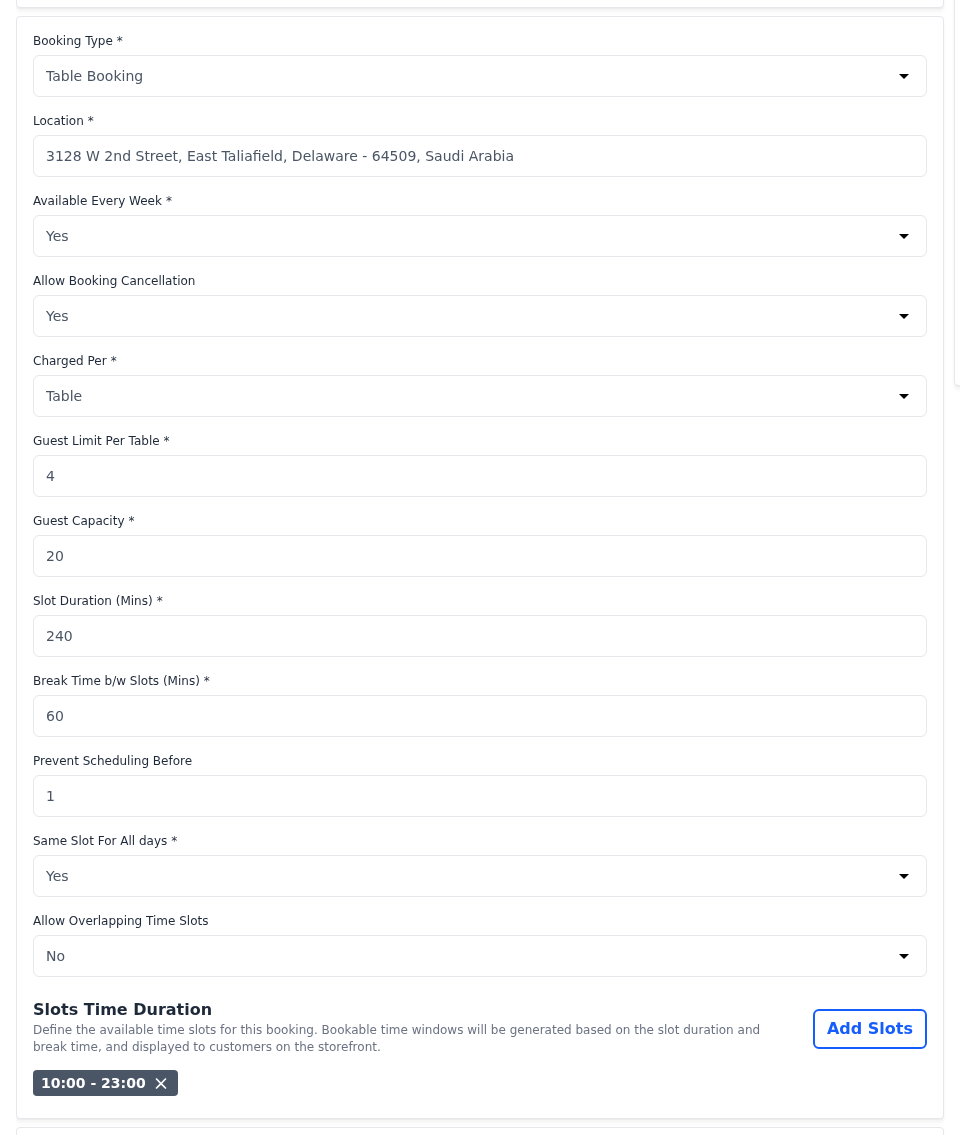
| Charged Per | Guest charges the price for each guest. Table charges it for each table. |
| Guest Limit Per Table | How many guests one table seats. It appears when Charged Per is Table. |
| Guest Capacity | How many guests can book each slot. |
| Slot Duration (Mins) | The length of each seating. |
| Break Time b/w Slots (Mins) | The gap between seatings. |
| Prevent Scheduling Before | How many days ahead shoppers must book. With 1, the earliest date they can choose is tomorrow. |
| Same Slot For All days | The same opening hours every day, or hours for each day. |
| Allow Overlapping Time Slots | Whether your opening-hour windows may overlap. |
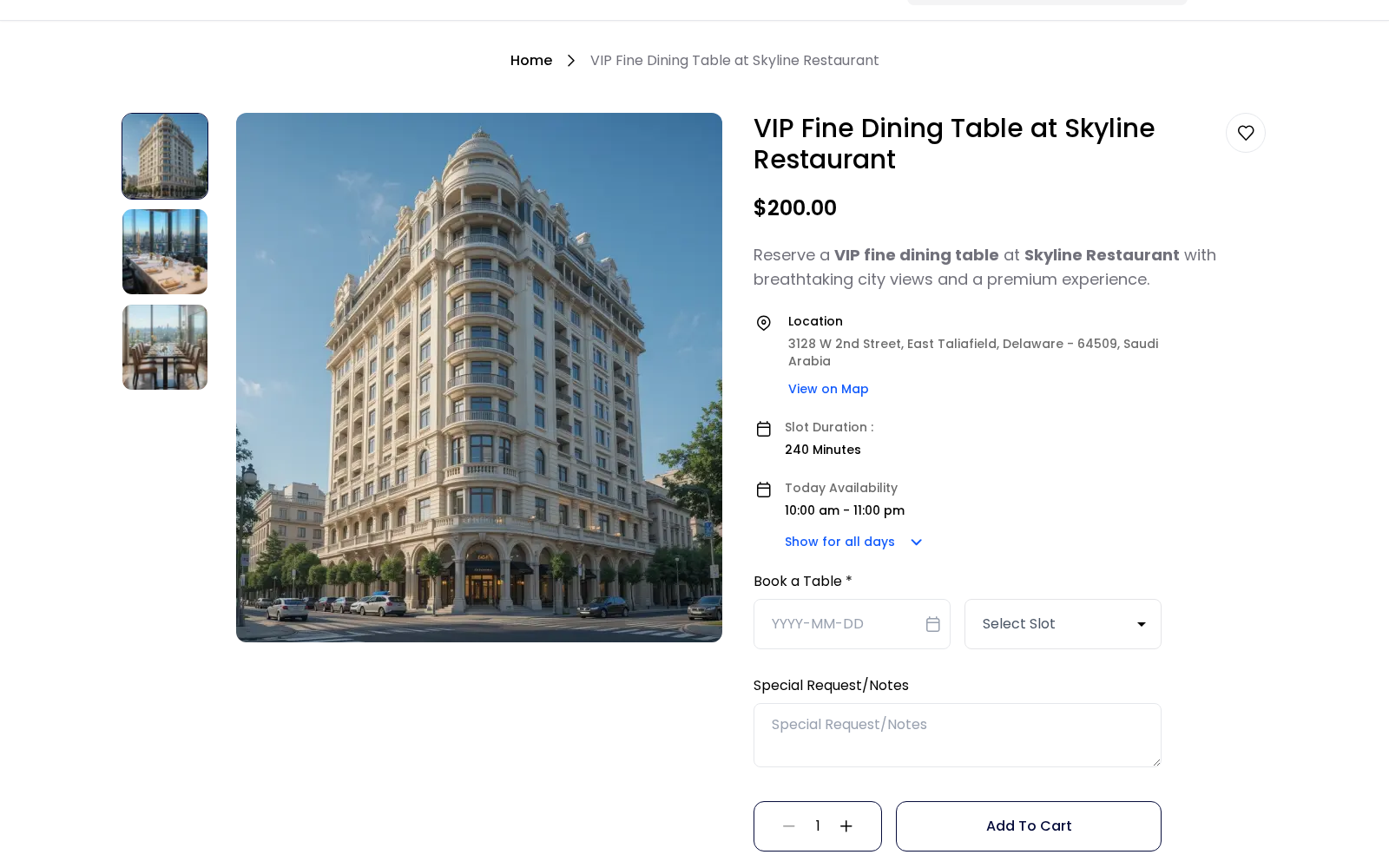
On the storefront, shoppers see the Slot Duration and, when Available Every Week is Yes, Today Availability with Show for all days. They choose a date and a slot under Book a Table, and can leave a Special Request/Notes.
What shoppers pay
| Type | Price |
|---|---|
| Default and appointment | The product's price for each booking. |
| Event | Each ticket's price. When the product has a price, it's added as a base fee for each ticket. |
| Rental | The product's price as a base rental fee, plus the daily or hourly rate for the time rented. |
| Table | The product's price for each guest or each table, depending on Charged Per. |
The page of an event or rental product shows a Starting from price: the product's price plus the cheapest ticket or the lowest rental rate.
Manage bookings
Every booking placed with an order is listed under Sales >> Bookings, in a week calendar or as a list. How to find a booking and open its order is described in Bookings.
Cancelling bookings
When Allow Booking Cancellation is No, shoppers can't cancel the booking from their account; if they cancel an order, its bookings stay in place. You can still cancel the order from the admin panel.