
Command Palette
The command palette is a search box that opens over any admin page. Type a few letters of what you are looking for and it lists the matching menu pages, configuration settings, actions and records, so you can reach any part of the admin panel without clicking through the sidebar.
It is available from Bagisto 2.5.
Opening and closing
Press Ctrl + K (⌘ K on a Mac) on any admin page. The palette opens with the cursor in its search field.
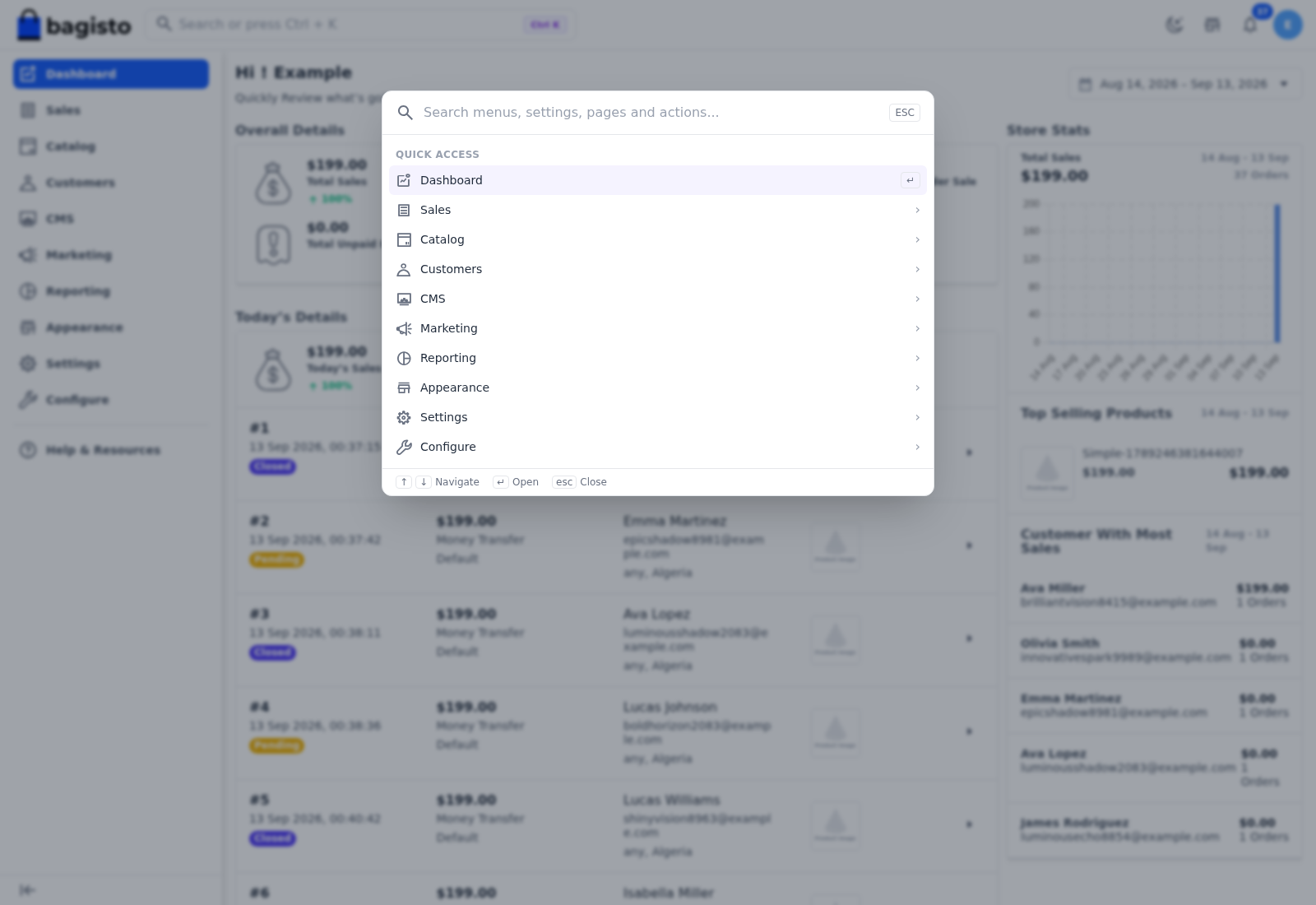
- ↑ and ↓ move the highlight, and Enter opens the highlighted row.
- ←, Backspace or Delete in an empty search field steps back out of a group you opened.
- Esc, the ESC badge, a click outside the box, or the shortcut again closes it.
The search box in the header shows Ctrl K as a hint. Typed into directly, that box searches only products, orders, categories and customers. See Admin Panel.
What it finds
Before you type, the palette shows Quick Access: every main menu item you can open, from Dashboard to Configure.
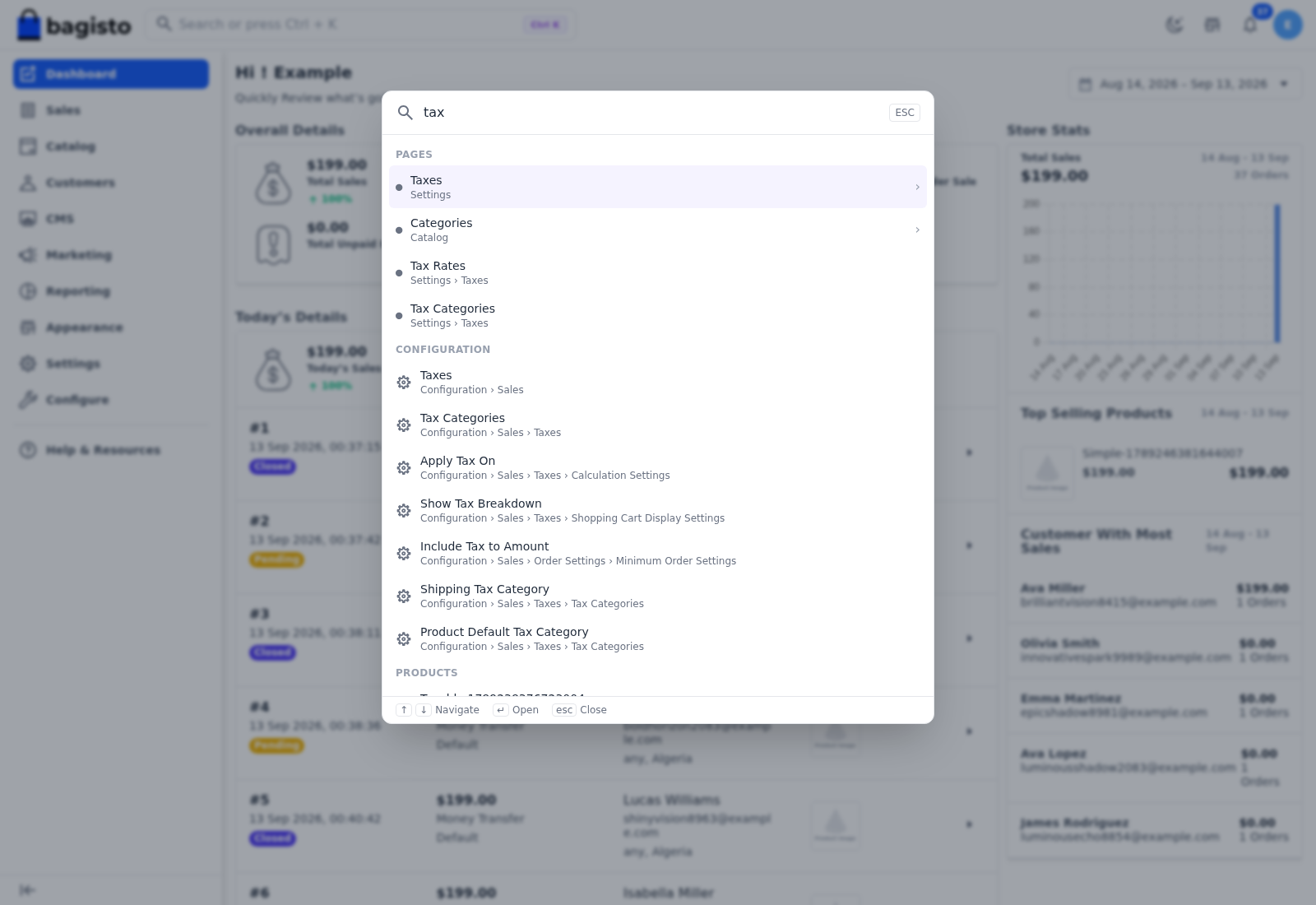
As you type, the results are grouped:
- Pages: screens in the admin menu, each with its place in the menu, such as Tax Rates under Settings › Taxes. Common synonyms are understood, so "vat" finds Taxes under Settings and "staff" finds Users.
- Actions: things you start rather than places you go, such as Create Category, Create Attribute and Create CMS Page.
- Configuration: every screen, group and single setting under Configure, such as Apply Tax On under Configuration › Sales › Taxes › Calculation Settings.
- Products, Orders, Categories and Customers: records, once you have typed at least two characters. Each group shows up to five matches, and picking one opens it.
If nothing matches, No results found appears.
| Record | Found by |
|---|---|
| Products | Name |
| Orders | The full order number, the order status, or part of the customer's email address, first name or last name |
| Categories | Part of the name |
| Customers | Part of the email address, first name or last name |
A search for a customer's full name, such as "Mia Patel", finds nothing. Search for the first name, last name or email address instead.
You only see what your role is allowed to open. An admin without permission to manage customers, for example, sees no customer pages, actions or records, and an admin without the Configure permission sees no configuration results.
Browsing a group
A row with an arrow at its end is a group. Opening it, with Enter or a click, shows the items underneath it and changes the search field to search that group only. The path you took is shown above the results: click Back or any step of the path to return to it.
This is the quickest way to browse a large list, such as every configuration screen under Sales, without knowing the exact name.
Some menu items open as a group rather than as their list page: Products, Orders, Categories, Customers, Attributes, CMS, Users and Imports. To open one of those lists, use the sidebar.
The Products, Orders, Categories and Customers groups have an All row, such as All Products. It shows Type to search: type part of a name, email or order number to list the matching records. Pick a record to choose what to do with it, such as Edit or View.
Each time you open the palette, it starts again at the top level.