
Generate Product Images
Magic AI creates images from a written description, right in the admin's image uploader. You choose how many images to create, their shape and their quality. Then you pick the ones you like and add them to the product like any uploaded photo. Nothing is added until you click Apply, and nothing is kept until you save the product.
Where the Magic AI tile appears
The Magic AI tile, labelled Generate Image, sits beside Add Image in the admin's image uploaders:
- Catalog >> Products: the Images section of a product, which is where you'll use it most.
- Other image fields that use the same uploader, such as a category's logo and banner under Catalog >> Categories, and a channel's images under Settings >> Channels.
The tile appears only when Magic AI and image generation are both switched on. In an uploader that takes a single image, it's shown only while the field is empty.
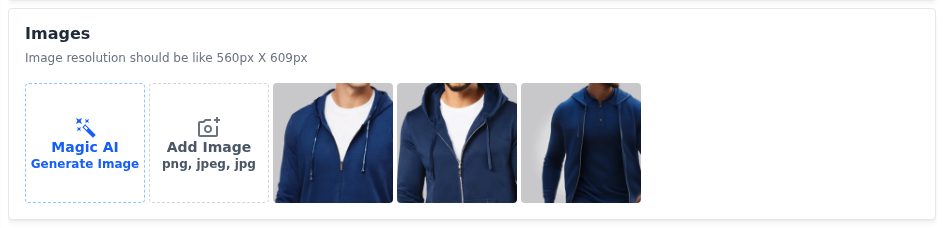
Generate images
Open the product under Catalog >> Products.
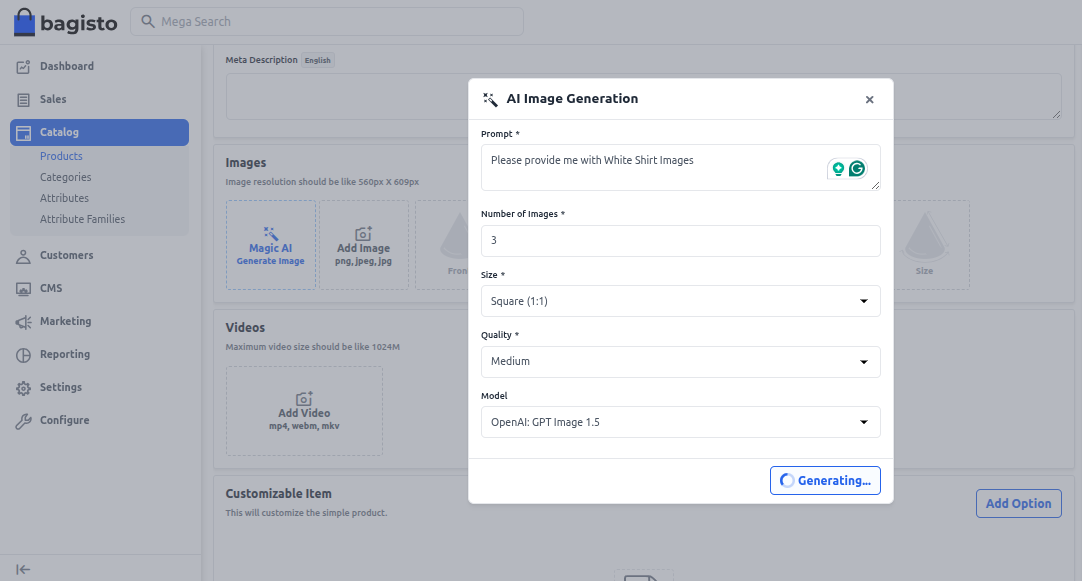
In the Images section, click Magic AI. The AI Image Generation dialog opens.
In Prompt, describe the image. For example: "A blue cotton zipper hoodie on a plain light grey background, soft studio lighting, front view".
Enter the Number of Images, from 1 to 10.
Choose the Size: Square (1:1), Portrait (2:3) or Landscape (3:2).
Choose the Quality: High, Medium or Low.
Choose the Model. Each option names the provider and then the model, for example OpenAI: GPT Image 2.5 Flare. The list holds the image models of the providers allowed for image generation, and changes as providers release and retire models.
Click Generate. The button reads Generating... while the images are created.
Click each image you want to keep. A selected image gets a blue border.
If none of them are right, click Regenerate to create a new set with the same settings.
Click Apply. The selected images are added after the product's existing images.
Click Save Product.
To change the prompt instead of regenerating, click the arrow at the top of the dialog.
After you apply
- The new images work like uploaded ones. Drag them into a different order, or remove the ones you don't need.
- They're kept only when you save. If you leave the product without saving, the generated images are discarded.
Tips
- Refine the prompt with one image at medium quality first, then generate the final set. Higher quality and more images take longer and cost more at the provider.
- Describe the background, angle and lighting, as well as the product itself.
- Make sure images show the product you really sell. Use generated images for backgrounds and lifestyle scenes, and check every detail before shoppers see it.
What you control
| Setting | What it does |
|---|---|
| Enabled under Configure >> Magic AI >> General | Switches every Magic AI feature on or off |
| Enabled in the Image Generation section of Configure >> Magic AI >> Admin Features | Shows the Magic AI tile in the image uploaders |
| Providers in the Image Generation section | Decides which providers' image models appear in Model. Only OpenAI, Gemini and xAI offer image models. |
| API Key under Configure >> Magic AI >> Providers | Connects each provider you use |
With xAI, the size and quality you choose are added to the description rather than sent as separate options, so the results may not match them exactly.
To set everything up, see Enable the admin features.