
Generate Text Content
Magic AI writes text for you inside the admin's rich-text editor. You describe what you need in a prompt and check the draft in a dialog. The draft goes into the editor only when you apply it. It's a quick way to get a first draft of a product description, a category introduction, a CMS page or a marketing email.
Where the Magic AI button appears
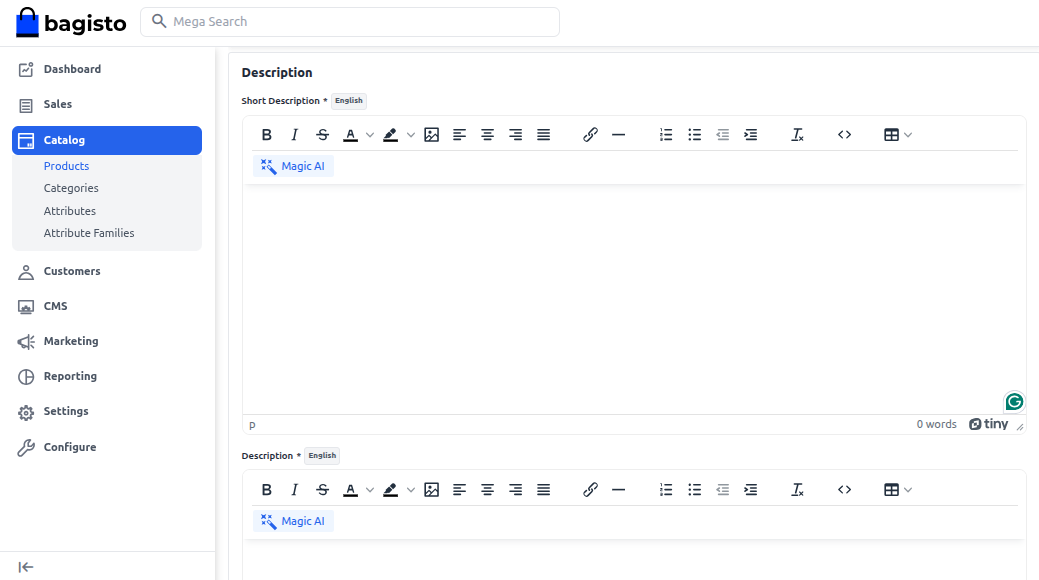
The Magic AI button sits in the toolbar of every rich-text editor in the admin panel:
- Catalog >> Products: the Short Description and Description fields, and any other text area attribute that uses the editor.
- Catalog >> Categories: the Description field.
- CMS: the page Content.
- Marketing >> Communications >> Email Templates: the template Content.
- Configure: text fields that use the editor, such as the GDPR agreement text.
The button is greyed out until Magic AI and text generation are both switched on.
Generate text
Open the item you're editing, for example a product under Catalog >> Products.
In the editor's toolbar, click Magic AI. The AI Assistance dialog opens.
In Prompt, describe what to write. For example: "Write a 120-word product description for a men's blue zipper hoodie made of soft cotton fleece, with a relaxed fit and two front pockets. Use a warm, friendly tone."
Choose the Model. Each option names the provider and then the model, for example OpenAI: GPT-5.6 Terra. The list holds the text models of the providers allowed for text generation, and changes as providers release and retire models.
Click Generate. The button reads Generating... while the model works. The draft then appears in Generated Content.
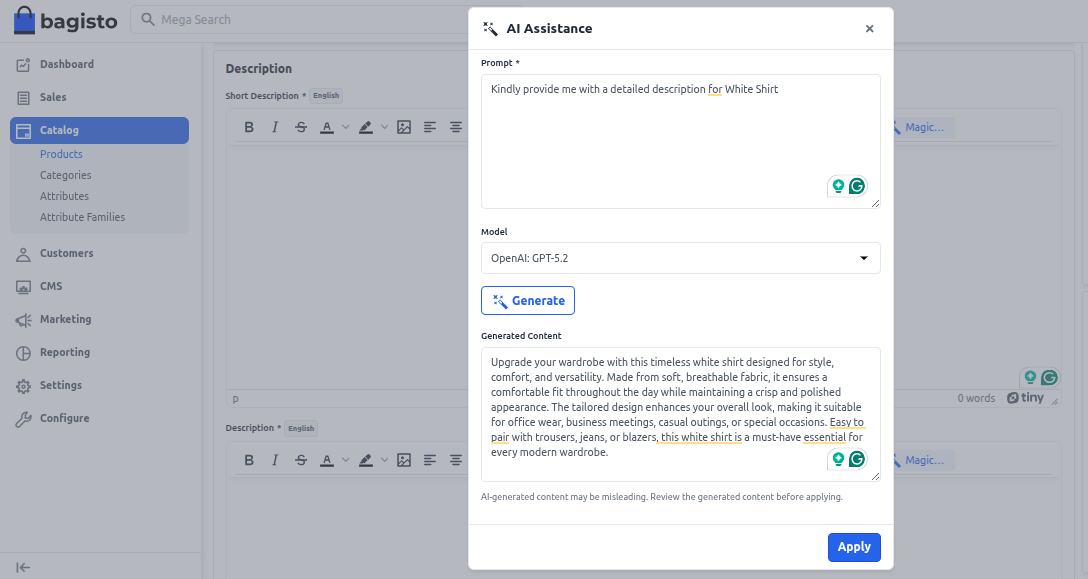
Read the draft. Edit it in Generated Content, or change the prompt and click Generate again.
Click Apply. The draft goes into the editor and the dialog closes.
Check the text in the editor, then save the item, for example with Save Product.
If the provider returns an error, for example because its API key is missing or wrong, the provider's own error message appears at the top of the screen and Generated Content stays empty.
Apply replaces what's in the editor
Apply replaces everything in the editor with the draft, including text you wrote before. Line breaks in the draft become line breaks in the editor. If you want to keep existing text, copy it first, or include it in your prompt and ask the model to improve it.
Write a good prompt
- Say what the text is for and how long it should be: a product description, a category introduction, a 200-word page.
- Give the facts the model can't know: materials, sizes, what's in the box, who the product is for.
- Ask for a tone: warm, technical, playful.
- Check the result. The dialog warns: "AI-generated content may be misleading. Review the generated content before applying." Check names, numbers and claims before you apply the text.
What you control
| Setting | What it does |
|---|---|
| Enabled under Configure >> Magic AI >> General | Switches every Magic AI feature on or off |
| Enabled in the Text Generation section of Configure >> Magic AI >> Admin Features | Turns the Magic AI button in the editors on |
| Providers in the Text Generation section | Decides which providers' models appear in Model |
| API Key under Configure >> Magic AI >> Providers | Connects each provider you use |
If the Model field is missing from the dialog, no provider is chosen for text generation yet. To set everything up, see Enable the admin features.
Each request is sent to the provider of the model you chose and billed by that provider, unless the model runs on your own Ollama server.