
Customer Group Pricing
Customer group pricing gives a product lower prices for a customer group, for larger quantities, or for both. Use it for trade prices, such as a lower price for your Wholesale group, and for tier prices that reward shoppers who buy more. You set group prices on the product, in the Customer Group Price block of its Price section.
Before you start
- Create the customer group and move the customers into it, or use one of the default groups. See Customer Groups.
- The product needs a Price section. Simple, virtual, downloadable and booking products have one. Configurable, grouped and bundle products don't, because their price comes from the products they contain. See Products.
Add a group price
Go to Catalog >> Products.
Click Edit (the arrow) on the product's row.
Scroll to the Customer Group Price block in the Price section.
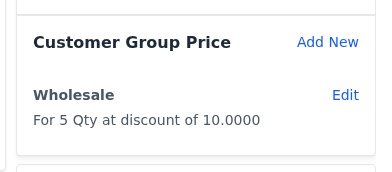
Click Add New. The Create Customer Group Price dialog opens.
Choose the Customer Group, or All Groups for every shopper, guests included.
Enter the Minimum Qty, the quantity the price starts at. Enter 1 for a price that applies to any quantity.
Choose the Price Type: Fixed for a set price per item, or Discount for a percentage off the product's Price.
Enter the Price: the price per item for Fixed, or the percentage from 0 to 100 for Discount.
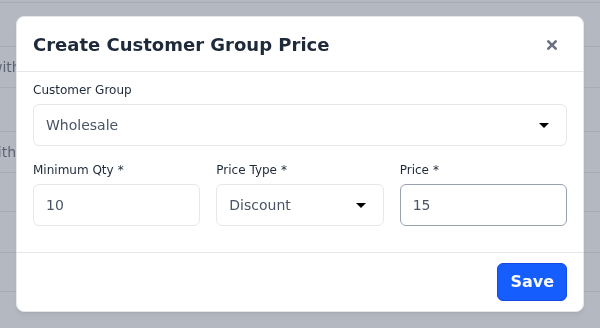
Click Save. The group price is listed in the block with a summary, such as For 10 Qty at discount of 15.
Click Save Product.
Nothing is saved until you save the product
Save in the dialog only adds the group price to the block. The product's group prices are saved when you click Save Product. If you leave the edit screen without saving the product, your changes are lost.
Change or remove a group price
To change a group price:
- Click Edit on its row in the Customer Group Price block. The Update Customer Group Price dialog opens.
- Change the fields.
- Click Save.
- Click Save Product.
To remove a group price:
- Click Edit on its row.
- Click Delete in the dialog.
- Click Agree to confirm.
- Click Save Product.
Which price a shopper pays
Bagisto works out a shopper's price from the group prices that apply to them:
- Only the group prices for the shopper's group and for All Groups count. Shoppers who aren't signed in belong to the Guest group.
- Of those, the group price with the highest Minimum Qty that the quantity reaches is used.
- A Discount is taken off the product's regular Price. A Fixed price is used only when it's lower than the price the group prices below it give.
- The shopper then pays the lowest of that price, the product's Special Price while it runs, and the price from any catalog rule.
The product page shows the price of one item. In the cart, the price follows the quantity in the cart.
What shoppers see
On the product page, under the price, shoppers see one line for each group price with a Minimum Qty above 1 that applies to them, such as Buy 10 for $102.00 each and save 15.00%. The saving is worked out from the product's regular price. Group prices with a Minimum Qty of 1 aren't listed: they change the price shown instead.
Example: trade and bulk prices
A product has a Price of $120.00 and these group prices:
| Customer Group | Minimum Qty | Price Type | Price |
|---|---|---|---|
| All Groups | 5 | Discount | 10 |
| Wholesale | 10 | Discount | 15 |
| Wholesale | 20 | Fixed | 90 |
The price of one item then depends on the shopper and the quantity:
| Quantity | Guest or General customer | Wholesale customer |
|---|---|---|
| 1 to 4 | $120.00 | $120.00 |
| 5 to 9 | $108.00 | $108.00 |
| 10 to 19 | $108.00 | $102.00 |
| 20 or more | $108.00 | $90.00 |
On the product page, a guest or a General customer sees Buy 5 for $108.00 each and save 10.00%. A Wholesale customer sees three lines:
- Buy 5 for $108.00 each and save 10.00%
- Buy 10 for $102.00 each and save 15.00%
- Buy 20 for $90.00 each and save 25.00%