
Search Engines
Product search on the storefront and in the admin panel runs on the database by default. For a large catalog, you can connect an Elasticsearch cluster and choose where it is used. The Search Engines group has two screens, General and Elasticsearch, and every setting on them applies to the whole store.
Settings
- Go to Configure >> Search Engines >> General.
- In Settings, switch Enable External Search Engine on. Default Search Engine appears.
- Choose the Default Search Engine: Database (the default) or Elasticsearch.
- Click Save Configuration.
Enable External Search Engine: While it is off, every search runs on the database, whatever the other settings say. It is off by default.
Default Search Engine: The engine used wherever a search mode below is left on Use Default. If it is Database, every search uses the database, whatever the search modes say.
Products
- Go to Configure >> Search Engines >> General.
- In Products, choose the Admin Search Mode.
- Choose the Storefront Search Mode.
- Click Save Configuration.
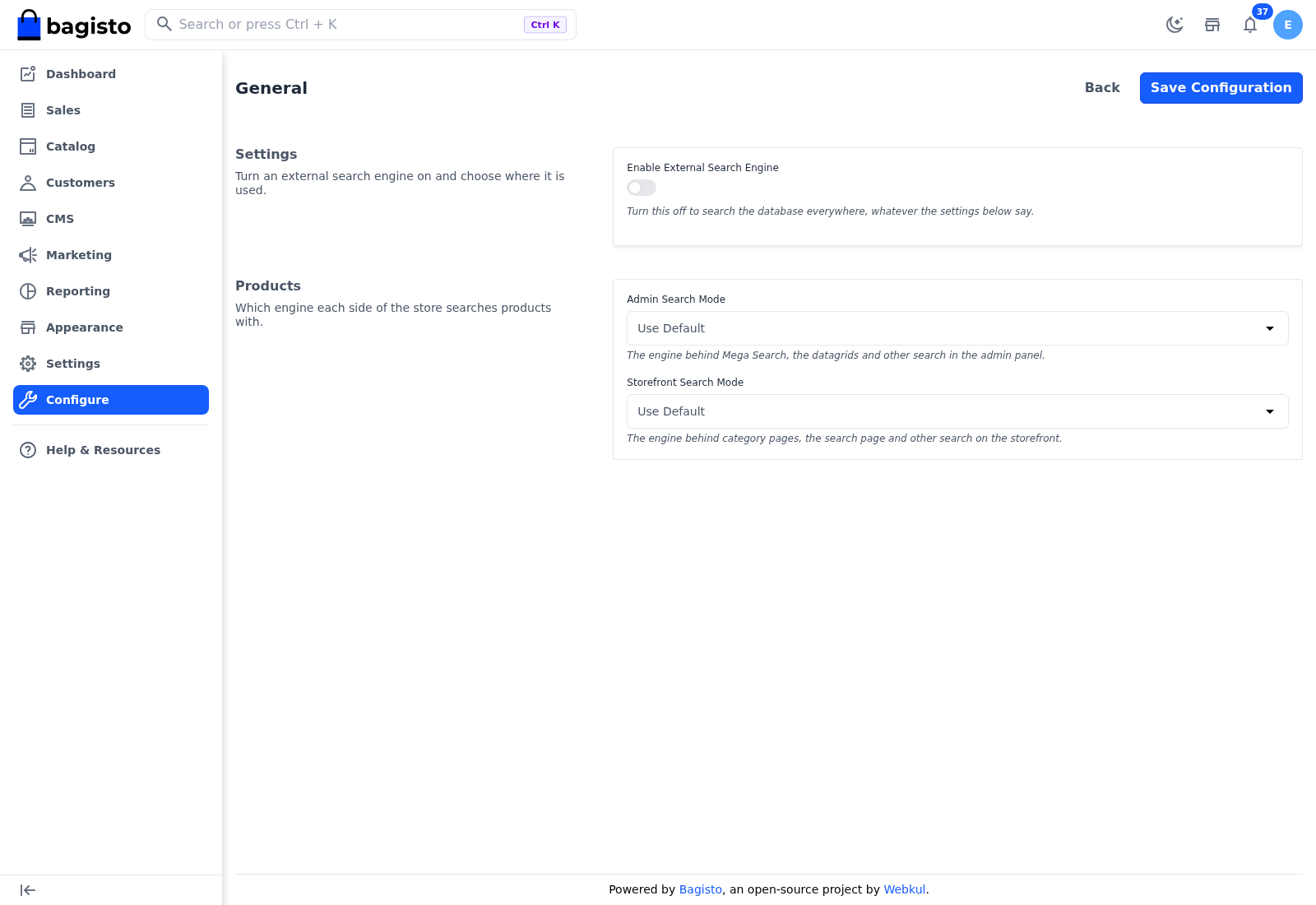
Admin Search Mode: The engine behind product search in the admin panel: the product results of the header search, the product grid and the product pickers.
Storefront Search Mode: The engine behind category pages, the search page and the other searches on the storefront.
Each search mode can be Use Default (the default), Database or Elasticsearch. A mode only uses Elasticsearch while Default Search Engine is Elasticsearch. For example, to keep the admin panel on the database while the storefront uses Elasticsearch, set Default Search Engine to Elasticsearch and Admin Search Mode to Database.
Elasticsearch
- Go to Configure >> Search Engines >> Elasticsearch.
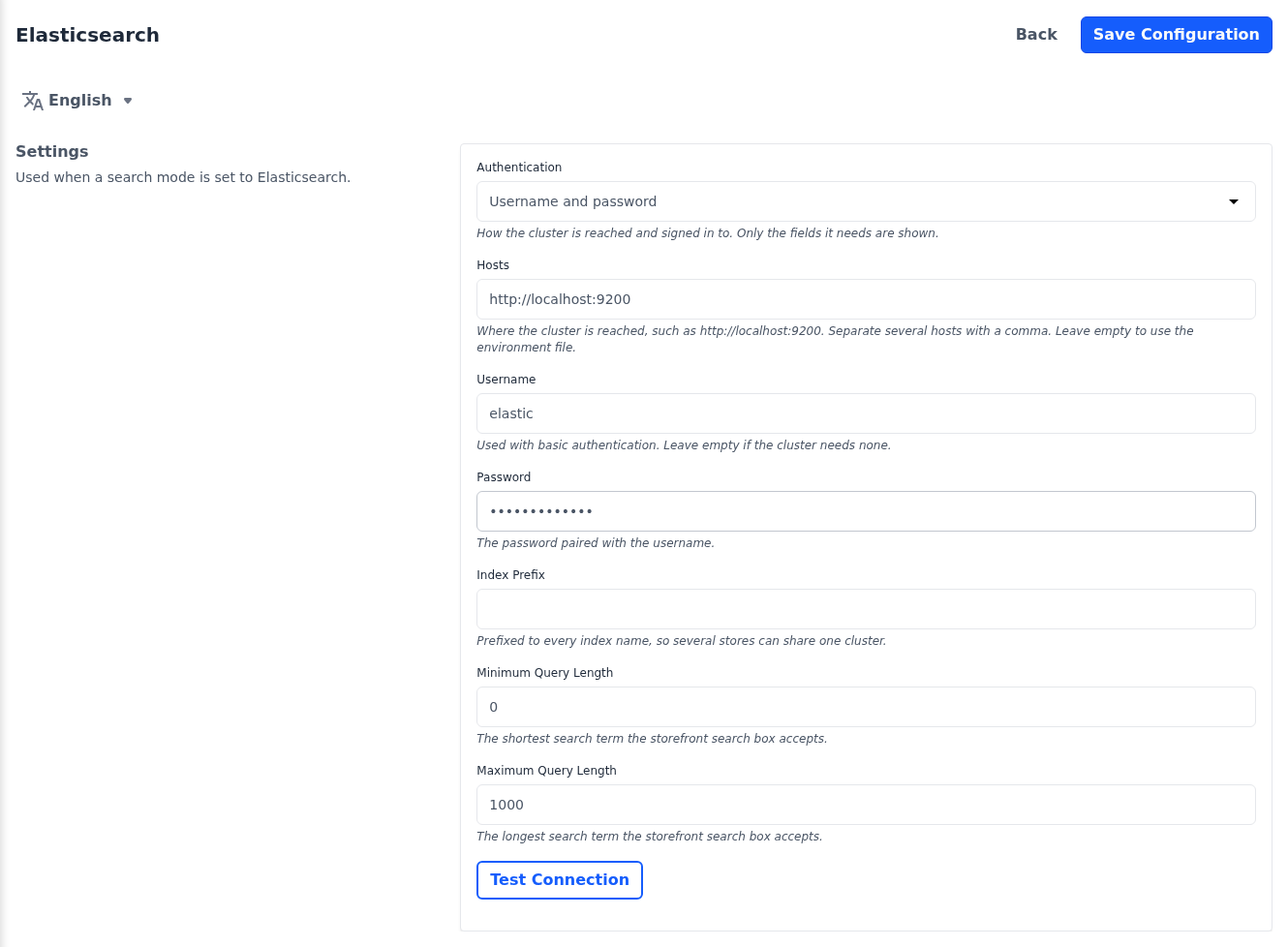
- In Settings, choose the Authentication. Only the fields that method needs are shown.
- Enter the connection details described in the table.
- Click Test Connection to check the details on screen. You don't have to save them first.
- Click Save Configuration.
| Setting | What it does |
|---|---|
| Authentication | How the store signs in to the cluster: No authentication (the default), Username and password, API key, Elastic Cloud with API key or Elastic Cloud with username and password. |
| Hosts | Appears for No authentication, Username and password and API key. Where the cluster is reached, such as http://localhost:9200. Separate several hosts with a comma. Leave it empty to use the value from the server's environment file. |
| Cloud ID | Appears for the two Elastic Cloud methods. The Cloud ID of your Elastic Cloud deployment. |
| Username | Appears for the two username and password methods. |
| Password | Appears with Username. The password paired with it. |
| API Key | Appears for the two API key methods. |
| Index Prefix | Added to the front of every index name, so several stores can share one cluster. |
| Minimum Query Length | The shortest search term the storefront search box accepts, from 0 to 255. The default is 0. |
| Maximum Query Length | The longest search term the storefront search box accepts, from 1 to 1000, and at least the Minimum Query Length. The default is 1000. |
The two query lengths apply to the storefront search box whichever engine it uses.
The result of Test Connection appears next to the button:
- Elasticsearch is available
- Elasticsearch did not answer
- Elasticsearch rejected the credentials
- The host answered but is not a supported Elasticsearch server
- The Elasticsearch connection is not configured
Below the result, the host that was tested is shown. When the cluster answers, its version and cluster name follow.
Build the index
A cluster only returns products that have been indexed. Products are indexed only while Enable External Search Engine is on and Default Search Engine is Elasticsearch. After connecting a cluster for the first time, ask whoever manages the server to run the product indexer. From then on, a product is indexed again whenever it is created, updated or deleted. If your server runs background jobs through a queue, the queue has to be running for these updates. See Scheduled Tasks.
Differences in Bagisto 2.4
Bagisto 2.4 has no Search Engines group. Its Search Engine, Admin Search Mode and Storefront Search Mode settings, and its Minimum query length and Maximum query length, are in the Search section under Configure >> Catalog >> Products. The engines to choose from there are Database and Elastic Search, and the Elasticsearch connection is set in the server's environment file.